Your Samsung phone remembers the Wi-Fi password, but now you need it for another device. On supported Galaxy phones running One UI 6.0 or later, you can reveal it in Settings, unlocking with your screen lock when prompted. You can even look up a saved network without connecting to it.
Reveal the password for your connected network
Start here if your phone is already connected to the network you need. Samsung introduced password viewing with One UI 6.0, and the screens vary a little by model and firmware.
Open Settings, then go to Connections > Wi-Fi.
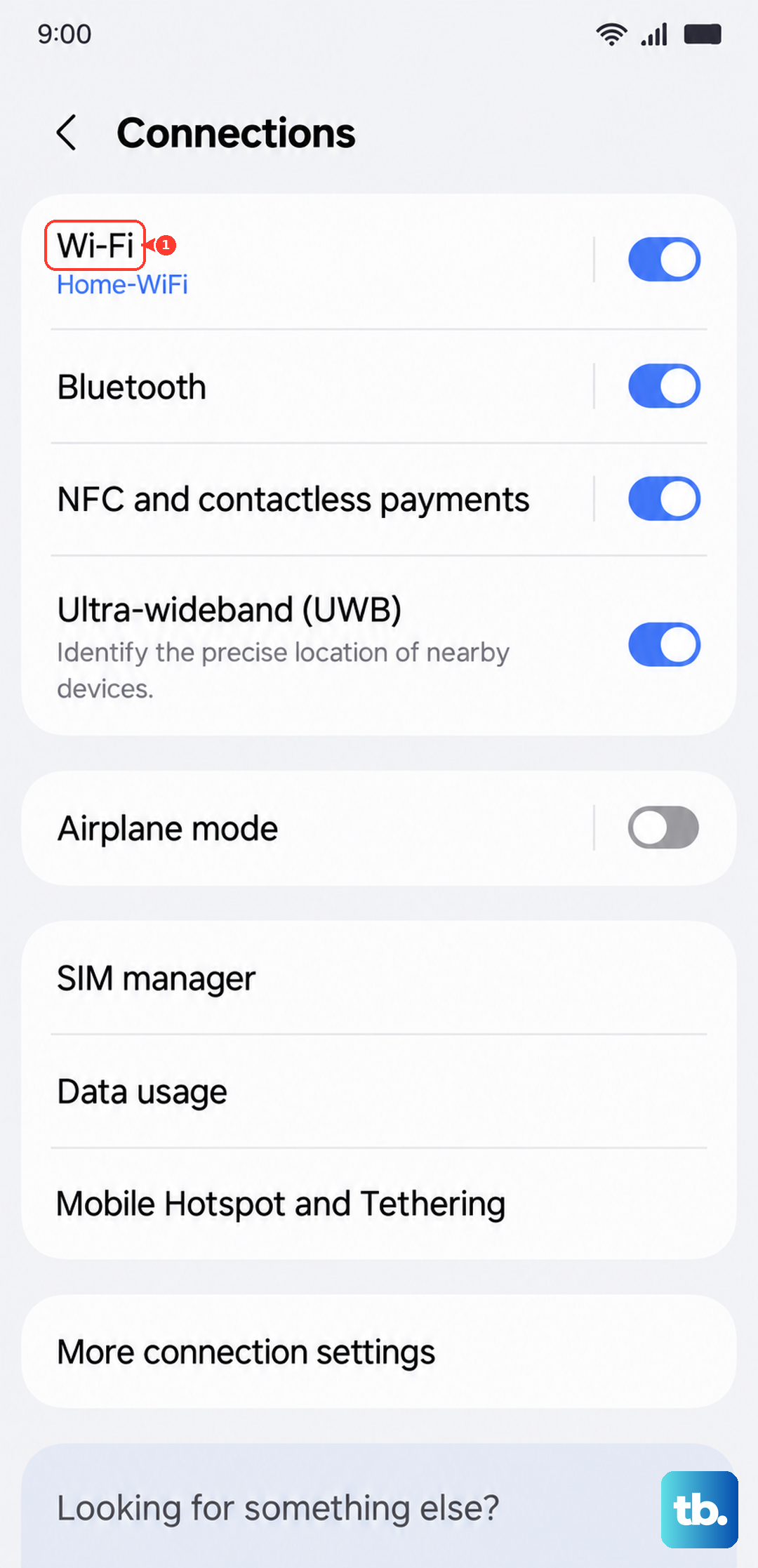
Tap the gear icon beside the connected network to open its details.
Tap the reveal icon beside Password.
If you use a secure screen lock, unlock with it when prompted, and the saved password appears.
Look up a previously saved network
You can pull up a network's password without joining it, as long as the connection is still saved.
- 1.Open Settings > Connections > Wi-Fi.
- 2.Tap More options (the three dots), then Advanced settings.
- 3.Open Manage networks.
- 4.Select the saved network you need.
- 5.Tap the reveal icon beside Password, unlocking with your screen lock when prompted.
Copy the password without retyping it
Reveal the password in the network's details using either Settings method above.
Press and hold the displayed Password to copy it to the clipboard.
Tip: once it's copied, just paste it into whichever field asks for the network password.
Share the connection with a QR code
If someone simply needs to get online, a QR code spares you from typing the password at all. Connect your Samsung phone to the network first.
Open Settings > Connections > Wi-Fi, tap the connected network's gear icon, then tap QR code. Complete authentication when prompted.
The other device scans the code and connects. This shares network access, but it does not necessarily display the password as text.
If your firmware shows a Share network button, tap that instead to open the network-sharing interface.
Decode the password from a Wi-Fi QR image
A browser decoder helps when you can generate a Wi-Fi QR code but need the password as readable text. It uploads the credential-bearing image to the decoder service, so use it only if you're comfortable sharing that information.
With the network's QR code on screen, briefly press the Side or Power button and Volume Down together to take a screenshot. Some screens or management restrictions block screenshots.
Open ZXing Decoder Online at zxing.org/w/decode.jspx in your browser.
Under Or upload a file (<10MB, <10MP), select the screenshot you just took (Samsung saves screenshots to the Screenshots album in Gallery), then submit it.
Check the decoded content. In a standard Wi-Fi payload beginning with WIFI:, the P: field holds the password. If the decoded result doesn't begin with WIFI:, use one of the options below instead.
This won't recover a network you have no accessible QR image for. Samsung's own QR scanners give you connection access, but they don't guarantee a readable password.
Find the same password outside your phone
Check your router's bottom or rear label for its default network name and wireless password.
Match the printed network name to the one in Settings > Connections > Wi-Fi on your Samsung phone. The label only works if the password hasn't changed.
For a Google Wifi or supported Nest Wifi network you manage, open Google Home > Home > Wifi > Share password to read it.
On a Windows 11 PC that saved the same network, open Settings > Network & internet > Wi-Fi > Manage known networks.
Select the network on the PC.
Click Show beside Wi-Fi network password.
Tip: a router label or another device's saved copy may be out of date if the network owner changed the password.
Troubleshoot a password that stays hidden
If there's no Password option, your phone may be running a One UI version older than 6.0, which lacks the password viewing Samsung introduced in One UI 6.0.
If your phone doesn't offer password viewing, use QR sharing or one of the router and other-device options instead. If the network is no longer saved, ask its owner for the current password.
On a work or managed phone, an administrator can hide Wi-Fi passwords, including those for previously connected networks. Ask your administrator for the credential or for permission to view it.
Don't tap Forget while you're hunting for the password, because it removes the saved connection. Network resets and factory resets won't retrieve it either.
Frequently Asked Questions
Is my Samsung hotspot password the same as my saved Wi-Fi password?
No, they are separate passwords. To find your phone's hotspot password, open Settings > Connections > Mobile Hotspot and Tethering > Mobile Hotspot. Turn it on if the interface requires it, then read Password. Hotspot availability is subject to carrier restrictions.
Can I use Bixby Vision to read a Wi-Fi QR code?
Older tutorials recommend Bixby Vision, but Samsung says it does not provide QR recognition. Use the Quick settings QR scanner for connection access, or a QR decoder when you need the password as text.
Can I see the password if I am away from the Wi-Fi network?
Yes, on supported Galaxy phones running One UI 6.0 or later. Use Manage networks to select the saved connection and reveal its password. The network must still be saved, and management restrictions can hide the password.
Does scanning a Wi-Fi QR code always show the password?
No. Samsung's QR-scanning tools can connect you to the network without displaying the password as text. After joining, use the Settings password-viewing method to reveal it.