Factory resetting your Samsung Galaxy Tab S11 Ultra wipes everything clean and sends it straight back to day one. It's a big move, whether you're trading it in for the next model or just trying to kill a persistent software glitch on Android 16. Here is exactly how to do it without running into problems.
Save everything before you wipe it
Backing up your data is the first and most important step. Pull out the keyboard cover, plug the charger into a wall outlet, and make sure the tablet has enough juice to finish the job.
Open Settings > Accounts and backup > Back up data to save your apps, home screen layout, and settings to Samsung Cloud. You can also head over to Settings > Accounts and backup > Google Drive to sync your Google data. For a complete offline backup, connect the tablet to a computer and use Smart Switch. It works on both Windows and Mac.
Double check that your photos and documents are synced to their respective cloud services. Once you pull the trigger on the factory reset, anything left on the internal storage is gone for good.
Kill the account locks
Factory Reset Protection is a real headache if you forget to remove your accounts first. Go to Settings > Accounts and backup > Manage accounts and tap through each account listed. Select Remove account for both your Samsung account and your Google account.
This step keeps the tablet from asking for the old password right after the reset. Without it, you could end up locked out of a tablet that technically belongs to you.
The standard Settings route
If your Tab S11 Ultra boots up normally, this is the easiest way to reset it. Open Settings > General management > Reset > Factory data reset.
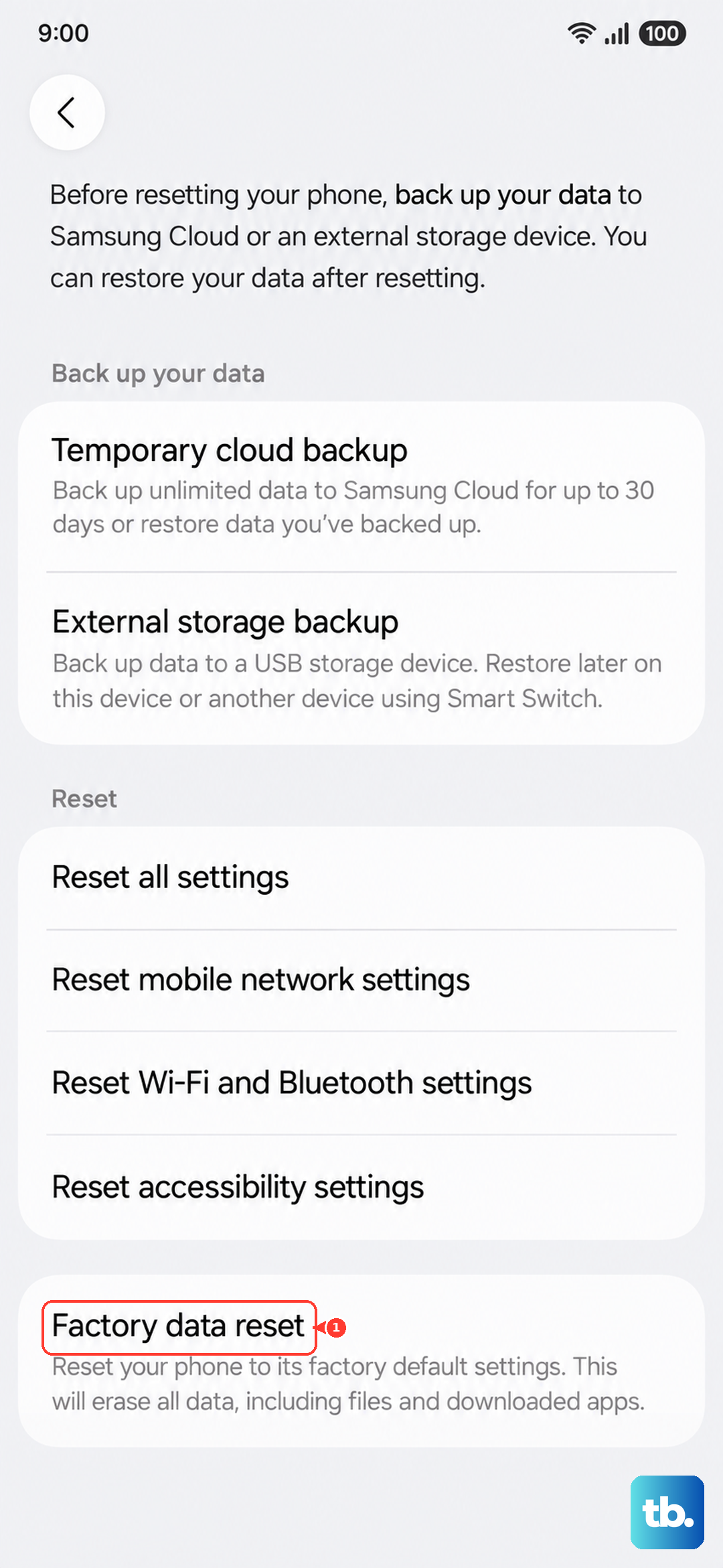
Read through the list of what will be erased. Scroll all the way down and tap Reset, then Delete all. You will need to enter your PIN, pattern, or password to confirm. The tablet will restart and start wiping the data. When it finishes, you will see the welcome screen.
Hardware button reset (Recovery Mode)
If the screen is black or the tablet is stuck on the Samsung logo, you can still reset it using the physical buttons. Before you start, make sure the battery has some charge in it.
The Tab S11 Ultra has a known behavior where it becomes completely unresponsive if the battery drains to zero. If the tablet is dead, plug it into the included 45W charger and a wall outlet directly. Do not use a power strip or extension cord. It can take up to ten minutes for the charging indicator to appear, so be patient.
Once the tablet has some power, turn it off completely. Press and hold Volume Up and the Power button at the same time until you see the recovery menu. Use the Volume keys to highlight Wipe data/factory reset and press Power to select it. Confirm by selecting Factory data reset on the next screen. When it finishes, choose Reboot system now.
If the tablet is frozen but still on
Sometimes you do not need a full factory reset to get things moving. If the screen is stuck or an app is misbehaving, try a force restart first. Press and hold the Power button and the Volume Down button together for 10 to 15 seconds. The Tab S11 Ultra will reboot on its own.
This does not erase any data. It just cuts the power and forces a clean boot. It fixes a surprising number of problems in about fifteen seconds.
A lighter alternative to the full wipe
If you are dealing with a specific problem like Wi-Fi dropping or display glitches, you do not always need to nuke the whole tablet. Go to Settings > General management > Reset and look at the targeted options.
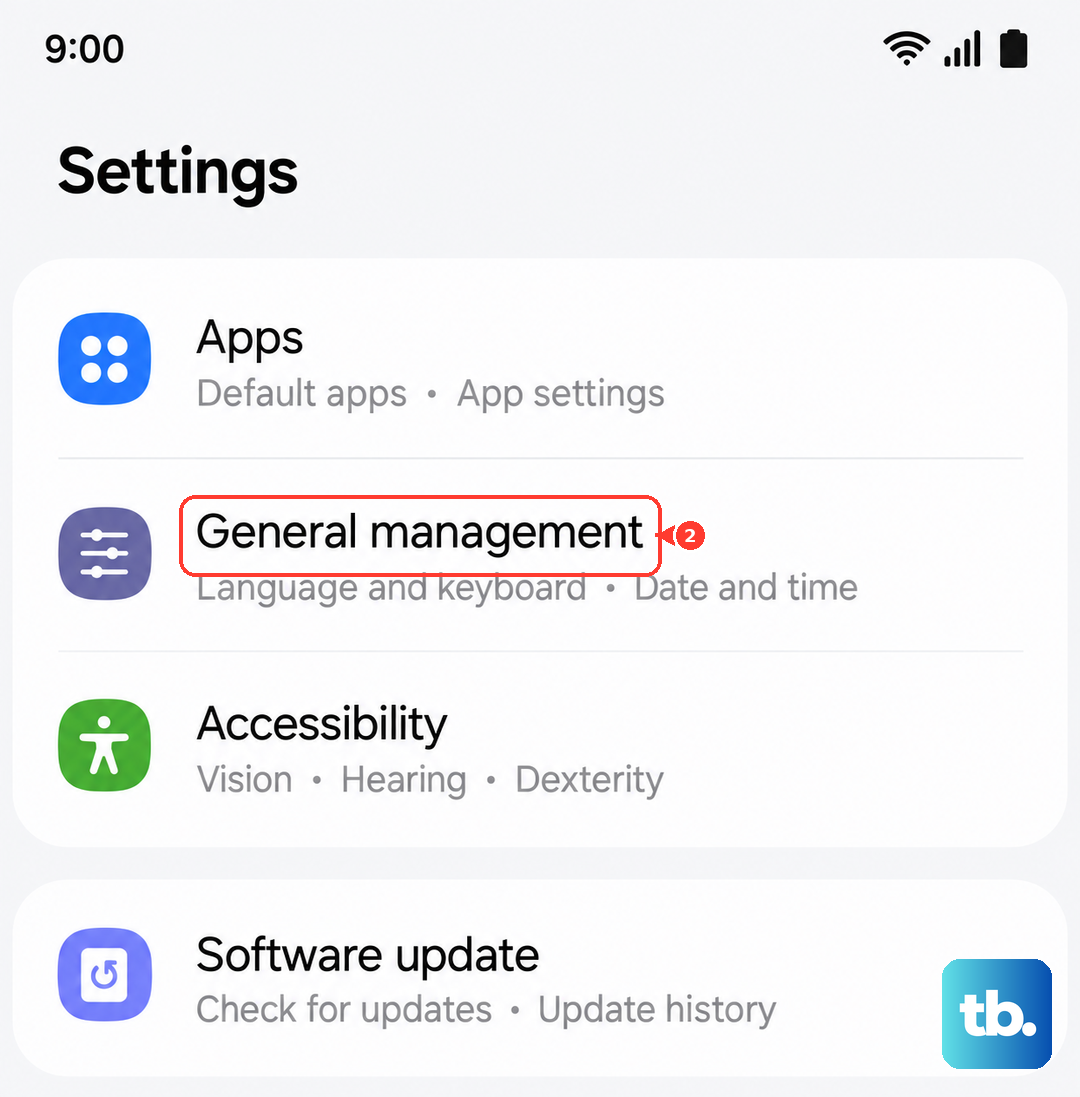
You can reset only your network settings, which clears saved Wi-Fi networks and Bluetooth pairings. There is also an option to reset accessibility settings or just app preferences. These leave your personal files and apps untouched while still clearing out configuration clutter.
The first boot after the reset
Once the factory reset finishes, your Tab S11 Ultra boots straight into the Android 16 setup wizard. Pick your language, connect to Wi-Fi, and sign into your Samsung and Google accounts. The tablet will prompt you to restore from a backup, so choose the one you made earlier and let it run.
Give the tablet time to reinstall any apps and download system updates over Wi-Fi. Plugging into the 45W charger during setup keeps the battery from draining while everything syncs in the background.