
Factory resetting your Motorola Edge 40 is the most thorough way to wipe it clean, returning it to the state it was in when you first took it out of the box. It's a powerful step for troubleshooting deep software glitches, preparing the phone for a new owner, or simply getting a completely fresh start with Android 15.
Back Up Everything to Google First
Before you do anything else, make sure all your personal data is safely backed up. On your Edge 40, head to Settings > System > Backup. Here, you can confirm your Google account is active and tap Back up now to force an immediate backup of your app data, call history, contacts, and device settings.
Double-check that your photos and videos are syncing to Google Photos by opening the app and verifying the cloud icon. Once you initiate a factory reset, there is no undo button for anything stored locally on the device.
Remove Your Google Account
This is a critical step to avoid Factory Reset Protection (FRP) locks after the wipe. Go to Settings > Passwords & accounts. Tap on your primary Google account and select Remove account. Confirm the removal when prompted.
By doing this, you ensure the phone won't ask for the previous owner's credentials (yours) after the reset, which is a common hurdle if you're selling or giving the phone away.
Perform the Reset from Android Settings
The standard method is through the system menu. Navigate to Settings > System > Reset options. Tap on Erase all data (factory reset). You'll see a final screen detailing everything that will be deleted.
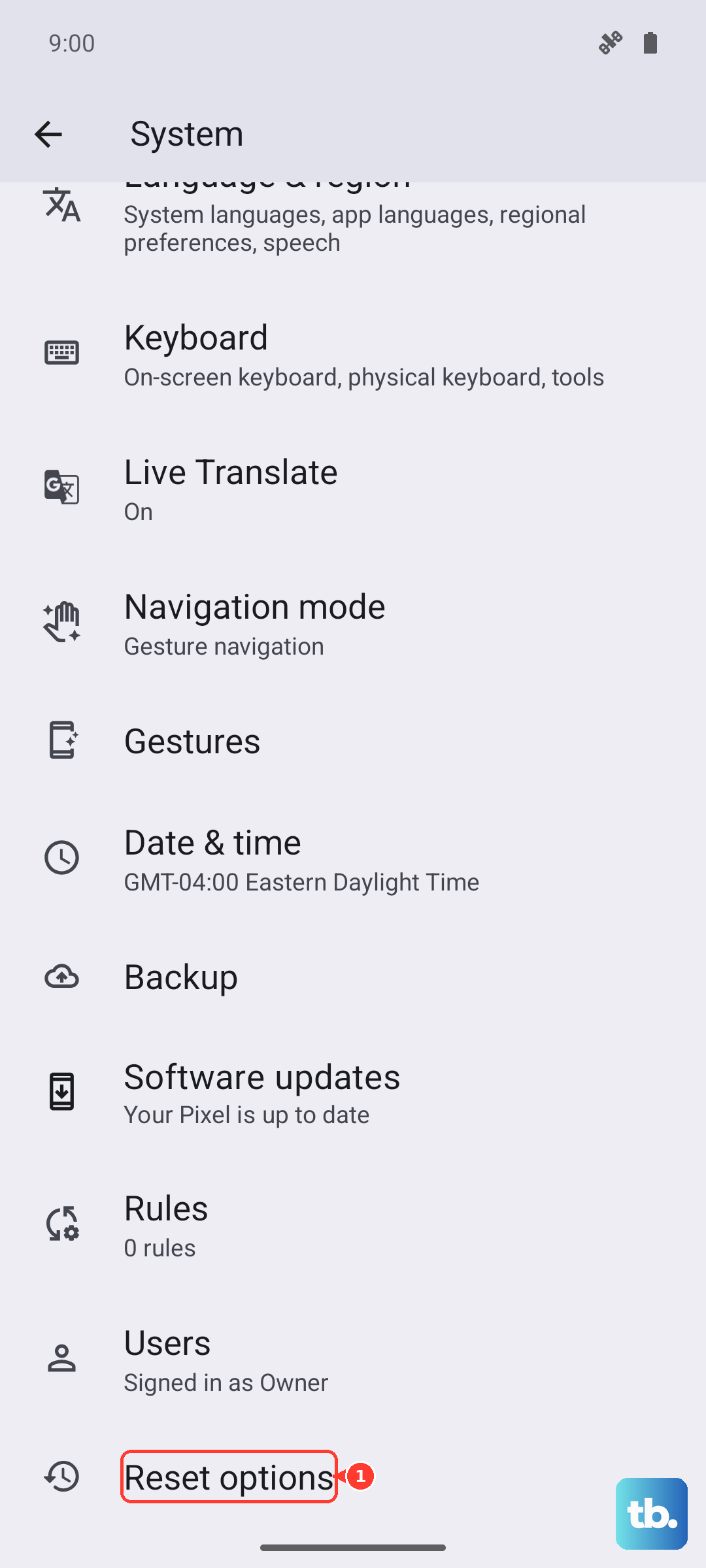
Tap Erase all data at the bottom. You'll likely need to enter your device's PIN, pattern, or password for final confirmation. The phone will then reboot and begin the erasure process, which takes a few minutes before landing on the initial Android setup screen.
Use Recovery Mode for a Frozen Phone
If your Edge 40 is unresponsive, stuck in a boot loop, or you can't access the settings menu, you'll need to use the hardware buttons. First, power the phone down completely.
Once it's off, press and hold the Volume Down button and the Power button together. Keep holding them for about 10-15 seconds until you feel a vibration and see the Motorola logo, then release. Use the Volume Down button to scroll and highlight Recovery Mode, then press the Power button to select it.
When you see the Android robot with an exclamation mark, hold the Power button and briefly press the Volume Up button once. This will bring up the recovery menu. Use the volume buttons to navigate to Wipe data/factory reset and select it with the Power button. Confirm on the next screen. Once it's done, select Reboot system now.
Try a Less Drastic Reset First
For issues like Wi-Fi dropping, Bluetooth pairing problems, or general app misbehavior, a full factory reset might be overkill. Go back to Settings > System > Reset options.
Here, you'll find choices like Reset Wi-Fi, mobile & Bluetooth or Reset app preferences. These options clear network connections and reset app permissions without touching your personal files, and they often solve the problem.
Restoring Your Phone After the Reset
After the reset is complete, you'll walk through the standard Android setup. Connect to a Wi-Fi network and sign back in with your Google account. When you reach the "Copy apps & data" screen, choose to restore from the cloud backup you made earlier.
This will reinstall your apps and bring back many of your settings. You'll still need to log into individual apps like social media or banking apps manually for security reasons.
When a Factory Reset Makes Sense
I'd consider a factory reset for persistent, unexplained slowdowns, constant app crashes that survive updates, or severe battery drain that diagnostics can't pinpoint. It's also the only responsible step before selling or recycling your Edge 40. For simpler issues, starting with a cache partition wipe or the reset options mentioned above is always a better first step.