Wiping your iPhone 17 Pro clean is the most definitive way to start over, whether you're passing it on, troubleshooting deep software glitches, or just craving a fresh slate. It's a complete restoration to its original factory state, which means every app, photo, and setting you added is permanently removed. I'd always recommend backing up your data first, as there's no undo button once the process starts.
Create a Backup Before Anything Else
Your first move should be to secure your data. On your iPhone 17 Pro, head to Settings > tap your name at the top > iCloud > iCloud Backup. From there, tap Back Up Now and stay connected to Wi-Fi until it finishes. You'll see the time of your last successful backup right there.
For a local backup, connect your phone to a Mac or PC using a USB-C cable. On a Mac with macOS Catalina or later, open Finder, select your iPhone from the sidebar, and click Back Up Now. On a Windows PC, open the Apple Devices app; use iTunes only if the PC doesn't have Apple Devices. This local backup can be a lifesaver if you need to restore later.
Sign Out of Apple ID and iCloud
If you're giving the phone away, Apple still recommends signing out before you erase it, but a proper Erase All Content and Settings flow also turns off Find My and Activation Lock when you authenticate with your Apple Account. To sign out manually, go to Settings > tap your name at the top, then scroll down and tap Sign Out.
On iOS 26 or later, choose Erase this iPhone if you want sign-out and erasure handled together, or choose Sign Out But Don't Erase if you're only disconnecting your account for now. If prompted, choose Sign out of iCloud and Store.
Erase All Content and Settings Directly
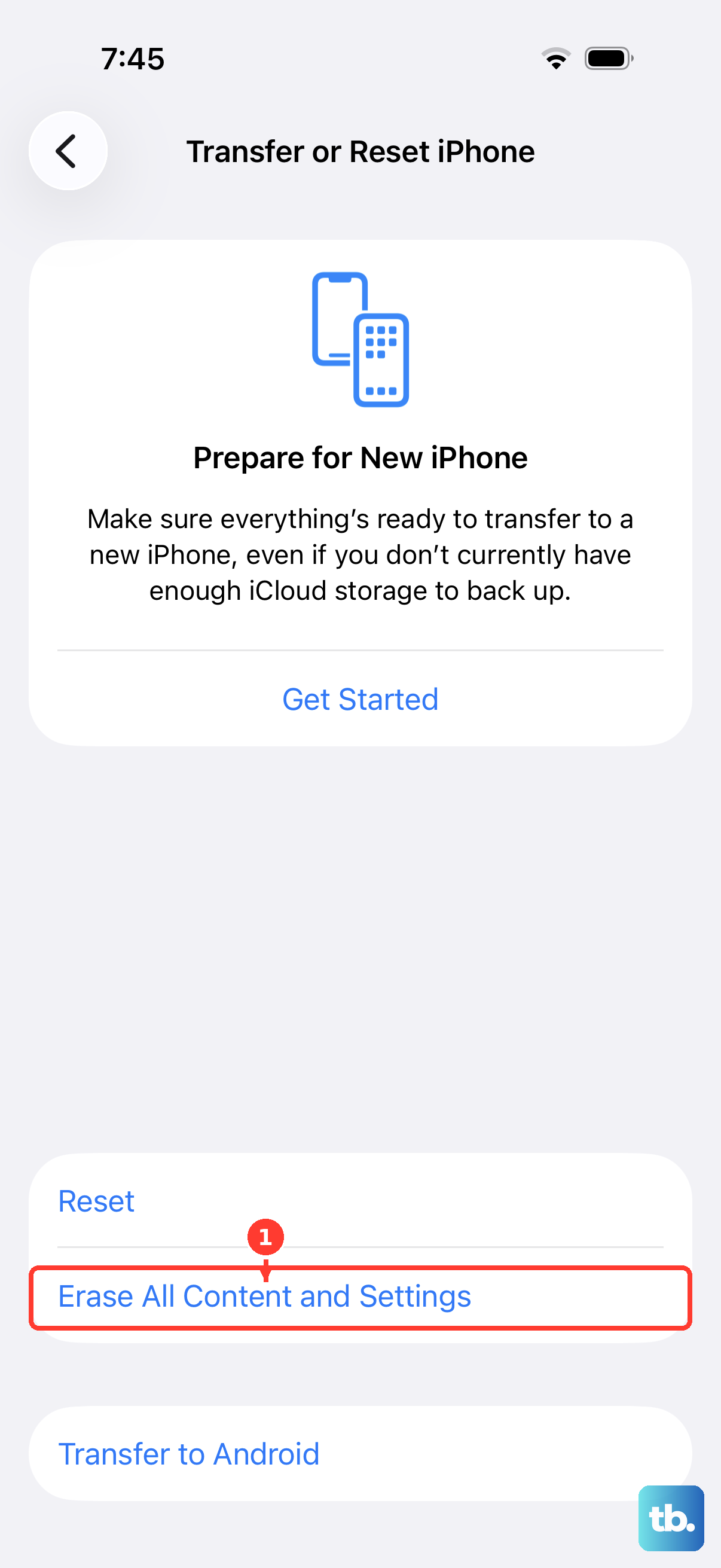
With your data safe and your account signed out, you're ready for the main event. On your iPhone 17 Pro, open Settings, go to General, and scroll down to Transfer or Reset iPhone. Tap on Erase All Content and Settings.
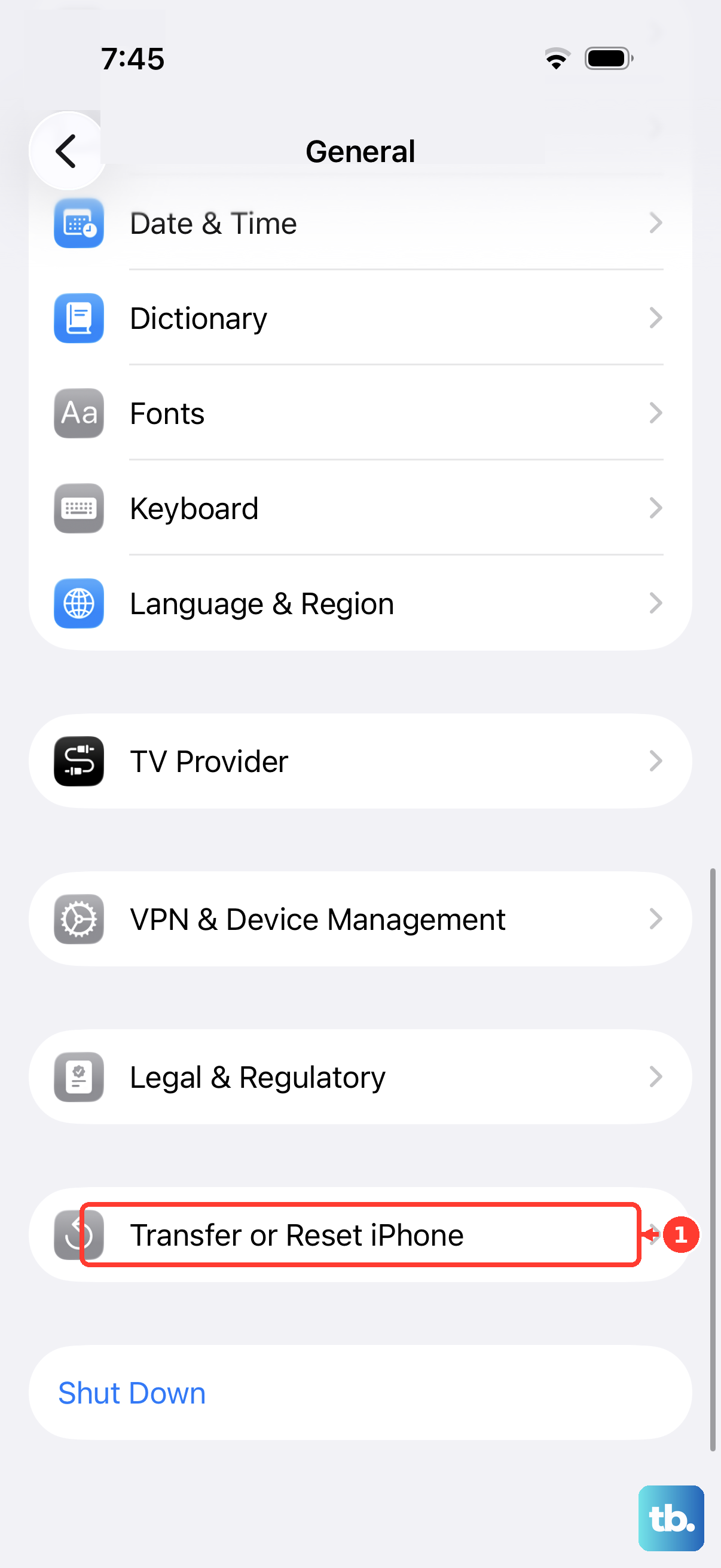
The phone will ask for your passcode and may prompt for your Apple ID password one final time as a security check. After you confirm, the erase process begins. Your iPhone 17 Pro will restart and show a progress bar; this usually takes just a few minutes. When it's done, you'll be greeted by the "Hello" setup screen.
Use a Computer for a Restore
If your iPhone 17 Pro is unresponsive, stuck in a boot loop, or you've forgotten the passcode, using a computer is your best path. Connect it to a Mac or PC with a USB-C cable. On a Mac, open Finder and select your device from the Locations sidebar. On a Windows PC, open the Apple Devices app; use iTunes only if the PC doesn't have Apple Devices.
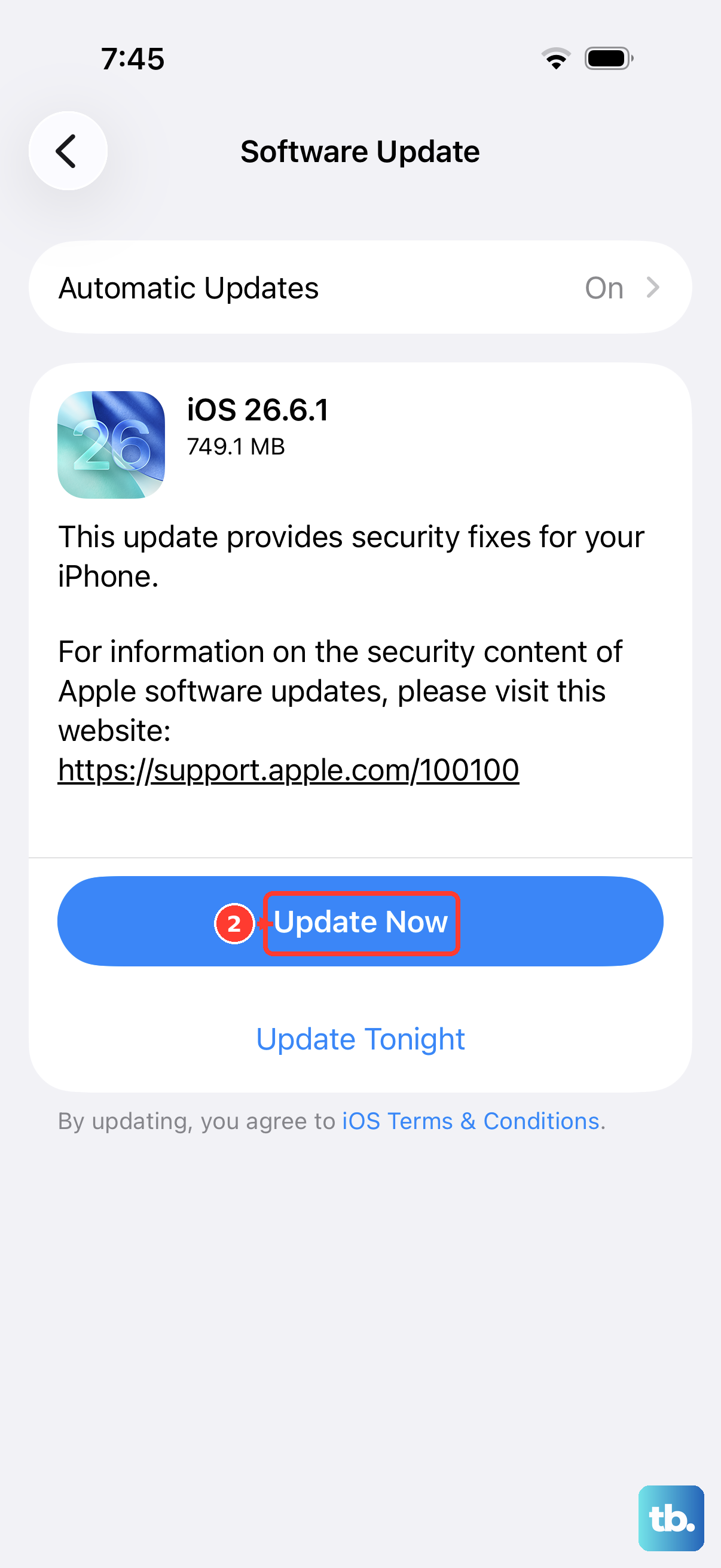
Look for the Restore iPhone button. Clicking this will download the latest version of iOS 26 and install it fresh, completely wiping the device in the process. This method often resolves more stubborn software corruption.
If the computer doesn't recognize your phone, you'll need to put it into Recovery Mode first. On the iPhone 17 Pro, quickly press and release the Volume Up button, then quickly press and release the Volume Down button. Immediately press and hold the Side button. Keep holding it until you see the recovery mode screen (a cable pointing to a computer icon).
Consider a Targeted Reset First
A full factory reset isn't always necessary. For specific issues like Wi-Fi problems, Bluetooth glitches, or keyboard lag, you can try a partial reset. Go to Settings > General > Transfer or Reset iPhone > Reset.
Here, you'll find options to reset only your Network Settings, Keyboard Dictionary, Home Screen Layout, or Location & Privacy settings. These actions can clear up many common bugs without touching your personal files, messages, or photos. It's a great first step before committing to the full wipe.
Setting Up Your Phone Again
After the erase is complete, you'll walk through the initial setup. Choose your language, connect to a Wi-Fi network, and sign in with your Apple ID. When you reach the Apps & Data screen, select Restore from iCloud Backup.
Choose the most recent backup you created. Your iPhone 17 Pro will then download your settings, app data, and iCloud content. The phone will feel familiar again once the restore finishes, though you may need to re-enter some app passwords.
When a Full Wipe Is the Right Call
I recommend a factory reset when you're dealing with persistent, unexplainable issues like severe battery drain, constant app crashes, or general sluggishness that survives normal restarts and updates. It's also the only responsible way to prepare your iPhone 17 Pro for sale, trade-in, or gifting to ensure none of your personal information remains.
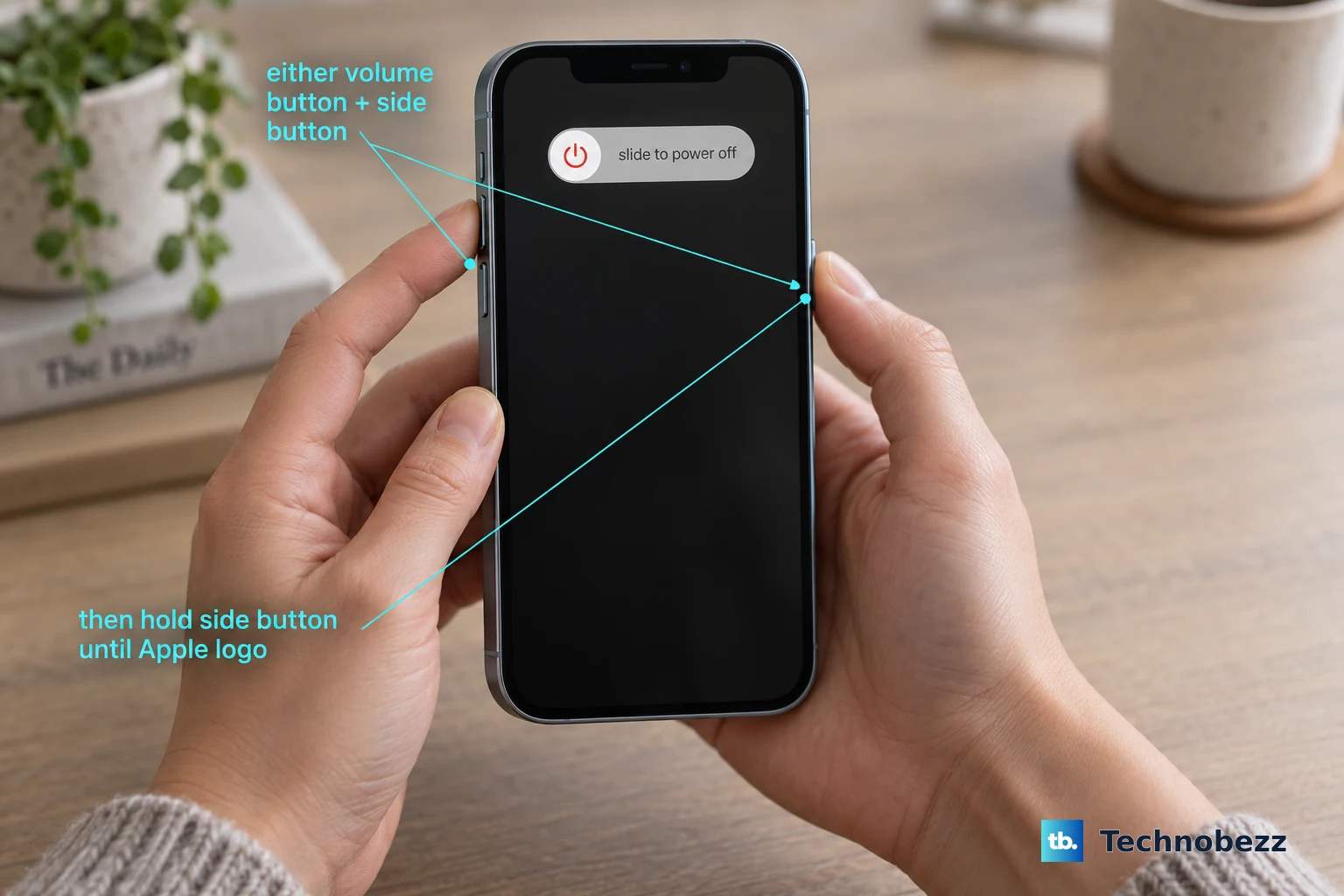
For simpler problems, a standard restart or one of the targeted resets is a much quicker solution. To restart an iPhone 17 Pro, press and hold either volume button and the Side button until the power-off slider appears, drag the slider, wait for it to shut down, then press and hold the Side button again until the Apple logo appears. The nuclear option is powerful, but it's there when you really need it.