
Factory resetting your iPhone 16 Pro is the most definitive way to clear out persistent software glitches or prepare it for a new owner. It completely erases all your data, apps, and settings, returning the phone to its original, out-of-the-box state. I'd always recommend exhausting other fixes first, but when you need it, here's how to do it correctly.
Back Up Your iPhone 16 Pro First
This is the single most important step. Before you touch any reset options, secure your data. On your iPhone 16 Pro, go to Settings > tap your name at the top > iCloud > iCloud Backup. Tap Back Up Now and stay connected to Wi-Fi until it finishes.
For a more complete local backup, connect your iPhone 16 Pro to a Mac or PC using a USB-C cable. On a Mac with macOS Catalina or later, open Finder, select your device in the sidebar, and click Back Up Now. On a Windows PC or older Mac, you'll use iTunes.
Double-check that your photos, contacts, and messages are syncing to iCloud. Once the factory reset process starts, everything stored locally on the device is permanently deleted.
Sign Out of Your Apple ID
You must do this to prevent Activation Lock, which would render the phone unusable for the next person. On your iPhone 16 Pro, open Settings and tap your Apple ID banner at the very top. Scroll all the way down and tap Sign Out.
You'll be prompted to enter your Apple ID password to turn off Find My and other services. Tap Turn Off to confirm. If you're keeping the phone, you can skip this, but it's mandatory if you're selling or giving it away.
Perform the Factory Reset from Settings
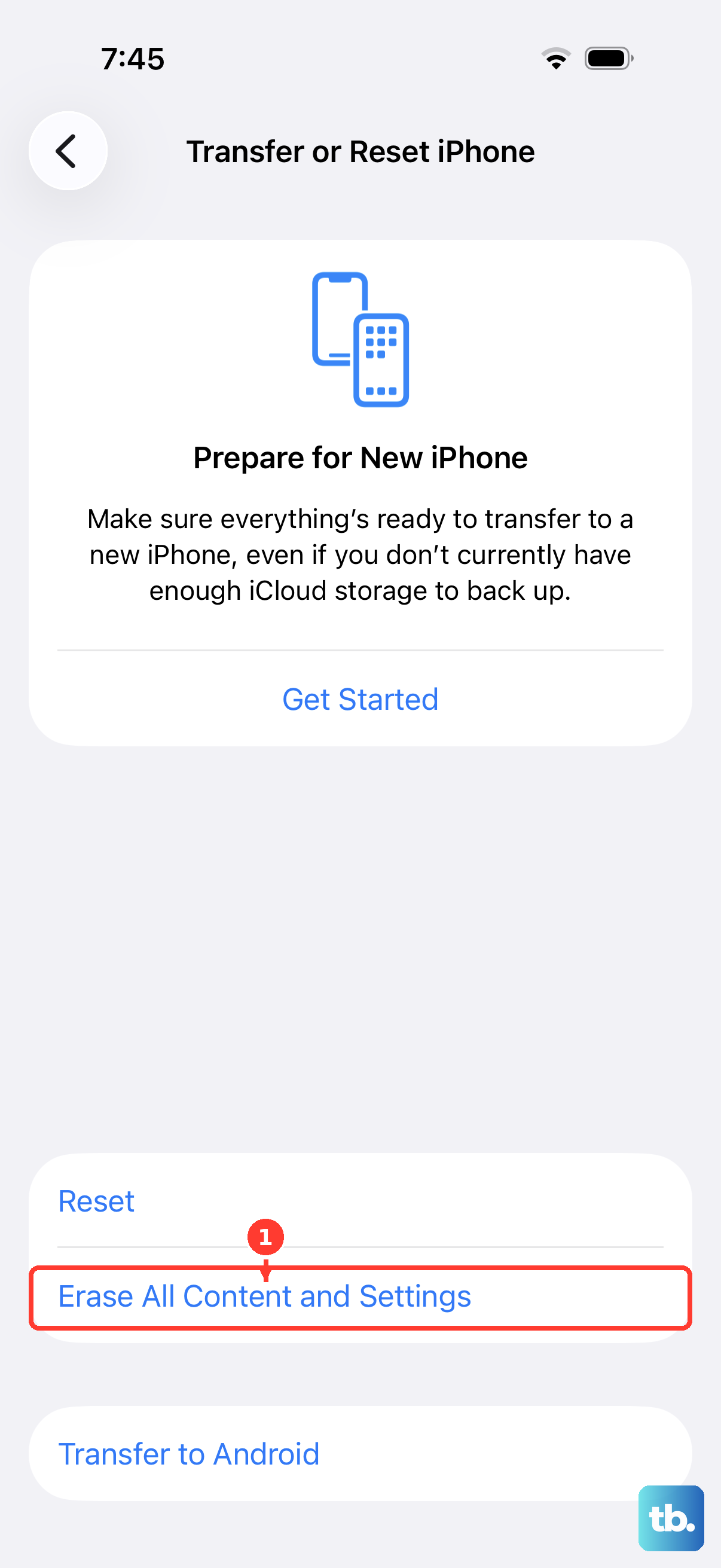
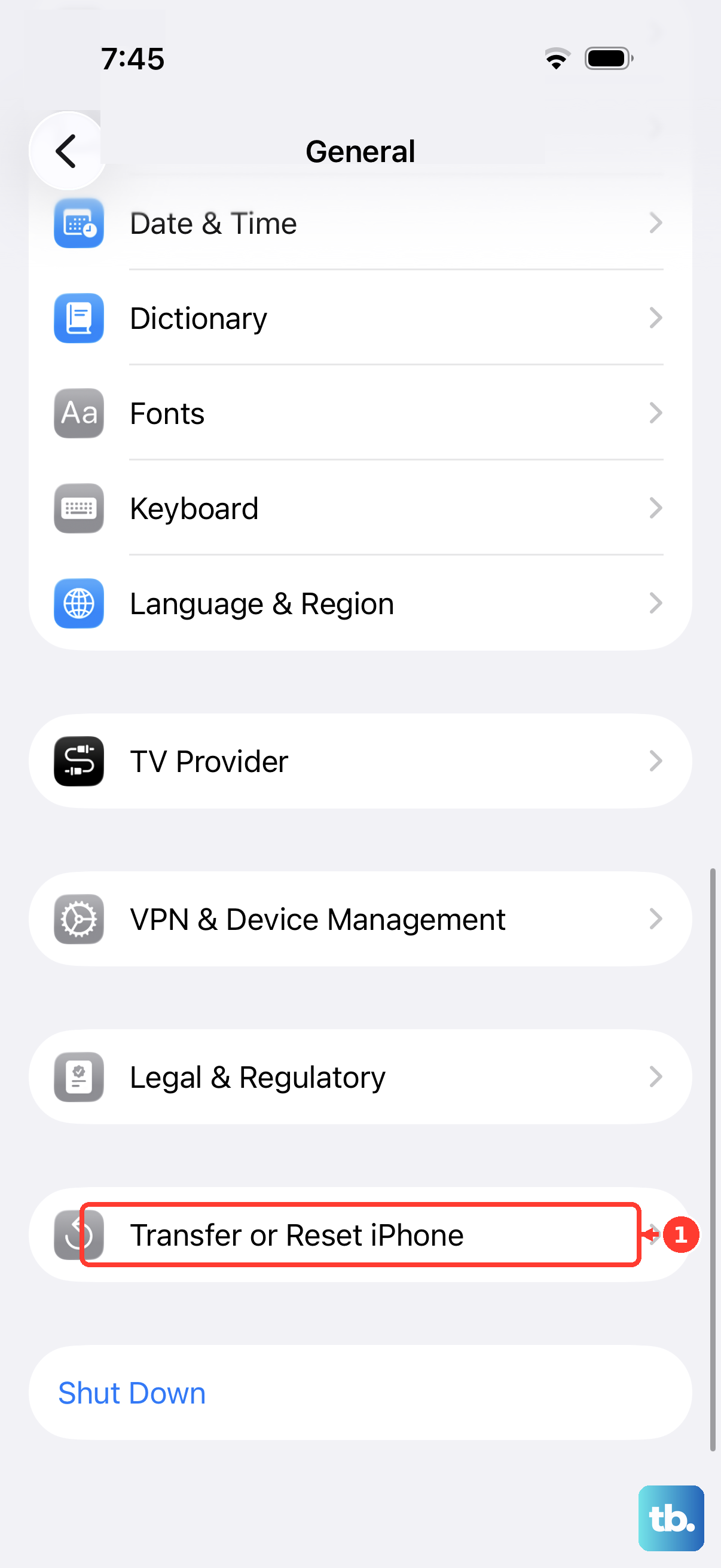
This is the standard method when your phone is working normally. Open the Settings app and navigate to General > Transfer or Reset iPhone > Erase All Content and Settings.
Your iPhone 16 Pro will ask for your device passcode and then your Apple ID password to confirm. After you confirm, the erasure process begins. It takes several minutes to complete. When it's done, the phone will restart and show the initial "Hello" setup screen.
Reset Using a Computer
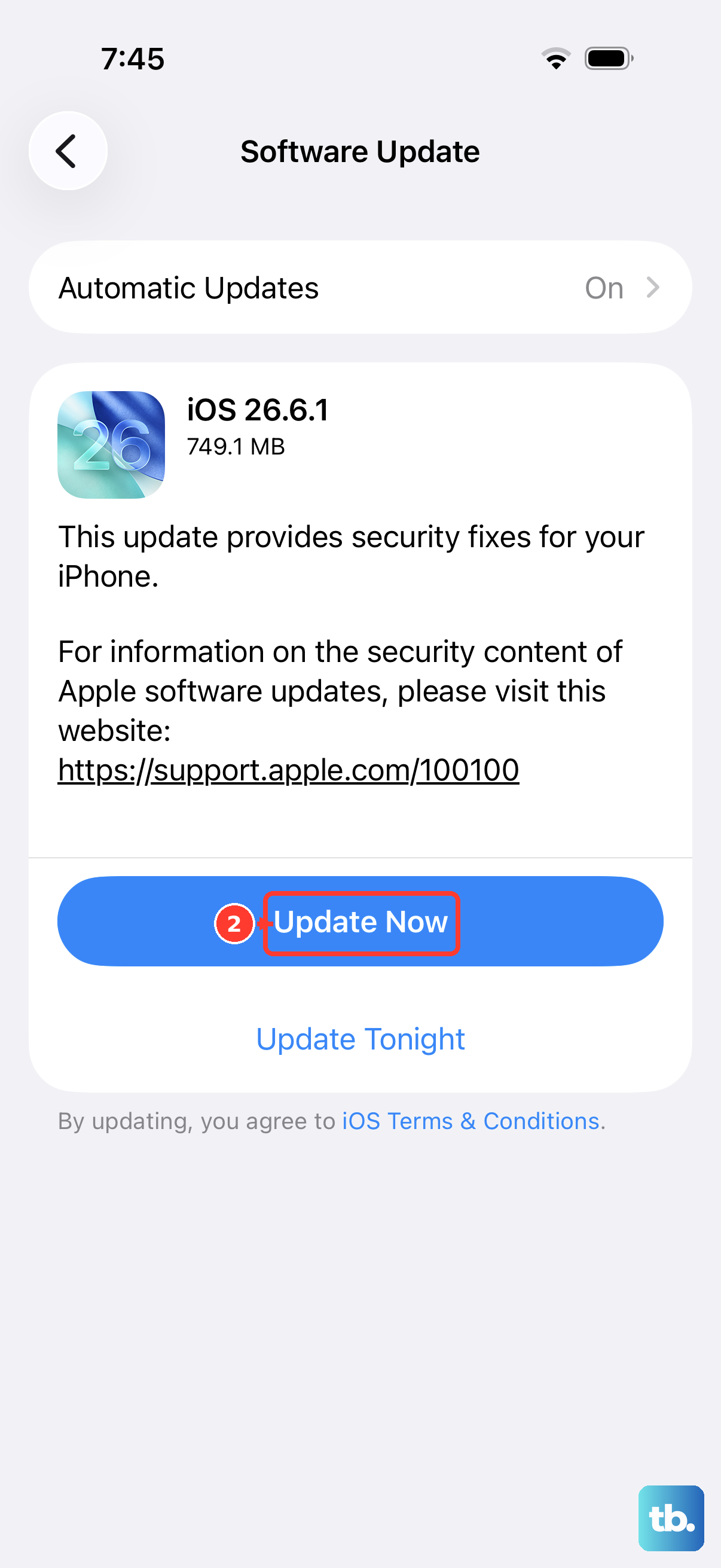
Use this method if your iPhone 16 Pro is unresponsive, locked out, or stuck in a boot loop. Connect it to your computer with a USB-C cable. Open Finder on a Mac or iTunes on a Windows PC, select your device, and click Restore iPhone.
This will download the latest version of iOS 26 and install it, wiping the device completely in the process. If your computer doesn't recognize the phone, you'll need to put it into recovery mode first.
For the iPhone 16 Pro, enter recovery mode by quickly pressing and releasing the Volume Up button, then the Volume Down button, then pressing and holding the Side button. Keep holding until you see the recovery mode screen (a cable pointing to a computer icon).
Try a Targeted Reset First
If you're troubleshooting a specific issue like Wi-Fi problems or battery drain, a full factory reset might be overkill. Go to Settings > General > Transfer or Reset iPhone > Reset.
Here, you'll find options to reset only your network settings, keyboard dictionary, home screen layout, or location and privacy settings. These can resolve many common software hiccups without erasing your personal data, photos, or apps.
Restore Your Data After the Reset
Once the reset is complete and you're at the "Hello" screen, follow the on-screen prompts. Connect to a Wi-Fi network and sign in with your Apple ID. When you reach the Apps & Data screen, choose Restore from iCloud Backup.
Select the most recent backup you created. Your iPhone 16 Pro will begin downloading your data, apps, and settings. This can take a while depending on your backup size and internet speed, so keep the phone connected to power and Wi-Fi.