Factory resetting your Google Pixel 9 Pro XL wipes everything and returns it to the state it was in when you first pulled it out of the box. It's the nuclear option, but sometimes exactly what you need, whether you're selling your phone, fixing persistent software problems, or just clearing out digital clutter.
Back Up Your Data First
Before you reset, make sure your data is safe. Open Settings and tap System > Backup. Confirm that backup is turned on for your Google account, then tap Back up now. This saves your apps, call history, contacts, and settings to Google Drive. Your photos and videos should be synced to Google Photos too, so check that by opening the Photos app and making sure backup is active. Once you factory reset, everything on the device is gone for good.
Remove Your Google Account
Signing out of your Google account before resetting prevents Factory Reset Protection (FRP) from locking you out. Head to Settings > Passwords & accounts, tap your Google account, and choose Remove account. You'll need to enter your PIN or password to confirm. Do this even if you're planning to keep the phone, it avoids headaches later.
Factory Reset from Settings
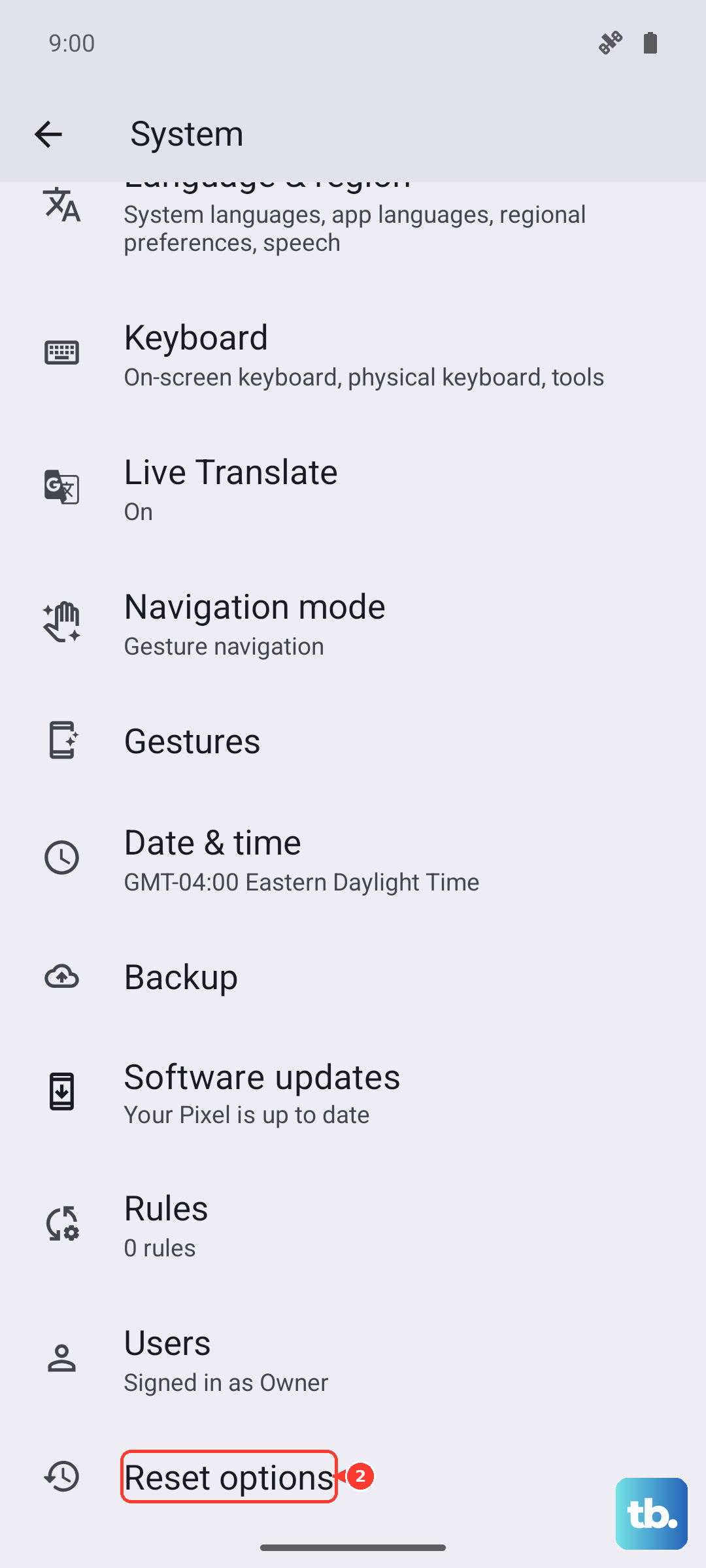
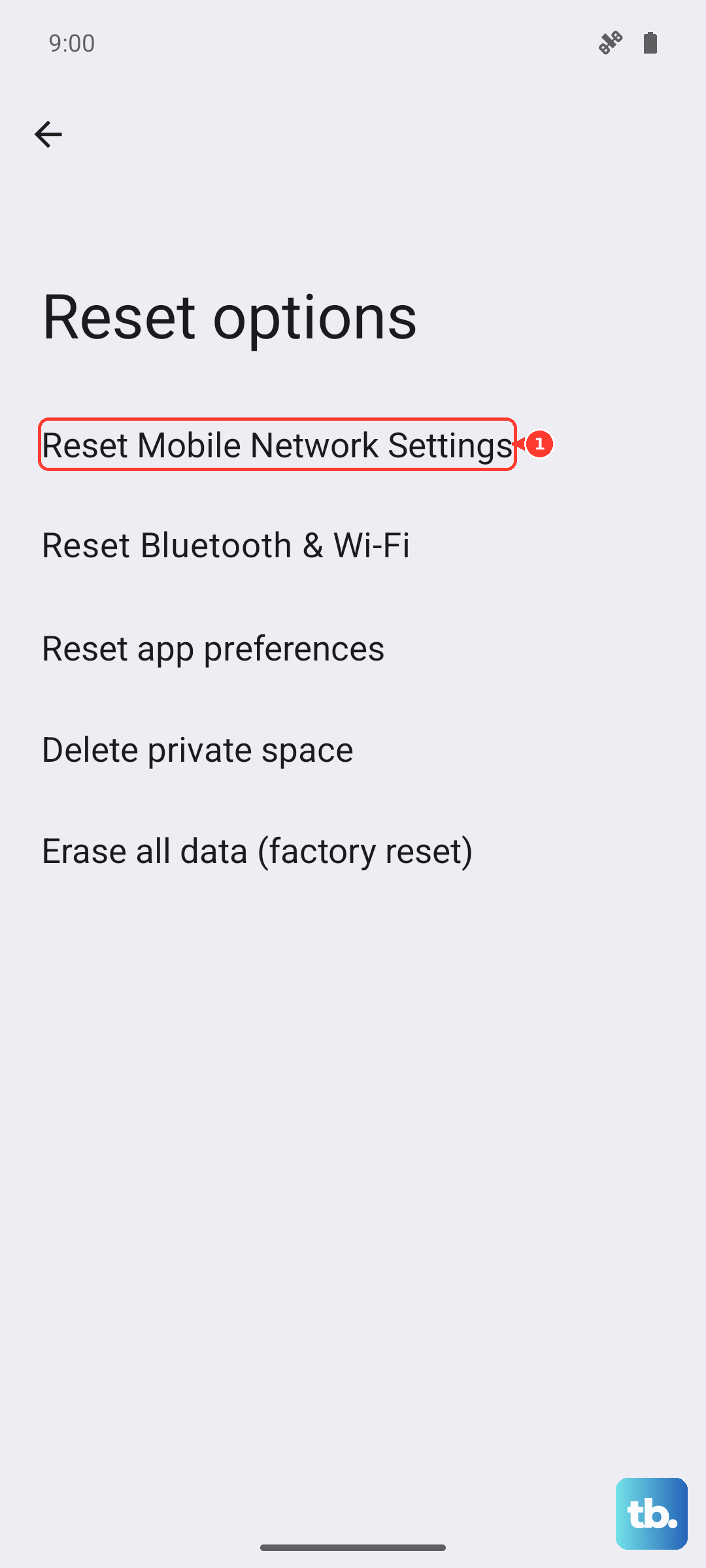
The most straightforward way to reset your Pixel 9 Pro XL is through the settings menu. Go to Settings > System > Reset options. Tap Erase all data (factory reset). You'll see a list of everything that will be removed, apps, accounts, media, and system settings. Tap Erase all data at the bottom, then confirm with your PIN. The phone will restart and begin wiping. When it finishes, you'll land on the welcome screen where you can set it up fresh.
Factory Reset Using Hardware Buttons
If your Pixel 9 Pro XL is frozen, stuck on a boot loop, or won't boot at all, you can still factory reset from recovery mode. First, power off the phone completely. Press and hold the Power button and Volume Down button together for a few seconds until the bootloader screen appears. Use the Volume buttons to scroll to Recovery mode, then press the Power button to select it. When you see the Android robot with a red exclamation mark, press and hold Power then tap Volume Up once. Use the Volume buttons to highlight Wipe data/factory reset, then press Power to confirm. After it finishes, select Reboot system now.
Less Drastic Reset Options
A full factory reset isn't the only way to fix issues. On your Pixel 9 Pro XL, you can reset specific settings without wiping your data. Go to Settings > System > Reset options and you'll see choices like Reset Wi-Fi, mobile & Bluetooth, Reset app preferences, or Reset network settings. These are great for fixing connection problems or misbehaving apps without starting over from scratch. Try these first if you're dealing with a minor glitch.
Setting Up After the Reset
When the reset finishes, your Pixel 9 Pro XL will boot into the setup wizard. Choose your language, connect to Wi-Fi, and sign into your Google account. You'll be prompted to restore from a backup, if you backed up earlier, choose that option and your apps, settings, and home screen layout will come back automatically. If you're selling the phone, stop after signing out of your Google account and let the new owner go through setup fresh.
When a Factory Reset Makes Sense
I'd consider a factory reset on your Pixel 9 Pro XL if you're dealing with persistent lag, random crashes, battery draining faster than expected, or a software bug that won't go away. It's also essential before trading in or selling the phone. But for minor problems, try the lighter reset options first, they save you the hassle of re-downloading everything.