Wi-Fi switched off, or the toggle missing altogether? Your Dell laptop’s wireless connection has separate controls in Windows, at the adapter, and on specific models in hardware. Start with the Windows 11 switch below, then work through the fixes that match what you see.
Turn on Wi-Fi in Windows
Click the taskbar network icon to open Quick Settings. Select the gray Wi-Fi tile to turn it on.
Choose your network and enter its password. For the Settings route, open Settings > Network & internet. Turn Wi-Fi on.
If the taskbar shows an airplane icon, click it and turn Airplane mode off. Turn Wi-Fi on separately if it remains off. Windows remembers its previous wireless state, so check that switch too.
Use your laptop’s wireless switch or shortcut
This applies to Dell models with a physical wireless switch or a documented keyboard shortcut. The key combination depends on your exact laptop.
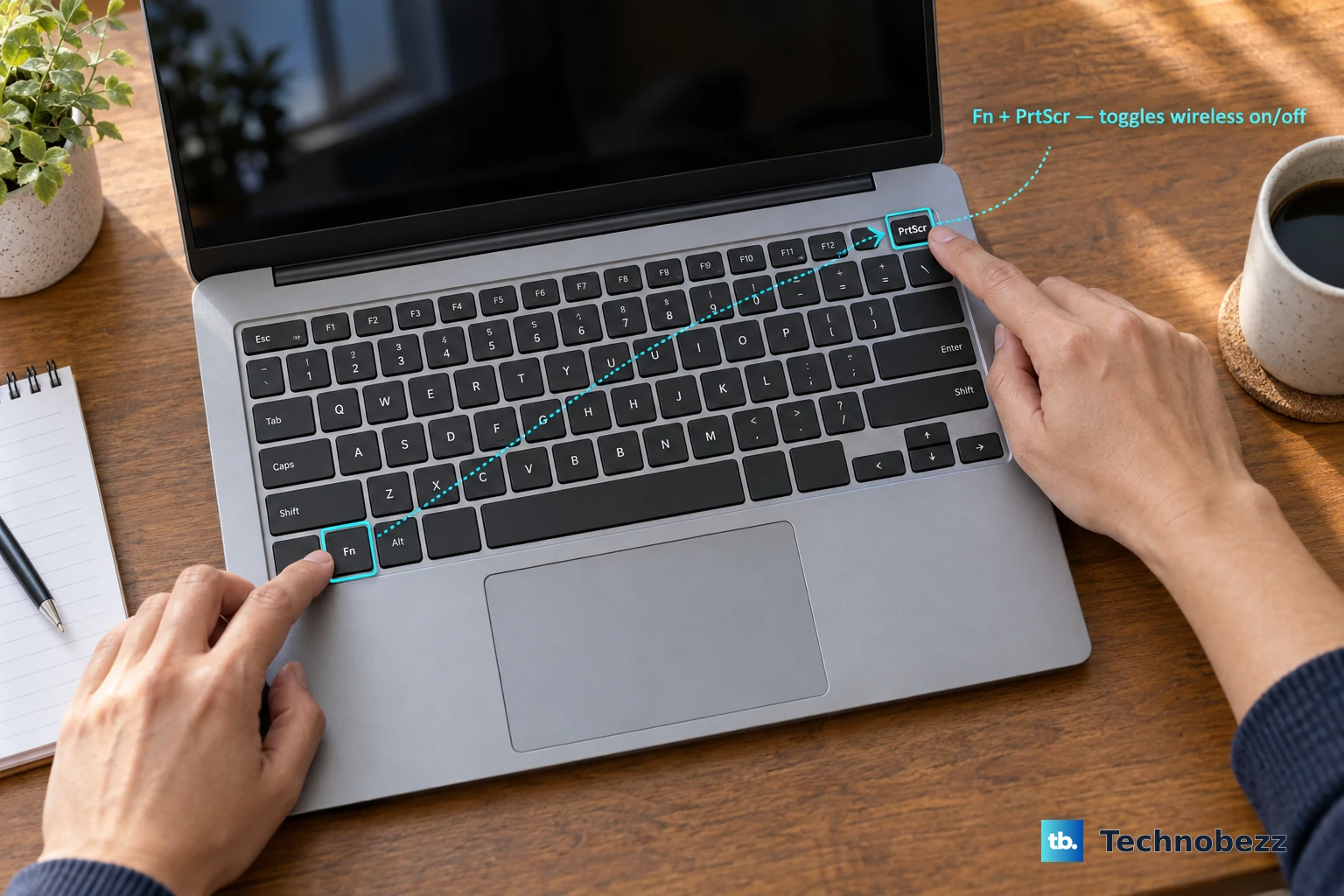
If your Dell has a physical wireless switch, move it to the on position. On the Latitude 5531, press Fn + PrtScr to toggle wireless on when it is off. This is not a universal Dell shortcut.
Older instructions for Fn + F2 and the wireless control in Windows Mobility Center concern older models or Windows versions. Stick with the Windows 11 controls above and the hardware controls documented for your model.
Restore a disabled wireless adapter
This addresses a detected but disabled adapter, plus missing Wi-Fi controls. Open Settings > Network & internet > Advanced network settings. Click Enable beside the disabled Wi-Fi adapter.
For the alternative route, open Device Manager. Expand Network adapters. Right-click your wireless adapter. Select Enable device if the adapter is disabled.
If the Wi-Fi controls are still missing, press Win + R. Run services.msc to open Services. Right-click WLAN AutoConfig. Select Restart to restart the Windows wireless service.
Let Windows diagnose the problem
If the wireless controls still do not work, run Windows’ network troubleshooter.
- 1.Open Settings > System > Troubleshoot.
- 2.Select Other troubleshooters.
- 3.Select Network and Internet.
- 4.Follow the prompts in Get Help to diagnose and address the problem.
Repair the wireless driver
A missing or malfunctioning wireless driver needs more than a flip of the Wi-Fi switch. Dell supplies wireless drivers matched to your laptop and operating system.
Open Dell’s Drivers & Downloads page. Enter your laptop’s Service Tag under Identify your product. Select Search to open its support page. Choose Network to find the wireless driver for your laptop and operating system.
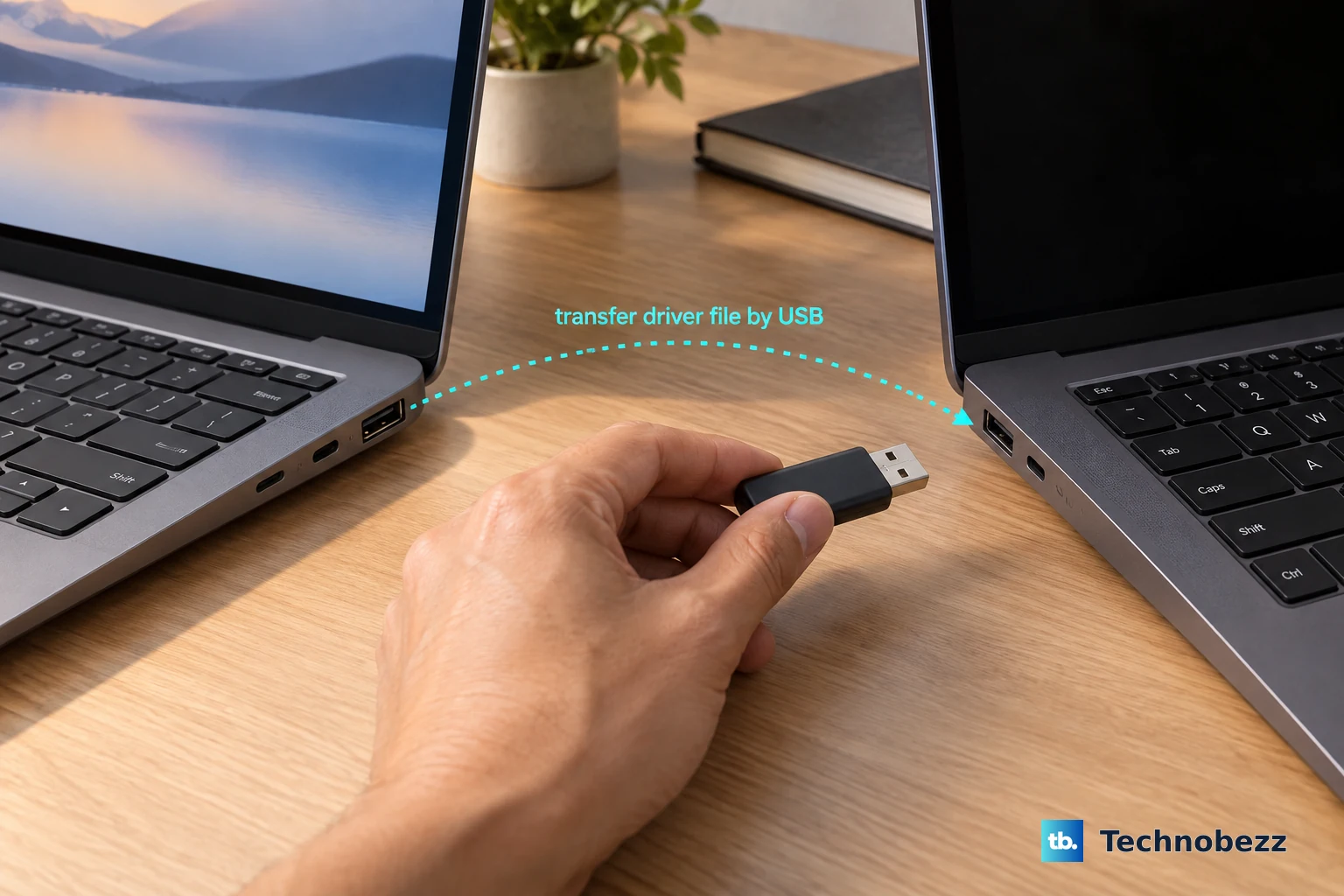
Download the matching wireless driver, using another computer if your Dell is offline. If you downloaded it elsewhere, transfer the file to your Dell using USB. Install the downloaded driver. Restart your laptop.
Still no Wi-Fi? Check the model-specific firmware settings below before trying a Windows network reset.
Check firmware settings before resetting networking
For the BIOS wireless check on a Dell Pro 5 14 P514260, restart the laptop. Press F2 during startup to enter BIOS setup. Open Connection > Wireless Device Enable. Enable WLAN.
Save your changes. Exit BIOS setup.
If wireless stops when wired Ethernet is connected, disconnect the Ethernet cable to let WLAN resume on models configured for automatic switching. To prevent that switching on the Dell Pro 5 14 P514260, restart the laptop. Press F2 during startup. Open Connection > Wireless Radio Control.
Disable Control WLAN Radio. Save your changes. Exit BIOS setup.
If Wi-Fi remains unavailable after the applicable checks and driver repair, open Settings > Network & internet > Advanced network settings > Network reset. This recovery step resets Windows network configuration.
Select Reset now. Confirm the reset. Restart the laptop. Use BIOS instructions for your exact Dell model because wireless menu names vary.
Frequently Asked Questions
Can I use Wi-Fi while Airplane mode is on?
Yes. Windows permits Wi-Fi to remain enabled in Airplane mode and remembers the previous Wi-Fi and Bluetooth state. Turn the Wi-Fi switch on separately.
Why does Wi-Fi fail to return after I disconnect my Dell dock?
Dell documents this issue for the Dell Pro 14 Plus PB14255 and resolves it with a BIOS update. Install BIOS version 1.17.0 or newer from that model’s Drivers & Downloads page. Until you can update, restart the laptop. Repeatedly press F2 during startup. Open Connection > Wireless Radio Control > Control WLAN radio. Select OFF. Select Apply Changes, then exit BIOS setup.
What if my work laptop prevents me from enabling wireless?
Ask your administrator to restore Wi-Fi access. Managed Windows policies restrict wireless use or connections to personal networks. If BIOS restrictions block the wireless setting, have the BIOS administrator enable WLAN.
How do I enable Wi-Fi on a Dell Chromebook?
Select the time at the bottom right. Select Not Connected. Turn on Wi-Fi. Select your network, then enter its credentials.