Deleting cache gets messy because Chrome, Safari, Edge, Firefox, and Samsung Internet all put cached files in different menus. Start with the browser you use, then use Android or Windows storage cleanup only when you need to free device space.
These are the current menu paths for browser cache, phone app cache, and PC cleanup, with outdated Safari for Windows and Internet Explorer-era fixes kept out of the working steps.
1. Clear Chrome Cache on Desktop
On Windows, Mac, Linux, or ChromeOS, open Chrome and go to More > Delete browsing data.
Choose a Time range, select Cached images and files, add any other data types you want to remove, then select Delete data.
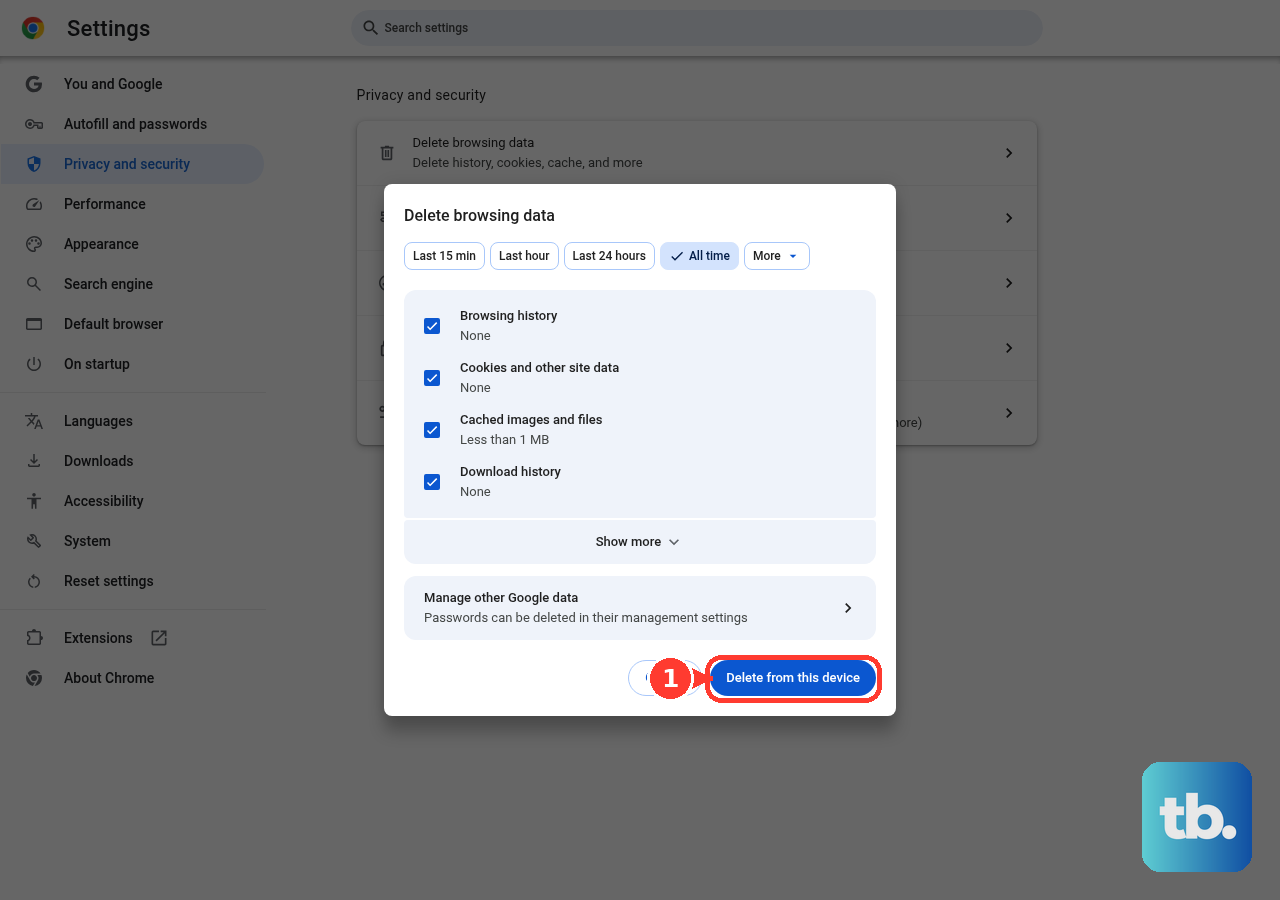
For the shortcut route, press Ctrl+Shift+Delete on Windows, Linux, or ChromeOS, or Command+Shift+Delete on Mac.
You can also type Delete browsing data in the Chrome address bar and select the Action chip.
2. Delete Chrome Cache on Android
- 1.Open Chrome.
- 2.Tap More.
- 3.Tap Delete browsing data.
- 4.Tap More options.
- 5.Select Cached images and files and any other visible data type you want to remove.
- 6.Tap Delete data.
For a faster route, type Delete browsing data in the Chrome address bar and tap the Action chip.
3. Remove Chrome Cache on iPhone and iPad
In Chrome for iPhone or iPad, open More > Delete Browsing Data.
Set Time Range, open Browsing Data, select Cached Images and Files, tap Confirm, then tap Delete Browsing Data.
For the History route, open More > History > Delete Browsing Data, choose the time range, select Cached Images and Files, tap Confirm, then tap Delete Browsing Data.
The address-bar route starts by typing Delete browsing data and tapping the Action chip.
4. Clear Safari Cache on iPhone and iPad
This clears Safari history, cache, cookies, and website data from iPhone or iPad.
On iPhone, open Settings > Apps > Safari > Clear History and Website Data.
Choose the timeframe.
Tap Clear History.
To keep history while removing cookies and cache on iPhone, open Settings > Apps > Safari > Advanced > Website Data > Remove All Website Data.
Tap Remove Now.
From Safari on iPhone, open More > Bookmarks > History > More > Clear.
Choose Clear Timeframe, then tap Clear History.
From Safari on iPad, open Show Sidebar > History > More > Clear.
Under Clear Timeframe, choose the amount to clear, then tap Clear History.
5. Empty Safari Cache on Mac
Open the Safari app.
For cache and cookies, open Safari > Settings > Privacy > Manage Website Data.
In Manage Website Data, select one or more websites.
Choose Remove, or choose Remove All.
To clear history instead, choose History.
Select Clear History.
In the Clear History window, choose how far back to clear. On Mac this removes history items such as recent searches and the frequently visited list, not cached files and cookies, so use Manage Website Data for those.
6. Erase Microsoft Edge Cache on Desktop
Open Microsoft Edge.
Go to Settings and more > Settings > Privacy, search, and services.
Under Clear browsing data, choose Choose what to clear next to Clear browsing data now.
Choose a Time range.
Select Cached images and files.
Select Clear now.
For the quicker route, press Ctrl+Shift+Delete on Windows or Linux, or Command+Shift+Delete on Mac.
7. Refresh Firefox Cache on Desktop and Mobile
This clears Firefox's temporary cached files and pages without resetting the whole browser.
On desktop, open Firefox menu > Settings > Privacy & Security.
Under Cookies and Site Data or Browsing data, choose Clear Data or Clear browsing data.
Set When to Everything.
Select Temporary cached files and pages only.
Choose Clear.
For the desktop History route, open Firefox menu > History > Clear Recent History.
Set When to Everything, select Temporary cached files and pages, then choose Clear.
On Android, open Firefox three-dot menu > Settings > Delete browsing data under Privacy and security.
Select Cached images and files, then tap Delete browsing data.
On iPhone or iPad, open Firefox menu > Settings > Data Management, turn on Cache and leave the other items off if you only want cached files gone, then tap Clear Private Data.
8. Clean Samsung Internet and Android App Cache
For Samsung Internet, open Samsung Browser app > More options > Settings > Personal browsing data > Delete browsing data.
Select Cached images and files, Cookies and site data, or another data type, then tap Delete data and Delete.
For a browser app cache in Android settings, open Settings > Apps > browser app > Storage > Clear cache.
Google notes that Settings can vary by phone, so the storage screen may sit under a slightly different label on yours.
On Samsung Galaxy, use Settings > Apps > browser app > Storage > Clear cache, or use Clear data > Delete to reset that browser app's stored data.
9. Use Windows Cleanup for Storage Problems
This frees Windows drive space, not browser-specific cache inside Chrome, Edge, Firefox, or Safari.
Open Start > Settings > System > Storage > Cleanup recommendations.
Select the temporary files or system files you want to remove.
Select the Clean up button for each section you picked items from; nothing is deleted until you do.
For automatic cleanup, open Start > Settings > System > Storage > Storage Sense.
Turn Storage Sense on.
Select Storage Sense.
Choose the run frequency and cleanup preferences.
Skip Safari for Windows cache tutorials; Apple lists Safari 5.1.7 as the last Windows version and says it is outdated.
Skip old Control Panel > Internet Options and Temporary Internet Files instructions for modern Chrome, Edge, Firefox, and Safari cache clearing.
Frequently Asked Questions
Can cache clear automatically when I close the browser?
Yes. Edge desktop has a clear-on-close page at edge://settings/clearBrowsingDataOnClose, and Firefox desktop can clear Temporary cached files and pages when Firefox closes.
Can I remove data for only one website?
Yes. Safari on Mac lets you remove one or more sites from Manage Website Data, and Firefox for Android can clear cookies and site data for the open domain from the Shield or Lock icon.
What if cache settings are locked on a work or school browser?
Managed Chrome, Edge, and Firefox support admin policies for clearing cached files on exit or shutdown. When those settings are locked, the device administrator controls them.
Does Edge InPrivate clear cached images and files?
Yes, but only for that InPrivate session. Close all InPrivate windows to clear the cached images and files from that session.