Your desktop is supposed to make frequent apps, folders, files, and websites faster to open, not harder to find. Windows 11 gives you several built-in ways to create shortcuts, and the right one depends on what you want to put there.
Put an app shortcut on the desktop
This fixes the basic app shortcut problem. Open Start.
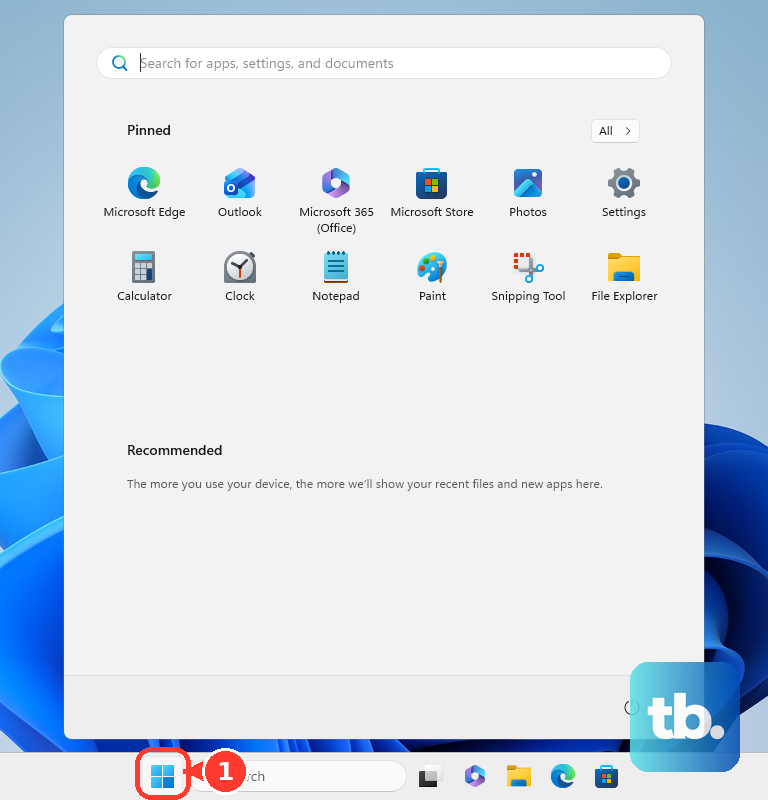
Select All, then find the app you want to add. Drag the app from the Start menu to an empty area of the desktop, then release the mouse button to create the shortcut.
Use the desktop shortcut wizard
The built-in shortcut wizard works when you want a desktop shortcut for a file, folder, or web page. Right-click an empty area of the desktop, choose New, then select Shortcut.
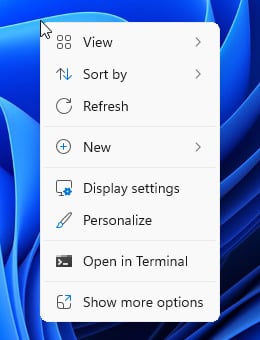
Follow the prompts and enter the location you want the shortcut to open. When you finish the wizard, Windows places the new shortcut on your desktop.
If this method fails, use File Explorer for files and folders, or use your browser's website shortcut option for web pages.
Make a file or folder shortcut from File Explorer
For a document, download, photo folder, or project folder, File Explorer is usually the quickest route. Open File Explorer and go to the item you want on your desktop.
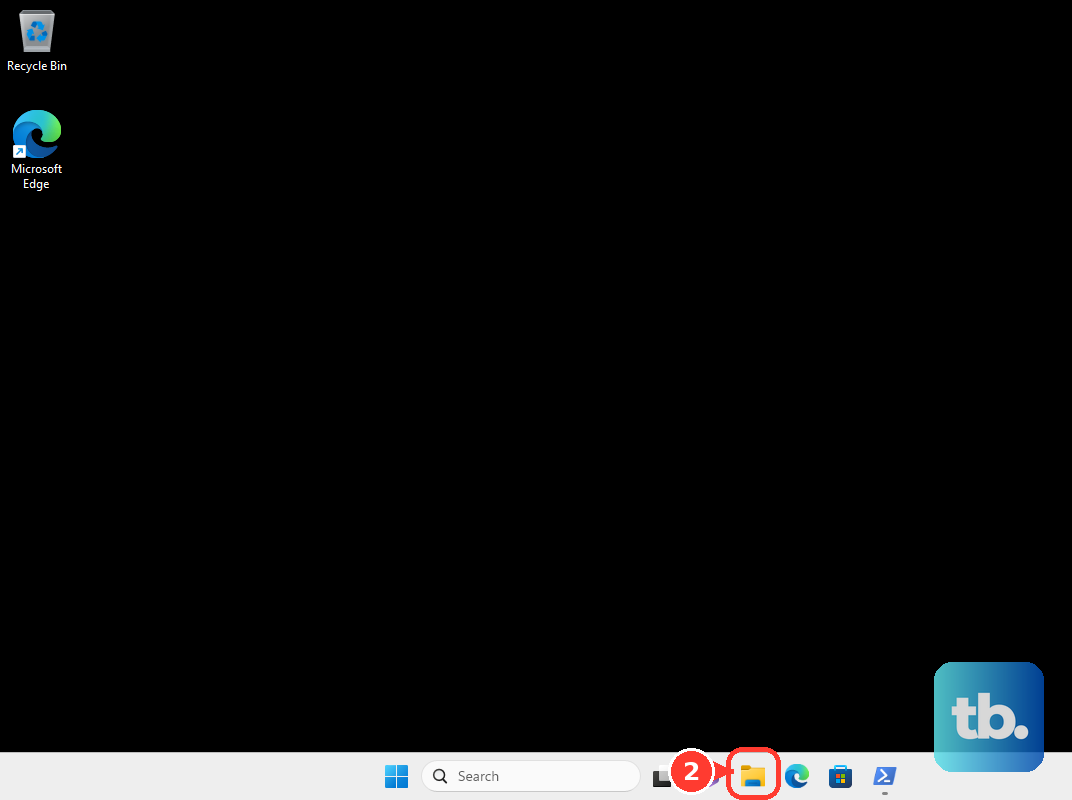
Right-click the file or folder, choose Show more options, then select Send to and Desktop (create shortcut). Windows creates a shortcut without moving the original item.
On some Windows installs, Send to and Desktop (create shortcut) appear directly on the first right-click menu. Use that shorter path when you see it.
Add This PC Recycle Bin and other built-in icons
Open Settings, then go to Personalization. Select Themes and open Desktop icon settings.
Select the built-in icons you want, such as This PC, User's Files, Network, or Recycle Bin. Choose OK. Use this menu for Windows system icons, not regular app shortcuts.
Create a website shortcut from the address bar
This fixes the quick website shortcut case. Open the web page in your browser.
Find the site information icon next to the address, such as the padlock or sliders icon. Drag that icon to the desktop, then release it to create the website shortcut.
Save website shortcuts in Chrome or Edge
In Chrome, open the website you want to save. Open More, choose Cast, save, and share, then select Create shortcut.... Edit Name if needed, then choose Create.
In Microsoft Edge, open the website, then go to Settings and more ..., More tools, Apps, and Install this site as an app. After it is installed, open edge://apps, choose Details on the app card, and select Create Desktop shortcut.
Use Chrome for a simple website shortcut, and use Edge when you want the site treated as an installed web app.
Use Firefox for a website shortcut
Firefox can create a desktop shortcut by dragging the site icon out of the address bar. Resize Firefox so you can see both the browser window and the desktop, open the page, click the padlock icon on the left side of the address bar, hold the mouse button, move the pointer to the desktop, and release it.
You can also drag a saved bookmark from the Bookmarks menu or the Library window to the desktop. A Firefox-created website shortcut opens in your default browser unless Firefox is your default browser.
If this method fails, use Chrome's Create shortcut... command or Edge's Create Desktop shortcut option for installed web apps.
Fix shortcuts that do not appear
The most common cause is that desktop icons are hidden. Right-click an empty area of the desktop, open View, and check Show desktop icons. When it is unchecked, Windows hides all desktop icons, including shortcuts that still exist.
If you use a work or school PC, your organization may manage desktop icons and shortcuts. Ask your IT admin whether a policy is hiding the desktop or removing specific built-in icons.
Remove shortcuts you no longer need
Cleaning up the desktop only takes a few clicks.
- 1.Select the shortcut on the desktop or in File Explorer.
- 2.Press Delete, or right-click the shortcut and choose Delete.
- 3.Open Recycle Bin if you need to restore a shortcut you deleted by mistake.
Deleting a shortcut removes the shortcut file, not the original app, file, folder, or website it points to.
Skip Internet Explorer-specific shortcut methods on current Windows desktops. Internet Explorer 11 support ended on June 15, 2022, and Windows 11 redirects attempts to launch Internet Explorer directly to Microsoft Edge.
Frequently Asked Questions
Can I create desktop shortcuts in Windows 11 without installing anything?
Yes. Windows 11 includes built-in shortcut options through the Start menu, the desktop shortcut wizard, File Explorer, Settings, and the desktop View menu.
Does deleting a desktop shortcut delete the original file or app?
No. Deleting a shortcut removes only the shortcut file. The original app, file, folder, or website remains in place.
Why did all my desktop shortcuts disappear at once?
Desktop icons are probably hidden. Right-click the desktop, open View, and turn on Show desktop icons.
Can I make shortcuts for websites as well as apps?
Yes. You can drag the site information icon from a browser to the desktop, use Chrome's Create shortcut option, or create a desktop shortcut for an installed Edge web app.