Need the real Windows battery report, not just the battery usage screen in Settings? Windows creates it as an HTML file through the built-in powercfg command. Start with the standard Windows 11 method, then use the alternate paths when you want a faster launch or a cleaner save location.
1. Start with Command Prompt
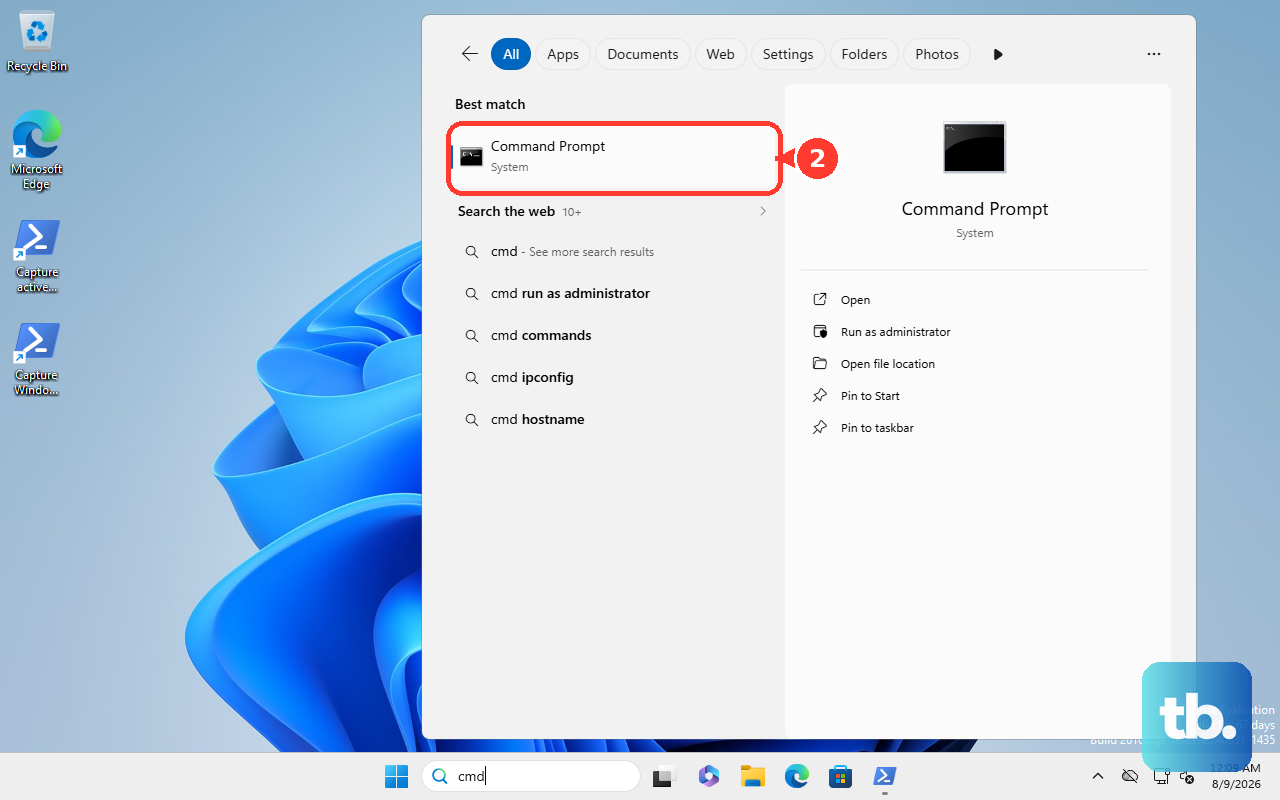
This is the Microsoft-supported Windows 11 path for creating the battery report. Select Start, then type Command Prompt.
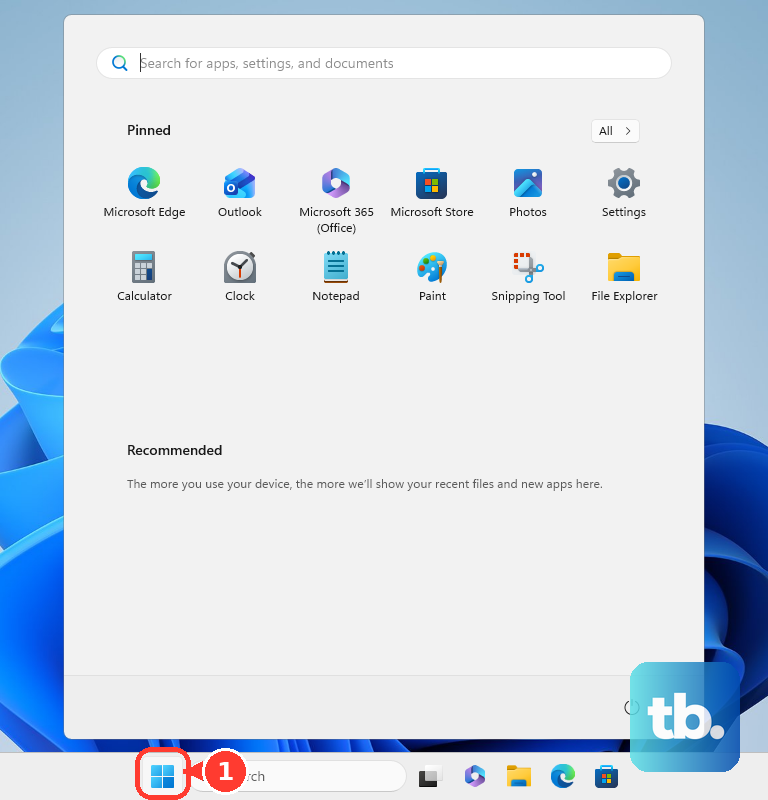
Press and hold or right-click Command Prompt. Select Run as administrator, then select Yes when Windows asks for approval.
Type powercfg /batteryreport, then press Enter. Note the file location shown in Command Prompt.
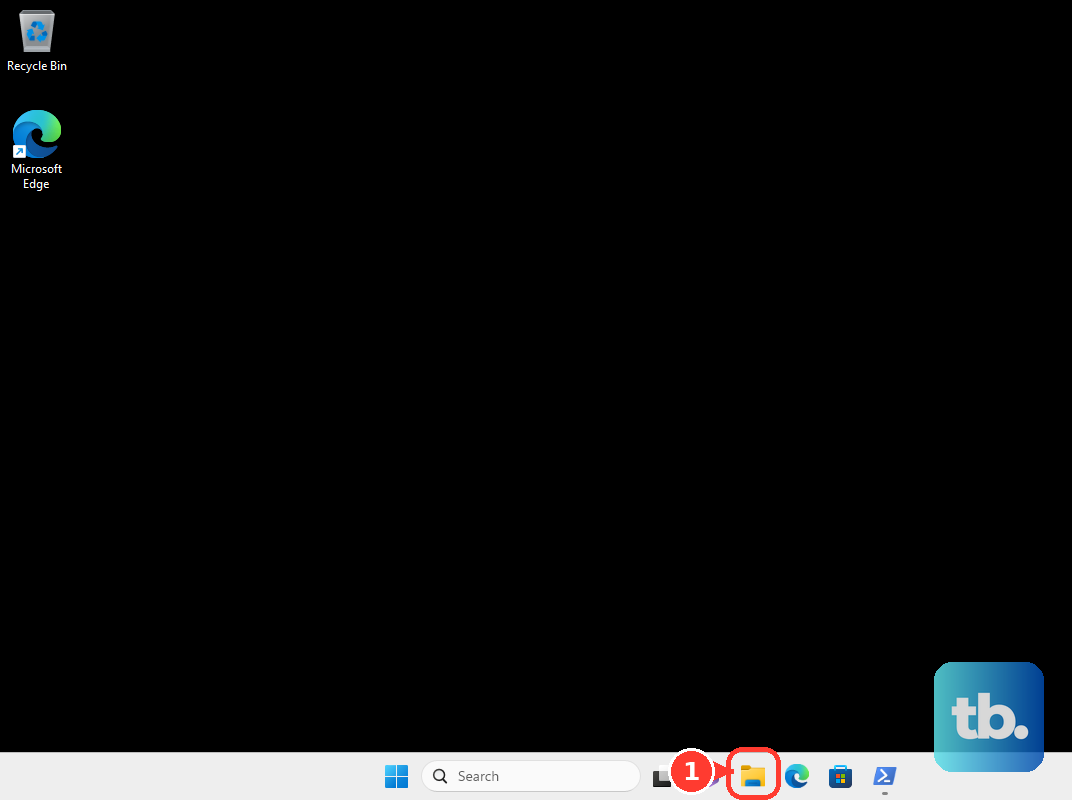
Open File Explorer, go to that folder, then double-click the battery report HTML file to open it in a web browser.
2. Launch it faster from Run
Press and hold the Windows logo key. While holding it, press R.
In the Run dialog, type cmd, then press Enter. In Command Prompt, type powercfg /batteryreport, then press Enter.
Open File Explorer, then go to C:\Users\Your_Username\. Double-click battery-report.html to view it in a browser.
The Run box gets you to the same command with fewer clicks. If Command Prompt shows a different save path, open that exact folder instead.
3. Use Windows Terminal
On Windows 11 PCs where the Win+X menu shows Terminal, you can create the report from the modern terminal surface. Press Windows key + X, then select Terminal (Admin).
Type powercfg /batteryreport, then press Enter. Open File Explorer, locate battery-report.html, or use the output path shown in Terminal.
4. Save it straight to your desktop
Use a direct output path when you want the file in an easier place.
- 1.Open Command Prompt, Windows Terminal, or Windows PowerShell.
- 2.Run powercfg /batteryreport /output "C:\Users\<your-user-name>\Desktop\battery-report.html".
- 3.Open battery-report.html from your Desktop in a web browser.
An elevated command window can save the report in C:\Windows\System32. Replace <your-user-name> with your Windows user folder name.
5. Shorten the report window
Open Command Prompt, Windows Terminal, or Windows PowerShell. Run powercfg /batteryreport /duration 4, then replace 4 with the number of days you want Windows to analyze.
Open the generated report from the path shown in the command window. To analyze a specific number of days, add /duration to the command.
6. Create an XML report for support
The HTML report is the normal one to open and read. Use XML when support staff or an administrator asks for a file they can review.
Start in Command Prompt, Windows Terminal, or Windows PowerShell. Run powercfg /batteryreport /output "C:\Users\<your-user-name>\Desktop\battery-report.xml" /xml, then open or attach battery-report.xml for advanced troubleshooting or admin review.
7. Skip the lookalike commands
powercfg /energy is still a supported Windows command, but it creates an energy-efficiency and battery-life problems report. It does not create the Windows Battery Report.
Use powercfg /batteryreport when you need the formal battery-report.html file. Commands such as powercfg /sleepstudy, /systemsleepdiagnostics, and /systempowerreport create other power diagnostics, not the battery report.
8. Treat Windows 10 as legacy
Windows 10 can still run powercfg /batteryreport, but Windows 10 reached end of support on October 14, 2025 except eligible ESU devices. For current consumer instructions, use Windows 11.
On a work or school PC, you need an account allowed to approve the administrator prompt. If you cannot select Yes at the approval step, ask your organization’s support team to generate or review the report.
Frequently Asked Questions
What command creates a battery report in Windows?
Use powercfg /batteryreport in Command Prompt, Windows Terminal, or Windows PowerShell. Windows then shows the path to the generated battery-report.html file.
Where is the Windows battery report saved?
A common location is C:\Users\Your_Username\battery-report.html, but the correct location is the path shown in the command window after the report is created.
Can I save the battery report to my desktop?
Yes. Run powercfg /batteryreport /output "C:\Users\
Can Windows Settings create the battery report file?
No. Windows Settings has Battery usage and Energy recommendations screens, but the formal Battery Report HTML file is created with powercfg.
Is powercfg /energy the same as a battery report?
No. powercfg /energy creates an energy-efficiency and battery-life problems report. The Windows Battery Report is created with powercfg /batteryreport.