The first time you connect, your laptop won't find your AirPods Pro 3 until they're ready to pair, and this case uses a different gesture from older models. A double-tap on the front starts pairing, then your laptop's Bluetooth controls handle the connection. Follow the steps for Windows 11, MacBook, or Chromebook below, with fixes for missing AirPods and sound that keeps coming through the speakers.
Put your AirPods Pro 3 into pairing mode
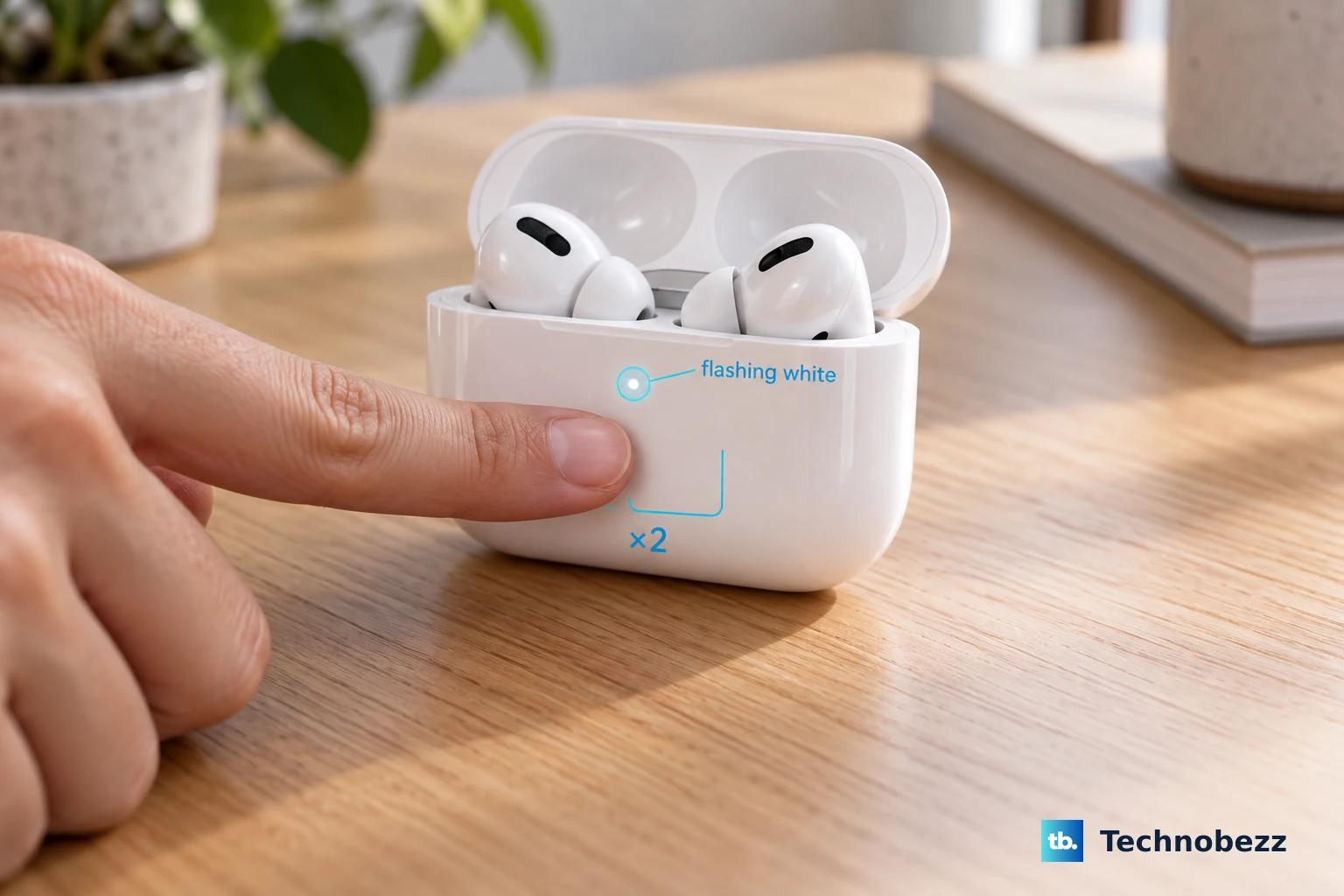
Place both earbuds in the charging case.
Open the case lid.
Double-tap the front of the case until the status light flashes white.
Use this same gesture whenever the instructions below ask you to put your AirPods into pairing mode.
Connect on Windows 11
With the case light flashing white, add your AirPods through Windows Settings.
- 1.Open Start > Settings > Bluetooth & devices.
- 2.Turn Bluetooth on.
- 3.Select Add device.
- 4.Choose Bluetooth.
- 5.Select your AirPods from the device list.
- 6.Finish with Done.
MacBook pairing through System Settings
Manual pairing connects your AirPods to your Mac without an iPhone setup first.
Open the Apple menu > System Settings > Bluetooth.
Turn Bluetooth on.
Put your AirPods Pro 3 into pairing mode using the front-case double-tap.
Under Nearby Devices, click Connect beside your AirPods.
If your AirPods are already set up with an iPhone using the same Apple Account as your Mac, put the earbuds in your ears to use that shared pairing.
Open Control Center > Bluetooth on your Mac.
Select your AirPods.
If you use a Chromebook
ChromeOS connects to AirPods Pro 3 through its standard Bluetooth controls. Start with both earbuds in the open case and the status light flashing white.
Select the time at the bottom of the screen to open Quick Settings.
Open Bluetooth.
Turn Bluetooth on.
Select + Pair new device.
Choose your AirPods.
Complete the pairing prompts.
Check that your AirPods appear under Currently connected.
If the connection fails and your Chromebook has a saved AirPods entry, open the time > Settings > Bluetooth.
Select your AirPods, including under Previously connected if listed there.
Choose Forget.
After removing the failed connection, retry the pairing steps above, starting with the case light flashing white.
Send the sound to your AirPods
On a Mac, open the Apple menu > System Settings > Sound.
Select Output.
Choose your AirPods for playback.
Select Input.
Choose your AirPods to use their microphone.
For a Windows 11 app that still plays through the laptop speakers, open Start > Settings > System > Sound > Volume mixer.
Under Apps, set the affected app's Output device to your AirPods.
Check that app's volume in the mixer.
On a Chromebook, open the time > Settings > Device > Audio.
Under Output > Device, select your AirPods.
Under Input > Device, select your AirPods microphone for calls.
For a Google Meet call using the wrong speaker or microphone, open More options > Settings > Audio.
Select your AirPods in the speaker dropdown.
Select your AirPods in the microphone dropdown.
Keep the AirPods connected through your laptop's Bluetooth controls before choosing them in Meet.
When your laptop cannot find or connect to them
The flashing white light tells you the AirPods are ready to pair. Start by checking that both earbuds charge in the case.
For a failed Mac connection, close the case.
Wait 15 seconds.
Reopen it beside the laptop.
Double-tap the front until the light flashes white.
Retry the Mac pairing steps above.
On Windows 11, turn Airplane mode off.
Open Settings > Bluetooth & devices.
Turn Bluetooth off.
Turn Bluetooth back on.
If your AirPods remain missing, open Devices > Device settings > Bluetooth devices discovery.
Select Advanced.
For a saved Windows pairing that no longer connects, open Settings > Bluetooth & devices > Devices.
Select More options beside your AirPods.
Choose Remove device.
Select Yes to confirm.
Add the AirPods again using the Windows pairing steps above.
If Windows Bluetooth still fails, open Settings > System > Troubleshoot > Other troubleshooters.
Select Run beside Bluetooth.
To clear a failing saved connection on a Mac, open the Apple menu > System Settings > Bluetooth.
Control-click your AirPods.
Select Forget.
Repeat the Mac pairing procedure.
If these checks fail, try the AirPods Pro 3 reset below. Resetting removes pairing information, so you'll need to reconnect afterward.
Reset AirPods Pro 3 as a last recovery step
Use a reset when ordinary pairing and reconnection attempts keep failing. AirPods Pro 3 use a timed sequence of front-case double-taps.
Place both earbuds in the case.
Close the lid.
Wait 30 seconds.
If the AirPods are listed on a paired iPhone or iPad, open Settings > Bluetooth.
Tap More Info beside your AirPods.
Select Forget This Device.
Open the case lid.
Double-tap the front of the case while the status light is on.
Double-tap again when the light flashes white.
Double-tap a third time when the flashing speeds up. The light then flashes amber followed by white.
Pair the AirPods with your laptop again using its Bluetooth controls.
Frequently Asked Questions
Do I need an app to connect AirPods Pro 3 to a laptop?
No separate pairing software is required. Use your laptop's Bluetooth controls. AirPods Pro 3 also support Bluetooth use with non-Apple devices, with limited functionality compared with supported Apple devices.
Can I connect them to a Windows laptop without built-in Bluetooth?
Yes. Plug a compatible USB Bluetooth adapter into the laptop. Once Windows recognizes it, follow the Windows pairing steps. Adapter compatibility and setup depend on the manufacturer.
Do I have to pair my AirPods again every time I use Windows?
No. Windows supports automatic reconnection when Bluetooth is on, the previously paired AirPods are within range, and they're available to connect. If another device has taken the connection, reconnect through the laptop's Bluetooth controls.
Can I update AirPods Pro 3 firmware from Windows?
Apple does not provide a Windows firmware installer. To receive an automatic update, connect the AirPods to an updated Mac, iPhone, or iPad with Bluetooth on and Wi-Fi connected. Connect the case to power. Put both earbuds inside. Close the lid. Leave the case within Bluetooth range for at least 30 minutes. Reopen it and reconnect. Without an Apple device, get updating help from an Apple Store or Apple Authorized Service Provider.