
Your Google Pixel 10 Pro stores temporary files and cached data that builds up over time. When storage gets low or apps start acting sluggish, clearing the cache can free up space and fix performance issues. Here's how to clean things up on your Pixel.
Clear App Cache Individually
Go to Settings > Apps and tap "See all apps." Select any app from the list to view its info page. Tap Storage & cache, then tap the Clear cache button. This removes temporary files without deleting your login info or personal data within the app.
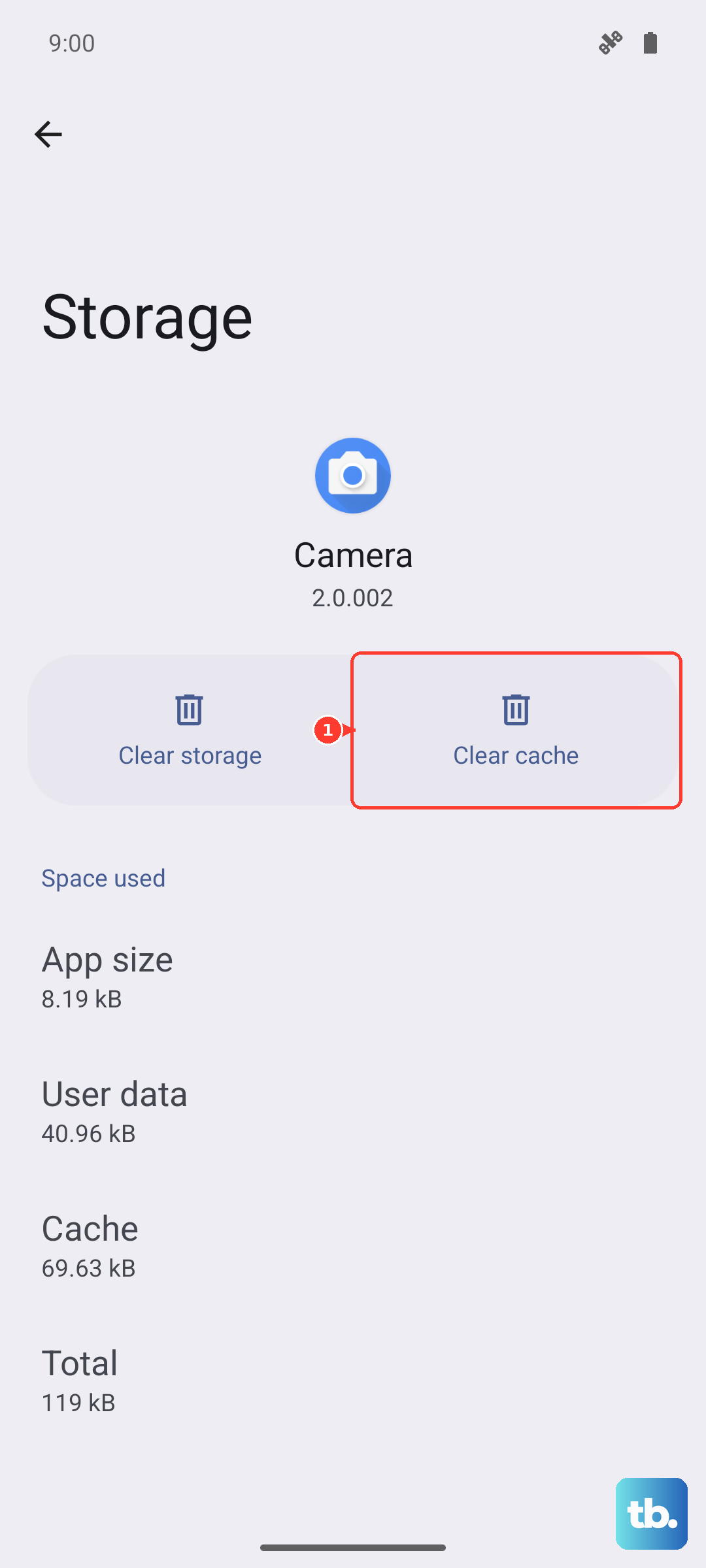
Focus on apps that use the most storage, like Chrome, YouTube, Instagram, or large games. These tend to accumulate the largest caches over time.
Clear Cache for All Apps at Once
Your Pixel 10 Pro has a handy feature to clear cached data for every app in one go. Navigate to Settings > Storage and look for the "Cached data" entry. Tapping on it will give you the option to clear all cached files across your system.
This is a quick way to free up a surprising amount of space without touching any of your personal photos, videos, or documents.
Clear Your Chrome Browser Cache
Open the Chrome app, tap the three-dot menu in the top right, and go to Settings > Privacy and security > Clear browsing data. Make sure Cached images and files is selected, choose your time range, and tap "Clear data."
This won't log you out of your websites unless you also clear cookies and site data, so you can be selective.
Wipe the System Cache Partition
This clears system-level cached data, which can help with lag or odd glitches, especially after a major Android update. First, power your Pixel 10 Pro completely off.
Press and hold the Power button and Volume Down button together. When the bootloader screen appears, use the volume buttons to highlight "Recovery mode" and press the power button to select it. From the recovery menu, choose Wipe cache partition and confirm.
Use the Files by Google App
The Files by Google app comes pre-installed and is excellent for this. Open it and tap the Clean button on the bottom left. The app will scan and identify junk files, temporary app data, and duplicate files you can safely delete.
I find this tool is often the fastest way to reclaim several gigabytes of space with just a few taps.
Clear Old Messages and Downloads
Old text message threads, especially those full of photos and videos, can take up more space than you think. Go through your Messages app and delete conversations you don't need.
Also, check your Downloads folder by opening the Files app. It's easy for old APK files, documents, and other items to pile up in there unnoticed.
Restart Your Pixel 10 Pro
A simple restart clears temporary system caches and frees up RAM. Just hold the Power button until the power menu appears, then tap Restart.
Making this a weekly habit can help keep things running smoothly and is a good first step before diving deeper into cache clearing.
Check Detailed Storage Usage
For a complete picture, go to Settings > Storage. Here, you can see a breakdown of exactly what's using your space. Tap into categories like Apps, Images, and Videos to see the largest files.
This view can help you decide if you need to clear an app's cache, offload photos to Google Photos, or delete old video files you've forgotten about.