Crumbs under a MacBook key make typing feel gritty, sticky, or unreliable. Start with Apple’s compressed-air method, then clean the surface and use service options if a key still sticks. These are the current Apple-backed cleanup and repair steps.
Use compressed air first
This clears loose crumbs and debris under MacBook keys. Apple documents the procedure for MacBook (2015 and later) and MacBook Pro (2016 and later) with an unresponsive key, or a key that feels different than the other keys when you press it. Apple does not publish it as a procedure for every MacBook model.
Choose Apple menu > Shut Down.
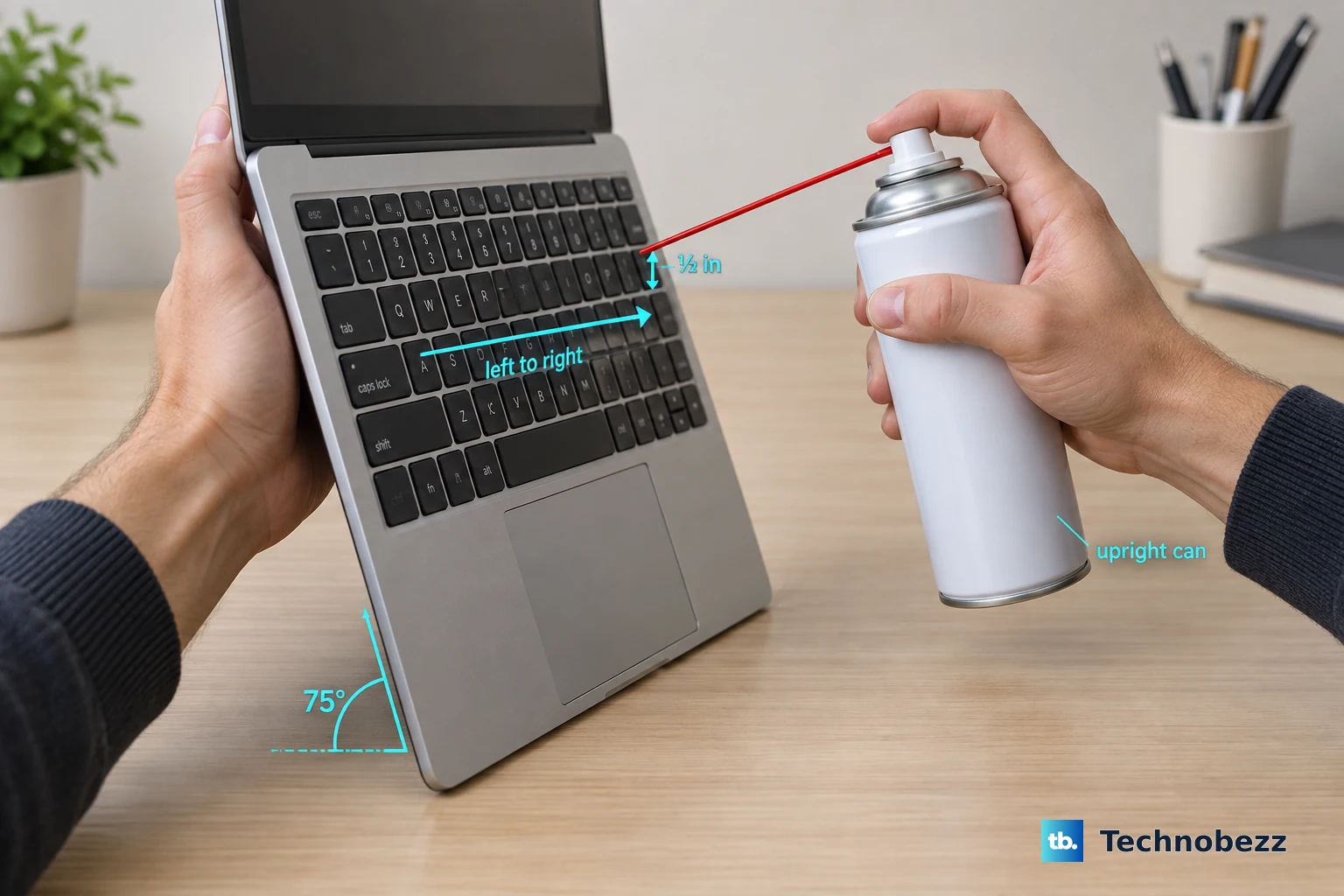
Hold the Mac notebook at a 75-degree angle, tilted but not fully vertical.
Attach the straw that came with the compressed-air can.
Keep the straw about a half-inch from the keyboard, and keep the can upright.
Spray across the keyboard, or the affected keys, in a left-to-right motion.
Rotate the Mac notebook onto its right side and spray left to right again.
Rotate the Mac notebook onto its left side and repeat the same left-to-right spray.
Clean crumbs sitting on top of the keys
Use this when crumbs are visible on the key tops or around the gaps. This removes surface debris and grime, not debris lodged under a key.
Choose Apple menu > Shut Down.
Unplug the power adapter and disconnect attached devices.
Wipe the keyboard and exterior with a damp, soft, lint-free cloth.
Keep moisture out of openings.
Do not spray liquid directly on the computer.
For hard, nonporous surfaces such as the keyboard, Apple allows a gentle wipe with a 70 percent isopropyl alcohol wipe, 75 percent ethyl alcohol wipe, or Clorox Disinfecting Wipes.
Do not use products containing bleach or hydrogen peroxide.
Stop newer Apple silicon models from turning on during cleaning
Apple silicon Mac laptops running macOS Sequoia 15 or later include startup controls for lid opening and power connection. Open Terminal from Applications > Utilities, or open Terminal with Spotlight.
Enter sudo nvram BootPreference=%00 to prevent startup when opening the lid or connecting power. Enter sudo nvram BootPreference=%01 to prevent startup only when opening the lid, or sudo nvram BootPreference=%02 to prevent startup only when connecting power.
Type the administrator password and press Return. This does not disable startup from the keyboard or trackpad, so use it as lid and power startup control, not a keyboard lock.
When cleaning is done, undo the setting with sudo nvram -d BootPreference.
Lock the keyboard while you wipe
Install a Mac keyboard-lock utility when your problem is accidental typing while wiping crumbs from the key tops.
One App Store example is CleanMyKeyboard, listed for Mac running macOS 11.0 or later.
Launch CleanMyKeyboard.
Press Start to temporarily disable keyboard input.
Wipe or brush surface crumbs from the keys.
Press Stop when the keyboard is clean.
A keyboard-lock app helps with surface wiping only; it does not remove debris lodged under the keys.
Fix a key that still sticks after cleaning
The most common cause is debris that compressed air did not dislodge or a key mechanism that needs inspection.
Repeat the compressed-air method first, keeping the Mac angled, the straw about a half-inch away, and the can upright.
If the key remains stuck or unresponsive, arrange Apple-certified service.
Go to Apple Service and Repair for Mac Laptops.
Select Get started.
Describe what is happening with the Mac.
Choose an available service option, such as In Person at a Genius Bar or Apple Authorized Service Provider, or By Mail with Apple’s prepaid shipping box.
Apple says technicians inspect the Mac, explain options, and handle the repair.
Get ready before sending it in
Handle these before Apple, an Apple Store, or an Apple Authorized Service Provider works on the Mac.
- 1.Make a backup.
- 2.Arrange service.
- 3.Turn off Find My Mac.
- 4.If a Mac with Apple silicon and macOS Tahoe 26 or later had a previous repair, or you are unsure, use Repair Assistant to check for an unfinished repair.
- 5.Gather the receipt if available, your Apple Account password, ID, and macOS user account name and password.
- 6.Bring the power cable and accessories for carry-in service, or follow the mail-in packaging instructions.
Consider Self Service Repair only for repair work
Apple Self Service Repair is for supported Mac laptop models when cleaning does not resolve the issue and you have experience with electronic repairs.
Apple’s repair manuals tell you to read the manual for your exact Mac laptop model, go to Procedures > Keys, and clean the keyboard thoroughly with compressed air before replacing a missing keycap or a keycap on an unresponsive key.
The listed tools include compressed air, ESD-safe tweezers, keycap levers, a microterry polishing cloth, needle-nose pliers, a nylon probe, and precut adhesive strips. Apple says to replace a removed keycap with a new one and not reuse it.
If Self Service Repair fails, use Apple-certified service instead.
Skip old keyboard cleaning tricks
Use this when older guides tell you to pry off keys, use a vacuum, blast heat, press cleaning putty into the keyboard, probe with a toothpick, slide a sticky note under a key, or brush under the keys. Apple does not list any of those as supported current procedures for removing crumbs from inside a MacBook keyboard.
Older guides also mention sudo nvram AutoBoot=%00 to stop a MacBook from starting while cleaning. Current Apple guidance for Apple silicon Mac laptops with macOS Sequoia 15 or later uses BootPreference instead, and Apple’s current supported physical crumb-removal method is compressed air with the Mac angled and rotated.
Frequently Asked Questions
Can I shake my MacBook to get crumbs out?
Use Apple’s angled compressed-air steps instead. Apple's documented method for debris under keys is compressed air, not shaking.
Can I remove a MacBook keycap and put it back on after cleaning?
No. Apple’s current repair guidance treats keycap removal as repair work and says removed keycaps should be replaced with new ones, not reused.
What should I do if one key still does not respond after compressed air?
Repeat the compressed-air method carefully. If the key remains stuck or unresponsive, arrange Apple-certified service or use Self Service Repair only if you are experienced with electronic repairs.
Is a keyboard-lock app the same as cleaning under the keys?
No. A keyboard-lock app only prevents accidental input while wiping the key tops. It does not remove crumbs lodged under the keyboard.