Dust and fingerprints leave your desktop monitor looking grubby, but grabbing the nearest cleaner isn't the answer. A clean, dry cloth is the starting point; anything stronger depends on your screen's coating. Here's how to remove the mess, choose a compatible cleaning method, and handle screens that need special care.
Prepare your monitor before cleaning
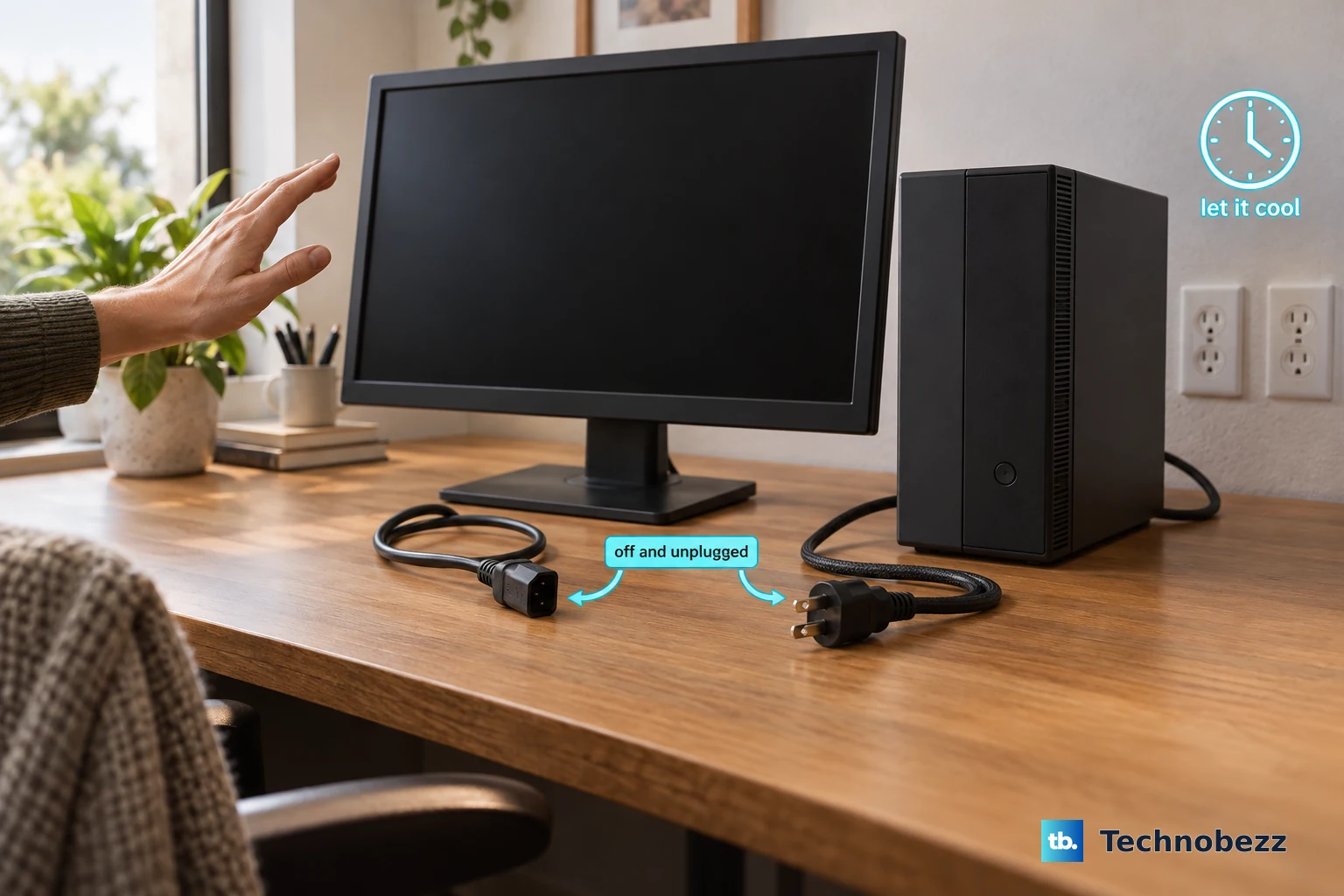
Get the screen ready before your cloth touches it.
- 1.Read your exact model's cleaning instructions before choosing a cloth, liquid, or cleaner. Cleaning permissions depend on the coating, not simply whether the screen is LCD or OLED.
- 2.Turn off the monitor and computer.
- 3.Disconnect their power cables and unplug the monitor's connected cables.
- 4.Let the monitor cool.
- 5.Set out the cloth your manufacturer specifies, plus a clean drying cloth if damp cleaning is permitted. Check the special-coating section below for screens that require a particular cloth.
Start with dry dust removal
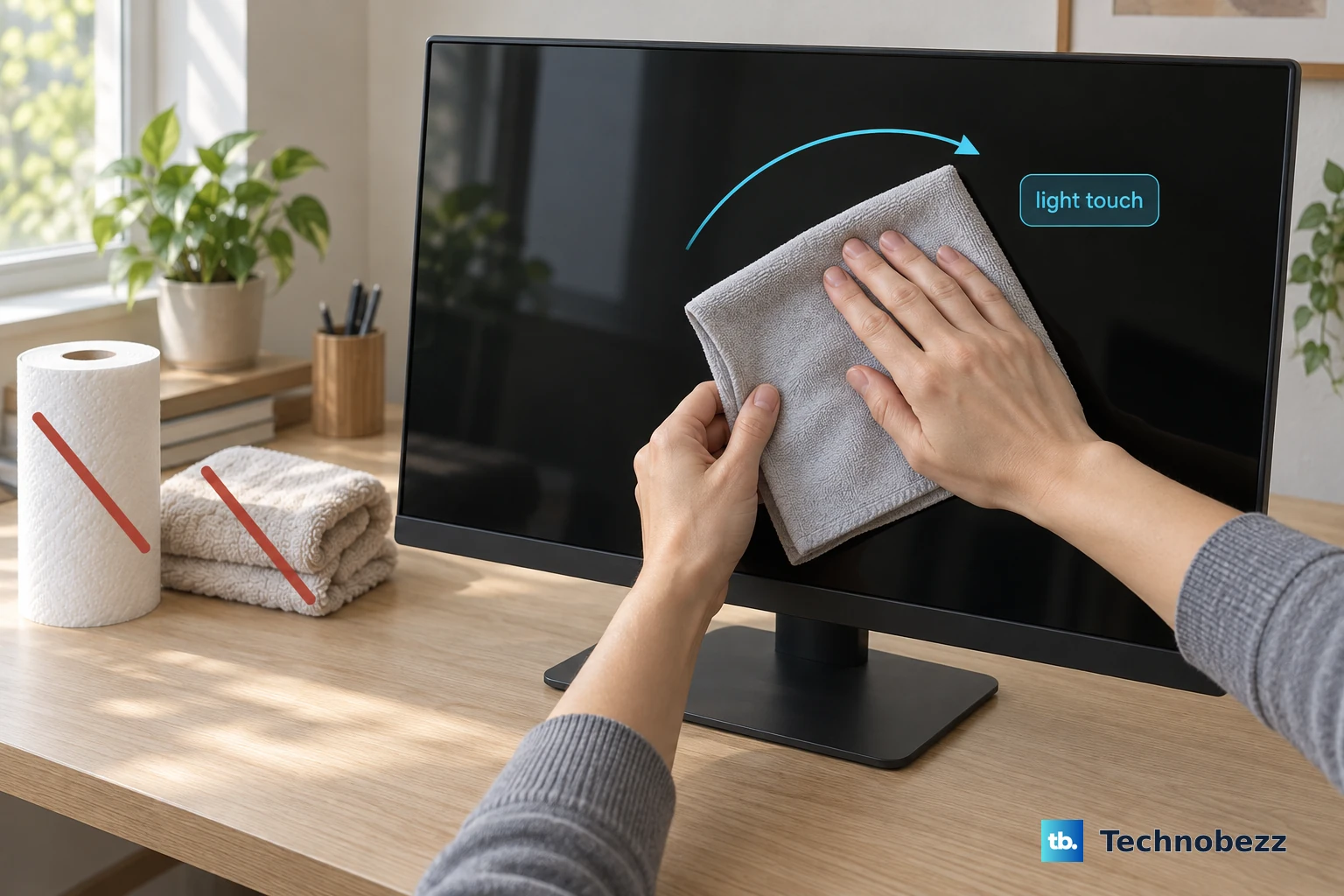
Gently wipe loose dust with a clean, dry microfiber cloth where your manufacturer permits it. Keep your touch light and skip rough paper or towels.
Follow the wiping direction for your screen. LG specifies one consistent direction; ViewSonic specifies gentle circular movements.
For ZOWIE XL and XL-K screens, gently remove larger particles with a screen-cleaning brush before wiping.
For ZOWIE, follow with dry microfiber using light circular movements.
Compressed air needs its own permission check. Samsung permits it under its monitor-cleaning instructions. For monitors covered by HP's compressed-air guidance, hold the can upright at least six inches from the screen while removing dust. Dell prohibits compressed air on its covered monitors.
If fingerprints or smudges remain, move to the water or cleaner method permitted for your exact model. For LG and Acer OLED screens, use their dedicated cleaning instructions in the special-coating section below.
Remove smudges with water where permitted
A lightly dampened cloth tackles remaining smudges on screens that permit water.
After dry dusting, prepare the cloth using the instruction for your monitor.
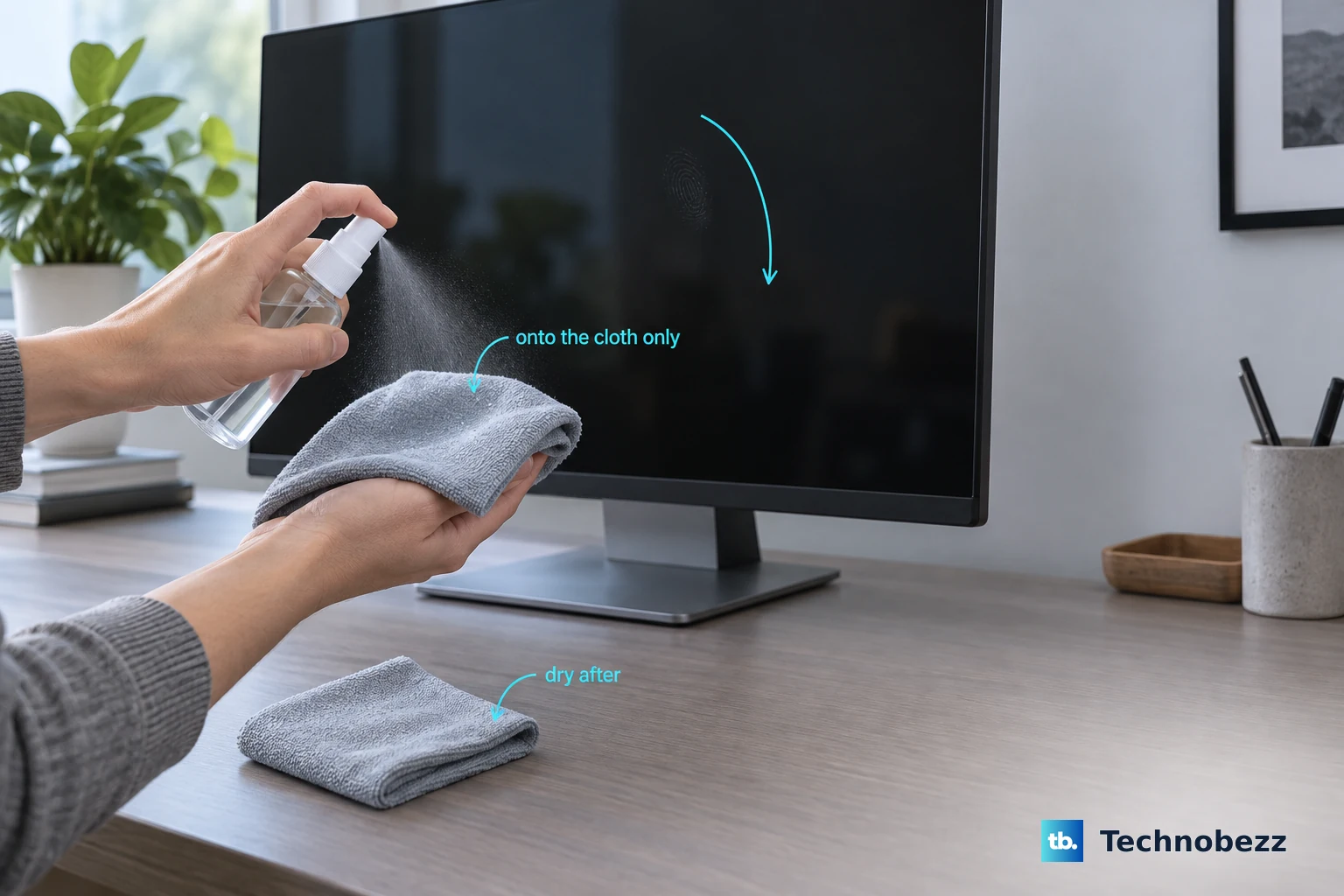
For ASUS LCD and OLED monitors, lightly spray purified water onto the microfiber cloth.
For Samsung monitors or ViewSonic LCD displays, slightly dampen the cloth with distilled water.
For Samsung, wring out excess water before wiping.
For Dell and Alienware monitor families covered by Dell's cleaning instructions, lightly dampen a soft, clean cloth with water.
Gently wipe the screen with the prepared cloth without pressing on the panel. Apply liquid only to the cloth, never directly to the screen.
For ASUS, dry the screen with a clean microfiber cloth.
Repeat the ASUS cleaning process two or three times if marks remain.
For Samsung, let the screen dry before reconnecting power.
Keep every monitor disconnected until cleaning and drying are complete.
Choose a cleaner only for a compatible monitor
For marks that survive dry cleaning, follow only the option that matches your monitor.
Samsung: For a stubborn stain such as food, dampen the cloth with equal parts distilled water and white vinegar.
Wring out excess.
Wipe gently.
Let the screen dry before reconnecting power.
Dell and Alienware: Use a screen-cleaning tissue or solution suitable for your covered monitor.
Apply solution to a soft cloth.
Gently wipe. Avoid detergents, alcohol, ammonia, abrasive cleaners, and compressed air.
ZOWIE XL and XL-K: After dust removal, apply a small amount of electronics screen cleaner to the cloth. Do not spray the screen. ZOWIE advises against water, isopropyl alcohol, and household cleaners.
Gently wipe the affected area.
CORSAIR XENEON: For substantial dirt, lightly dampen microfiber with lukewarm water or an alcohol-free screen cleaner.
Wipe gently in circles.
Then dry damp areas with a dry cloth section.
HP LCD: Where your product guide permits LCD cleaner, moisten a soft cloth with it after dry dusting.
Gently wipe in one direction from top to bottom. Never spray or pour liquid onto the screen.
EIZO: Spray the EIZO ScreenCleaner kit's liquid onto its supplied cloth.
Then wipe the display surface. Do not substitute general solvents for the dedicated cleaner.
Match your method to special screen coatings
This is where the exact model matters. ASUS prohibits alcohol and ammonia-based cleaners, while specific Apple and MSI screens permit particular alcohol treatments.
For an LG screen, gently wipe with soft microfiber in one consistent direction. LG prohibits wet-cloth cleaning and spraying water onto the screen.
For numerous LG fingerprints, breathe gently onto the marks.
Wipe them off with the microfiber cloth.
For an Acer OLED screen, gently remove dirt and dust with dry microfiber only. Skip cleansers and wet-cleaning steps.
For Apple nano-texture glass on Studio Display, Pro Display XDR, or iMac, remove dust and smudges with the supplied polishing cloth.
For an infrequent, hard-to-remove nano-texture smudge, moisten that cloth with a 70% isopropyl alcohol solution.
Clean the affected area with the prepared polishing cloth.
For MSI QD-OLED fingerprints, remove dust with a dry cloth in one direction while power is unplugged.
Apply 70% ethanol or 70% isopropyl alcohol to a second clean microfiber cloth.
Wipe in one direction, avoiding circular or back-and-forth movements.
Let the MSI panel dry.
Finish with a third clean microfiber cloth.
For Acer ART-coated panels, including Predator XB323K RV and Nitro XV272U RV, gently wipe the affected area in one direction with a clean 3M microfiber cloth.
Switch to clean cloth sections as they become dirty.
If marks remain, follow the next treatment in your exact model's instructions. Acer ART panels have a dedicated 3M lint-roller procedure; Acer OLED guidance remains dry-only. Keep each treatment confined to the screens it covers.
Finish with the frame and complete drying
Keep power disconnected while cleaning the frame or casing.
For an LG front frame, spray water onto a soft cloth two to four times.
Gently wipe the frame in one direction, keeping excess moisture off the screen.
For a ViewSonic casing, wipe with a soft, dry cloth.
For remaining casing dirt, apply a small amount of mild, non-abrasive detergent containing neither ammonia nor alcohol to a soft, lint-free cloth.
Wipe the ViewSonic case with the prepared cloth. This detergent procedure applies to the casing only.
Allow the monitor to dry completely.
Reconnect cables and power after drying.
For contamination inside the monitor, contact qualified service. Samsung directs owners of its covered T-series monitors to a service center for internal cleaning, with a service fee.
Keep your cleaning cloth clean by following its care instructions before reuse.
Frequently Asked Questions
Can I use disinfecting wipes on my monitor?
Only when your manufacturer permits that wipe for your display. Apple's general guidance allows 70% isopropyl alcohol wipes, 75% ethyl alcohol wipes, or Clorox Disinfecting Wipes on eligible hard, nonporous surfaces; nano-texture glass has separate instructions. Microsoft prohibits disinfecting wipes on Surface Studio touchscreens.
Does Pixel Cleaning remove fingerprints or dust?
No. OLED features called Pixel Cleaning, Panel Refresh, or Image Cleaning handle display maintenance rather than surface dirt. Use your monitor's physical cleaning procedure for dust and fingerprints.
How do I wash the polishing cloth supplied with an Apple nano-texture display?
Hand-wash it with dish soap and water. Rinse thoroughly, then let it air dry for at least 24 hours before reuse.
How do I clean an Apple Studio Display with standard glass?
Disconnect power, the computer connection, and external devices. Dust the screen with the supplied cloth or another soft, dry cloth. For additional cleaning, use a soft, slightly damp, lint-free cloth, keeping moisture out of openings. This procedure also covers standard-glass Pro Display XDR panels and cases.