Trying to update your Galaxy Tab A, but the menu doesn't match the instructions you've found? Samsung uses different update labels across software versions and carriers. Start with the Settings options below, then check the download, update availability, or desktop installation route if you're stuck.
Check for an update in Settings
This installs the Samsung software updates available for your tablet.
Connect your Tab A to Wi-Fi.
Make sure the tablet has adequate battery charge.
Check that it has available storage before starting the download.
Open Settings.
Select Software update, or System updates on carrier versions displaying that label.
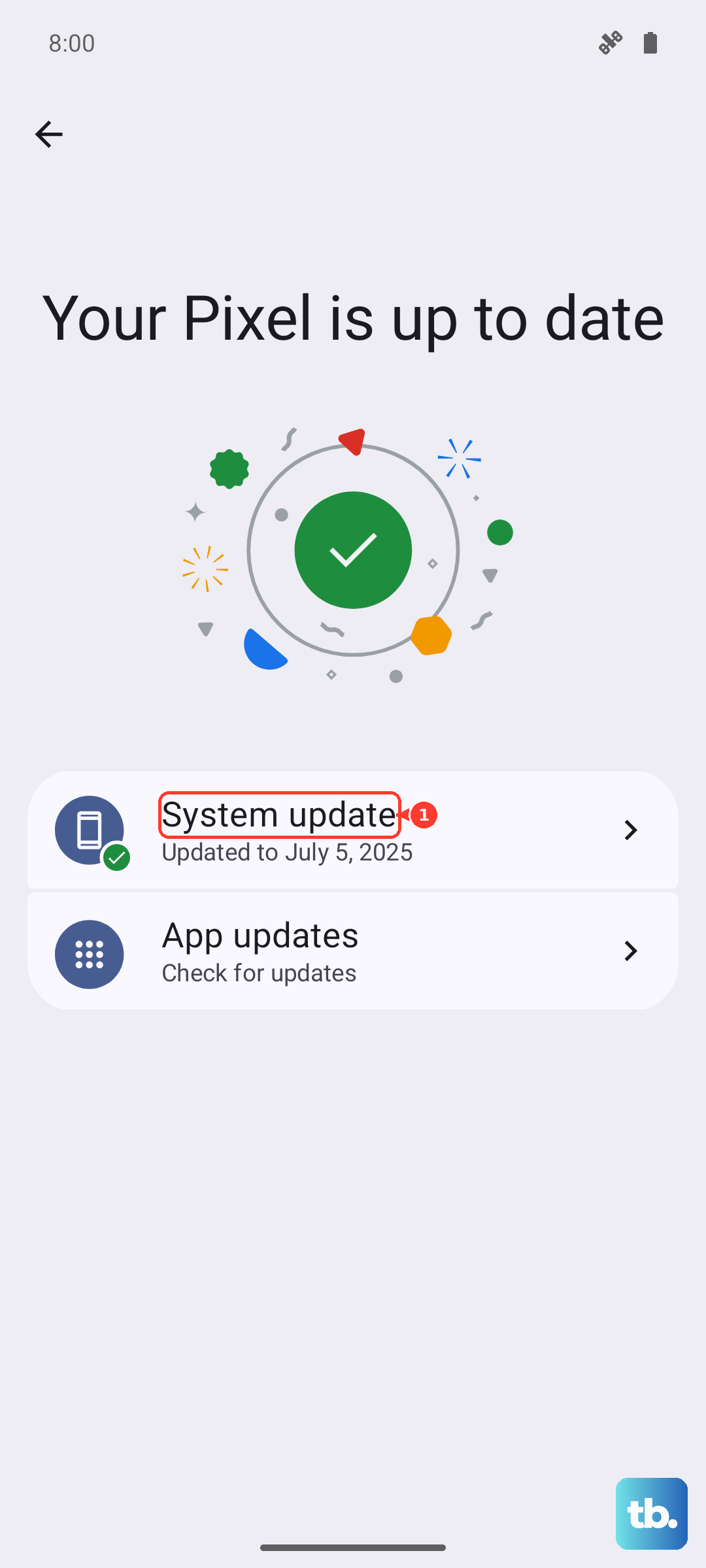
Tap Download and install. Depending on your interface, the button is labeled Check for updates, Check for system updates, or Check for software updates.
Download the offered update. On carrier interfaces with a Download now button, tap it.
Follow the installation prompts.
Check for updates again after the tablet restarts to install any remaining updates.
Resume a download that stops
A lost network connection interrupts a software update download.
Reconnect the tablet to a working network.
Use the software-update notification to resume the interrupted download. The resume control's wording varies by interface.
Check the available storage again if the update still won't proceed.
Check the battery charge, too. Some carrier tablets also require their original carrier's SIM.
Try Smart Switch on a computer if the tablet still won't complete the update through Settings.
Set up automatic downloads and a convenient install time
Open Settings > Software update.
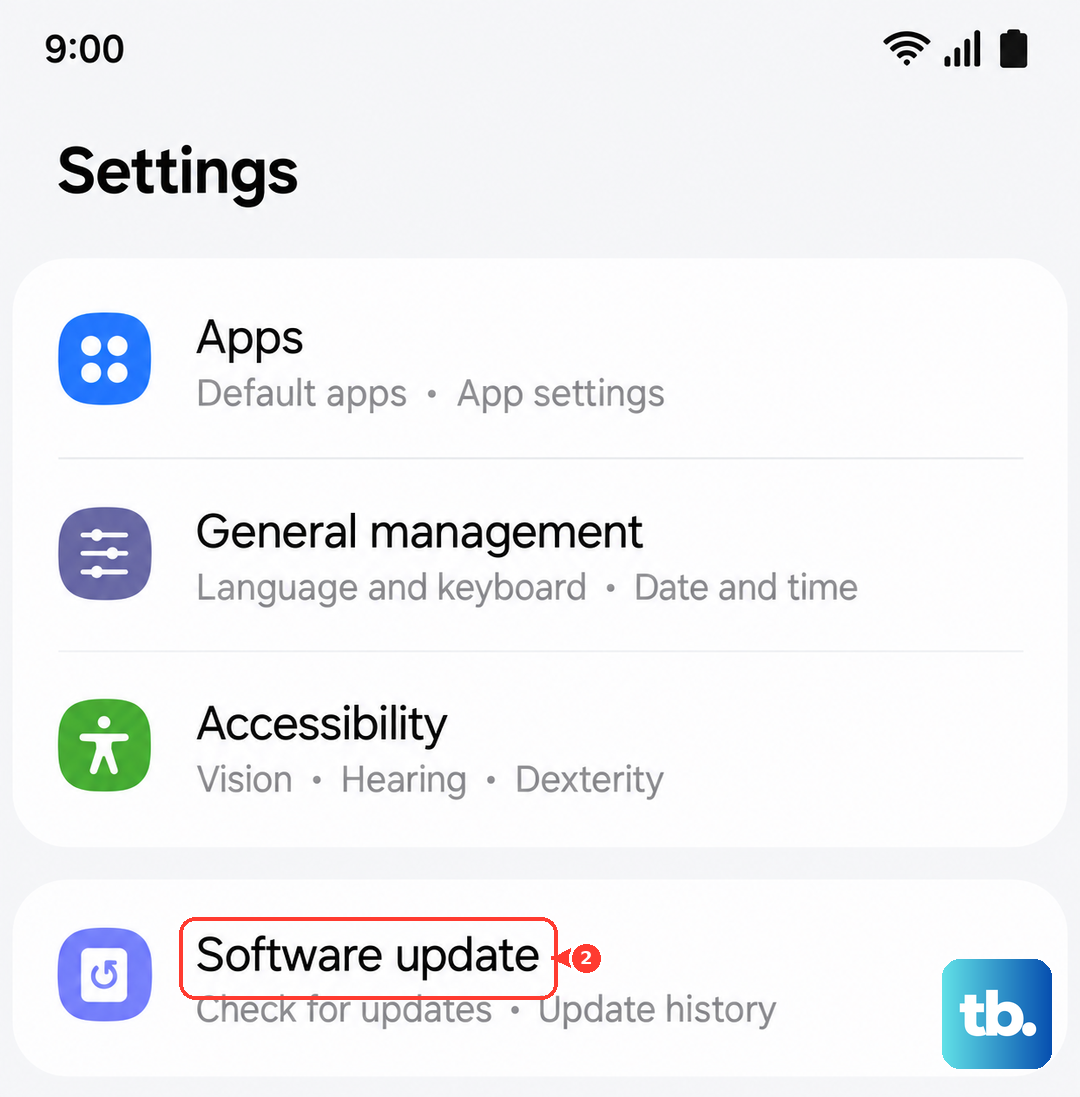
Enable Auto download over Wi-Fi. Samsung documents this switch from Android 7 through Android 16 (One UI 8.5). If your Software update screen doesn't show it, select three-dot menu > Auto download > Using Wi-Fi only instead.
Follow the installation prompt once an update has downloaded. Automatic downloading does not guarantee unattended installation on every carrier version.
To schedule a ready update on a tablet with scheduling controls, open Settings > Software update > Download and install.
Select Schedule install.
Choose the installation time.
Tip: Install now starts installation immediately, while Later postpones the decision.
Find out why no update is offered
Another Tab A getting an update doesn't mean yours gets the same release. The name covers several tablet generations, and availability depends on the exact model, region, and carrier.
Open Settings > About tablet to identify your model.
Select Software information to inspect the installed software versions.
Find your exact model under Galaxy Tab A Series on Samsung's security-support page. A listing indicates scheduled security support, not immediate availability of a particular update in every region.
For a carrier-supplied tablet, compare the installed version with the software-update information on the original carrier's device-support page. Carrier unlocking does not necessarily change which carrier supplies the updates.
If these checks don't explain the missing update, try Smart Switch next. It installs firmware offered for your model; it cannot supply an Android release Samsung hasn't made available for it.
Use Smart Switch on a Windows PC or Mac
Smart Switch gives compatible Tab A tablets another route to an available firmware update.
Download the desktop application from Samsung's Smart Switch page, choosing the Windows or Mac download destination.
Install Smart Switch on your computer.
Connect the tablet to the computer with a USB cable.
Open Smart Switch.
Wait for the app to recognize your tablet.
Select Update if Smart Switch offers firmware for your device.
Complete the onscreen prompts.
Keep the USB cable connected until the update finishes.
Recover from a failed computer update
If a Smart Switch update fails, use emergency recovery when the app exposes its recovery controls and a recovery code. Availability depends on the Tab A model. Recovery can erase data.
On the computer where the update failed, open Smart Switch's three-dot menu > Emergency Software Recovery and Reset.
Select the failed device to obtain its recovery code.
On another computer, open Smart Switch's three-dot menu > Emergency Software Recovery and Reset > Emergency code recovery.
Enter the recovery code.
Follow the recovery prompts.
If recovery fails, or the tablet cannot start normally and has no recovery option, contact Samsung Support or an authorized service provider.
Check security and Google Play system updates separately
On tablets with the combined security menu, open Settings > Security and privacy > Updates > Security update to access Samsung's firmware and security-update controls.
Google Play system updates are separate from Samsung firmware and ordinary app updates. On Google-enabled Tab A tablets displaying this menu, open Settings > Security and privacy > Updates > Google Play system update.
Select Download & install when an update is offered.
Choose Restart now when prompted to finish.
Keep your apps updated too
Check both stores for apps distributed through Google Play and Galaxy Store.
- 1.Open Play Store and tap your profile picture.
- 2.Select Manage apps & device > Updates available.
- 3.Tap Update beside an app or choose Update all.
- 4.Open Galaxy Store, which requires a Samsung account.
- 5.Select Menu > Updates.
- 6.Tap the circular-arrow control beside an app or select Update all.
Frequently Asked Questions
Will a factory reset install a newer Android version?
No. A factory reset is not a firmware-update method. Samsung also states that current firmware cannot be downgraded.
How can I see what the last update changed?
Open Settings > Software update > Last update > All changes. On carrier versions displaying update history instead, open System Update history, select the latest entry, and tap Learn More.
Why are updates restricted on my work or school tablet?
Organizations use Samsung Knox E-FOTA to schedule firmware updates or hold enrolled, compatible tablets on an approved version. Contact your administrator when updates are restricted.
Does updating apps also update the Play Store itself?
The Play Store has its own update check. Open Play Store > profile picture > Settings > About > Update Play Store. Tap Got it. An available store update downloads and installs automatically.