
Keeping an eye on your Samsung Galaxy Tab A9+ battery is a smart way to understand its performance and lifespan. The tablet's large 7040mAh battery is designed for long sessions, but its health will naturally change over time. Samsung provides several built-in tools within Android 14 and One UI 6 to check on its status and optimize its usage.
Start with the Battery Menu in Settings
Head to Settings > Battery and device care > Battery. This is your main hub for all things battery-related on the Tab A9+. While Samsung doesn't display a precise health percentage like some manufacturers, this screen provides the essential status. Look for any notifications or messages about battery condition, which will alert you if there's a significant issue.
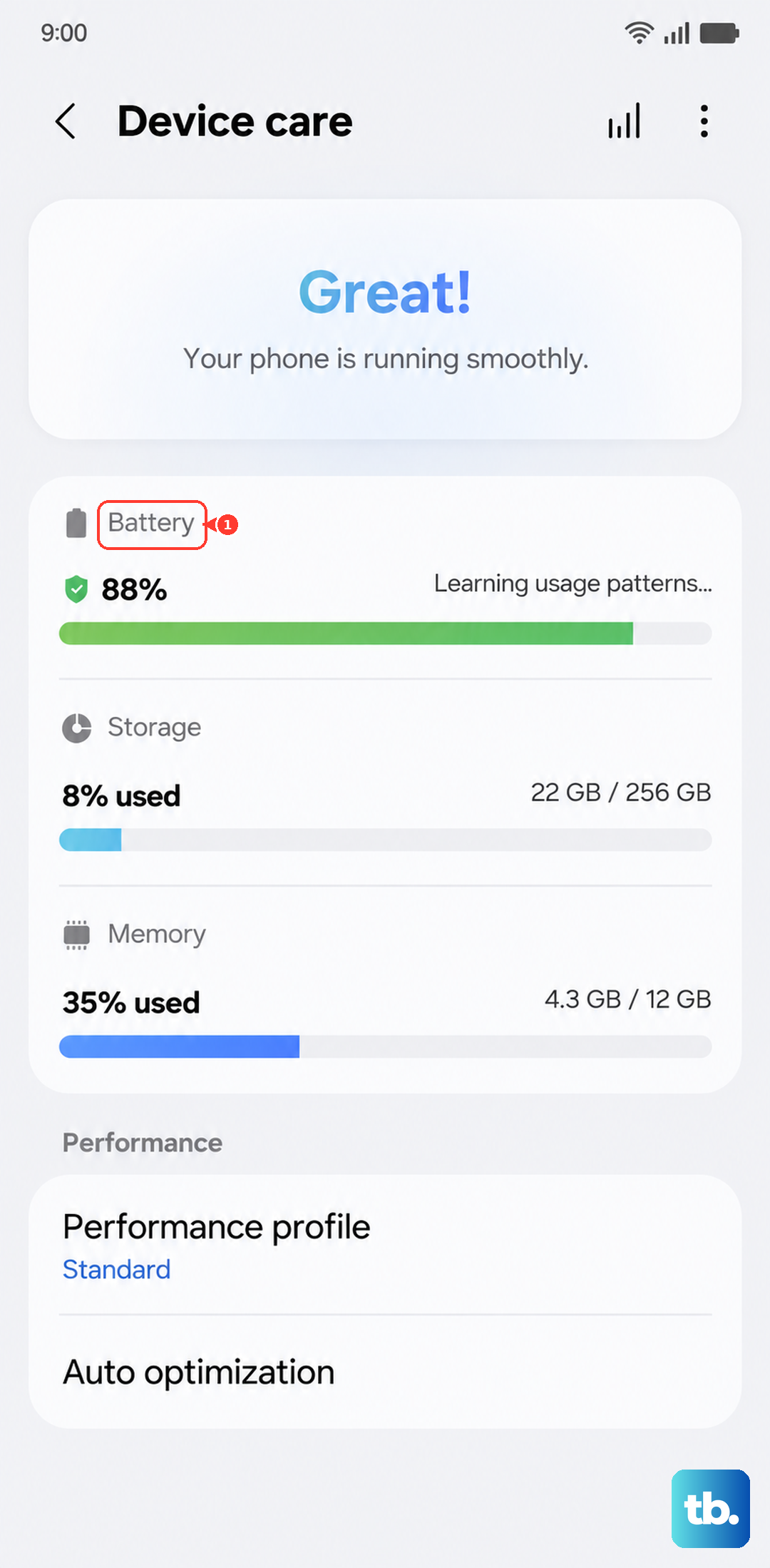
From here, you can also quickly enable power-saving modes. Given the Snapdragon 695 chipset can struggle with demanding apps, managing background activity here is a good first step for preserving daily battery life.
Run a Diagnostic with Samsung Members
For a more detailed check, use the pre-installed Samsung Members app. Open it and tap on the Get help or Support tab. Then, select Interactive checks or Tests and choose the Battery diagnostic.
This tool runs a quick test and will give you a clearer pass/fail or status report on your battery's health. It's the most straightforward official method to see if Samsung's software detects any problems with the battery cell itself.
Check Which Apps Are Using the Most Power
Understanding your usage is key. Go back to Settings > Battery and device care > Battery and tap on Battery usage. You'll see a detailed breakdown of which apps and services have consumed the most power since your last full charge.
Tap on any app to see how much of its usage was on-screen versus running in the background. If you see a game or social media app using a surprising amount of power, it might be a cue to adjust its settings or how you use it. I've found that keeping background apps minimal is crucial for maintaining smooth performance on this model.
Use the Hidden Service Menu for Technical Data
There's a hidden diagnostic menu that provides raw battery data. Open your tablet's Phone app, yes, even though it's a tablet, the dialer is usually present, and enter the code *#0228#. This will launch a service menu showing current voltage, temperature, and other technical readings.
This information is more for curiosity or advanced troubleshooting, as it doesn't translate directly to a "health percentage." However, a consistently very low voltage reading when the battery is supposedly full could indicate wear. Just be careful not to change any settings in this menu.
Configure Battery Protection to Extend Lifespan
To help your battery last for years, you can limit its maximum charge. Navigate to Settings > Battery and device care > Battery > More battery settings. Here, you'll find Battery protection.
You can set it to limit charging to 85%, which significantly reduces long-term wear on the battery. For daily use, this is often plenty of charge, especially with such a large capacity. It's one of the best habits you can adopt for tablet battery care.
Optimize with Adaptive Battery and Sleep Settings
Let your tablet help manage power. In the same More battery settings menu, ensure Adaptive battery is turned on. This feature learns your app usage patterns over time and intelligently restricts power for apps you rarely use.
You can also set Background usage limits to put unused apps to sleep automatically. Combined with the tip to keep background apps minimal, these settings help the Tab A9+ run more efficiently and preserve battery throughout your day.
Recognizing When a Battery Needs Replacement
Over time, all batteries degrade. Signs for the Tab A9+ include the tablet shutting down unexpectedly at what seems like 10% or 20% charge, or it no longer lasting through a typical day of use despite optimized settings. The most critical sign is if the back case begins to swell or separate, which indicates a failing battery that should be replaced immediately for safety.
Samsung offers official battery replacement services through authorized repair centers. Given the tablet's design, I'd recommend a professional service for this task.
Daily Habits for Better Battery Longevity
Your charging habits make a big difference. Always use a good quality USB-C charger that supports at least 15W to get the fastest charging the Tab A9+ can accept. Avoid constantly draining the battery to 0%; try to charge it before it drops below 20%.
Extreme heat is a battery's enemy. Don't leave your tablet in a hot car or charge it under a blanket. Using the Battery protection feature to cap at 85% is a great practice. For long reading sessions, enabling Reading Mode can also reduce power draw from the screen.