
Like any rechargeable battery, your iPad battery slowly wears out as you charge it over months and years. The good news in 2026 is that newer iPads finally show battery health right in Settings, while older iPads can still get the same numbers through a free desktop tool or a hidden system log.
Have a recent iPad? Use Method 1 and you are done in about five seconds. Have an older iPad with no Battery Health screen? Skip to the third-party tools and the analytics log, which read the exact same data.
Method 1 Check Battery Health in iPad Settings
This is the fastest and most accurate way, but it only appears on newer models. The native screen is supported on iPad Pro (M4 and M5), iPad Air (M2, M3, and M4), iPad mini (A17 Pro), and iPad (A16), running iPadOS 17.4 or later.
To open it, go to:
Settings > Battery > Battery Health
You will see a one word health status such as Normal, your Maximum Capacity as a percentage, the Cycle Count, and the dates your battery was manufactured and first used. On these models you can also turn on a charging limit that stops at about 80 percent to slow long term wear.
If you do not see a Battery Health option, your iPad is too old for the feature. That is normal for most pre 2024 models, and the methods below are made for exactly that situation.
Method 2 Read the Hidden Analytics Log
Every iPad quietly records its own battery numbers, even when no Battery Health screen exists. You can read them without installing anything, although the file is dense.
First make sure logging is on, then open the data:
Settings > Privacy & Security > Analytics & Improvements > Analytics Data
Open the most recent file in the list, then use the search field to find last_value_MaximumCapacityPercent for your current capacity and CycleCount for your charge cycles. The capacity value is the percentage of the original charge your battery can still hold, so a reading of 90 means roughly 90 percent.
This path works on older iPads that have no native screen, but the log is built for diagnostics, not people, so the tools below present the same data far more clearly.
Method 3 iMazing on Windows or Mac
iMazing runs on both Windows and macOS, which makes it the most flexible option if you do not own a Mac. You can read the battery numbers using the free trial without buying a license.
To check your battery:
- 1.Download and install iMazing on your computer
- 2.Connect your iPad with a cable and open the app
- 3.Select your iPad from the sidebar
- 4.Click the battery icon in the bottom right corner
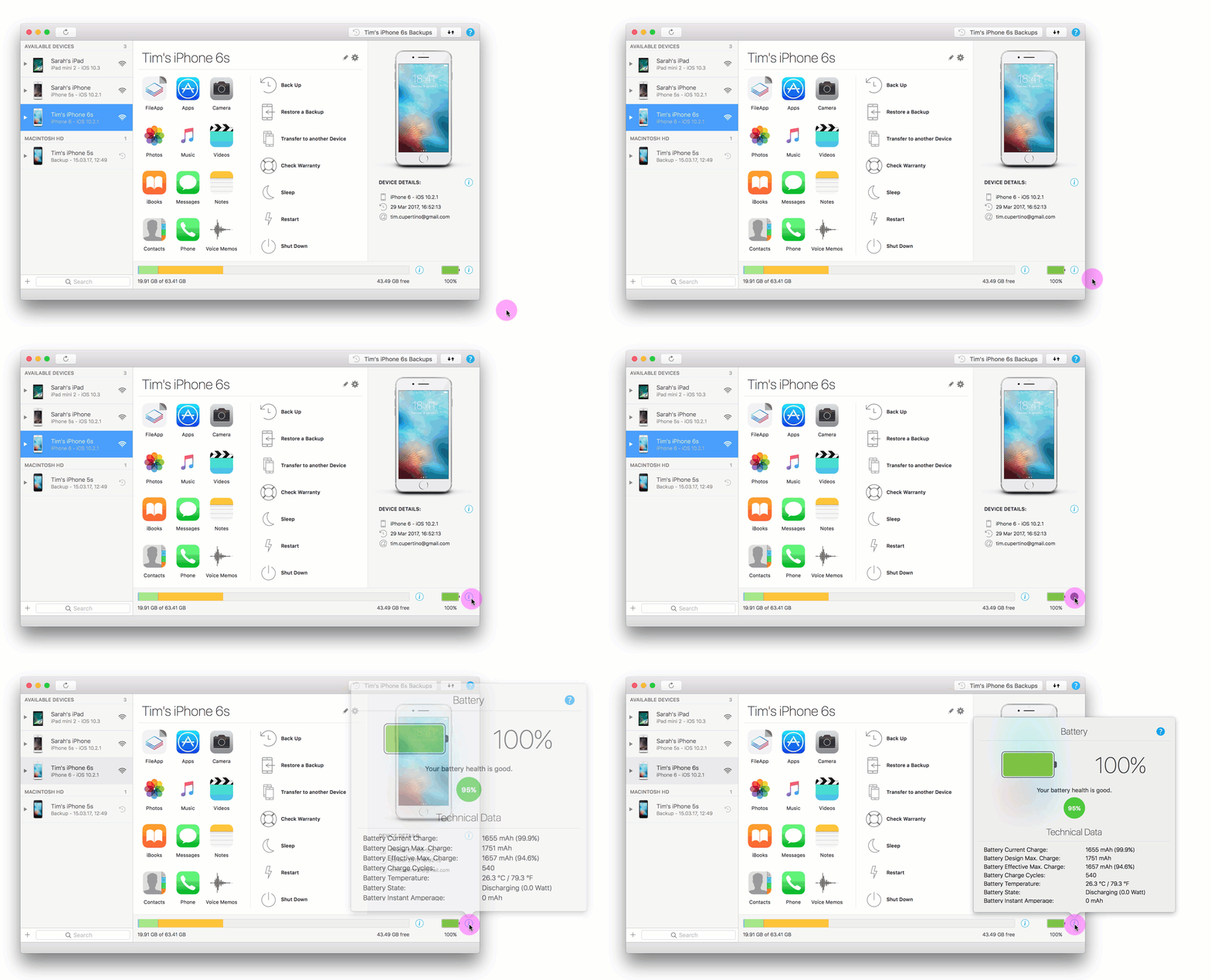
The battery window shows your current charge and a battery health percentage. Treat anything in the 90s as excellent, the 80s as good and aging, and a reading below 80 percent as a sign that a replacement is worth considering.
Method 4 coconutBattery on Mac
coconutBattery is a Mac only app that gives a clear, technical breakdown of your battery. It is a favorite among longtime Apple users because of how it shows wear over time.
To use it:
- 1.Download coconutBattery and connect your iPad to your Mac
- 2.Launch the app and select your iPad from the device list
- 3.View the battery diagnostics panel
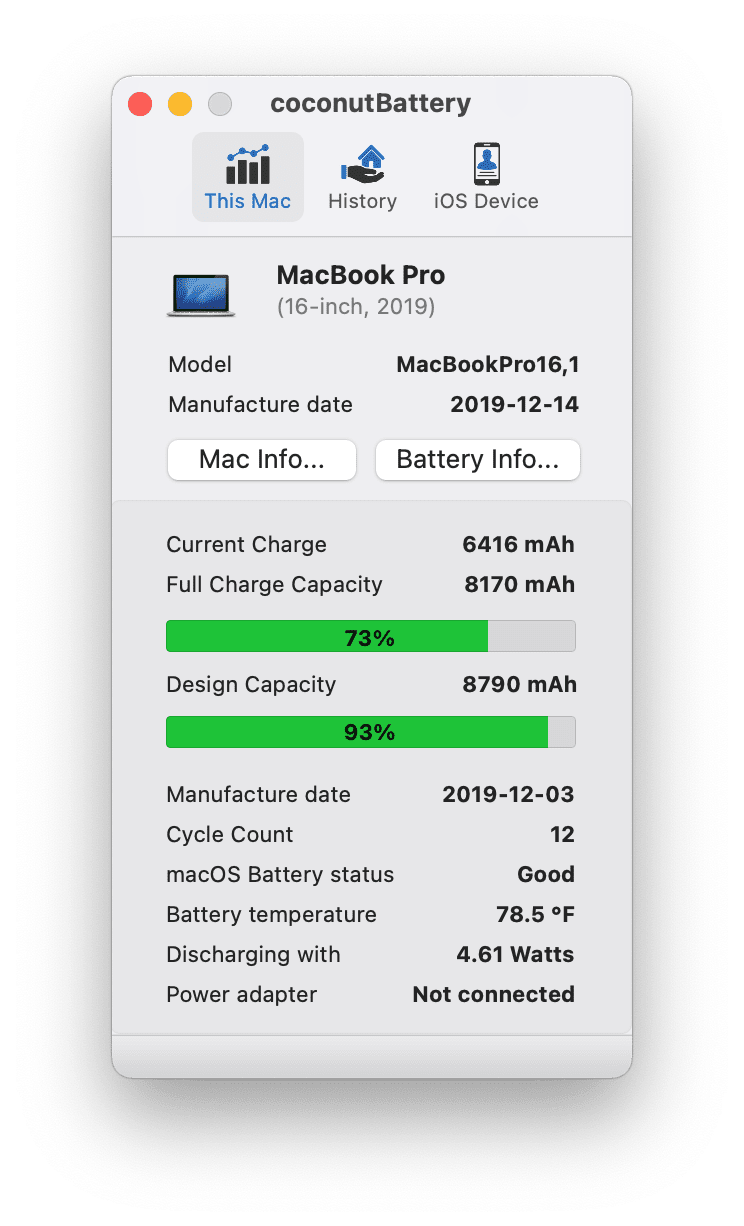
The key figures are Design Capacity, the charge your battery held when new, and Full Charge Capacity, the charge it holds now. The app also shows your cycle count, which matters because Apple designs iPad batteries to keep about 80 percent of their original capacity after 1,000 full charge cycles.
Method 5 3uTools on Windows
3uTools is a Windows utility that bundles iPad diagnostics, including a battery report. It is a solid backup if iMazing will not connect on your PC.
To read your battery:
- 1.Install 3uTools on your Windows PC and connect your iPad
- 2.Select Details next to Battery Life
- 3.Review the statistics including design capacity, actual capacity, and charge cycles
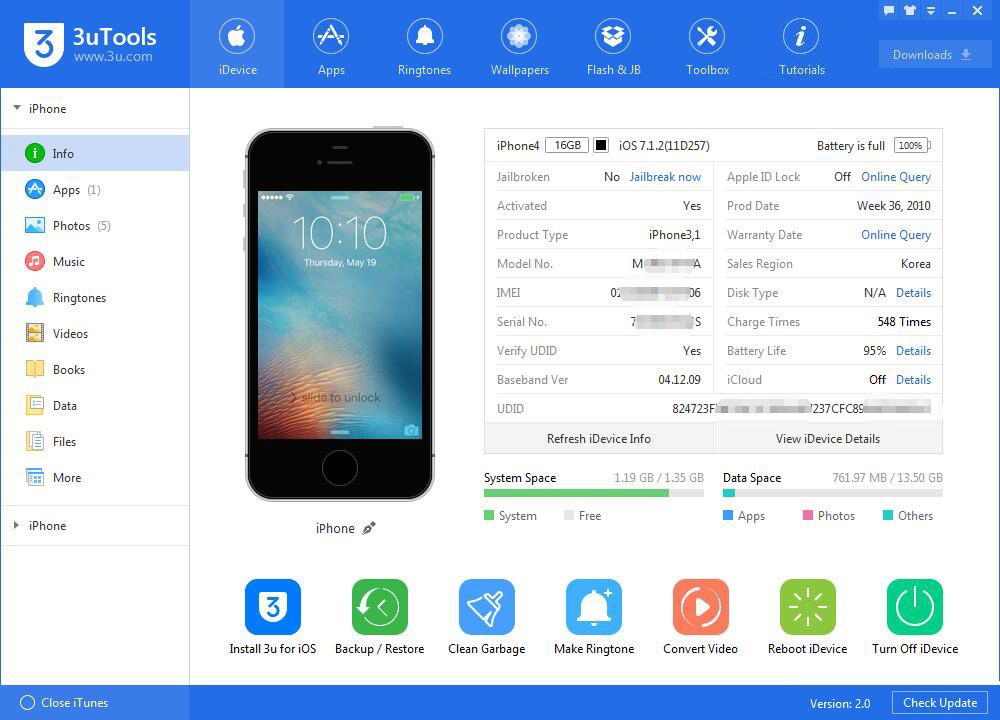
3uTools can feel slower and busier than iMazing, but the actual capacity and cycle count it reports come from the same system data, so the numbers are reliable.
Method 6 Ask Apple Support or a Genius Bar
If you would rather not install anything, Apple can run an official battery diagnostic for you. This is also the route to take when you suspect a real fault rather than normal wear.
Start a chat or call through the Apple Support app or at support.apple.com, or book a visit to a Genius Bar. A technician can run a remote diagnostic and tell you whether your battery still meets Apple service standards.
This option costs nothing for the check itself and removes any guesswork about whether your readings are accurate.
iPad Battery Tools Compared
Each tool reads the same underlying data, so the right pick mostly comes down to your computer and whether you want a license.
| Tool | Platform | Max capacity | Cycle count | Free |
|---|---|---|---|---|
| Native Settings | iPad (newer models) | Yes | Yes | Yes |
| Analytics log | iPad (any) | Yes | Yes | Yes |
| iMazing | Windows and Mac | Yes | Yes | Trial |
| coconutBattery | Mac only | Yes | Yes | Yes |
| 3uTools | Windows only | Yes | Yes | Yes |
How to Read the Battery Numbers
Two figures matter most. Maximum capacity is the share of the original charge your battery can still hold, and cycle count is how many full charge cycles it has been through, where one cycle equals using 100 percent of capacity across any number of top ups.
Use maximum capacity as your quick health grade:
- 100 percent Excellent, the battery holds a full charge
- 85 to 95 percent Good, normal performance for regular use
- 70 to 84 percent Aging, expect noticeably shorter runtime
- Below 70 percent Poor, a replacement is worth planning
For context, Apple builds iPad batteries to retain about 80 percent of their original capacity after 1,000 complete charge cycles. If your capacity has dropped under 80 percent or your runtime feels too short for your day, it is reasonable to look at a battery service.
Frequently Asked Questions
Does the iPad have a Battery Health feature like the iPhone
Newer iPads do. Models such as iPad Pro (M4 and M5), iPad Air (M2, M3, and M4), iPad mini (A17 Pro), and iPad (A16) on iPadOS 17.4 or later show Maximum Capacity and Cycle Count under Settings > Battery > Battery Health. Older iPads need a tool or the analytics log instead.
What is a normal iPad cycle count
There is no single normal number because it depends on how long and how heavily you have used the iPad. The useful benchmark is Apple's design target, which is keeping about 80 percent of original capacity after 1,000 full charge cycles, so a low cycle count with high capacity is a healthy sign.
When should I replace my iPad battery
Consider a replacement when maximum capacity falls below 80 percent or when the iPad no longer lasts long enough for your normal day, even after a full charge. Unexpected shutdowns or very slow charging are also good reasons to have Apple check it.
Why does my iPad have no Battery Health option
The native screen only exists on the newer models listed above running iPadOS 17.4 or later. If your iPad is older, the option will not appear no matter how updated it is, so use iMazing, coconutBattery, 3uTools, or the analytics log to see the same numbers.
Is 85 percent battery health bad on an iPad
No, 85 percent is generally fine and falls in the good range for an iPad that has seen regular use. You will get slightly less runtime than when it was new, but there is no need to replace the battery at that level.
First published October 12, 2025. Last updated June 4, 2026.