
Your Google Pixel 10 Pro's battery is its lifeblood, and keeping an eye on its health is one of the best ways to ensure your phone lasts through the day for years to come. While batteries naturally degrade, knowing where yours stands can help you adjust your habits or plan for a replacement.
Find Battery Health in Your Settings
On your Pixel 10 Pro running Android 15, the most straightforward check is built right in. Head to Settings > Battery > Battery health. Here, you'll get a clear readout of your battery's current capacity compared to its original design, often shown as a percentage.
This screen also provides useful data like your charge cycle count and the battery's manufacture date. I've found this official reading is the most reliable place to start, as it uses the phone's own internal diagnostics.
Review What's Using Your Power
If your battery seems to be draining faster than it should, the culprit is often an app. Go to Settings > Battery > Battery usage to see a detailed breakdown of power consumption since your last full charge.
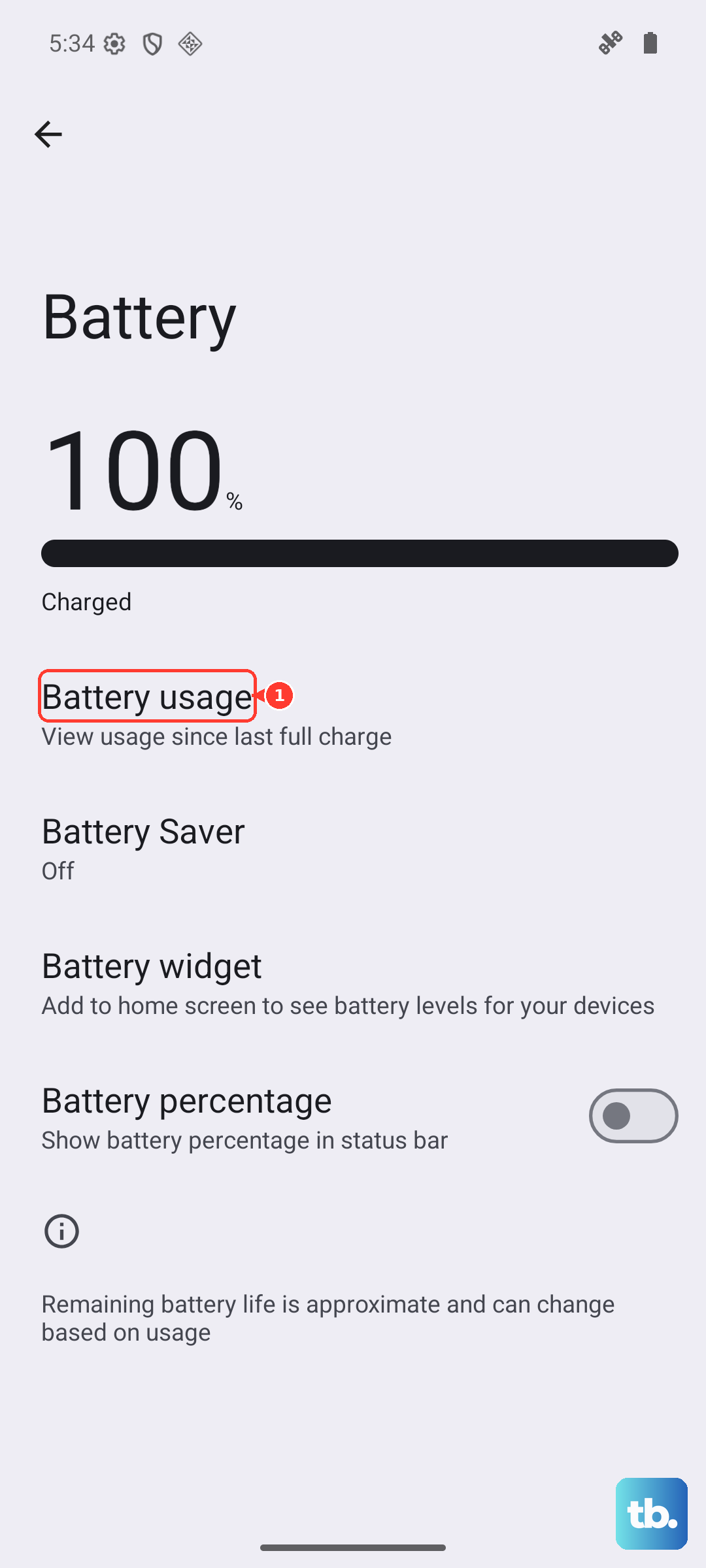
Tap on any app listed to see how much battery was used while the screen was on versus in the background. A poorly optimized or malfunctioning app will often show excessive background activity, which is a major drain on long-term health.
Enable Adaptive Charging for Longevity
One of the best features for preserving your Pixel 10 Pro's battery is Adaptive Charging. You can find it by going to Settings > Battery > Adaptive preferences.
When enabled and you set an alarm, your phone will slow its charge to top off to 100% just before you wake up. This avoids keeping the battery at full voltage for extended periods overnight, which is a key factor in reducing wear. I'd recommend turning this on if you have a regular sleep schedule.
Check Your Charging Hardware
Sometimes, what feels like a battery problem is actually a charging issue. The Pixel 10 Pro's USB-C port can collect pocket lint over time, preventing a solid connection. Carefully clean it out with a dry plastic toothpick or a blast of compressed air.
For the fastest and most reliable 30W charging, use Google's official charger. Some third-party chargers may not negotiate the full speed. Also, if you're using Qi2 wireless charging and it seems slow or stops, try removing a thick phone case, as it can interfere with efficiency.
Use AccuBattery for Deep Insights
For those who love data, the third-party app AccuBattery from the Play Store offers incredible detail. It estimates your battery's health by monitoring charge cycles and calculates your actual capacity versus the original.
After a few charge sessions, it gives you a health percentage and tracks metrics like charging speed and how quickly your battery drains with the screen on. It's a fantastic tool if you want to monitor degradation trends over many months.
Try the Diagnostic Code
Android has a hidden testing menu that sometimes contains battery info. Open your Phone app and dial *#*#4636#*#*. This should bring up a "Testing" menu.
Tap on "Battery information" to see details like voltage, temperature, and health status. It doesn't work on every carrier variant, but it's a quick trick that can provide a second data point.
Manage Heat and Charging Habits
Heat is the number one enemy of lithium-ion batteries. Avoid charging your Pixel 10 Pro in direct sunlight, under a pillow, or while running intensive games. The phone will actually throttle its fast charging if it detects high temperatures to protect the battery.
Ideally, try to keep your battery between 20% and 80% for daily use. You don't need to obsess over it, but consistently draining to 0% or always charging to 100% puts more stress on the battery over its lifetime.
Recognizing When a Replacement is Needed
If your battery health is consistently showing below 80% capacity and your phone struggles to make it to lunchtime on a charge, it's likely time for a replacement. Other clear signs include the phone shutting down unexpectedly with charge still showing, or the battery itself swelling (which you might notice as a lifting screen or back panel).
For the Pixel 10 Pro, your best path is to contact Google Support or visit an authorized service provider to ensure you get a quality battery and maintain any water resistance.