Want a different desktop picture, or trying to stop Windows from changing the one you chose? Windows 11 lets you use a personal photo, rotate a folder of images, or replace the picture with a solid color. Start with the picture setting below, then adjust the fit or choose backgrounds for individual screens.
Choose your wallpaper in Settings
This sets a picture you choose as your desktop background. Open Start.
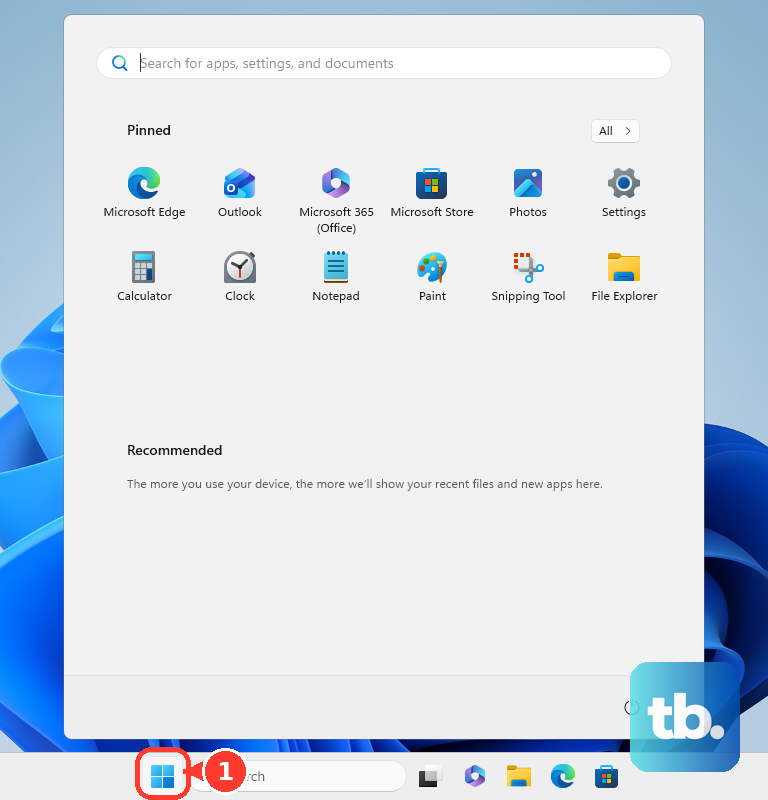
Select Settings, then go to Personalization and open Background. Set Personalize your background to Picture.
Select a picture under Recent images to use it as your wallpaper. For a different picture saved on your PC, select Browse photos beside Choose a photo. Choose your image. This can be a downloaded picture, a transferred photo, or an image you created.
Apply a saved photo faster
Already have the file handy? In File Explorer, choose Set as desktop background from the image file’s right-click menu.
For a picture open in Microsoft Photos, open the three-dot menu, then choose Set as > Background. To reach the full wallpaper controls from the desktop, open Personalize > Background from an empty desktop area’s right-click menu.
Rotate a folder of pictures
Use a slideshow to cycle through your own images automatically.
- 1.Open Settings > Personalization > Background.
- 2.Under Personalize your background, select Slideshow.
- 3.Select the folder containing the pictures you want to use.
- 4.Choose the interval between changes and your shuffle preference.
- 5.To skip ahead manually, right-click the desktop and select Next desktop background.
Stop unwanted wallpaper changes
Automatic background modes, including Slideshow and Windows spotlight, replace your desktop picture for you. To keep one image, open Settings > Personalization > Background.
Switch Personalize your background to Picture. Select the image you want to keep.
For a plain background instead, choose Solid Color under Personalize your background. Choose your preferred color. This replaces the picture and stops the selected Windows slideshow or Spotlight background. If you want Microsoft’s automatically changing images instead of a fixed background, select Windows spotlight under Personalize your background.
A separate wallpaper app can also change your background. To remove one you no longer want, open Start > Settings > Apps > Installed apps.
Open that app’s three-dot menu. Select Uninstall. Afterward, choose the image you want in Personalization > Background.
Adjust how the picture fits
Once you have the right picture, choose how Windows arranges it on the desktop. In Settings > Personalization > Background, open Choose a fit for your desktop image.
Select Fill, Fit, Stretch, Tile, Center, or Span. Choose Span to spread one image across multiple monitors. If the result still does not look right, try another option under Choose a fit for your desktop image before replacing the picture.
Give monitors or virtual desktops their own pictures
This assigns separate pictures to individual monitors or virtual desktops. For multiple monitors, open Settings > Personalization > Background.
Choose Picture under Personalize your background, then right-click an image thumbnail. Select the target display. This per-monitor option is not supported when multiple virtual desktops are configured.
For a virtual desktop, press Windows key + Tab to open Task View. Right-click the desktop you want to personalize, then select Choose background. Set Personalize your background to Picture.
Choose the image for that desktop. To apply one picture across your virtual desktops, right-click its thumbnail under Recent images in Background settings. Select Set for all desktops.
Change the lock screen separately
Open Start > Settings > Personalization > Lock screen. Under Personalize your lock screen, choose Picture, Slideshow, or Windows spotlight. For a picture or slideshow, select the image or folders you want to use.
Enable Show the lock screen background picture on the sign-in screen to use it there too. Keep in mind that the lock screen and sign-in background are separate from your desktop wallpaper.
Frequently Asked Questions
Can I reach wallpaper settings using the keyboard?
Yes. Press Windows key + I to open Settings. Use Tab, the arrow keys, and Enter to navigate to Personalization > Background. This opens the wallpaper controls; it is not a dedicated next-wallpaper shortcut.
Can a Windows theme change my wallpaper?
Yes. Open Settings > Personalization > Themes. Select an installed theme to apply its background settings along with its other components. For more choices, select Browse themes. Download a theme from Microsoft Store. Select the downloaded theme in Themes.
Why can’t I change the wallpaper on my work computer?
An organization can enforce a desktop background and prevent users from changing it. It can also disable or override Windows spotlight. When these policies apply, your organization controls those choices.
Can I use a slideshow with multiple virtual desktops?
Yes, on Windows 11 24H2 or 25H2 with the September 22, 2026 KB5124010 improvements, builds 26100.9550 and 26200.9550. These improvements let the slideshow stay selected when you use multiple virtual desktops, with availability depending on the rollout. They do not provide independent slideshow settings for each desktop or remove the restriction on assigning pictures to individual monitors while multiple virtual desktops are configured.