You want to change your Verizon router’s password, but the right menu depends on which password you mean. The Wi-Fi password connects your devices; the admin password opens the router’s settings. CR1000A/B labels call it the Network Settings password; the G3100 label calls it the Admin password. Start with the app or browser instructions for your equipment, then use the separate admin controls if you also want to change the settings login.
Change Wi-Fi in the Verizon Home app
Start here if you use Verizon Home with eligible home-internet equipment and an eligible account. Availability depends on your router and account rollout.
Open Verizon Home. Tap Network under Connections, then open Wi-Fi Management. Select Primary, Guest, or IoT for the network you want to change.
Turn on that network’s switch if it is off. Tap Edit Wi-Fi and enter your new password. Tap Save changes.
Repeat for each network you want to update. Primary, guest, and IoT credentials can be separate.
For Verizon Wi-Fi Backup, tap Verizon Backup Gateway instead. Select Customize name and password on the Wi-Fi Backup dashboard. Verizon’s Wi-Fi Backup instructions document this entry point but not the remaining password-entry and save steps.
If you manage your connection through My Verizon
For 4G LTE Home Internet and 5G Home Internet, follow the route that matches your My Verizon interface.
Open My Verizon. If your 5G account shows My Devices instead, use the alternative below. Select the Home tab, then choose your internet device.
Open Wi-Fi networks and select Primary, Guest, or IoT. Make sure the selected network’s switch is on. Tap Edit Wi-Fi details.
Enter your replacement password. Tap Save to finish the Home-tab route.
For the alternative 5G interface, open My Devices in My Verizon. Select Manage for your router, then select a network under Networks. Enter the preferred network name and password. Select Save → Confirm → Save.
The browser route for your primary Wi-Fi password
Connect to your router by Wi-Fi or Ethernet before opening its local settings. For CR1000A/B, open mynetworksettings.com or 192.168.1.1 and sign in with the current Network Settings password.
On CR1000A/B, open Wi-Fi → Primary Network. Edit Wi-Fi Password. Select Apply changes.
For WNC-CR200A, ARC-XCI55AX, or redesigned ASK-NCQ1338/FA, sign in at mynetworksettings.com or the local address: 192.168.1.1 for WNC-CR200A and ARC-XCI55AX, or 192.168.0.1 for ASK-NCQ1338/FA. Open Wi-Fi → Primary Network, enter the new password, and select Apply Changes. ASK-NCM1100 uses this same password-setting path.
For G3100 or CHR30A operating as your router, sign in at the administration address on the equipment label; CHR30A supports mynetworksettings.com or 192.168.1.1. Open Basic → Wi-Fi → Primary Network. Edit the Wi-Fi password and select Apply Changes.
Update the separate router admin password
The admin password protects your router’s settings. Your My Verizon account password is a separate login, so changing it leaves the router admin password alone.
Sign in to your router’s local browser interface. For CR1000A, CR1000B, or CHR30A, open Advanced → System → System Settings. Modify the administrator login password in User Settings, then select Apply Changes.
If your CR1000B doesn’t show User Settings there, Verizon’s CR1000B guide also lists Advanced → Utilities → Users. Select Edit in the Action column and set a new password.
For WNC-CR200A, ARC-XCI55AX, ASK-NCM1100, or ASK-NCQ1338/FA with the redesigned interface, open Advanced → System → System Settings. Enter the new administrator password, then re-enter it in the confirmation field. Select Apply Changes.
The G3100 has a different menu. Open Advanced → Utilities → Users. Select Edit in the Action column for the administrator. Change the password in Edit User Settings, then select Apply changes.
If you cannot sign in with the current admin password, use the model-specific factory-reset instructions below. If the menus differ, consult your exact model’s instructions before continuing.
Give guest and IoT networks their own passwords
Use these settings to change guest or IoT access without changing your primary Wi-Fi credentials. These paths apply to CR1000A/B, G3100, CHR30A, WNC-CR200A, ARC-XCI55AX, ASK-NCM1100, and ASK-NCQ1338/FA with the redesigned interface.
Sign in to the local browser interface, then open Basic → Wi-Fi → Guest Network. Enable the guest network if it is off. Edit its password and select Apply Changes.
For your IoT password, open Basic → Wi-Fi → IoT Network. Enable that network if it is off. Enter its replacement password, then select Apply Changes to save the IoT credentials separately.
When the new password does not seem to work
Changing a Wi-Fi password disconnects devices using the old credentials. Reconnect each affected device with the new password for its primary, guest, or IoT network.
For modern CR1000A/B and gateway interfaces with advanced primary-network controls, open Advanced → Wi-Fi → Primary Network. Edit the credentials for the relevant network or band, then select Apply Changes.
With Self-Organizing Network, or SON, enabled, the primary bands share credentials. With SON disabled, supported bands have independent controls; available bands depend on the model. Leave SON enabled for an ordinary shared-password change.
Check the interface before following an older tutorial. My Fios transitioned to My Verizon on November 29, 2023. Use the applicable My Verizon or Verizon Home route above.
Redesigned ASK-NCQ1338/FA interfaces use Wi-Fi → Primary Network for Wi-Fi and Advanced → System → System Settings for administration.
If ordinary editing still fails and you cannot regain access to settings, try the appropriate factory reset below. A reboot does not change passwords, and restoring a configuration backup brings back saved settings instead of creating a new password.
Reset forgotten credentials as a last resort
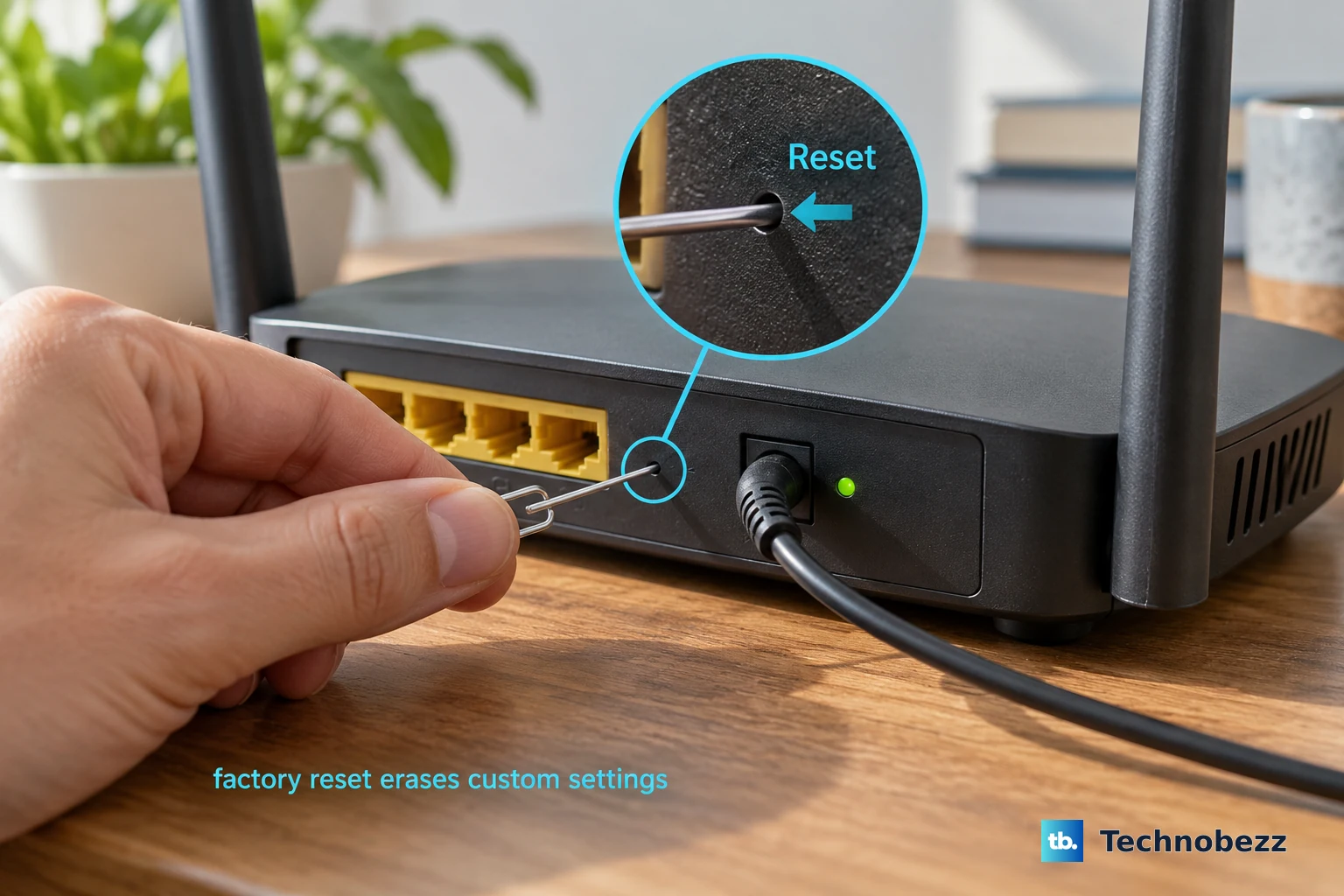
A factory reset deletes customized settings and restores factory credentials, so follow the branch for your exact model.
- 1.Keep the router or gateway powered on. For a G3100 that you can still sign in to, use the browser alternative in the final item.
- 2.Use a paperclip to hold Reset for your model’s required duration: 15 seconds on the rear of CR1000A/B; at least 3 seconds on WNC-CR200A, ARC-XCI55AX, ASK-NCM1100, or redesigned ASK-NCQ1338/FA; or at least 10 seconds on the rear of CHR30A. A 3–5-second hold on CR1000A/B only reboots it.
- 3.Allow the factory reset and restart to finish.
- 4.Reconnect and sign in using the factory credentials on the equipment label.
- 5.Set your new Wi-Fi password through the setup wizard below or the matching Wi-Fi menu above. Set your admin password through the matching admin menu.
- 6.For the G3100 browser alternative, sign in and open Advanced → Utilities → Save & Restore → Factory Defaults. Select Default Settings, then Restore configuration. Allow the router to restart before using its label credentials and configuring new passwords.
Set Wi-Fi credentials during fresh setup
The setup wizard sets your Wi-Fi password during initial setup or after a factory reset.
Open the local administration interface on CR1000A/B, G3100, CHR30A, or a modern Verizon Internet Gateway. Sign in with the label password. Customize your Wi-Fi credentials on Change Wi-Fi name. Intermediate options differ by model.
Optionally, customize the guest Wi-Fi credentials. Select Continue. Review Apply Wi-Fi changes, then select Apply. Reconnect your devices using the new Wi-Fi password.
Frequently Asked Questions
Can I change the router admin password through a Verizon app?
Verizon’s router-login instructions use a browser on a device connected to your home network rather than an app. Use your model’s browser controls. Account or profile password controls change the Verizon account login.
Can WPS, a QR code, or Alexa change my router password?
WPS buttons, WPS PINs, and QR codes help devices connect; they do not set a replacement password. Verizon’s Alexa instructions cover password retrieval and network controls, but provide no password-change command.
Where can I download the official Verizon apps?
Verizon’s My Verizon product page links to its Android and iPhone downloads. For Verizon Home, open the app’s FAQ page and find “How do I get the Verizon Home app?” for the Google Play and Apple App Store links.
Which browser reset option restores the factory Wi-Fi credentials?
Select “Default Settings” when performing a full factory reset. “Default Settings except current user settings” retains the network name and password settings, so it does not reset those credentials.