Facebook shows when you're active through Active Status, and that gets annoying fast when you just want to browse without being available. The fix is to turn off Active Status in every place you use Facebook or Messenger. Start with your main app, then clean up the other sessions that keep showing you online.
Turn Off Active Status In The Facebook App
This fixes friends seeing you active while you use Facebook on your phone or tablet. Open Facebook and tap Menu, then scroll down and tap Settings & privacy. Tap Settings, then tap Active Status.
Turn off Show when you're active. Tap Turn off to confirm.
Use Facebook Web Without Showing Active
On a computer, the Active Status control sits inside the Messenger panel on Facebook.
- 1.Go to Facebook.com and click Messenger in the top-right corner.
- 2.Next to Chats, click Options.
- 3.Click Active Status: ON or Active Status: OFF.
- 4.Click the toggle next to Active status.
- 5.Choose who Active Status is off for, then click Save.
Switch It Off In Messenger Too
Open the Messenger app. Tap Menu, then tap Settings. Tap Settings, then tap Active status.
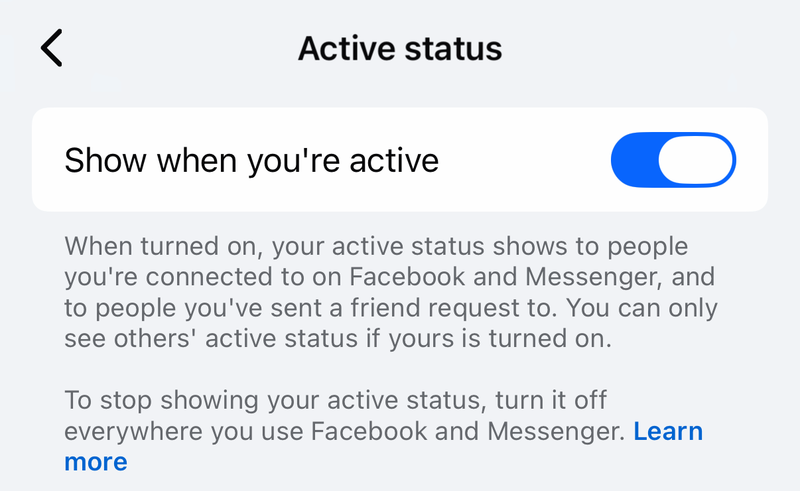
Turn off Show when you're active. Choose Until I change it when Messenger offers a duration. Confirm with Pause or Turn off. If you use both Facebook and Messenger, turn off Active Status in both places.
Block One Person In Messenger
Use this when you only want one person blocked from seeing your availability. Blocking also prevents contact with that person, so treat it as a contact-control option, not a general offline switch.
In Messenger, open the conversation with the person you want to block. Tap their name at the top of the chat, then scroll down and tap Block. Tap Block [Name] to confirm.
Stop Another Device Showing You Active
This fixes a phone, tablet, or browser session that is still signed in and showing activity. In Facebook, tap Menu, then tap Accounts Center. Tap Login and security, then tap Where you're logged in.
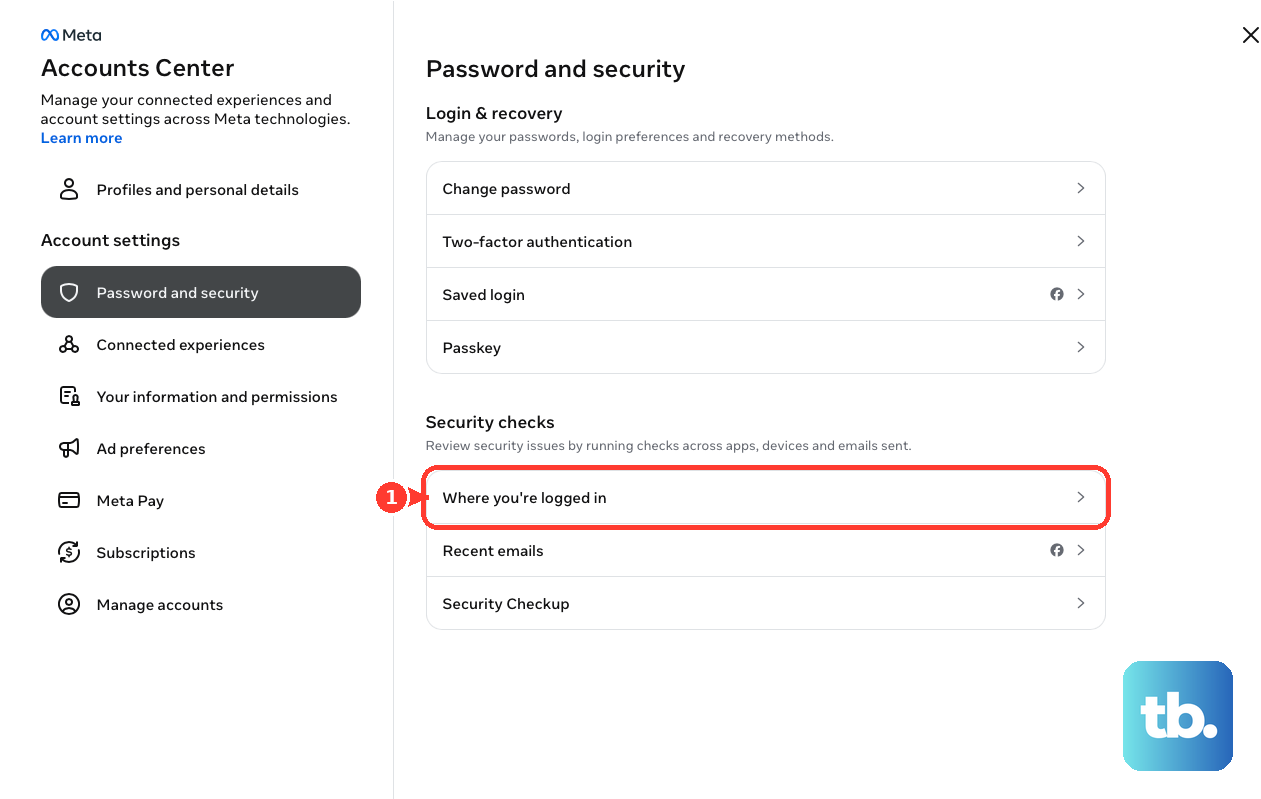
Tap the session you want to end. Or scroll down and tap Select devices to log out. Select the session and tap Log out.
Log Out Or Remove The App
Logging out stops future activity from that signed-in Facebook app session, but it also stops you from browsing Facebook in that session. In the Facebook mobile app, scroll to the bottom and tap Log Out. When you are signed in on multiple devices, log out of each device separately.
To remove an added Messenger account from a device, go to Chats, tap Menu, tap your profile name at the top, swipe left on the account, tap Delete, then tap Remove. Messenger requires at least one account to remain active in the app.
On iPhone or iPad, touch and hold Facebook or Messenger, tap Remove App, tap Delete App, then tap Delete. On Android with Google Play, open the Google Play Store, tap the Profile icon, tap Manage apps & devices, tap Manage, select the app, then tap Uninstall.
Deactivate Facebook Or Messenger
In Facebook, tap Settings, then tap Accounts Center. Tap Manage account.
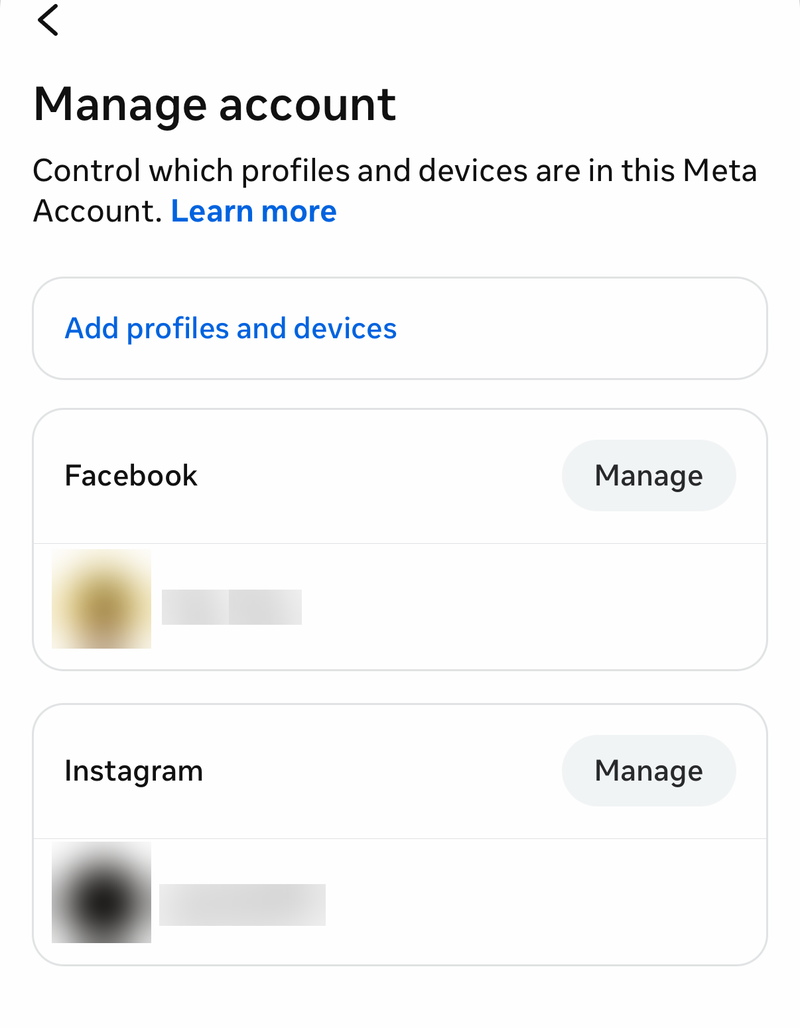
Tap Manage next to the profile you want to deactivate. Tap Deactivation or deletion.
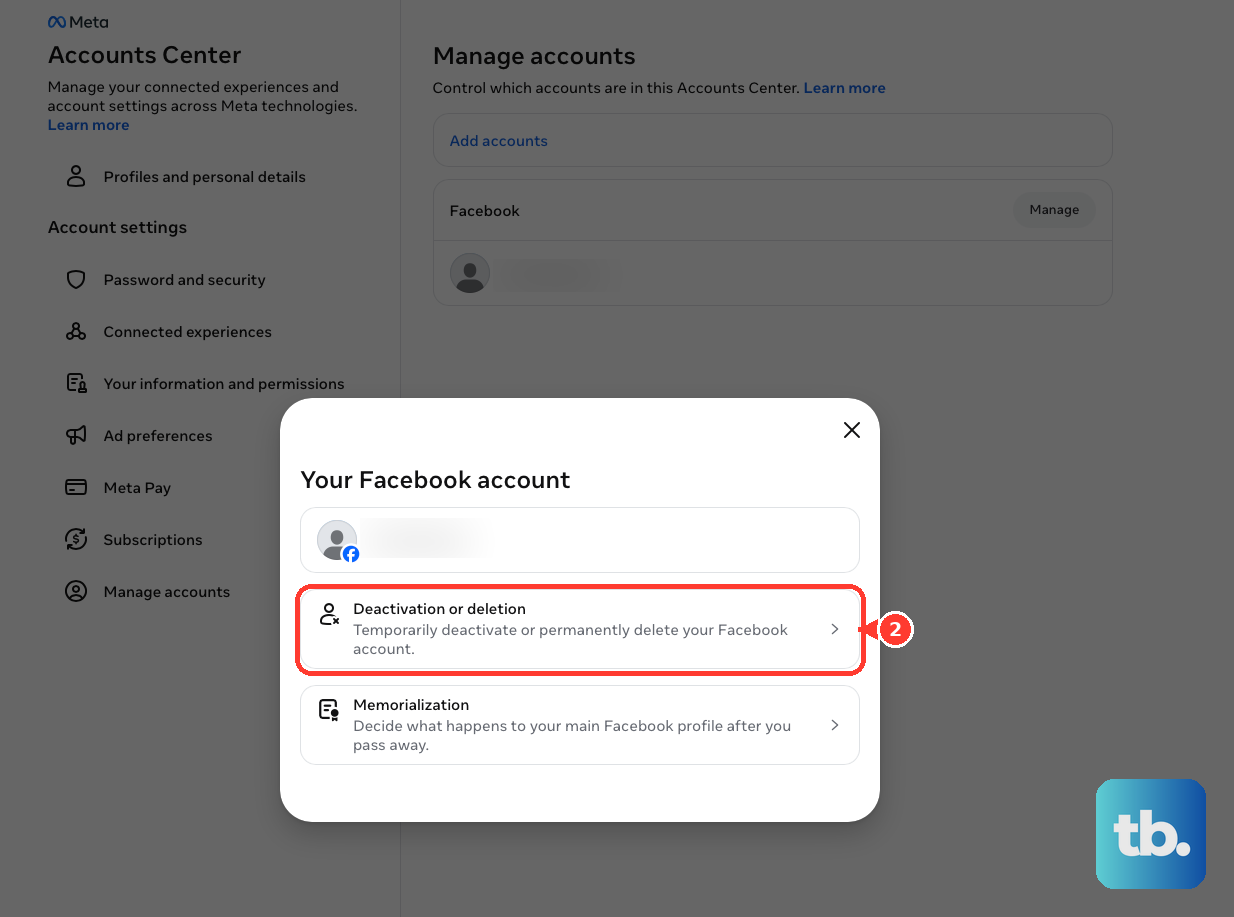
Tap Continue, then follow the instructions to confirm.
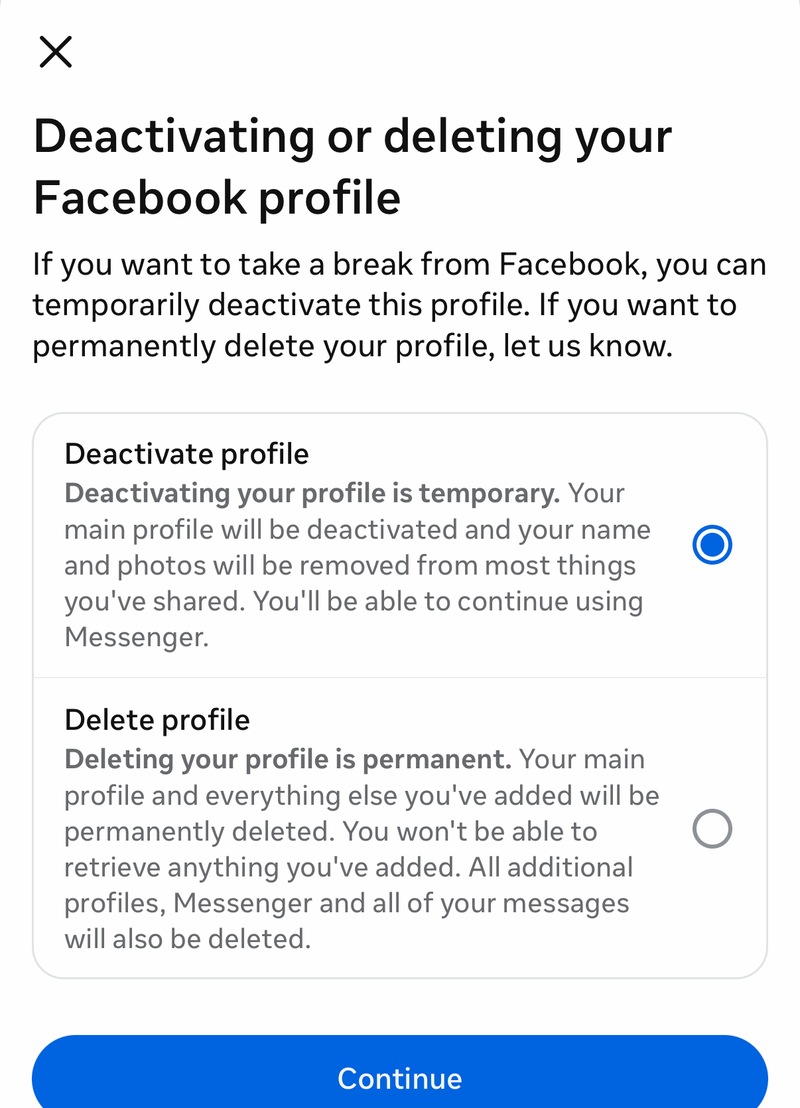
If you keep using Messenger with a deactivated Facebook account, Facebook friends can still message you there. To go offline there too, deactivate Messenger separately. The option only appears after your Facebook account is deactivated, and you can only do it on a mobile device.
Open the Messenger app and tap Menu. Tap Settings, then tap Accounts Center. Tap Personal details, then tap Account ownership and control.
Tap Deactivation or deletion. Tap Continue to Facebook account deactivation and deletion, then tap Continue to account deactivation. Enter your password and tap Continue.
If those steps do not match your app, go to Chats, tap your profile picture in the corner, scroll down and tap Account settings, then follow the same Account ownership and control path.
Fix Why You Still Look Online
The most common cause is Active Status being off in one place and still on somewhere else you use Facebook or Messenger. Check Facebook mobile, Facebook web, and Messenger mobile, then turn off Active Status in each one you use.
Open Meta Account, go to Login and security, then check Where you're logged in and log out of old devices. Update the official Facebook or Messenger app when your menu labels do not match the current paths.
Ignore Older Desktop Instructions
Use this when an older tutorial points you to the old Messenger desktop app for Mac or Windows, Messenger.com-only controls, or labels that no longer match Facebook's current menus. The Messenger desktop app for Mac and Windows is no longer available.
Use Facebook web or the Messenger mobile app instead. On Facebook web, look for Active Status: ON, Active Status: OFF, the Active status toggle, and Save. Skip older instructions that depend on Turn Off Active Status, Okay, or a standalone Messenger desktop app.
Frequently Asked Questions
Can I appear offline on Facebook but still use Facebook?
Yes. Turn off Active Status in Facebook and Messenger. Logging out or uninstalling stops activity from that device, but it also stops that session from being used normally.
Why do people still see me active after I turned it off?
Active Status is still on somewhere else, such as Messenger, Facebook web, or another signed-in device. Turn it off everywhere you use Facebook or Messenger.
Can I appear offline to only one person?
On Facebook web, Active Status lets you choose who it is off for when prompted. In Messenger, blocking a person hides your availability from them and also prevents contact.
Does deactivating Facebook hide me from Messenger?
Not completely. When you keep using Messenger with a deactivated Facebook account, Facebook friends can still message you there. Deactivating Messenger is a separate step: the option only shows up after your Facebook account is deactivated, and you have to do it in the Messenger mobile app under Menu > Settings > Accounts Center > Personal details > Account ownership and control > Deactivation or deletion.