
When your Google Pixel 9a won't send pictures, it's usually a quick network or app glitch. The photo might get stuck with a "Sending..." label or fail with an error. Let's get it working again.
Check Your Mobile Data and MMS Settings
First, make sure your cellular data is actually on. Swipe down twice from the top of your screen to open the Quick Settings panel and tap the mobile data icon to ensure it's active.
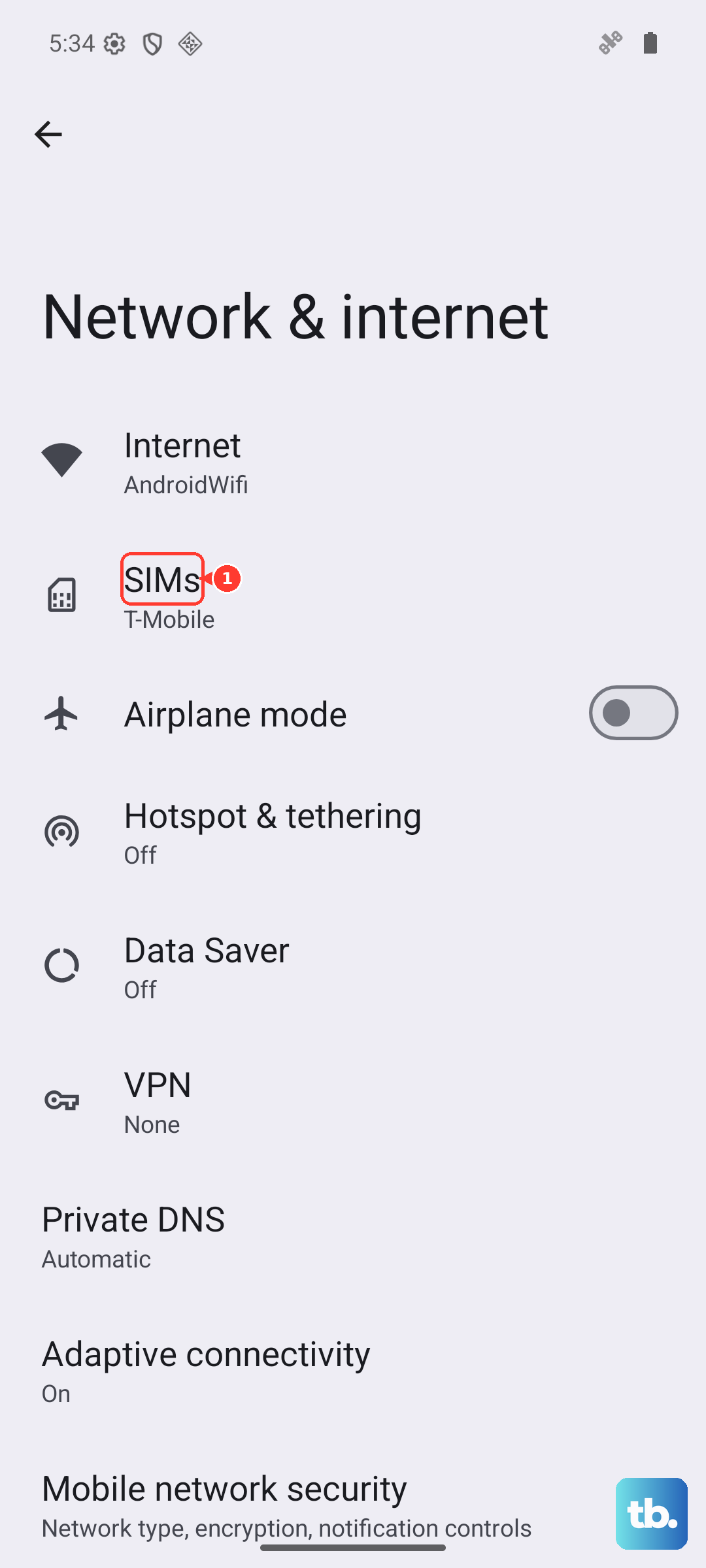
For sending pictures via standard text (SMS/MMS), you need the correct APN settings from your carrier. Go to Settings > Network & internet > SIMs > Access Point Names. If the list is empty or incorrect, you'll need to contact your carrier for the right settings or download them automatically.
Toggle Airplane Mode
This is a fast way to refresh all your connections. Pull down the notification shade and tap the Airplane mode icon. Wait about 10 seconds, then tap it again to turn it off. This often clears up temporary signal hiccups that can block picture messages.
Verify Your Internet Connection
If you're on Wi-Fi, check that you're actually connected. Sometimes the phone can show it's connected to a network that has no internet. Try turning Wi-Fi off and sending the picture using your mobile data instead to see if that's the issue.
For mobile data, look at your signal strength. The Tensor G4 modem in the Pixel 9a can sometimes struggle in weak coverage areas. If you have only one or two bars, try moving to a different location or near a window.
Force Close and Reopen Your Messaging App
The app itself might be frozen. Swipe up from the bottom of the screen and hold to enter the recent apps view. Find your messaging app (like Google Messages) and swipe it all the way up to close it. Then, tap its icon to reopen it and try sending the picture again.
Clear the Messaging App's Cache
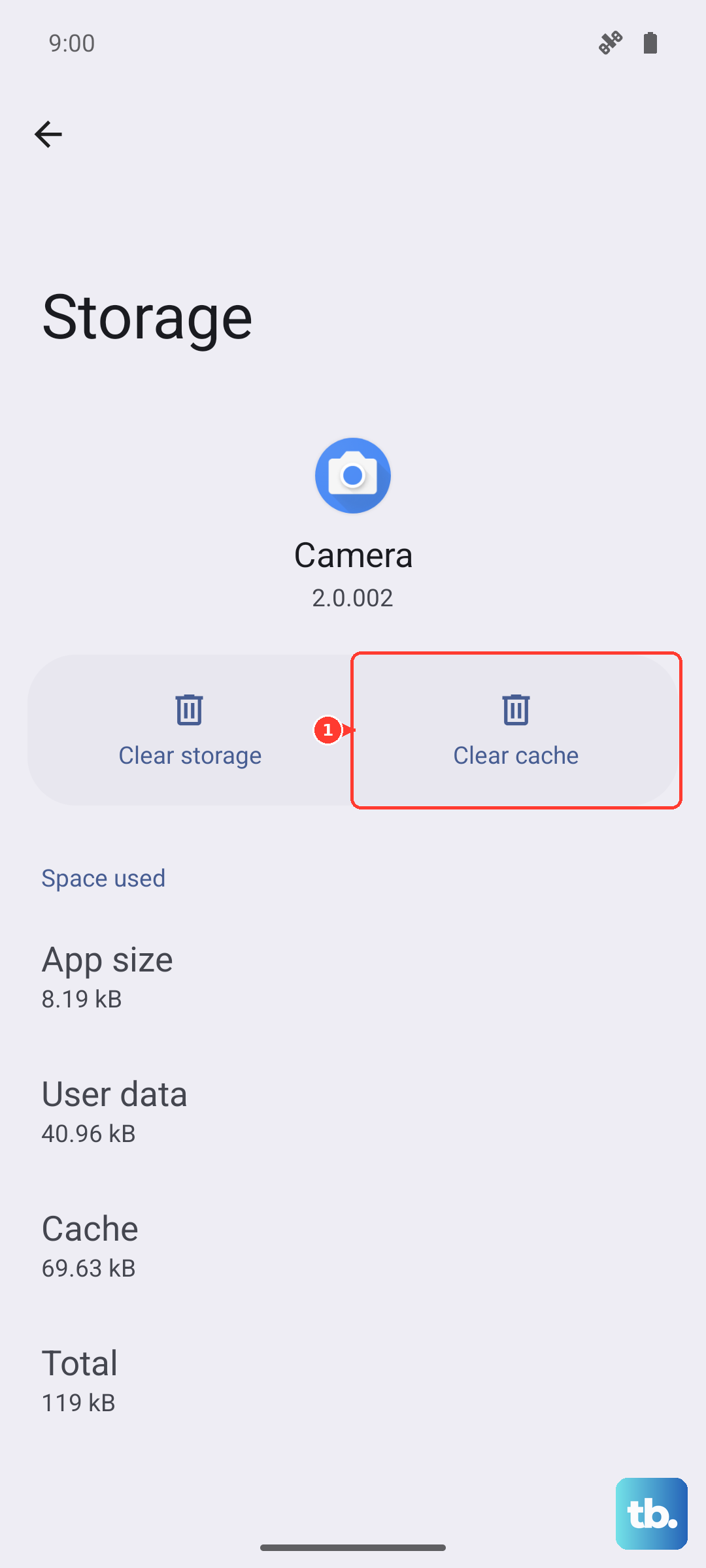
Corrupted temporary files can cause sending failures. Go to Settings > Apps > See all apps. Find and tap your messaging app, then select Storage & cache. Tap Clear cache. This won't delete your messages, just the temporary data.
Check for Android and Carrier Services Updates
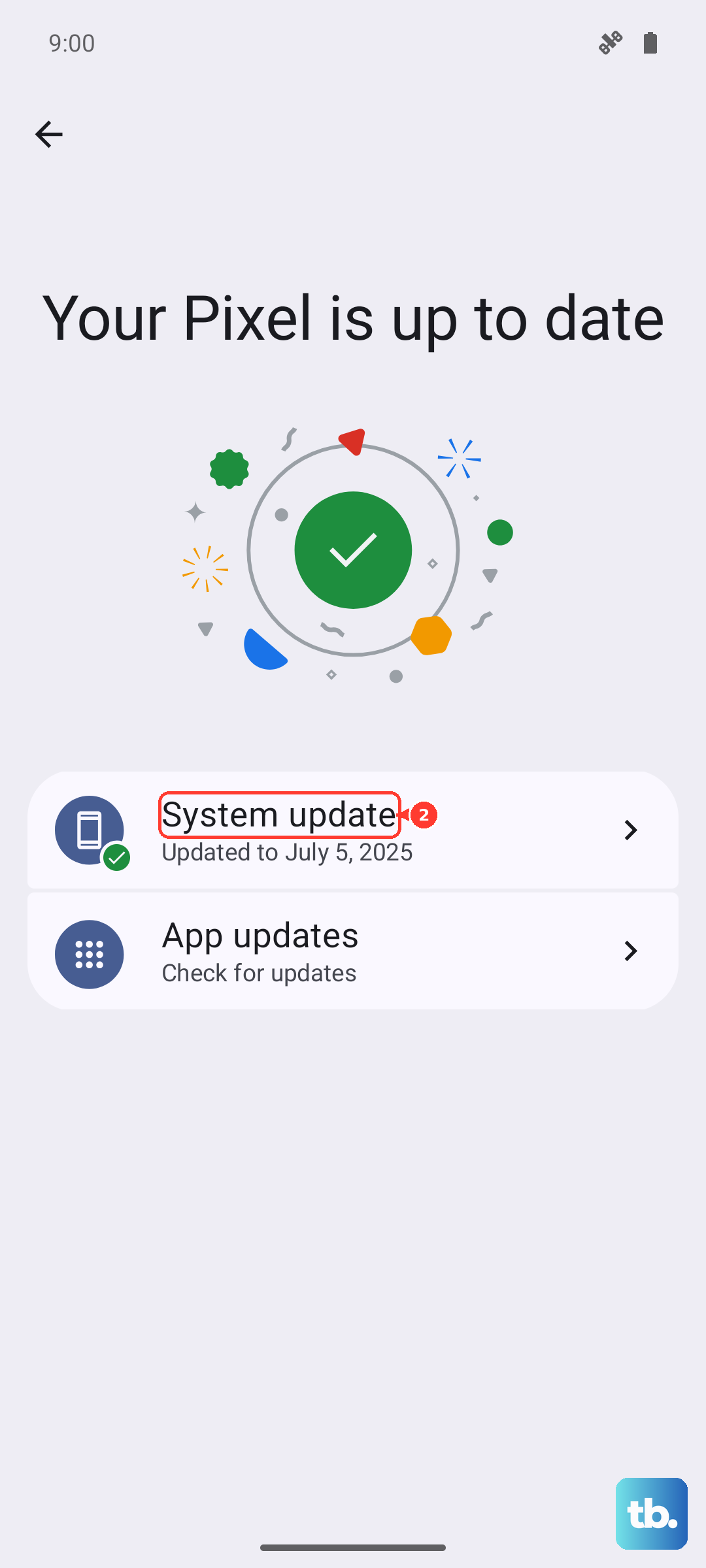
An outdated system or carrier profile can cause MMS problems. Go to Settings > System > System update to check for Android 15 updates. Also, open the Google Play Store, tap your profile icon, and go to Manage apps & device > Updates available to see if "Carrier Services" needs an update.
Disable Data Saver or Adaptive Connectivity
These battery-saving features can restrict background data. Pull down the notification shade and look for the Data Saver icon (it looks like a leaf with a plus sign). If it's on, tap it to disable it. You can also check Settings > Network & internet > Data Saver.
Also, try turning off Adaptive Connectivity at Settings > Network & internet > Adaptive connectivity. This feature switches between Wi-Fi and data to save power, but it can sometimes interrupt sending.
Perform a Network Settings Reset
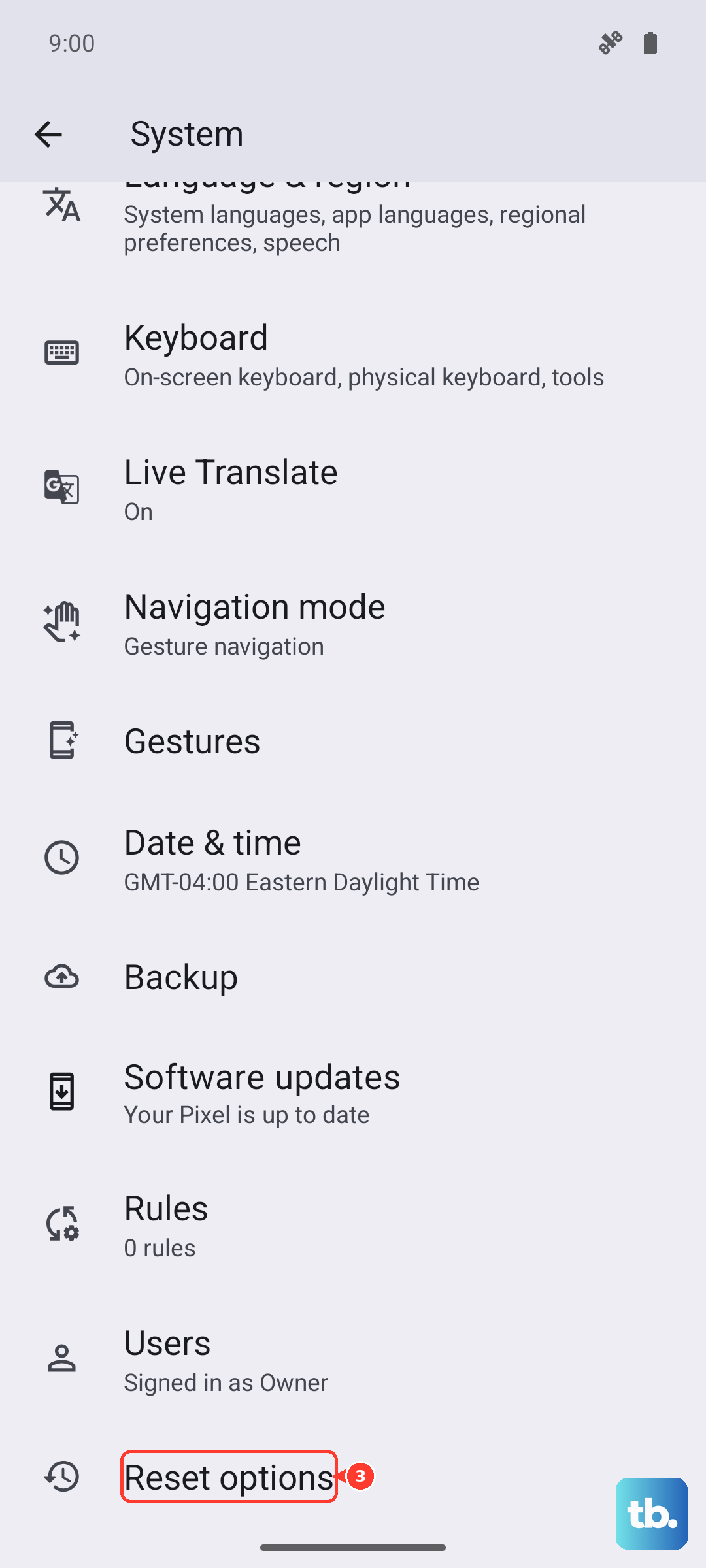
This will wipe all your saved network information and can resolve deeper connection bugs. Go to Settings > System > Reset options. Tap Reset Wi-Fi, mobile & Bluetooth and confirm. You'll need to re-enter all your Wi-Fi passwords afterward.
Try a Different Messaging App
To rule out an issue with Google Messages, try sending a picture with a different app. You can download something simple like TextFree or use another pre-installed app if your carrier provided one. If the picture sends successfully from another app, the problem is likely with your primary app's data or settings.
Force Restart Your Pixel 9a
If the phone is unresponsive or glitchy, a force restart can clear it up. Simply press and hold the Power button for about 30 seconds. Keep holding it until you see the Google logo appear on the screen, then release. The phone will reboot.