
So your Google Pixel 9a won't charge. You've plugged it in, maybe swapped cables, and the battery icon just isn't showing up. It's a frustrating spot to be in, but it's almost always something you can fix yourself without a trip to the repair shop.
Whether you're dealing with a stubborn USB-C port, a wireless charger that's not cooperating, or a phone that's completely unresponsive, we'll walk through the fixes. Let's start with the quickest solutions and work our way through.
Force Restart Your Pixel 9a
This should always be your first move. A simple force restart can clear out a temporary software glitch that's preventing the phone from recognizing it's plugged in. It takes about 30 seconds and fixes the issue more often than you'd think.
For the Pixel 9a, press and hold the Power button for 30 seconds or more. Keep holding it even after you see the Google logo flash. Release the button only once you feel the phone vibrate and see the boot animation start. After it powers back on, try plugging it in again.
Clean the USB-C Charging Port
This is the single most common fix for charging problems. Lint, dust, and pocket debris get compacted into that USB-C port every single day. Eventually, there's so much gunk that your cable can't make a proper connection.
Grab a flashlight and take a close look inside the port. If you see any debris, turn the phone off first for safety. Then, use a wooden or plastic toothpick to gently scrape out the lint. Don't use anything metal, as it can damage the delicate pins. You can also try a quick blast of compressed air from a can, holding it a few inches away.
After cleaning, plug the cable back in. It should click in firmly. If it still feels loose or wobbly, the port itself might be damaged.
Test a Different Cable and Power Source
You need to isolate the problem. Is it your cable, your wall adapter, or the phone itself? The best way is to test each component separately.
First, try a different USB-C cable, preferably one you know works. Then, try a different wall charger. Plug into a different outlet in your house, or try charging from a computer's USB port. Also, remove your phone case, especially if it's very thick or has a magnetic ring, as it can sometimes interfere with the connection.
If your Pixel 9a charges with a different setup, you've found your culprit. I'd recommend using a USB-PD charger rated for 30W or more to get the fastest possible 23W charging speed the phone supports.
Check for Software Updates
Google releases updates to Android that often include fixes for bugs, including ones that can affect charging. If you're running an older version of Android 15, updating could resolve the issue.
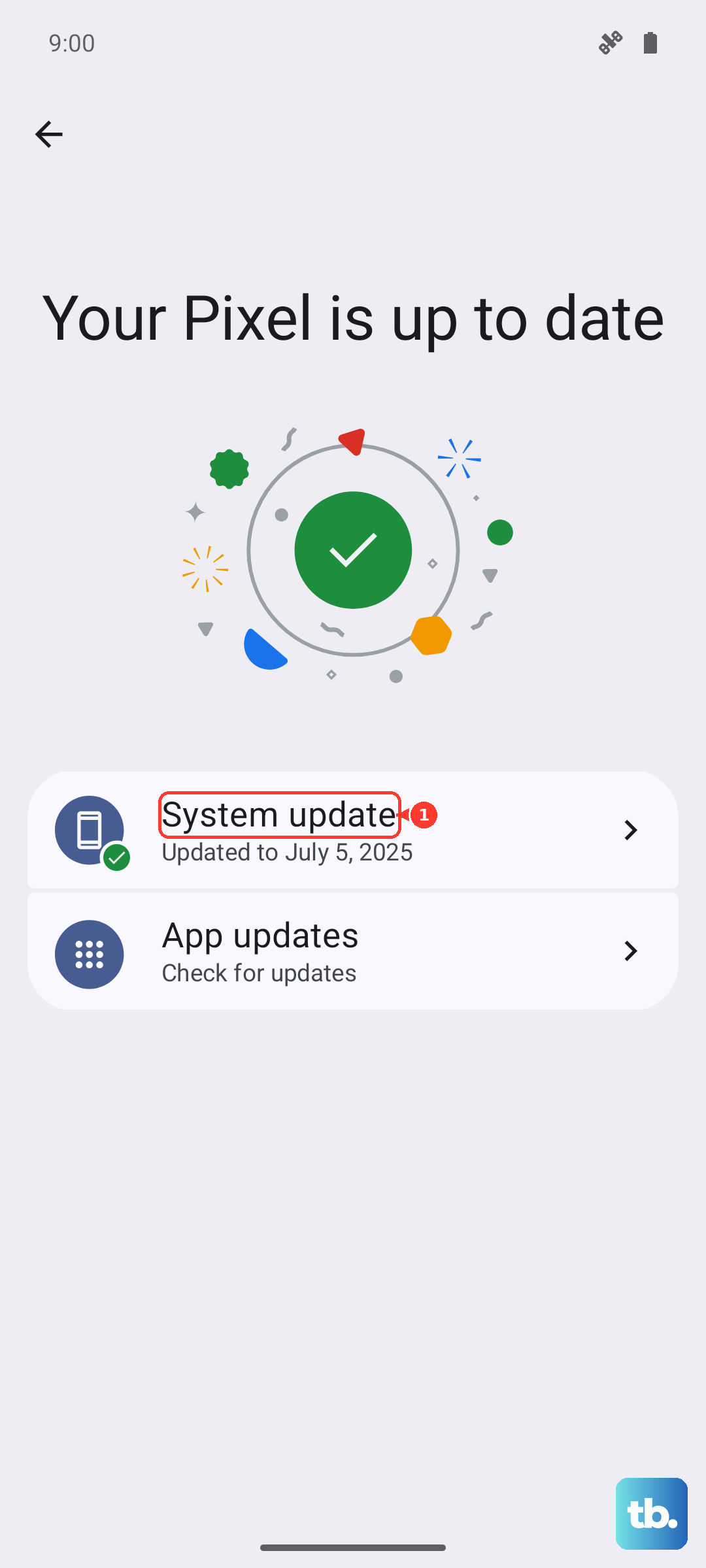
Go to Settings > System > System update to check for and install any available updates. If your phone won't turn on at all, you can try updating it via a computer using the Android Flash Tool online, but that's a more advanced process.
Try Wireless Charging
If you have a Qi wireless charger, give it a shot. This is a great way to figure out if the problem is with your USB-C port or something else. The Pixel 9a supports Qi wireless charging at up to 7.5W.
Place your phone correctly on the charging pad, making sure it's centered. Remove any thick cases. If the phone charges wirelessly but not with a cable, that strongly points to an issue with the USB-C port or your cable. Keep in mind that 7.5W wireless is much slower than the 23W wired charging, so be patient.
Let It Sit on the Charger
If your battery is completely, utterly dead, the phone might not show any sign of life for several minutes after you plug it in. This is normal behavior for a deeply discharged battery.
Leave it connected to a known-good wall charger (not a computer) for at least 30 to 45 minutes. Don't touch it. After that time, check for a charging LED light or icon on the screen. If you see nothing, try the force restart method again while it's still plugged in.
Enable Extreme Battery Saver
If your battery is critically low but the phone will still turn on, enabling Extreme Battery Saver can help. This mode shuts down almost everything except the bare essentials, reducing power draw so that any trickle of charge can start to build up.
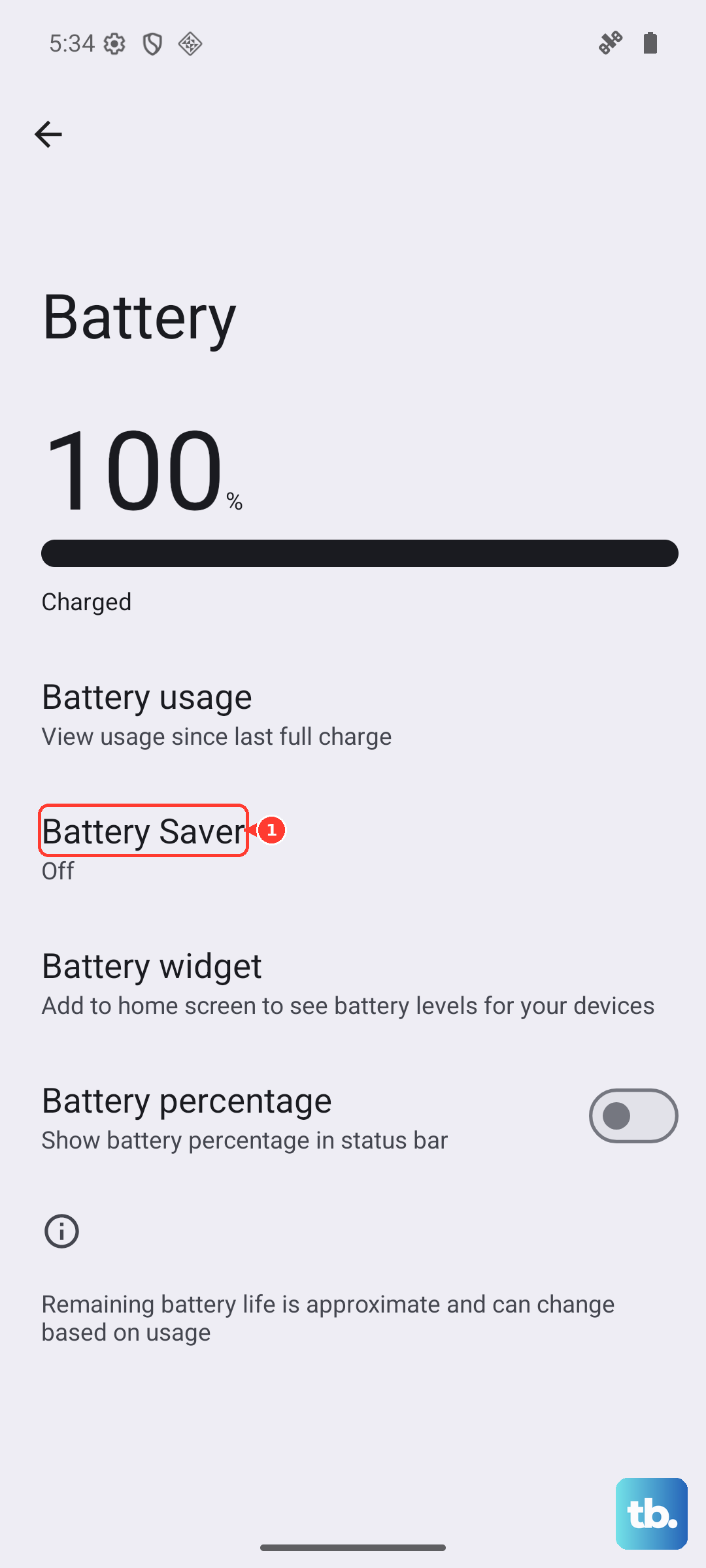
You can turn it on by swiping down twice for the Quick Settings panel and tapping the Battery Saver icon, then selecting "Extreme". Alternatively, go to Settings > Battery > Battery Saver and turn on the Extreme option. Plug the phone in after enabling it.
Check Adaptive Charging Settings
The Pixel 9a has a feature called Adaptive Charging designed to improve battery longevity. It learns your routine, like when you plug in at night, and slows down charging, aiming to hit 100% right before your alarm goes off. Sometimes, this can make it seem like charging is stuck or extremely slow.
This isn't a setting you turn off for a quick fix, but it's good to know it exists. If you always charge overnight and notice it's slow, it's probably Adaptive Charging doing its job. For a faster charge during the day, use a different charging schedule or a different charger.
Consider a Factory Reset (Last Resort)
If you've tried every other step and your Pixel 9a still refuses to charge properly, a software issue might be deeply rooted. A factory reset will wipe your phone back to its original state, so this is an absolute last resort. Make sure you have a recent backup before proceeding.
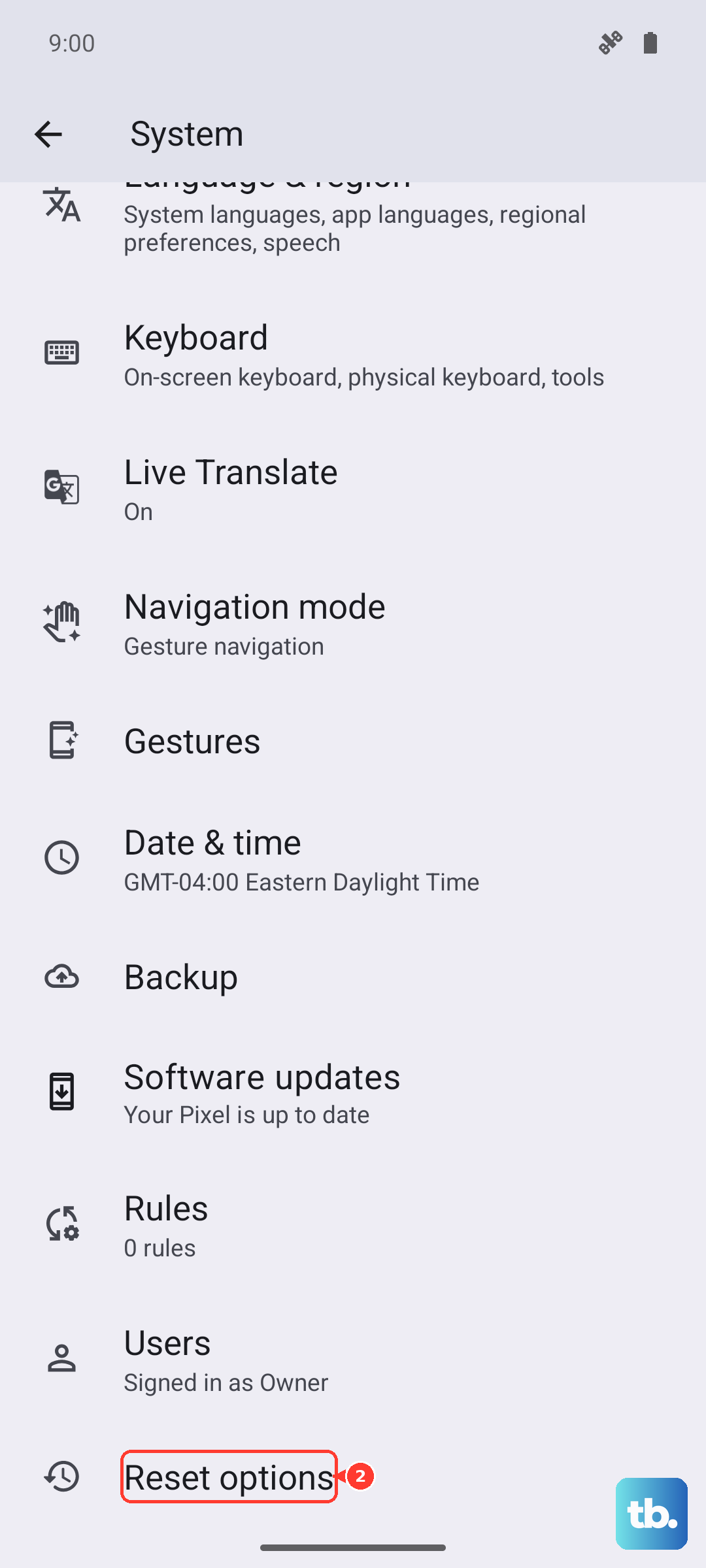
You can initiate a reset from Settings > System > Reset options > Erase all data (factory reset). If the phone won't boot, you can use Recovery Mode. Turn off the phone, then press and hold the Power and Volume Down buttons together to boot into the bootloader, and navigate to Recovery Mode to find the wipe data option.
After the reset, set up the phone as new (just to test) and see if it charges. If the problem persists after a factory reset, it's very likely a hardware issue with the battery, charging port, or internal power management system.