
When your Google Pixel 9a starts restarting on its own, it's a major disruption. This can happen for a few reasons, often tied to a misbehaving app or a software hiccup in Android 15. Before you do anything else, it's a good idea to make sure your photos and important data are backed up to Google Photos or Google Drive, just in case.
Force Restart Your Pixel 9a
This is almost always the first thing I'd try. A force restart clears out the phone's temporary memory and can stop a minor software glitch in its tracks. For the Pixel 9a, it's very straightforward.
Just press and hold the Power button on the right side of the phone. Keep holding it for about 30 seconds, or until you see the Google logo appear on the screen and the phone begins to restart. You don't need to press any other buttons.
Check for a Problematic App
Third-party apps are the most common cause of random restarts. Start by checking if the problem happens in Safe Mode, which temporarily disables all downloaded apps.
To boot into Safe Mode, press and hold the Power button and Volume Up button together until the power menu appears. Then, press and hold the "Power off" option on your screen. A prompt will ask if you want to reboot to Safe Mode. Tap "OK".
If your phone runs normally in Safe Mode without restarting, you've confirmed an app is the culprit. Restart normally to exit Safe Mode, then think about any apps you recently installed or updated before the trouble began.
Update Your Apps and Android
Outdated apps can have bugs that cause system instability. Open the Google Play Store, tap your profile icon in the top right, and go to Manage apps & device. Under "Updates available," tap "Update all" to get everything current.
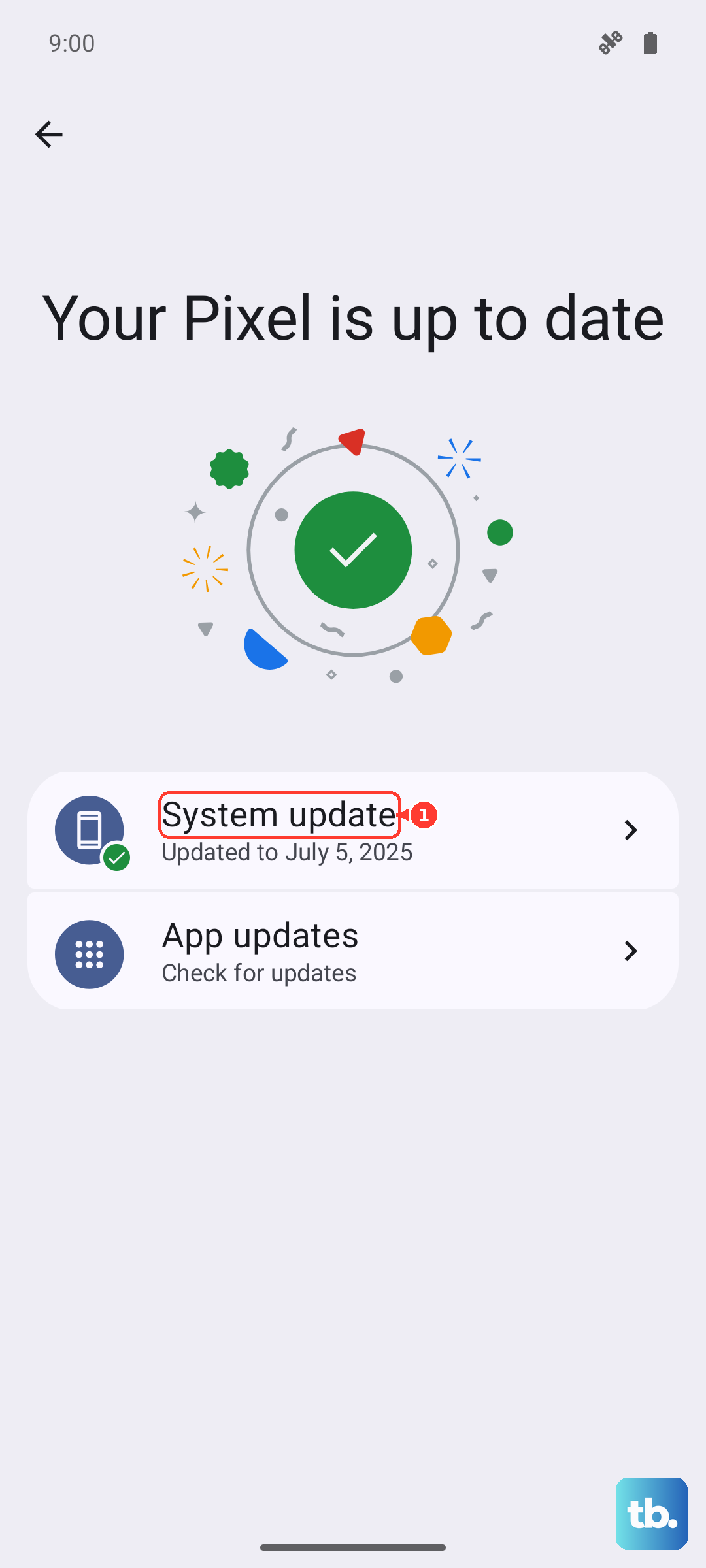
Next, check for a system update. Google is pretty good about pushing fixes for known issues. Go to Settings > System > System update and tap "Check for update." If one is available, install it. Make sure your phone is connected to Wi-Fi and has a decent charge first.
Clear an App's Cache and Data
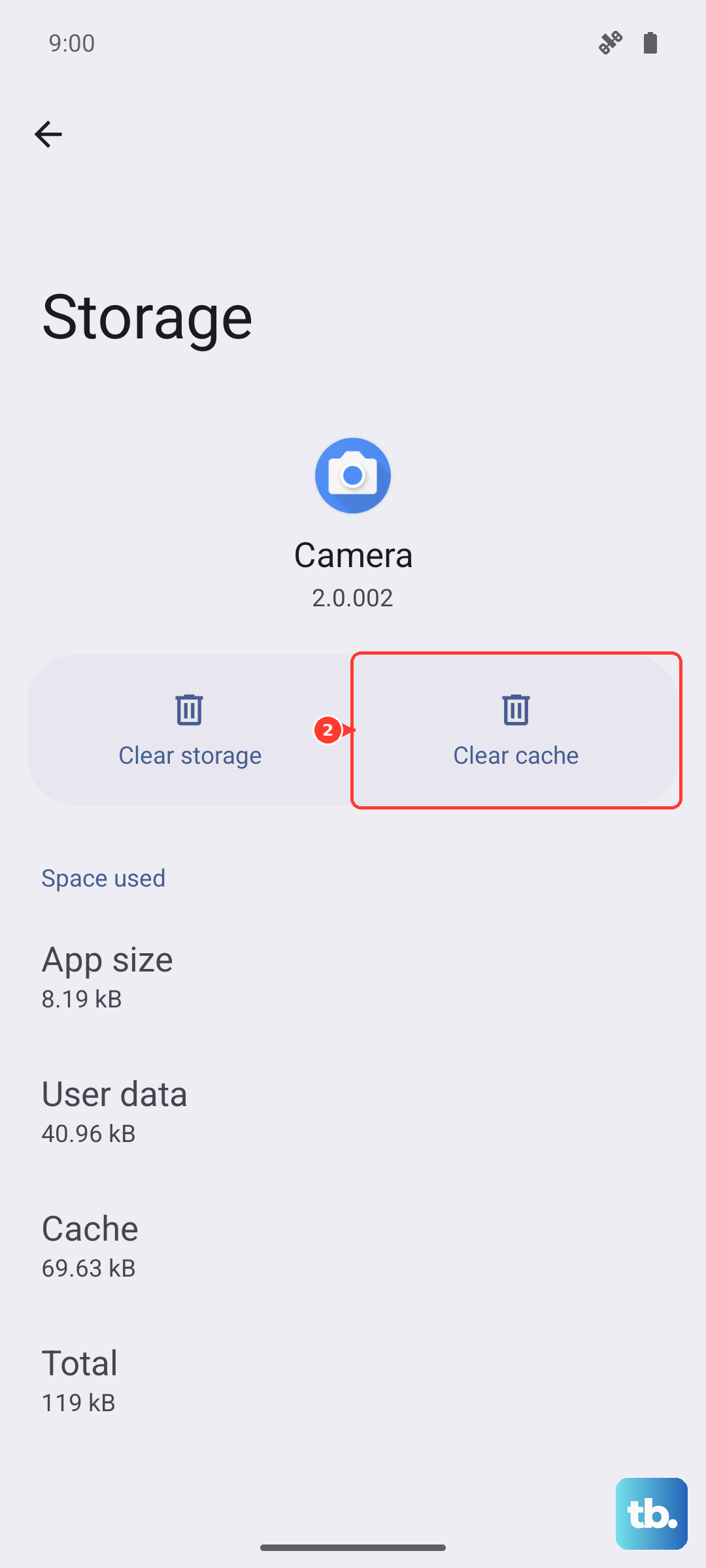
If you suspect a specific app, like your social media or messaging app, try clearing its cache. This deletes temporary files that can sometimes become corrupted without touching your personal data in the app.
Go to Settings > Apps > See all apps. Find the app you think might be causing trouble, tap on it, then go to Storage & cache. Tap "Clear cache." If the problem continues, you can try "Clear storage" or "Clear data," but be warned this will reset the app and delete your saved info within it.
Free Up Storage Space on Your Device
When your phone's storage is critically full, the operating system can struggle to function, leading to crashes and reboots. The Pixel 9a has a tool to help you manage this.
Head to Settings > Storage. You'll see a breakdown of what's using space. Tap "Free up space" to get suggestions, like removing downloaded files or large old attachments. I'd aim to keep at least 10% of your storage free for the system to operate smoothly.
Check for Overheating
The Tensor G4 chip can get warm under heavy use. If your Pixel 9a feels hot to the touch and then restarts, it might be a safety shutdown. Take it out of its case if it has one, move it out of direct sunlight, and stop using intensive apps like games or video recording for a bit.
Using a slow wireless charger, which is limited to 7.5W on the 9a, can also generate more heat than a wired charge. If you're charging and the phone is restarting, try switching to a cable.
Reset Your Network Settings
This can help if the restarts seem tied to connectivity issues, which some users have reported with the Tensor G4 modem in weak signal areas. This reset will erase your Wi-Fi passwords and paired Bluetooth devices, but not your personal data.
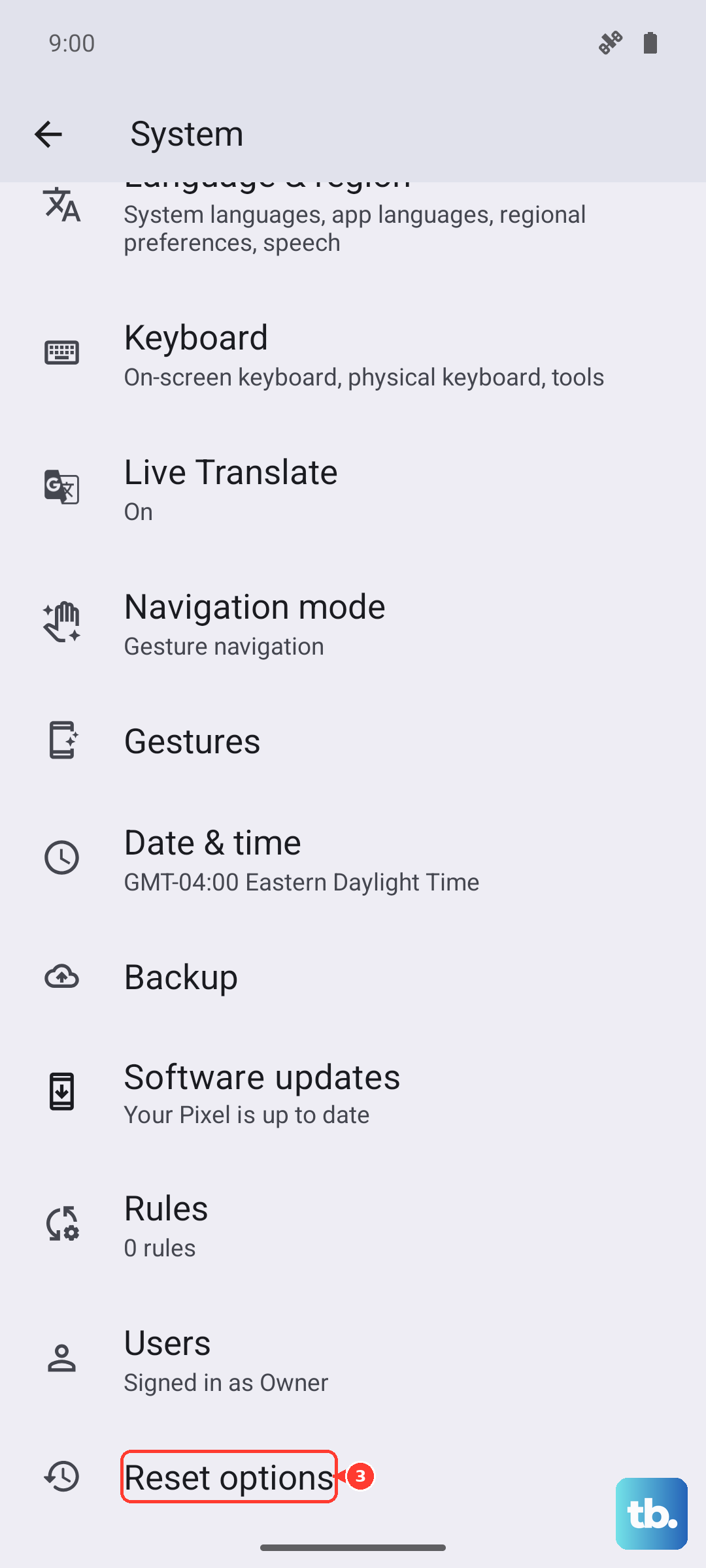
Go to Settings > System > Reset options. Tap "Reset Wi-Fi, mobile & Bluetooth" and confirm. After the phone reboots, you'll need to reconnect to your Wi-Fi networks and pair your Bluetooth accessories again.
Perform a Factory Reset
If you've tried everything else, a factory reset is the nuclear option to rule out a deep-seated software problem. This will erase everything on your phone, so double-check your backups first.
You can do this through the settings menu by going to Settings > System > Reset options > Erase all data (factory reset). Follow the prompts to confirm. Alternatively, if the phone is stuck in a restart loop, you can use the hardware keys.
To factory reset with buttons, first power the phone off. Then, press and hold the Power button and Volume Down button together. When the Fastboot screen appears, use the volume buttons to navigate to "Recovery mode" and press the Power button to select it. When you see the Android robot with an exclamation mark, press and hold Power, then tap Volume Up once. Use the volume keys to highlight "Wipe data/factory reset" and select it with the Power button.
Consider a Hardware Check
If the factory reset didn't solve the constant restarting, the issue could be physical. While less common, a failing battery or a loose internal connection can cause this behavior.
Since the Pixel 9a uses a USB-C port, also check that the port itself is clean and free of lint. A damaged port can cause intermittent power connections. You can gently clean it with a dry, soft-bristled brush or a can of compressed air.
At this point, with all software options exhausted, contacting Google Support or visiting a uBreakiFix store (an authorized Google repair partner) would be the next step to diagnose a potential hardware fault.