
Seeing a call fail on your Google Pixel 9a can stop you in your tracks, especially when you're trying to reach someone important. This usually means your phone is having trouble connecting to your carrier's network properly. The cause is often a weak signal, a minor software hiccup, or a setting that needs a quick adjustment.
Here are 10 effective ways to fix call failures on your Pixel 9a, starting with the simplest solutions you can try right away.
Toggle Airplane Mode
The quickest fix is to reset your phone's connection to the cellular network. Swipe down from the top of your screen twice to open the full Quick Settings panel. Tap the Airplane Mode icon to turn it on, wait about 15 seconds, then tap it again to turn it off. This forces your phone to re-establish its connection with the cell towers, which can clear up temporary glitches.
Check Your Signal Strength
Weak signal is the most common culprit for dropped or failed calls. Look at the signal bars in the top-right corner of your screen. If you only have one or two bars, try moving to a different location or near a window. The Pixel 9a's Tensor G4 modem can sometimes struggle in areas with very weak coverage, so a small move can make a big difference.
Force Restart Your Pixel 9a
A simple restart can clear out software gremlins that interfere with calling. For the Pixel 9a, press and hold the Power button for about 30 seconds. Keep holding it even after you see the Google logo or feel a vibration. Release the button only when you see the startup animation. This is a bit longer than a normal restart and can fix deeper software hangs.
Check Do Not Disturb and Focus Modes
Make sure your calls aren't being silenced by accident. Swipe down from the top and look for a moon icon or a label like "Work" or "Sleep" on the left side of your status bar. If you see one, tap it to see which rules are active. You can tap "Turn off" to exit the mode, or go into Settings > Sound & vibration > Do Not Disturb to check if all calls are being blocked.
Update Your Date and Time Settings
Incorrect time settings can cause authentication issues with the cellular network. Open Settings > System > Date & time. Make sure the "Use network-provided time" and "Use network-provided time zone" switches are turned on. This syncs your phone's clock with your carrier's network, which is important for call routing.
Review Your Blocked Numbers List
It's worth a quick check to ensure you haven't accidentally blocked the number you're trying to reach. Open your Phone app, tap the three-dot menu in the top-right corner, and select Settings > Blocked numbers. Look through the list and if you find the number there, tap the "X" next to it to unblock.
Verify Mobile Data and Network Settings
Ensure your cellular data is active, especially if you're trying to make a Wi-Fi call or are in an area that relies on VoLTE (Voice over LTE). Go to Settings > Network & internet > Internet. Tap the settings gear next to your carrier's name and make sure "Mobile data" is enabled. You can also try toggling "Wi-Fi calling" off and back on from this menu.
Try Switching Network Types
Sometimes, the 5G or LTE data connection can have issues that affect voice calls. You can temporarily switch to an older network type to see if it stabilizes your connection. Go to Settings > Network & internet > Internet, tap the gear icon by your carrier, then tap Preferred network type. Try selecting "3G" or "LTE" instead of "5G" and test a call.
Check and Re-seat Your SIM Card
A loose or dirty SIM card can cause intermittent connection problems. Use the SIM eject tool that came with your phone (or a small paperclip) to gently pop open the SIM tray on the left side of the phone. Remove the SIM card, blow gently on the tray to dislodge any dust, and carefully reinsert the card. Push the tray back in until it clicks.
If you have access to another phone, you can test your SIM card in it to see if the problem follows the card. If it does, you'll need to contact your carrier for a replacement SIM.
Update Your Android Software
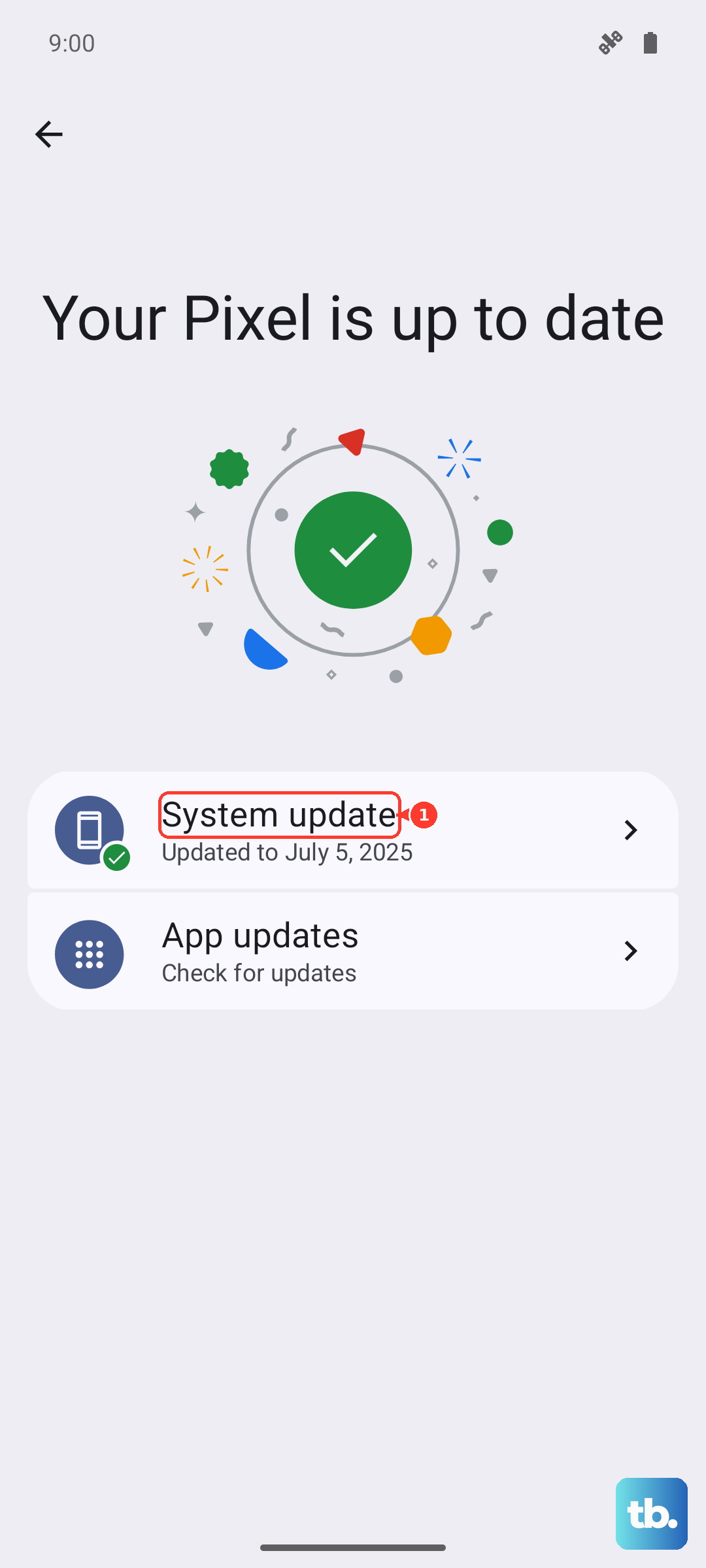
Google regularly releases system updates that fix bugs, including ones related to calling and network connectivity. Connect to a Wi-Fi network and go to Settings > System > System update. Tap "Check for update" and install any available updates. I've seen Pixel updates specifically address modem and calling stability, so this is a crucial step.
Reset Your Network Settings
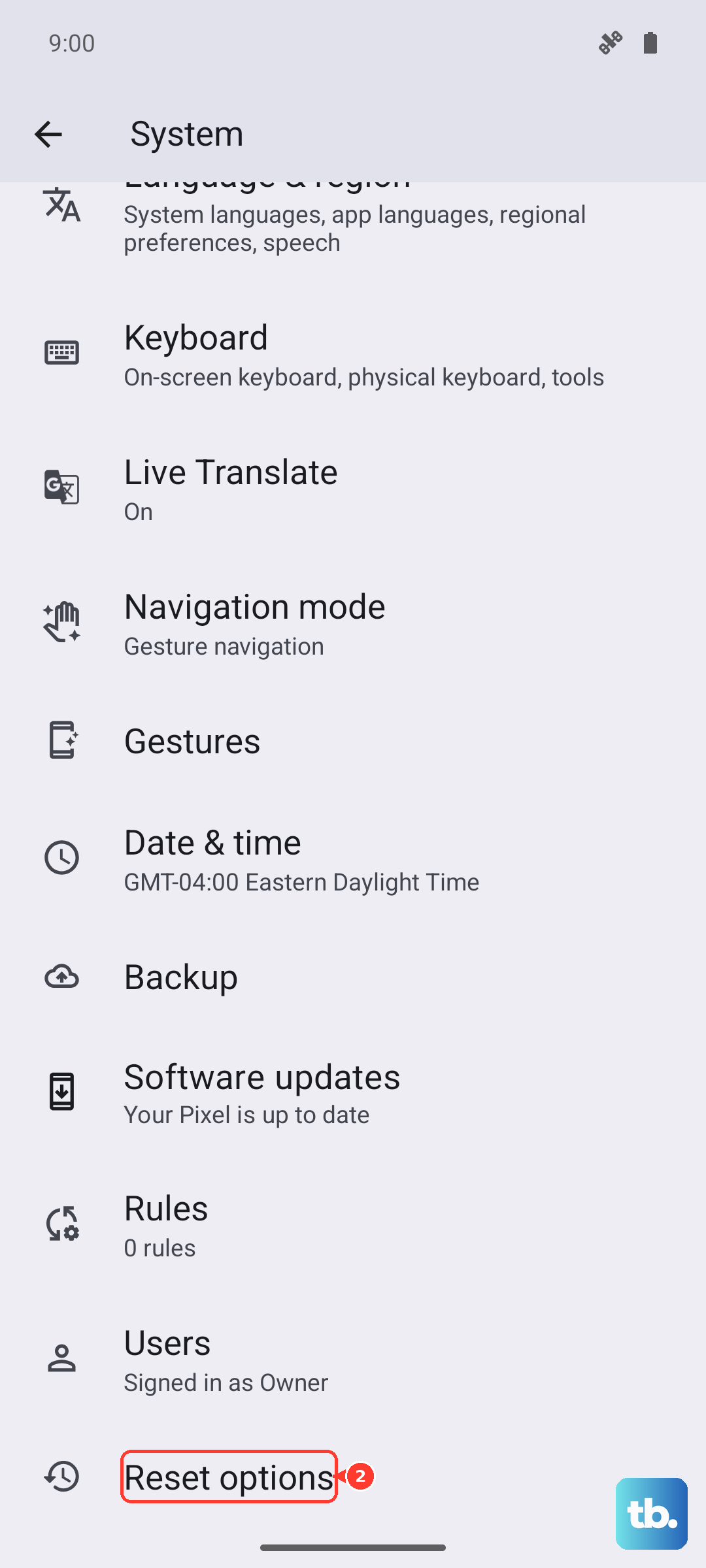
This is a more thorough step that will erase all your saved Wi-Fi networks, Bluetooth pairings, and cellular settings, but it won't touch your personal data like photos or messages. It can resolve deeper configuration corruption. Go to Settings > System > Reset options. Tap "Reset Wi-Fi, mobile & Bluetooth" and confirm by tapping "Reset settings". You'll need to re-enter Wi-Fi passwords and re-pair Bluetooth devices afterward.
Contact Your Mobile Carrier
If you've tried everything and calls are still failing, the issue might be on your carrier's end. There could be a local network outage, a problem with your account provisioning, or your SIM card may be faulty. Give their customer service a call from another phone or use online chat support. They can check for outages, reprovision your line, or send you a new SIM card if needed.