When your Google Pixel 9a won't install apps, it can feel like a major roadblock. Apps are the lifeblood of your phone, and a download that's stuck or failing is incredibly frustrating. The good news is that this is almost always a software hiccup that you can fix yourself.
Let's go through the most effective troubleshooting steps, starting with the quickest solutions and moving to more involved ones if needed.
Check Your Connection and Restart
First, make sure your Pixel 9a is actually online. Pull down the notification shade twice to see your quick settings and verify that Wi-Fi or mobile data is active and connected. If you're on Wi-Fi, try toggling it off and using mobile data instead, as some networks can block the ports the Play Store uses.
A simple restart can clear out temporary glitches that stop downloads. Just press and hold the power button, then tap 'Restart'. If that doesn't do it, a force restart is worth a shot. Press and hold the power button for about 30 seconds until the screen goes black and the phone reboots.
Clear the Google Play Store Cache
This is often the fastest fix. The Play Store stores temporary data that can sometimes become corrupted. Clearing it forces the app to fetch fresh data.
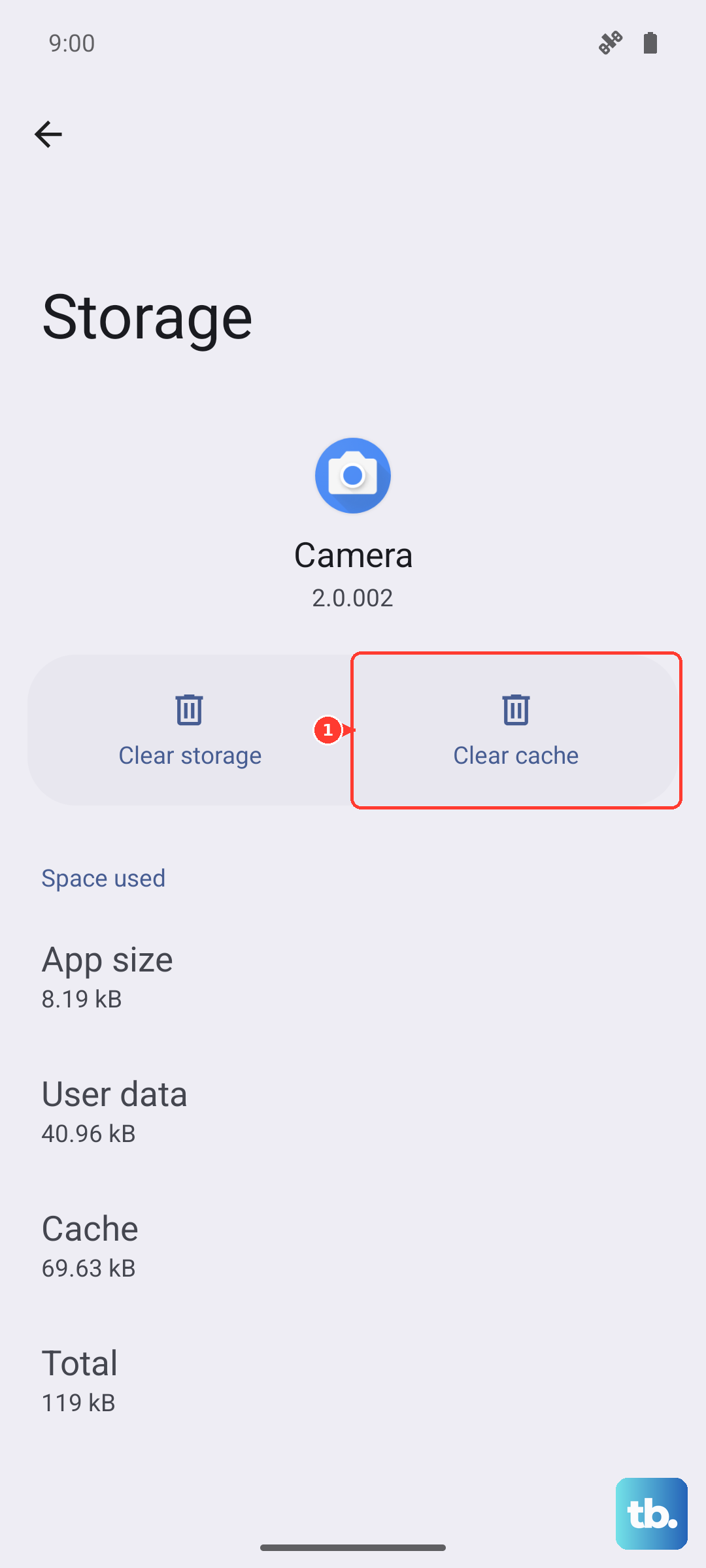
Go to Settings > Apps > See all apps. Find and tap 'Google Play Store'. Tap Storage & cache, then hit Clear cache. Don't clear data yet, as that will reset the app more thoroughly. After clearing the cache, open the Play Store and try your download again.
Verify Date, Time, and Storage
Incorrect time settings can confuse Google's servers. Go to Settings > System > Date & time and make sure 'Set time automatically' is switched on.
Also, check if you're simply out of space. The Pixel 9a can fill up faster than you think. Go to Settings > Storage to see how much room you have left. If you're critically low, you might need to delete some old photos, videos, or unused apps before new installations can proceed.
Update Google Play Services and Android
Outdated system components are a common culprit. First, open the Play Store, tap your profile icon, and go to Settings > About > Play Store version. It will check for updates.
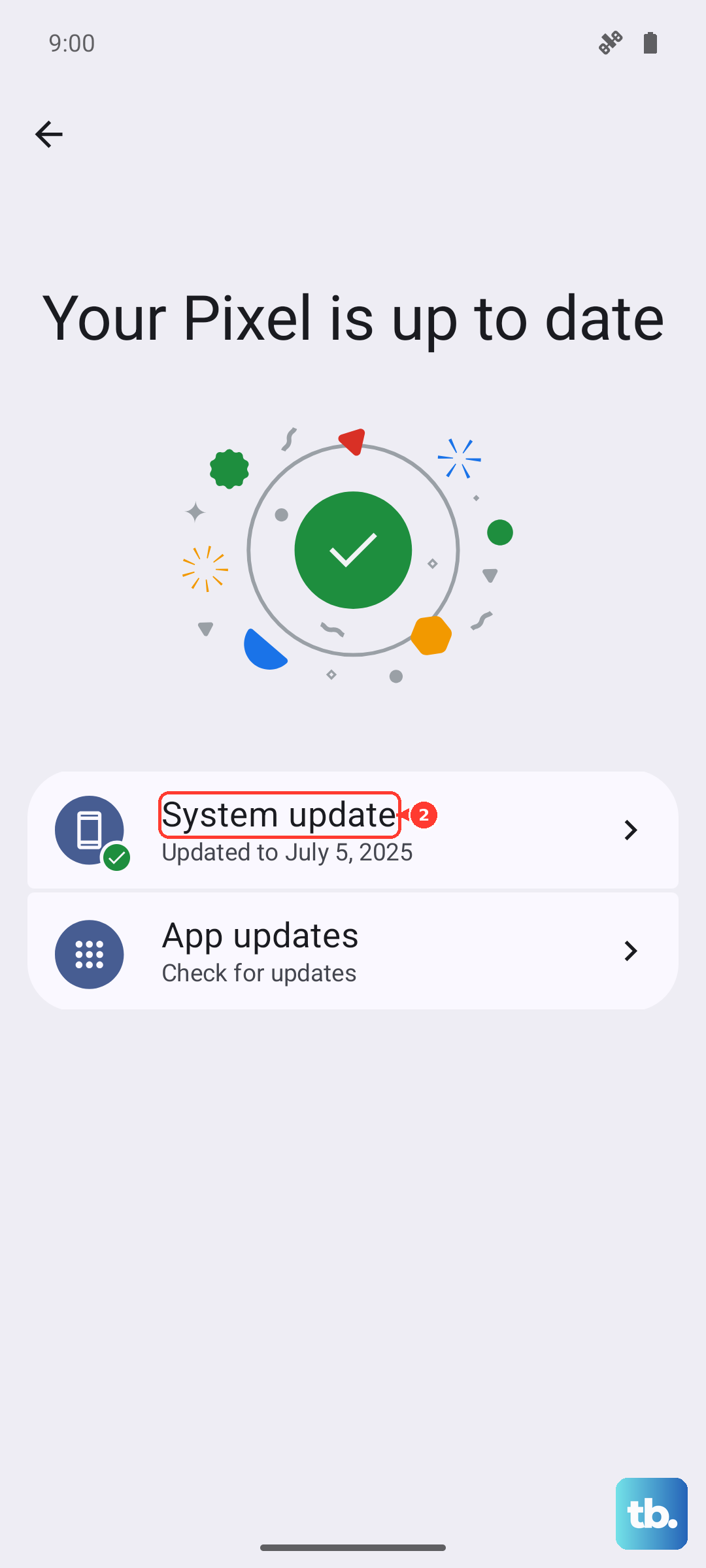
More importantly, check for a full system update. Go to Settings > System > System update. If an update is available, install it. I've seen many download issues resolved by a pending Android security patch or feature drop on Pixel devices.
Review and Reset Download Manager
The Download Manager is a system app that handles all downloads. Let's make sure it's working properly. Go to Settings > Apps > See all apps. Tap the three-dot menu and select Show system apps.
Now find and tap 'Download Manager'. If the 'Disable' button is showing, it's already enabled. Tap Storage & cache and hit Clear cache. You can also try 'Clear storage' here, which resets the app without harming your files.
Clear Data for Google Play Services
This is a more thorough step than clearing the Play Store cache. Google Play Services is the backbone for app functionality and downloads. Go to Settings > Apps > See all apps and find 'Google Play Services'.
Tap Storage & cache. First, tap Clear cache. If the problem persists, go back and tap Manage space. Here, you can tap Clear all data. This won't delete your personal information but will reset the service. Your phone may act strangely for a minute as it re-syncs.
Check App Permissions and Background Data
Sometimes, power-saving features or incorrect permissions can block downloads. First, ensure the Play Store can use data in the background. Go to Settings > Apps > See all apps > Google Play Store.
Tap Mobile data & Wi-Fi. Make sure 'Background data' is allowed and that 'Unrestricted data usage' is turned on. While you're here, also check the permissions for Google Play Services. Tap into it from the apps list, go to Permissions, and ensure everything, especially 'Files and media', is allowed.
Remove and Re-add Your Google Account
This refreshes the connection between your phone and Google's servers. Go to Settings > Passwords & accounts. Tap your primary Google account, then tap Remove account.
Confirm, then restart your Pixel 9a. After it boots, go back to Settings > Passwords & accounts > Add account and sign back in with your Google credentials. This often clears up persistent sync and download errors.
Try Safe Mode
If an app you recently installed is causing a conflict, it could block the Play Store. Booting into Safe Mode temporarily disables all third-party apps. Press and hold the power button, then tap and hold the 'Power off' icon on your screen until you see the Safe Mode prompt.
Tap 'OK' to reboot into Safe Mode. You'll see 'Safe mode' in the bottom corner. Try downloading an app now. If it works, a recently installed app is the problem. Restart normally and try uninstalling apps one by one to find the culprit.
Reset App Preferences or Perform a Factory Reset
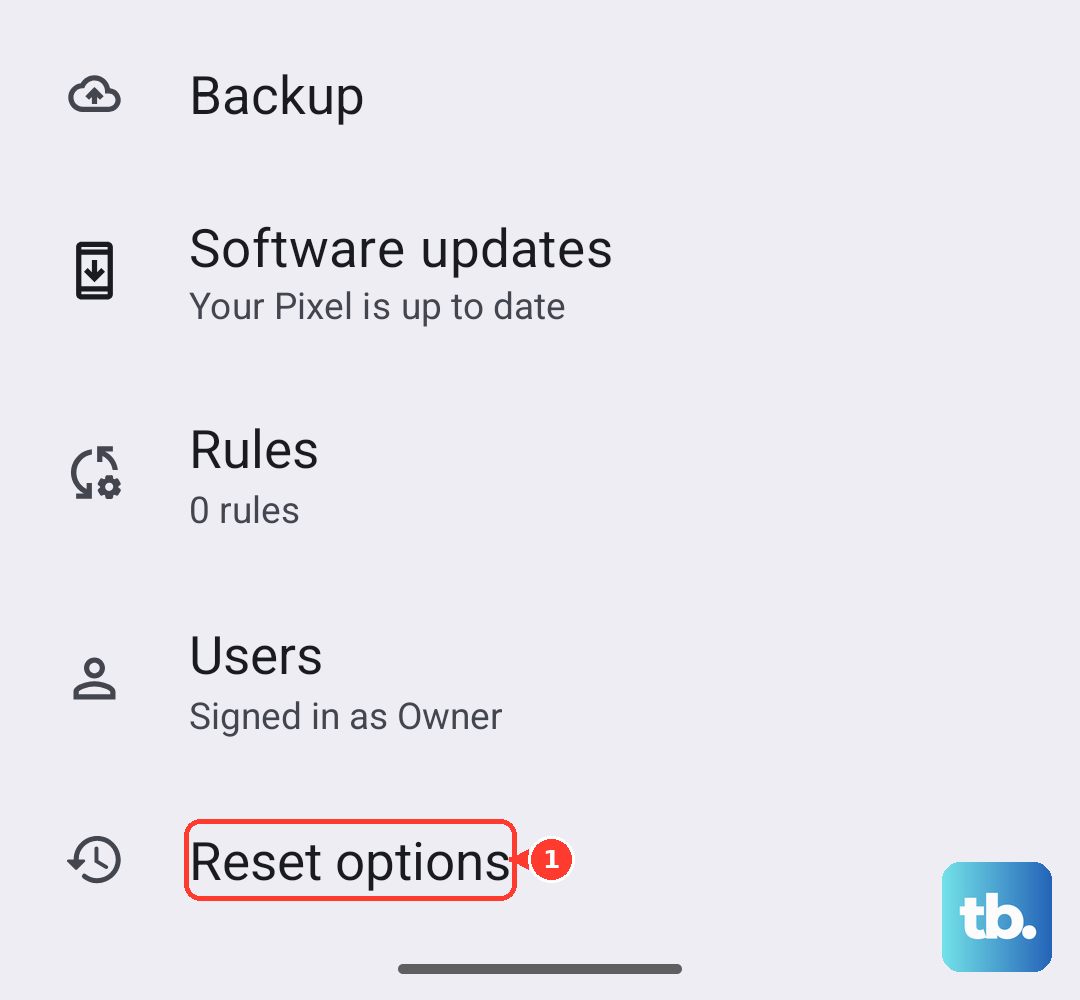
Resetting app preferences is a low-risk step that returns all app permissions, notifications, and default apps to their original states without deleting any app data. Go to Settings > System > Reset options and tap Reset app preferences.
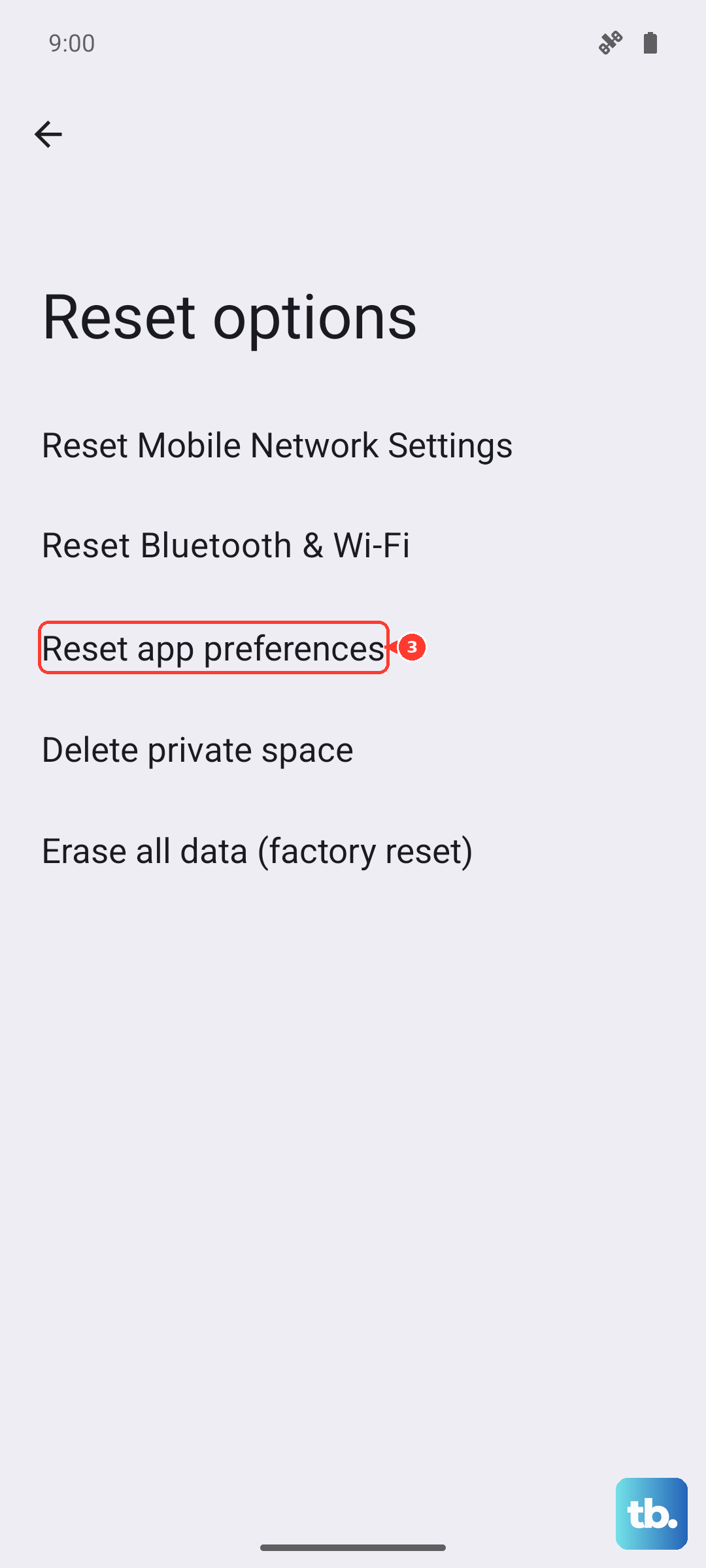
If absolutely nothing else has worked, a factory reset is the final step. This will erase everything on your Pixel 9a, so you must back up your data first using Google One or another method. Once backed up, go to Settings > System > Reset options > Erase all data (factory reset). After the reset, set up your phone and try downloading an app immediately to test.