
When your Google Pixel 9 won't send pictures, it's usually a quick fix. The most common culprit is a simple setting or a temporary app glitch. I'd start by checking your mobile data and toggling Airplane Mode.
Check Your Mobile Data and Network
First, make sure your mobile data is actually turned on. Swipe down from the top of your screen twice to open the full Quick Settings panel and look for the cellular data icon. If it's off, tap it to turn it back on.
If you're trying to send over Wi-Fi, ensure you're connected to a stable network. Sometimes a router restart can clear up any hiccups. Just unplug it, wait 30 seconds, and plug it back in.
For a quick network refresh, toggle Airplane Mode on and off. Swipe down and tap the airplane icon, wait about 10 seconds, then tap it again to turn it off. This reconnects you to both cellular and Wi-Fi networks.
Verify Your Messaging App Settings
Open the app you're using to send pictures, like Google Messages. Go to the app's settings and look for "Chat features" or "Advanced." Ensure that features like RCS (Rich Communication Services) are enabled if you're trying to send high-quality photos to another Android user.
If you're using traditional SMS/MMS, you need to have mobile data enabled, even if you're on Wi-Fi. MMS messages don't send over Wi-Fi alone on most carriers. Double-check that "Auto-download MMS" is also enabled in your messaging app's settings.
For apps like WhatsApp or Signal, check their individual permissions. Go to Settings > Apps > [App Name] > Permissions and make sure both Photos and Media access are allowed.
Clear the Messaging App's Cache
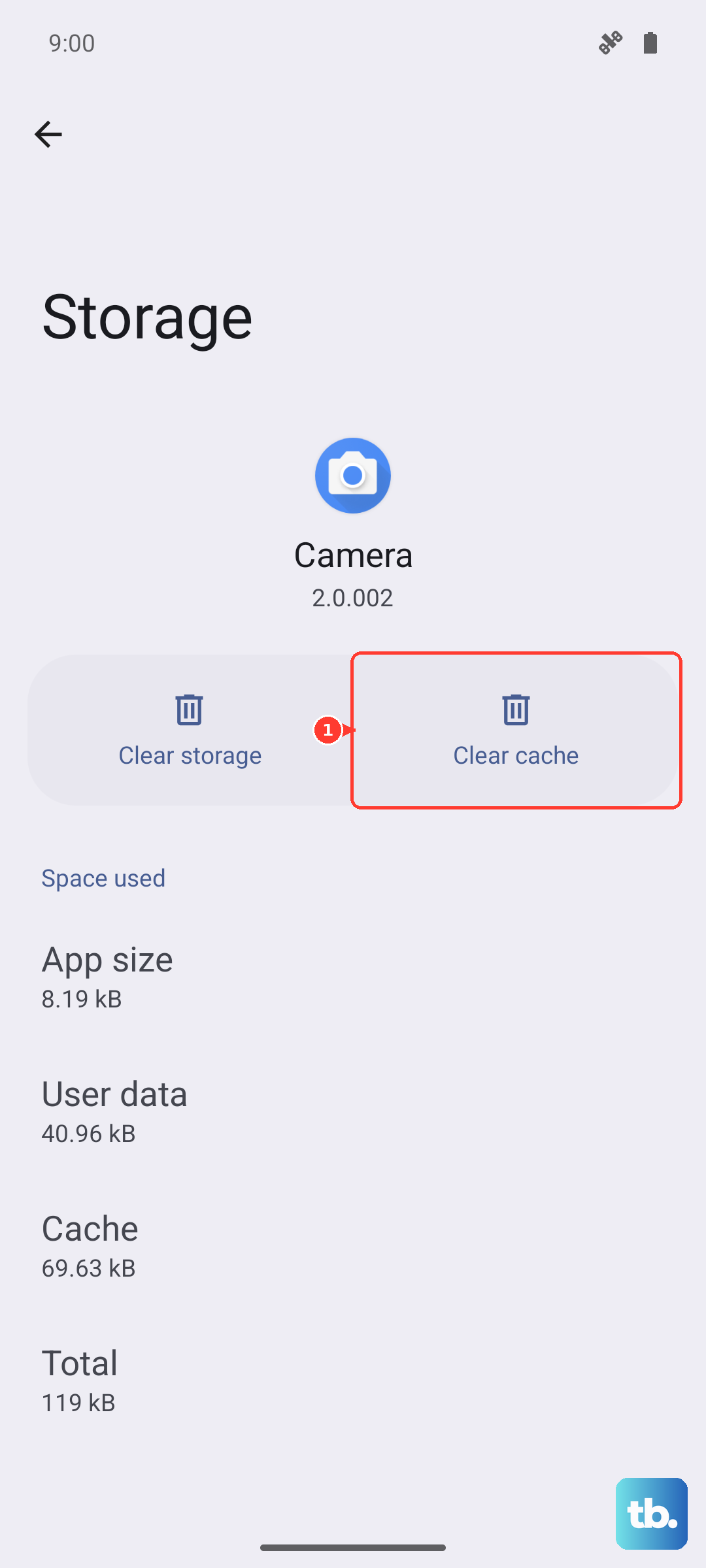
A corrupted cache can stop pictures from sending. Go to Settings > Apps > See all apps. Find your messaging app in the list and tap on it.
Tap Storage & cache, then select Clear cache. This won't delete your messages, it just removes temporary files that might be causing trouble. After clearing, open the app and try sending the picture again.
Force Stop and Restart the App
If clearing the cache didn't help, force stop the app. Go back to the app's info page in Settings and tap Force stop. Confirm the action, then reopen the app from your home screen.
This completely shuts down the app's processes. When it restarts, it establishes a fresh connection, which can resolve sending issues. It's a good step before trying a full phone restart.
Check for Data Saver or Extreme Battery Saver
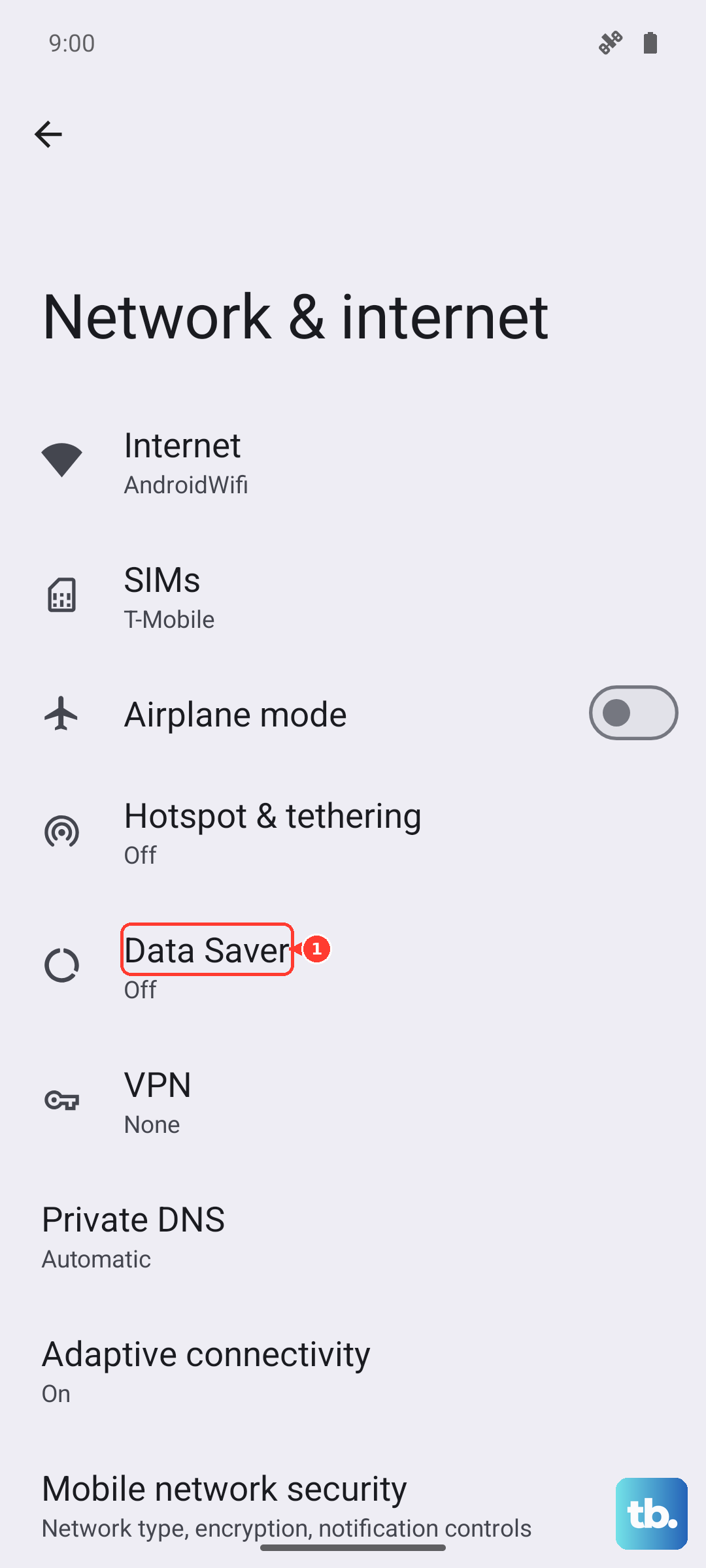
Data Saver mode can block background data, which is often needed to send multimedia messages. Go to Settings > Network & internet > Data Saver and make sure it's turned off.
Also, check if Extreme Battery Saver is active. This feature can interfere with various background processes. You can check and turn it off in Settings > Battery.
Update Your Apps and Android Version
An outdated messaging app might have a bug preventing sends. Open the Google Play Store, tap your profile icon, and go to Manage apps & device > Updates available. Update your messaging app and any related carrier services app.
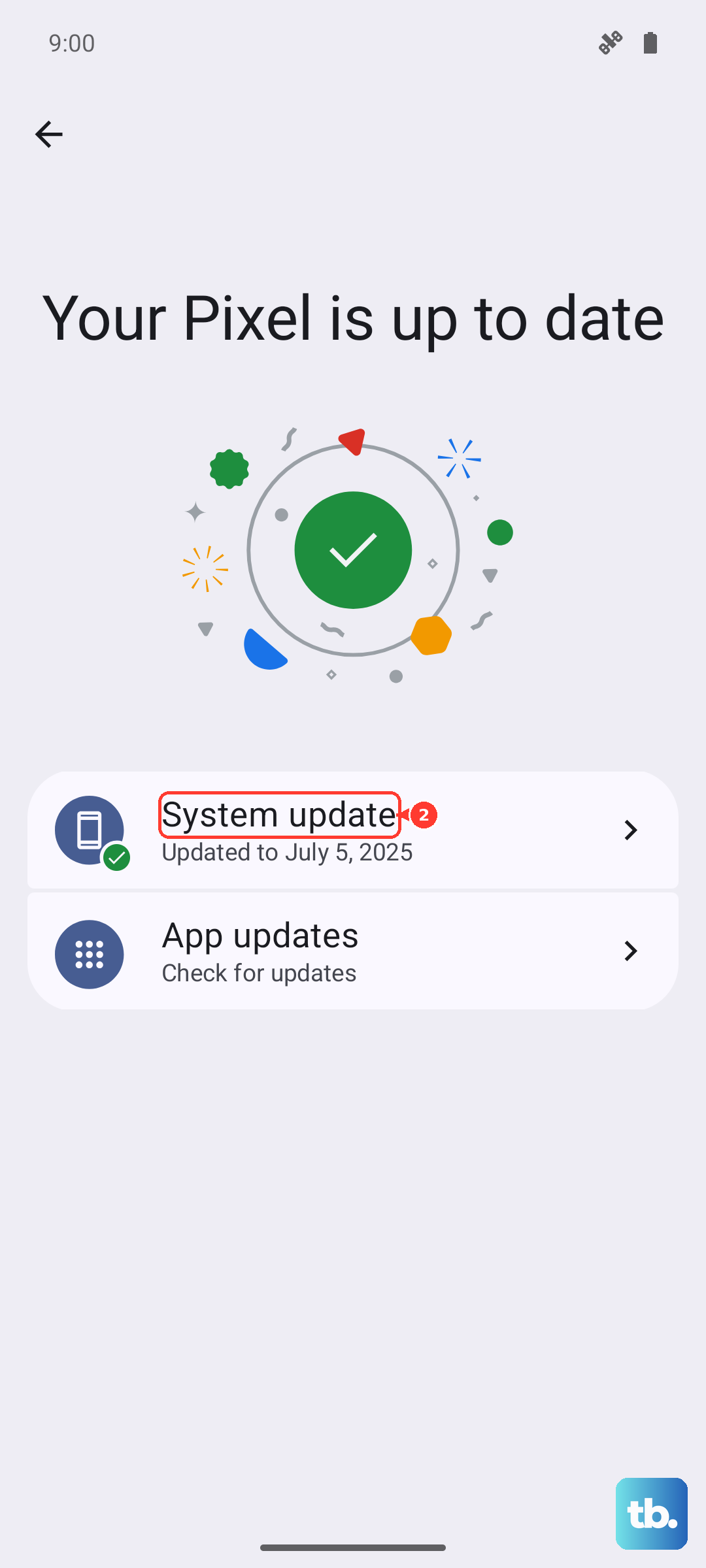
Next, check for a system update. Google's Feature Drop updates can sometimes introduce bugs that are later patched. Go to Settings > System > System update to see if a newer version of Android is available.
Review Your APN Settings
Incorrect Access Point Name (APN) settings from your carrier can break MMS. Go to Settings > Network & internet > SIMs > Access Point Names.
You shouldn't usually edit these, but you can check if they're there. If the list is empty, you may need to contact your carrier for the correct settings or ask them to reprovision your line for MMS.
Perform a Network Settings Reset
This will reset all Wi-Fi, mobile data, and Bluetooth connections to their default state. Go to Settings > System > Reset options.
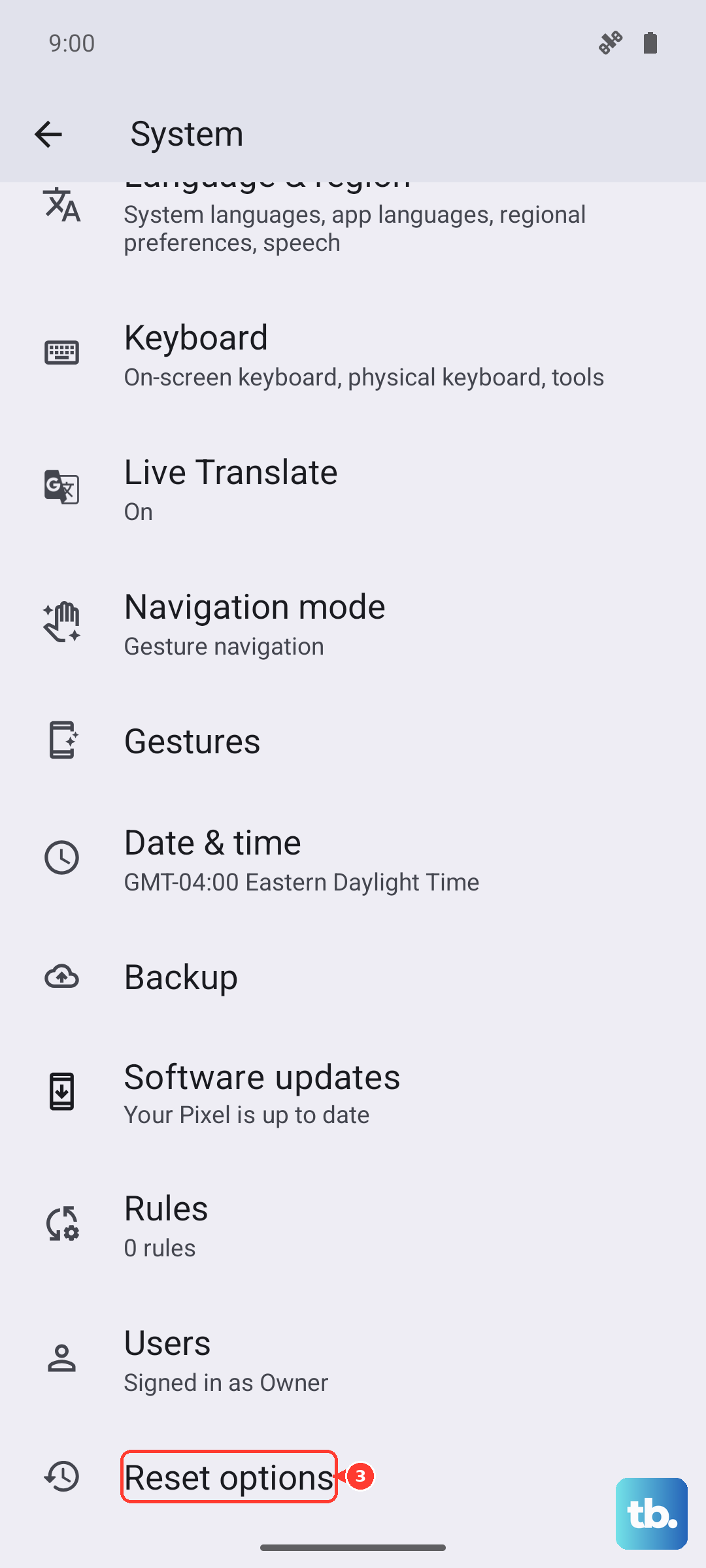
Tap Reset Wi-Fi, mobile & Bluetooth. You'll need to enter your PIN and confirm. Remember, this will erase all saved Wi-Fi passwords and paired Bluetooth devices, so you'll have to reconnect to them afterward.
Try a Different Messaging App
To rule out a problem with your primary app, temporarily try sending the picture with a different one. Google Messages often comes pre-installed if you're using something else.
If the picture sends successfully with another app, the issue is isolated to your original messaging app. You might need to check for deeper app settings or consider reinstalling it.
Perform a Soft Reset on Your Pixel 9
If you've worked through the settings and the problem persists, a soft reset can clear system glitches. Press and hold the Power button for about 30 seconds until the phone restarts and you see the Google logo.
This is different from just turning it off and on. It forces a deeper reboot of the system processes that manage connectivity and app function. After it restarts, give it a minute to fully reconnect before trying to send again.