
You tap send on a photo from your Google Pixel 9 Pro XL, and nothing happens. Or the message fails with an error. This is a common glitch on the Pixel 9 Pro XL, and it usually comes down to a few key settings. Let's run through the fixes that actually work.
Check your MMS and RCS settings first
Photos are sent as MMS or via RCS (Rich Communication Services) through Google Messages. If either is misconfigured, your pictures won't go through. Open the Google Messages app, tap your profile picture in the top right, and go to Messages settings > RCS chats.
Make sure RCS is set to "On." If it's stuck on "Connecting" or "Setting up," tap Resend verification code or, if that fails, switch RCS off and back on. For MMS, you'll need the correct APN from your carrier, more on that in a minute.
Verify your mobile data is actually working
The Pixel 9 Pro XL needs an active data connection to send photos. If you're on Wi‑Fi, check that the Wi‑Fi icon is solid and you can load a webpage. On mobile data, make sure you have at least a couple of bars and that mobile data is enabled.
Go to Settings > Network & internet > Internet. Toggle mobile data off and back on. This resets the data session without a full reboot.
Switch between 4G and 5G
Sometimes the Pixel 9 Pro XL gets stuck on a weak 5G signal that's fine for streaming but chokes on image uploads. Go to Settings > Network & internet > Internet > tap the gear icon next to your carrier > Preferred network type.
Switch from 5G to LTE/4G. Try sending the photo again. If it works, you can either keep it on 4G or switch back to 5G later, the network glitch is often temporary.
Make sure date and time are set automatically
Incorrect date and time can break encrypted messaging and carrier authentication. Go to Settings > System > Date & time and verify that Use network-provided time is turned on.
If it's already on, toggle it off, wait a few seconds, then toggle it back on. This forces a refresh from the network.
Restart your Pixel 9 Pro XL
A simple restart clears temporary software hiccups. Press and hold the Power button and Volume up button simultaneously until the power menu appears. Tap Restart. Wait for the phone to fully boot up and try sending the photo again.
If the screen isn't responding, hold Power + Volume Up for about 10 15 seconds to force a restart.
Clear the Messages app cache
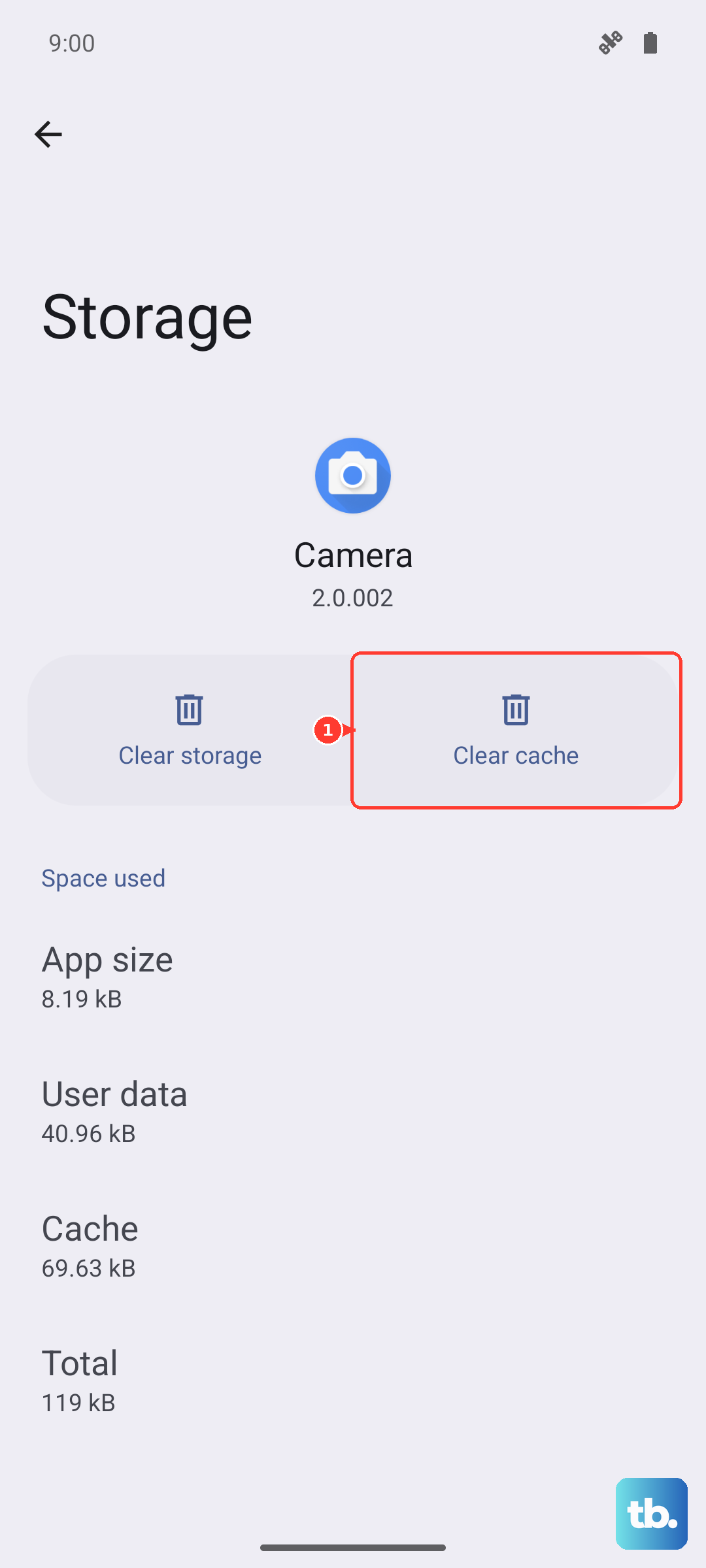
Corrupted cache data in the Google Messages app can stop photo sending. Go to Settings > Apps > See all apps > Messages > Storage & cache.
Tap Clear cache. Don't tap "Clear storage" unless you're okay losing unsaved message drafts, it won't delete your conversations, but it resets the app's preferences. After clearing cache, reopen Messages and try again.
Check your APN settings for MMS
The Access Point Name (APN) tells your phone how to connect to your carrier's MMS server. If it's wrong, photos won't send. Go to Settings > Network & internet > Internet > tap the gear icon next to your carrier > APN.
Compare the entries here to your carrier's official APN settings (most publish them on their website). Key fields for photo sending are MMSC, MMS proxy, and MMS port. If any are blank or look off, tap the three dots in the top right and select Reset to default. This restores the carrier‑provided values.
Disable data saver and low data mode
Android 14's Data Saver can block background data for Messages, even when you're actively using it. Go to Settings > Network & internet > Data Saver.
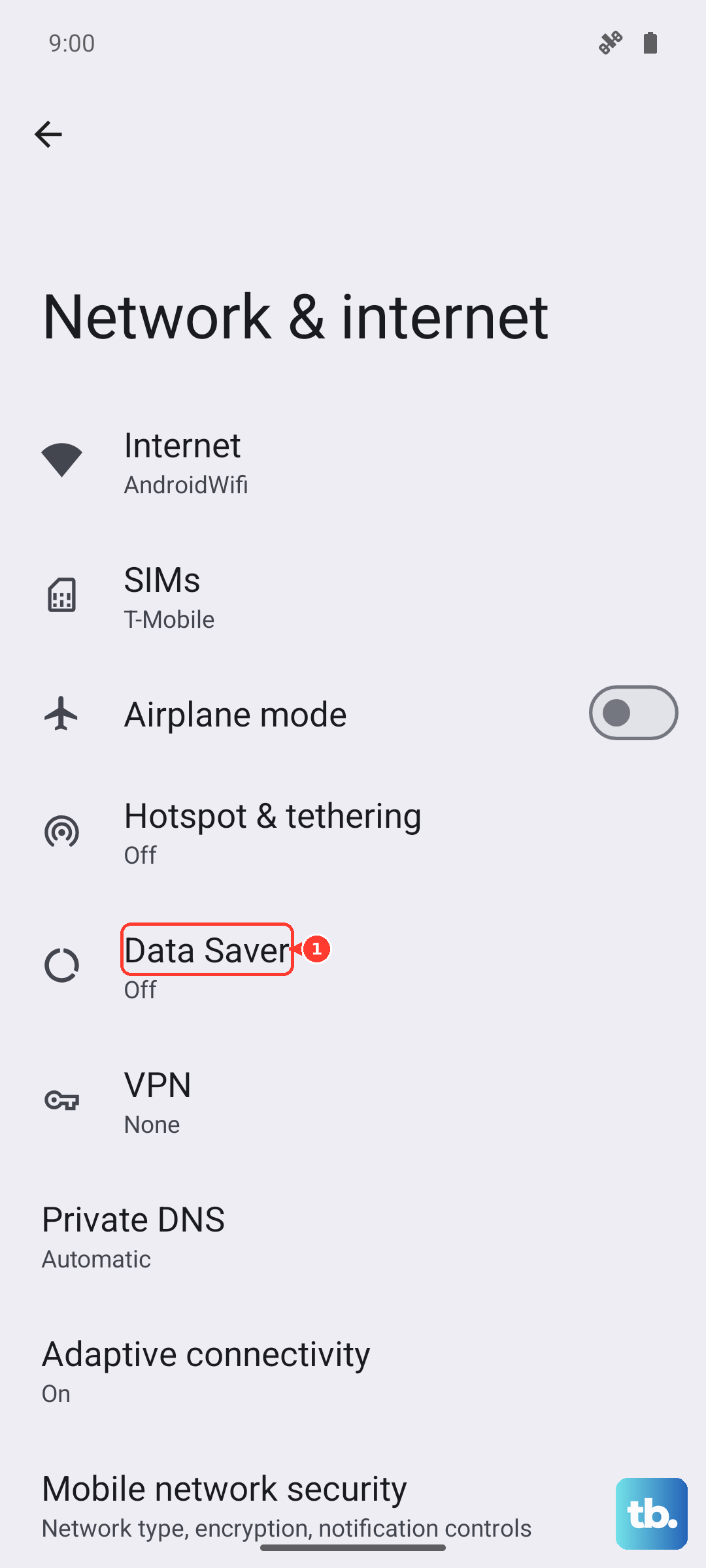
If it's on, turn it off temporarily. You can also go to Settings > Apps > Messages > Mobile data & Wi‑Fi and make sure Allow background data usage is enabled. This ensures the app can use data even with Data Saver active.
Update your Pixel and carrier services
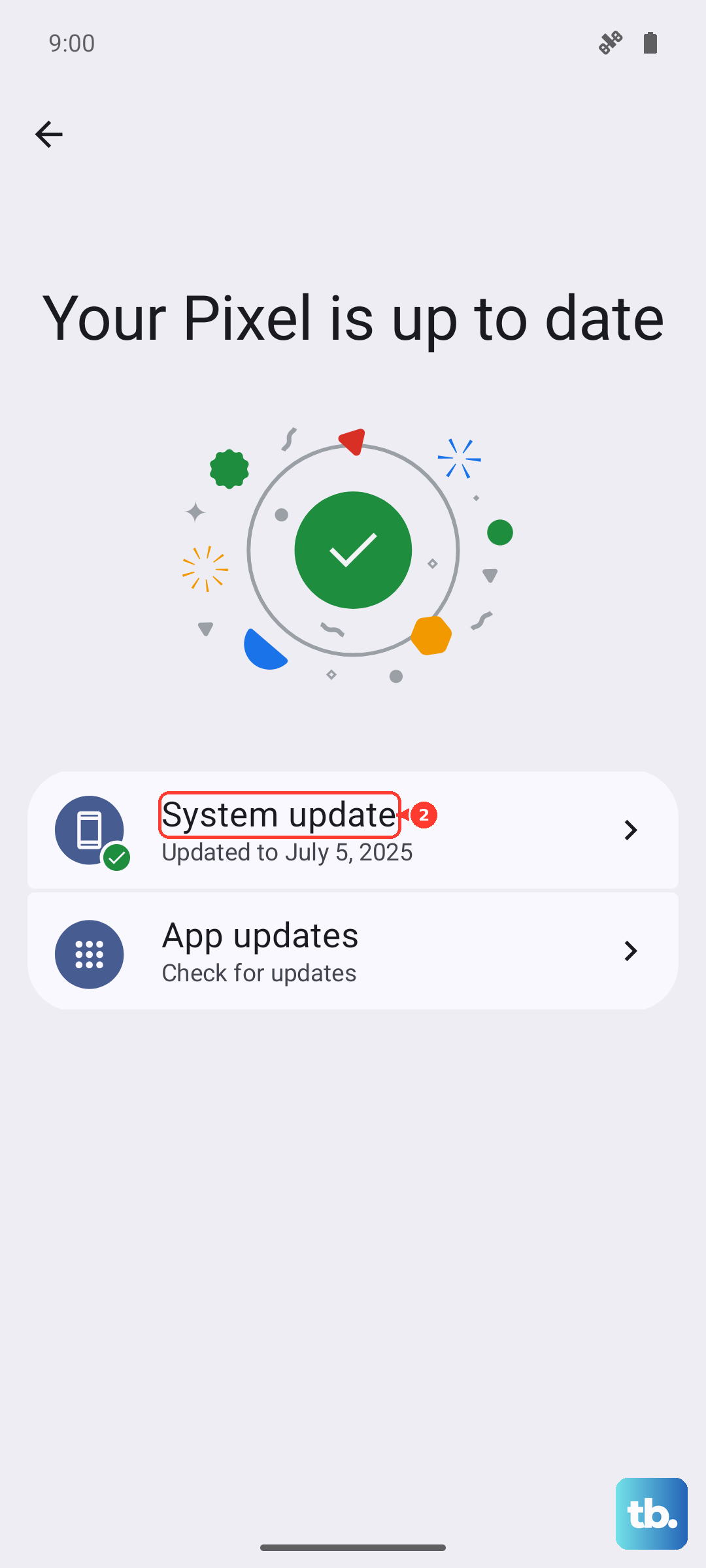
Software updates often fix messaging bugs. Go to Settings > System > System update and install any pending updates. Also check the Google Play Store for updates to Google Messages and Carrier Services.
Carrier Services is a system app that handles RCS and MMS connectivity on Pixel phones. Outdated versions can cause sending failures.
Reset network settings as a last resort
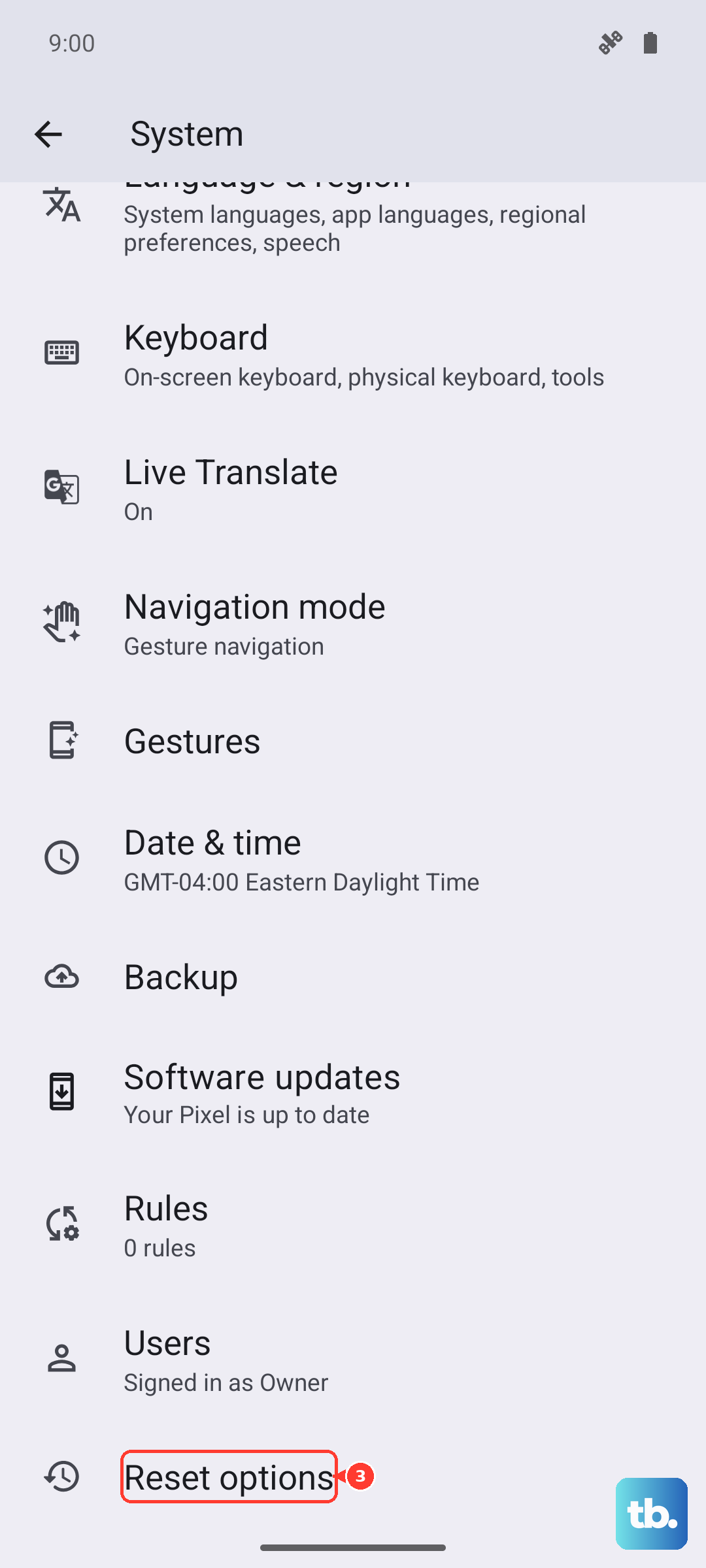
If nothing above works, a network settings reset can wipe out any lingering config errors. Go to Settings > System > Reset options > Reset Wi‑Fi, mobile & Bluetooth.
This erases saved Wi‑Fi passwords and Bluetooth pairings, but it can also flush corrupted MMS and APN configuration. After the reset, reconnect to your Wi‑Fi and re‑enable Bluetooth accessories. Then try sending a photo, it usually works after this step.