
There's nothing quite like the moment you hit play on your Pixel 9 Pro XL and get nothing but silence. Whether it's calls, music, or notifications, a dead speaker can bring your day to a halt. The good news is that audio issues on this phone are usually fixable without a trip to the repair shop.
It is worth confirming the basics with a quick quick sound test. If neither channel plays a tone, you are looking at a hardware or connection problem rather than a settings issue.
Check Volume and Sound Mode First
It's easy to accidentally knock your phone into vibrate or silent mode without noticing. Swipe down twice to open the full Quick Settings panel and check your sound mode. You can also go to Settings > Sound & vibration > Sound mode to make sure it's set to Ringing.
While you're there, tap Volume and slide the media, call, and alarm levels up. I've seen plenty of cases where someone accidentally mashed the volume rocker down to zero without realizing it.
Is Do Not Disturb the Problem?
Do Not Disturb is one of the most common culprits for silent speakers. It can silence nearly everything on your Pixel 9 Pro XL if it's enabled. Head to Settings > Sound & vibration > Do Not Disturb and turn it off completely to test if your audio comes back.
Another hidden setting lives in the Accessibility menu. Open Settings > Accessibility > Audio & captioning and check that Mute all sounds is switched off. Once accidentally flipped, it stays quiet until you manually undo it.
Disconnect Any Bluetooth Devices
Your Pixel 9 Pro XL might think you want audio routed to a connected Bluetooth device. Swipe down to the Quick Settings panel and tap the Bluetooth tile to turn it off. If your sound returns, you know a paired speaker, earbuds, or your car's system was stealing the audio.
You can also go to Settings > Connected devices to see exactly what's paired and disconnect it there.
Clean the Speaker Grills (Carefully)
The top and bottom speaker grills on the Pixel 9 Pro XL are tiny magnets for pocket lint and dust. Grab a soft-bristled brush or a dry cotton swab and gently sweep across the mesh. I'd recommend using a flashlight to check if debris is deeply lodged.
Stay away from sharp objects like toothpicks or SIM ejector tools. Those can pierce the speaker membrane and turn a simple fix into a costly repair.
Force Restart the Phone
If a driver or background process is stuck, a standard restart might not cut it. Here's the way to force a full reboot on the Pixel 9 Pro XL: press and hold the Power button and Volume up button simultaneously. When the menu appears on screen, select Restart.
This cuts the power completely and boots the system fresh, clearing out temporary glitches that could be killing your audio.
Boot Into Safe Mode to Isolate the Issue
Safe mode runs your phone without any third-party apps. It's a great way to see if a recent download is causing the conflict. Press and hold the Power button, then long-press the Restart option in the menu. Tap OK to confirm and your phone will reboot into Safe mode, you'll see a small "Safe mode" label at the bottom.
If your speakers work fine in Safe mode, start uninstalling recently installed apps until you find the culprit.
Install the Latest Software
Google pushes out audio-related bug fixes with almost every software update. Open Settings > System > System update and tap Check for update. If one is available, download and install it while your phone is connected to Wi-Fi.
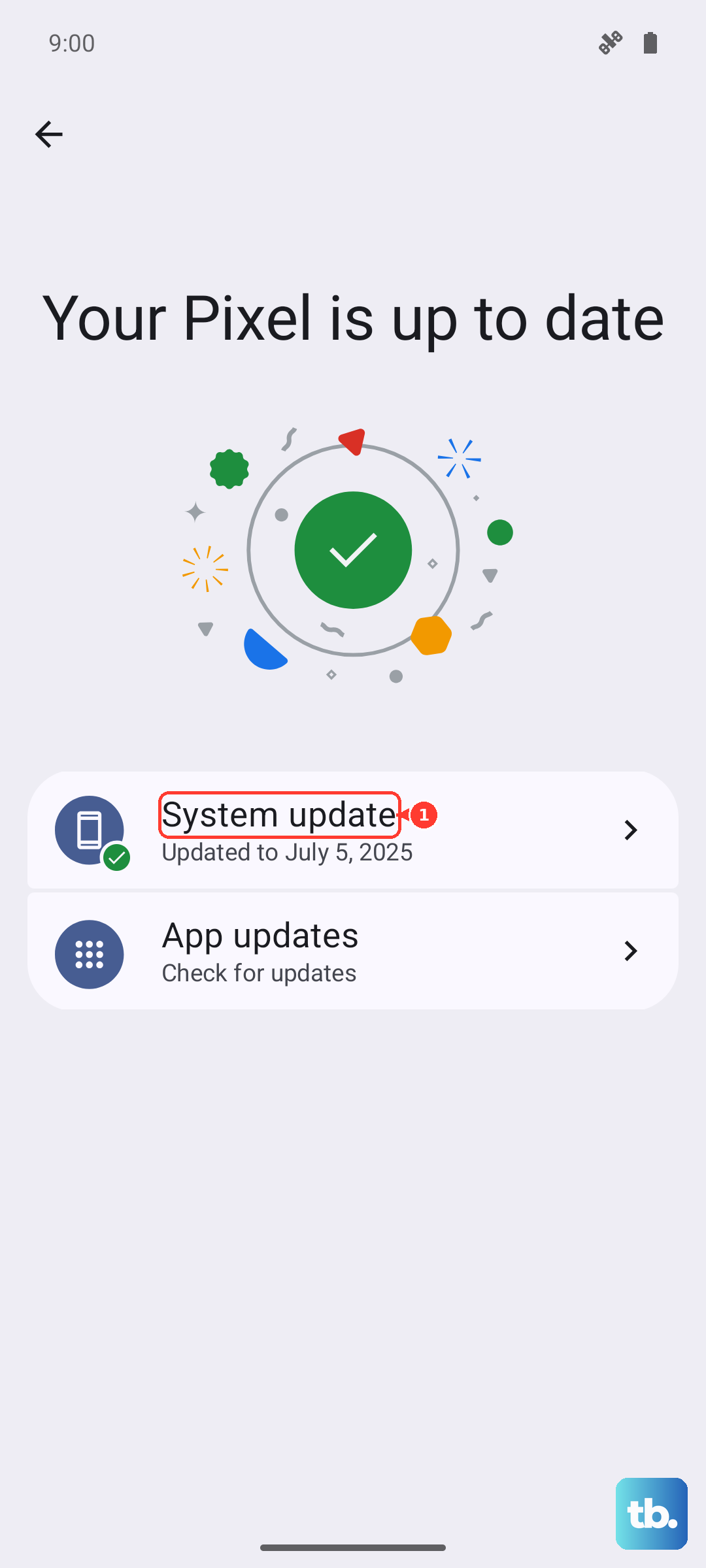
I'd recommend plugging your phone into power before starting an update to avoid any interruptions.
Reset App Preferences
Sometimes an app gains control over your audio channel and just won't let go. Resetting app preferences restores default permissions for all apps without deleting any of your personal data or files. Go to Settings > System > Reset options > Reset app preferences and confirm the action.
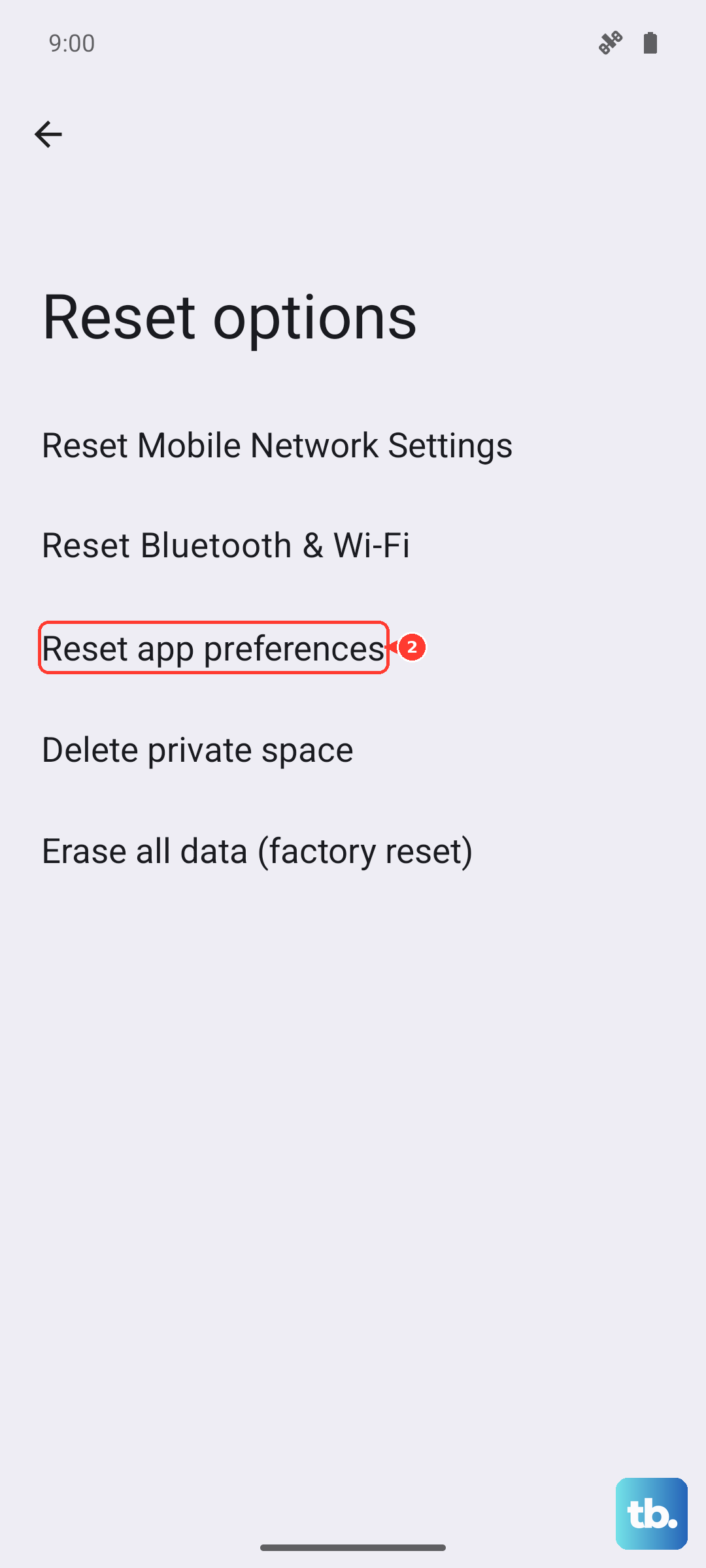
You'll lose saved preferences like default apps and background data restrictions, but no photos, messages, or accounts will be touched.
Factory Reset (When Nothing Else Works)
If your audio is still dead after trying every fix above, a factory reset can clear out the deepest software conflicts. This will erase everything on your Pixel 9 Pro XL, so back up your photos, messages, and files before you start. You can find this option at Settings > System > Reset options > Erase all data (factory reset).
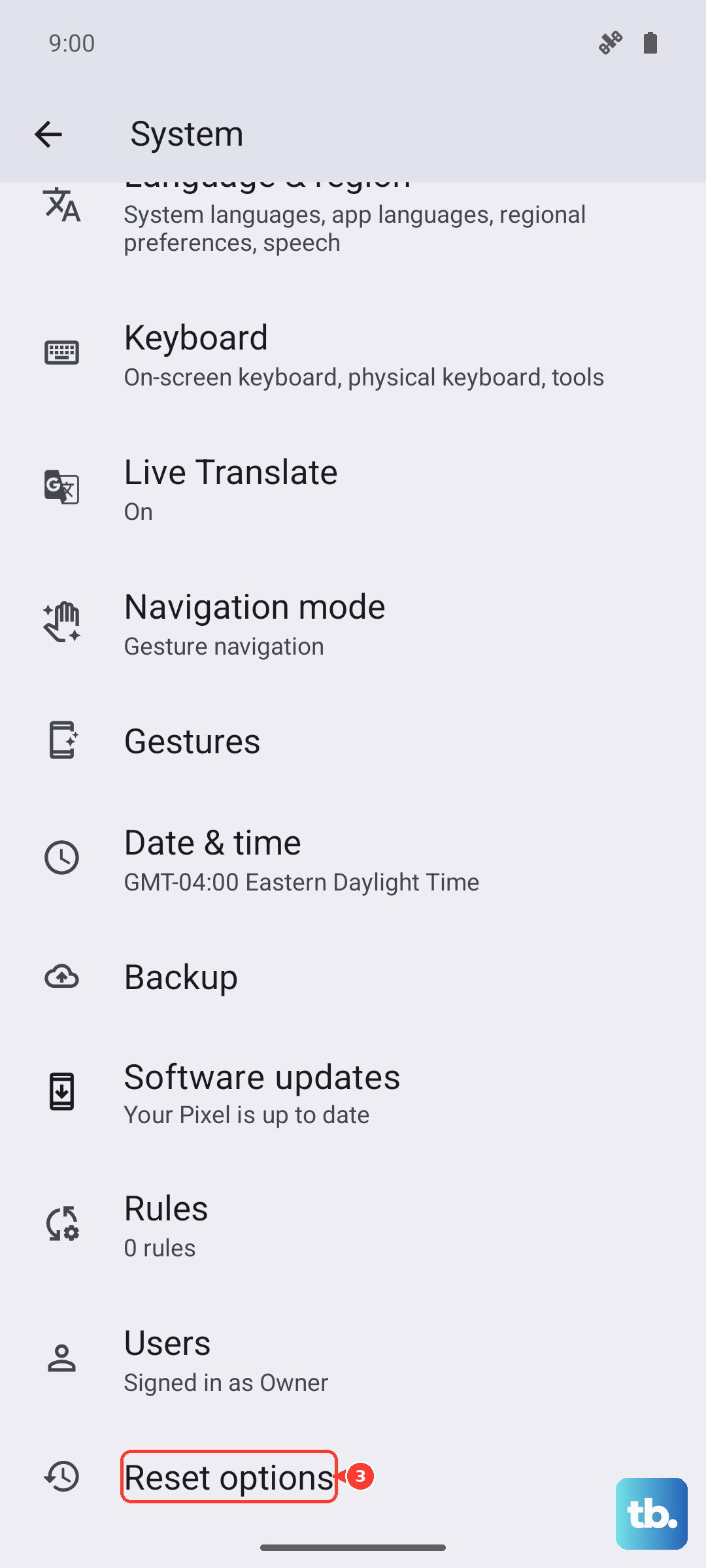
After the reset sets your phone back to its out-of-box state, test the speakers before restoring any backups. If they work right away, the issue was definitely software-related.