
Slow internet on your Pixel 9 Pro XL can be a real pain, especially when you're in the middle of streaming or need to load a page quickly. The good news is that most slowdowns are fixable right from the phone's settings, with no tools or trips to the store required.
I'll walk you through the adjustments that actually help, starting with the quickest ones.
Start With a Quick Force Restart
Before you dive into any settings, give your phone a quick force restart. This clears out temporary glitches that can slow down your data connection.
Press and hold the Power button and Volume up button at the same time. When the menu pops up, tap Restart. That's it. Your Pixel will power back up in about 30 seconds, and you might notice an immediate improvement.
Clear Out the Browser Cache
Your browser saves files from every site you visit, and over time that cache gets bloated. Clearing it frees up resources and can make pages load faster right away.
Open Chrome and tap the three-dot menu in the top-right corner. Go to Settings > Privacy and security > Clear browsing data. Make sure Cached images and files is selected, then tap Clear data. You won't lose your passwords or bookmarks if you leave Cookies and site data unchecked.
If you use a different browser like Firefox or Samsung Internet, the process is similar.
Check Your Network Settings
The Pixel 9 Pro XL supports both 5G and Wi-Fi 6E, but sometimes the phone gets stuck on a slower band. You can force it to 5G if your carrier supports it.
Go to Settings > Network & internet > SIMs (or your carrier name). Tap Preferred network type and select 5G if it's not already chosen. If 5G is spotty in your area, switch back to LTE because a steady 4G connection can actually be faster than a weak 5G signal.
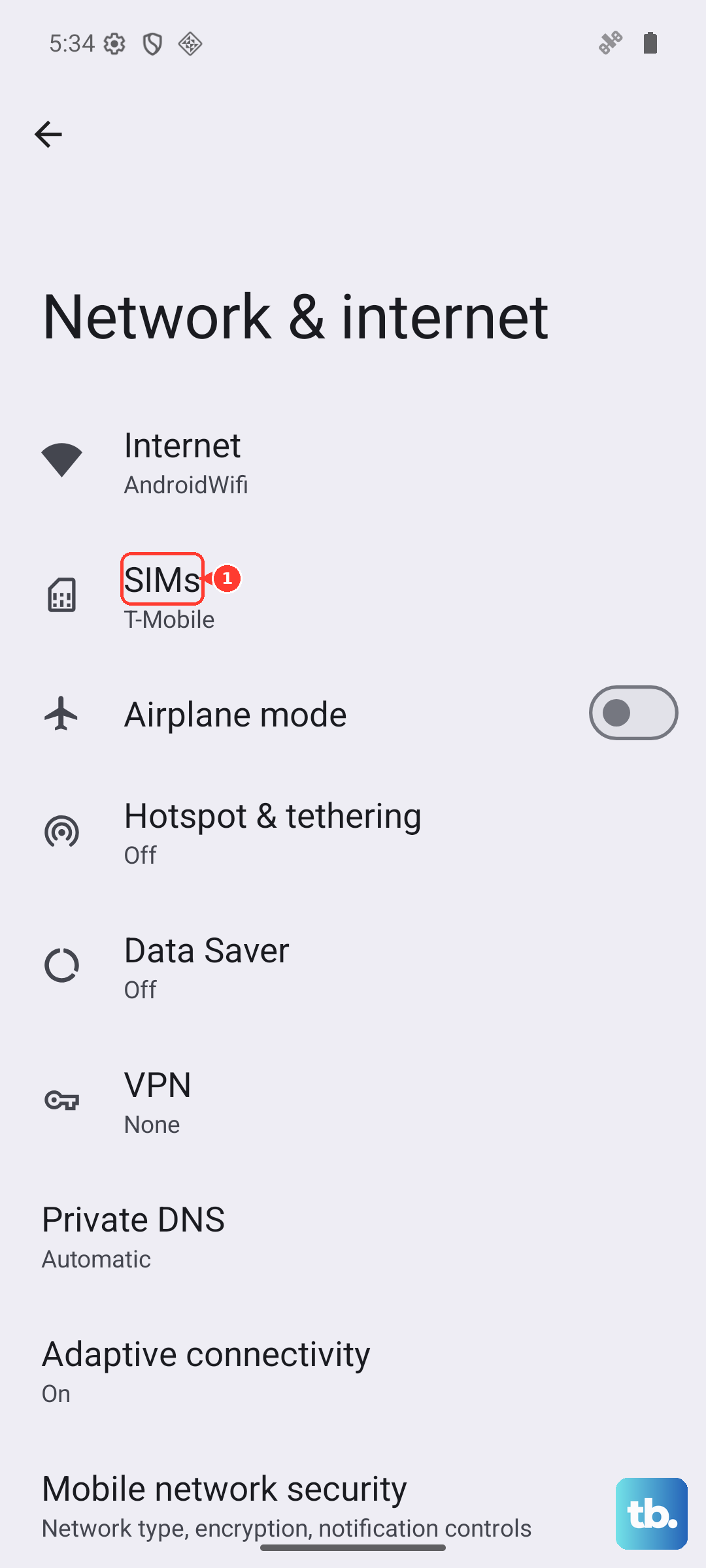
For Wi-Fi, make sure you're on the 5GHz band if your router supports it. The Pixel shows the Wi-Fi band under the network name when you tap Internet in Settings.
Turn On Data Saver
Pixel's Data Saver feature blocks background data from apps you're not actively using. This stops apps from hogging your connection and speeds up the stuff you actually want to load.
Open Settings > Network & internet > Data Saver. Toggle it on. You can tap Unrestricted data to allow specific apps (like maps or messaging) to keep using data in the background.
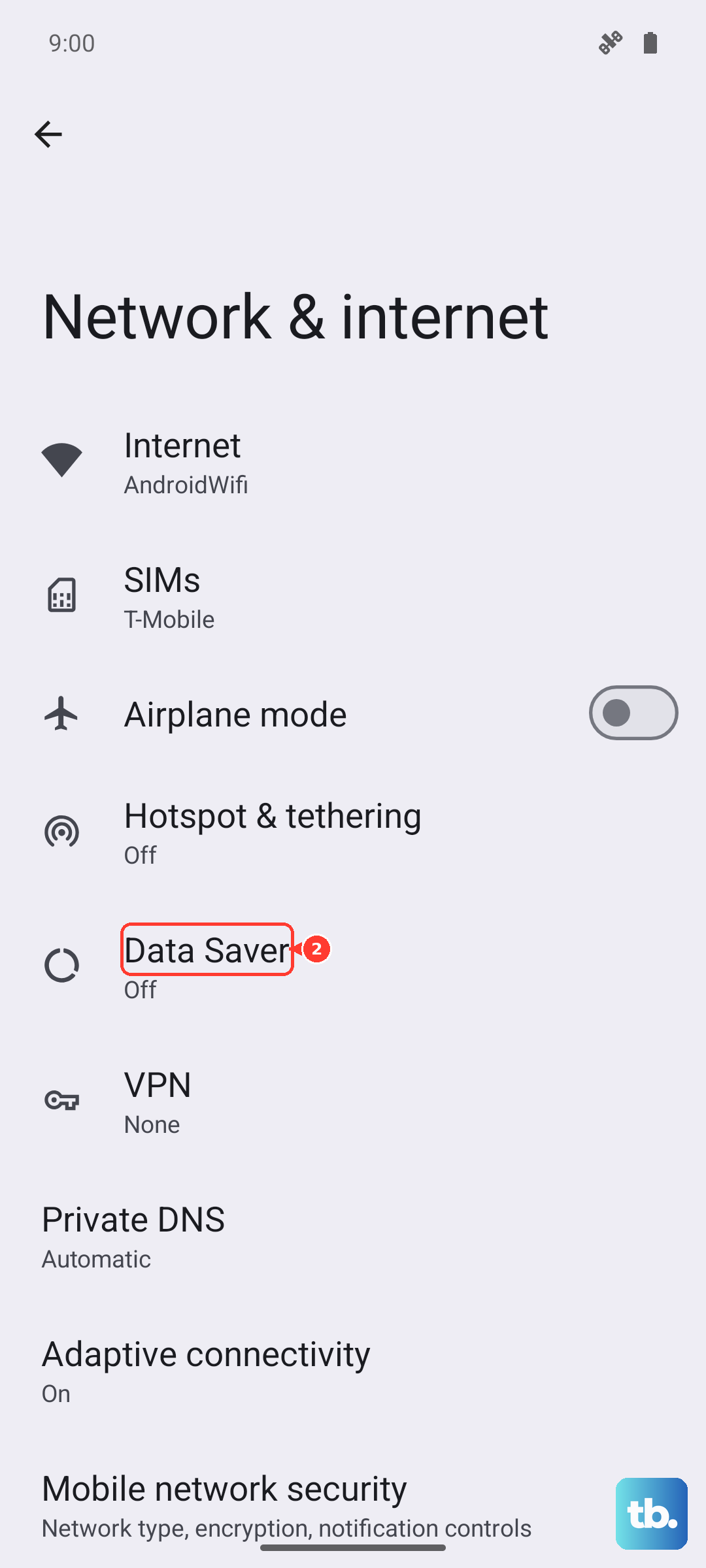
You'll see a small icon in the status bar when Data Saver is active.
Limit Background Data for Greedy Apps
Some apps download updates, sync photos, or refresh content even when you're not using them. That uses up bandwidth and slows everything down.
Go to Settings > Apps > See all apps. Tap an app that uses a lot of data (check Mobile data usage under Network & internet first). Then tap Mobile data & Wi-Fi and toggle off Background data. Repeat for any apps you don't need running in the background.
Be careful with system apps like Google Play Services, leaving them unrestricted is usually best.
Close Unused Apps
Apps sitting in the background can still use up system resources and affect network performance. Swipe up from the bottom of the screen and pause to see your recent apps. Then swipe each one away to close it.
You don't need to close everything all the time, but if you have a bunch of apps open that you haven't used in hours, clearing them out can help.
Disable VPN Connections Temporarily
If you're using a VPN, try turning it off for a minute. VPNs route your traffic through an extra server, which can add latency and reduce speed, especially if the server is far away.
Open the VPN app and disconnect, or go to Settings > Network & internet > VPN and toggle it off. If your internet speeds jump back up, you'll know the VPN was the bottleneck. You can either switch to a closer server or only use the VPN when you really need it.
Check Date and Time Settings
Believe it or not, incorrect date and time can mess with secure connections and cause slow loading. The Pixel sets this automatically by default, but it's worth double-checking.
Go to Settings > System > Date & time. Make sure Use network-provided time and Use network-provided time zone are both turned on.
Reset Network Settings as a Last Resort
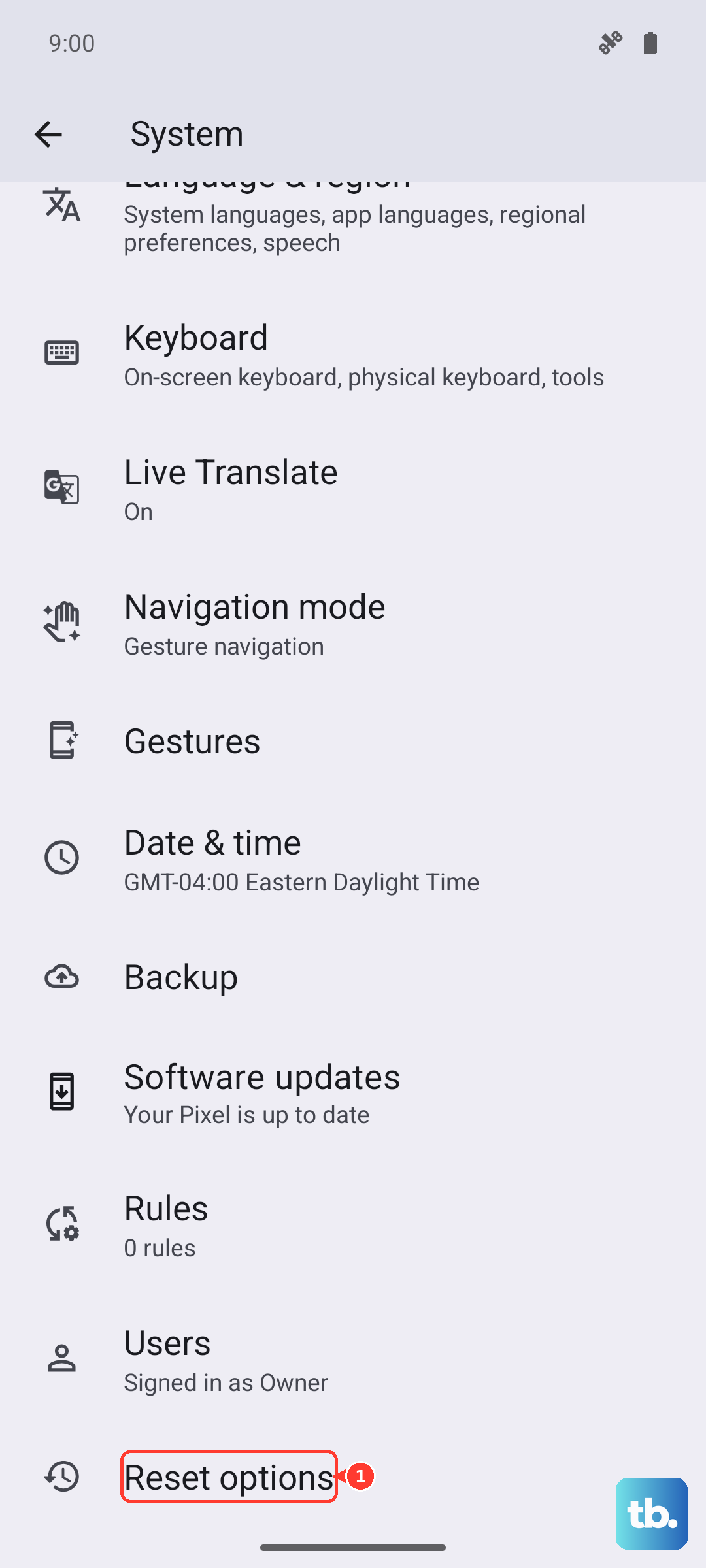
If you've tried everything and the internet is still crawling, resetting the network settings can wipe out any hidden configuration problems. This will forget saved Wi-Fi networks and Bluetooth pairings, so you'll need to reconnect to everything after.
Go to Settings > System > Reset options > Reset Wi-Fi, mobile & Bluetooth. Tap Reset settings and confirm. Your Pixel will restart and rebuild the network stack from scratch.
Keep Your Pixel Updated
Google pushes monthly security updates and feature drops that often include network performance fixes. Make sure you're on the latest version.
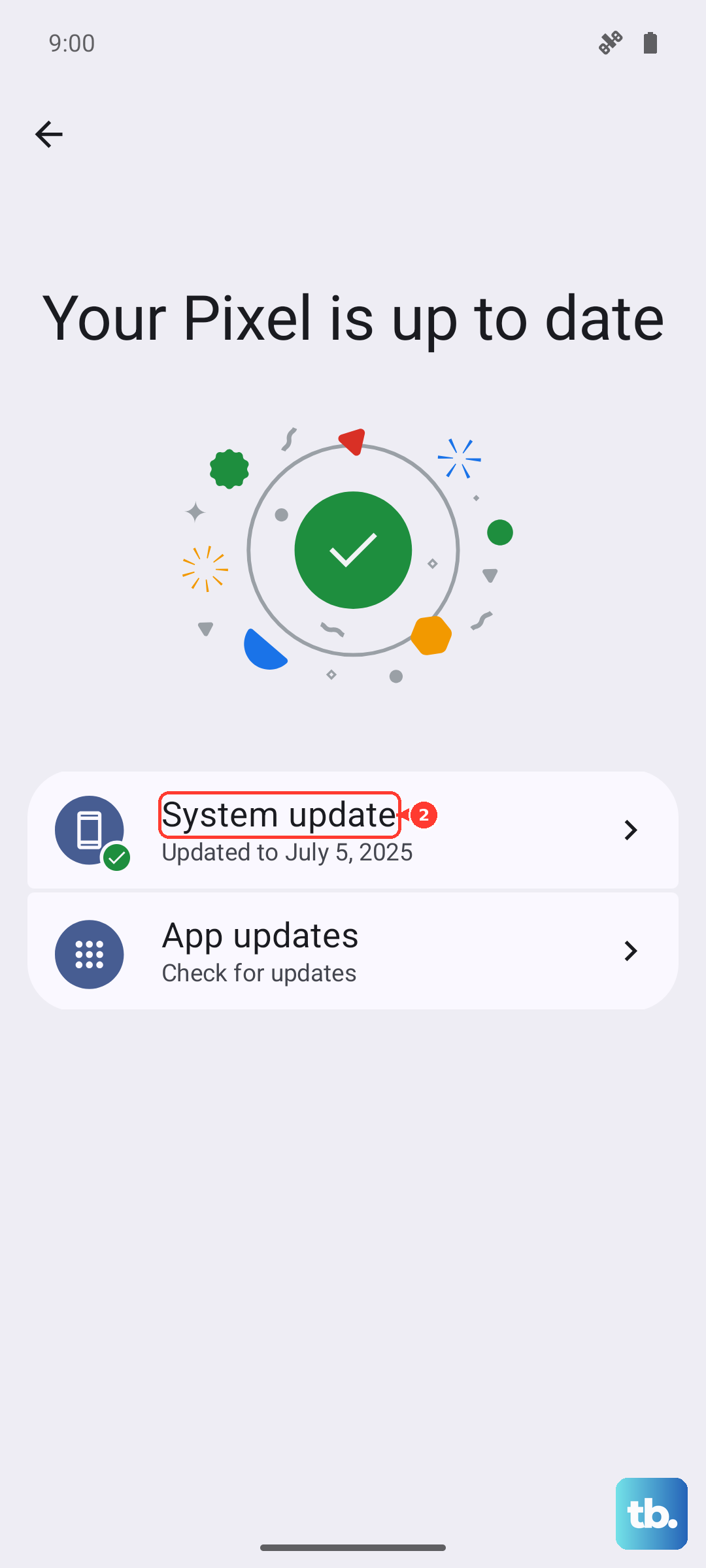
Go to Settings > System > Software update > System update. If an update is available, download and install it. A reboot afterward is required.
That's about it for the practical fixes. Start with the force restart and cache clear, then work through the settings one by one. Your Pixel 9 Pro XL is capable of great speeds, you just need to make sure it's set up to use them.