
When the predictive text on your Google Pixel 9 Pro XL stops working, it throws off your whole typing rhythm. Words don't pop up as you type, autocorrect goes rogue, or the suggestions bar disappears entirely. Let's get it sorted.
Restart Your Pixel 9 Pro XL
A quick restart clears out minor software hiccups more often than you'd think. Press and hold the Power button and Volume up button at the same time until the menu pops up. Tap Restart and let the phone do its thing.
This is the first thing to try because it costs you nothing and works for a surprising number of keyboard glitches. I've seen it fix predictive text issues on multiple Pixel models after a single reboot.
Clear Gboard Cache and Data
If restarting didn't do it, the next step is clearing the keyboard's cache. Gboard is Google's default keyboard on the Pixel 9 Pro XL, and its temporary files can get corrupted over time.
Open Settings and tap Apps. Scroll down to Gboard and tap it. Select Storage & cache, then tap Clear cache. This gets rid of temporary junk without affecting your personal dictionary or settings.
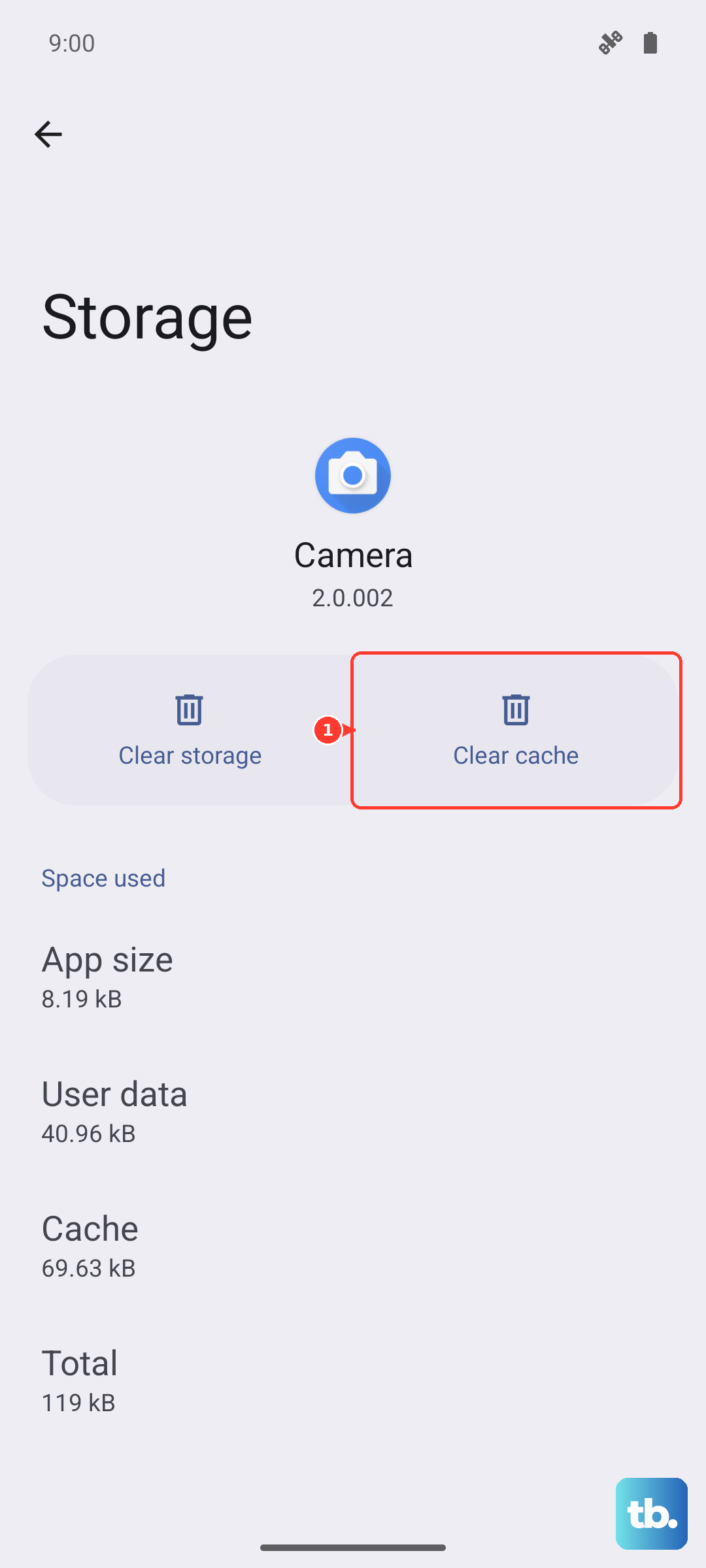
Still no luck? Tap Clear storage (or Clear data) on that same screen. Warning: this will wipe your learned words, personal dictionary, and any custom keyboard settings you've saved. It resets Gboard to factory defaults, so use this as a second resort.
Check Gboard's Settings
Sometimes the predictive text feature gets turned off accidentally. Open any app that brings up the keyboard, then tap the gear icon on the prediction bar (or long-press the comma key and select the gear).
Go to Text correction. Make sure Show suggestion strip is toggled on. Also check that Next-word suggestions is enabled, that's the feature that predicts what you'll type after the current word.
If everything looks on already, toggle Show suggestion strip off, wait a few seconds, then toggle it back on. Sometimes the feature needs a fresh kickstart to work again.
Update Gboard Through the Play Store
An outdated keyboard app can cause all sorts of weird behavior. Open the Play Store, tap your profile icon in the top right, then tap Manage apps & device. Look for Gboard in the list under "Updates available." If you see it, tap Update.
You can also search for "Gboard" directly in the Play Store. If it says "Update" instead of "Open," you're behind on a version that might fix your predictive text issues.
Check for a System Update
Google occasionally pushes system-level fixes that impact keyboard behavior. Go to Settings > System > System update. If a patch is waiting, download and install it.
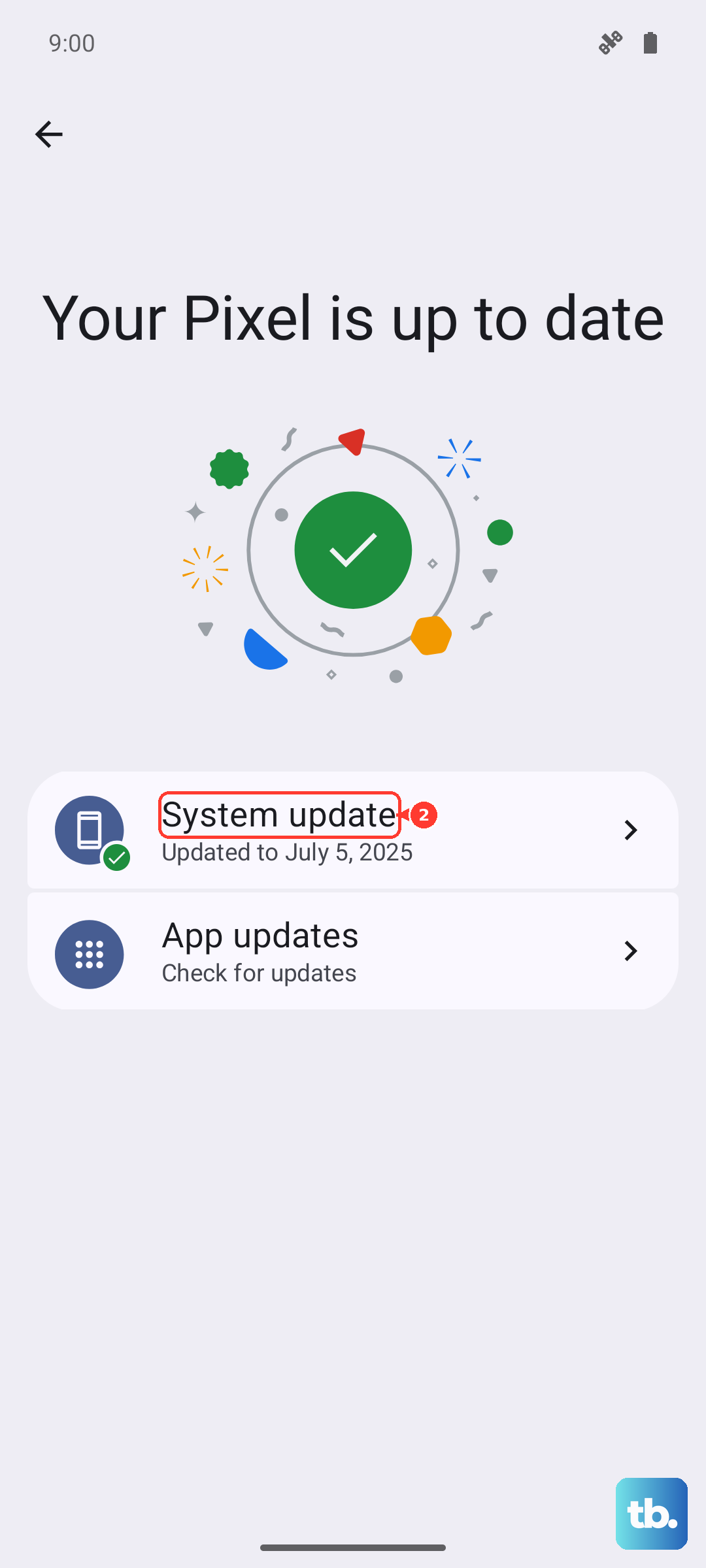
After the update completes, the phone will restart. Test the keyboard to see if predictive text is back to normal.
Reset App Preferences (Last Resort)
If nothing else has worked, you can reset all your app preferences without deleting any personal data. This restores default permissions, background data limits, and disabled apps, sometimes that resolves conflicts with Gboard.
Go to Settings > Apps > tap the three dots in the top right corner and select Reset app preferences. Confirm the action. You won't lose any accounts or data, but you might need to re-grant permissions to some apps.
After the reset, restart your Pixel again and check the keyboard. In my experience, this is a rare fix but it's worth trying before you consider a factory reset.