Your Google Pixel 10a's predictive text is a huge time-saver when it's working. When it stops suggesting words or starts making wild autocorrect guesses, every text message turns into a hassle. Here's how to get your keyboard back on track.
Force Restart Your Pixel 10a
Before diving into settings, try a force restart. This clears out temporary glitches that can mess with keyboard functions. Press and hold the Power button for about 30 seconds, or press and hold Power and Volume Down together for 10 to 15 seconds until the phone restarts.
This is the simplest fix and it works more often than you'd expect. Test your keyboard after the phone boots back up.
Clear Gboard Cache and Data
If the restart didn't help, the next step is clearing Gboard's cache. This removes temporary files that might have become corrupted.
Go to Settings > Apps, then tap See all apps. Scroll down to Gboard and tap it. Tap Storage & cache, then tap Clear cache. Don't tap Clear storage yet, the cache alone might be enough.
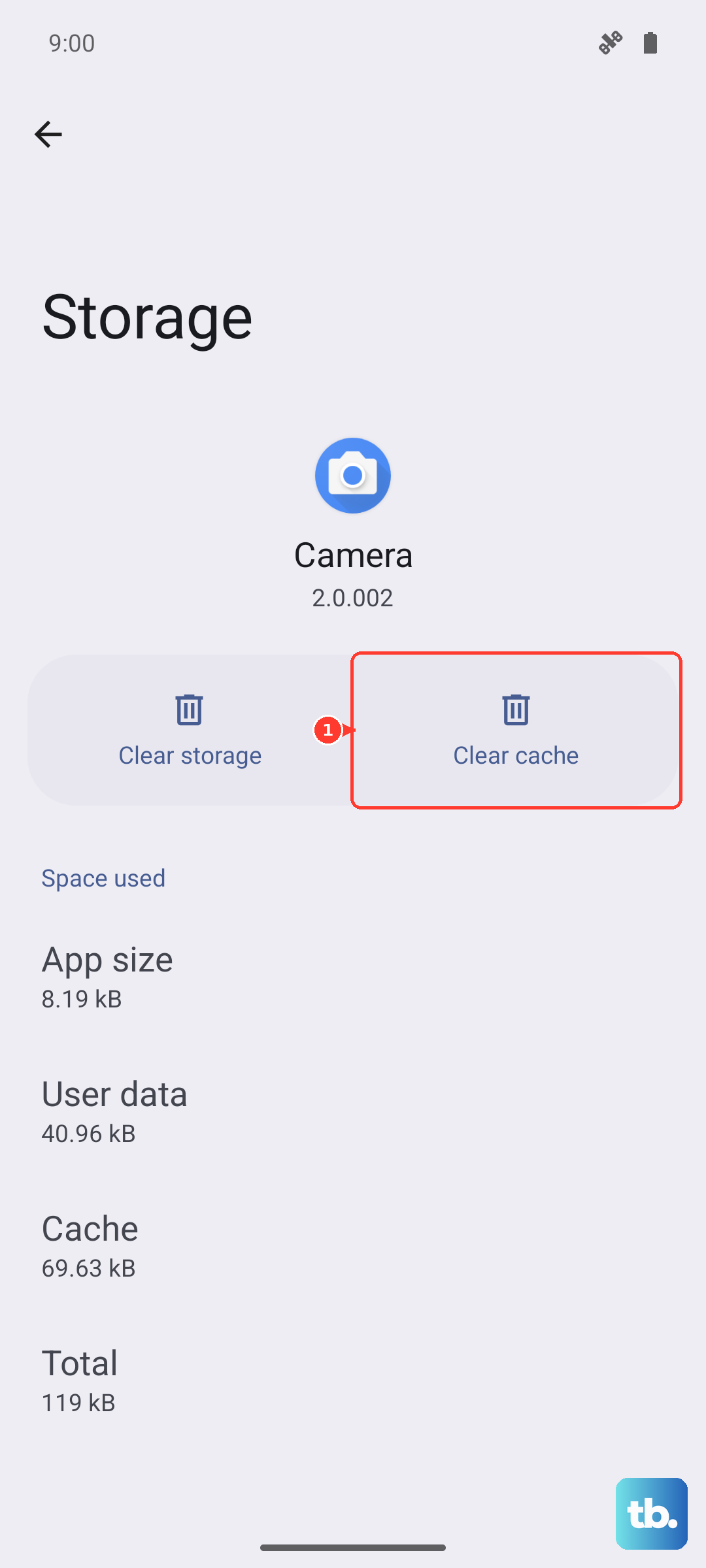
Test the keyboard. If predictive text is still broken, go back to the same screen and tap Clear storage. This resets Gboard to its factory state, wiping your personal dictionary and learned words. It's a fresh start, and for most Pixel 10a owners I've heard from, that's what finally fixes the issue.
Toggle Predictive Text On and Off
Sometimes the predictive text feature just needs a kick to start working again. Open Settings and tap System then Languages & input. Tap On-screen keyboard and select Gboard.
Tap Text correction. You'll see a toggle for Show suggestion strip, that's the predictive text feature. Turn it off, wait a few seconds, then turn it back on. This refreshes the connection between the keyboard and the suggestion engine.
While you're here, make sure auto-correction is set how you like it. I usually keep it on moderate to avoid those embarrassing over-corrections.
Update Gboard Through the Play Store
An outdated keyboard app can develop all sorts of quirks. Open the Play Store and tap your profile picture in the top right corner. Tap Manage apps & device, then look under Updates available for Gboard.
If you see it listed, tap Update. Google pushes regular updates to the keyboard, and a new version often includes fixes for predictive text bugs. I'd check this even if you think you're on the latest version, sometimes updates get stuck in the queue.
Check Language Data and Updates
Predictive text relies on language models stored on your phone. If those models are outdated, the suggestions can be off. Go back to Settings > System > Languages & input > On-screen keyboard > Gboard.
Tap Languages and select the language you're typing in, likely English. If there's an option to download or update the language data, do that. This ensures the keyboard has the latest word predictions and corrections for your language.
For multilingual typists, make sure only the languages you actually use are enabled. Having too many active languages can sometimes confuse the suggestion engine.
Reset Gboard to Default Settings
If you've gone through everything and predictive text is still broken, a full reset of Gboard settings is worth trying. Open Settings > System > Languages & input > On-screen keyboard > Gboard. Tap Advanced and look for the Reset keyboard settings option.
This returns Gboard to its original configuration without deleting your personal dictionary. You might need to re-enable a few settings you like afterward, but it usually fixes stubborn predictive text problems.
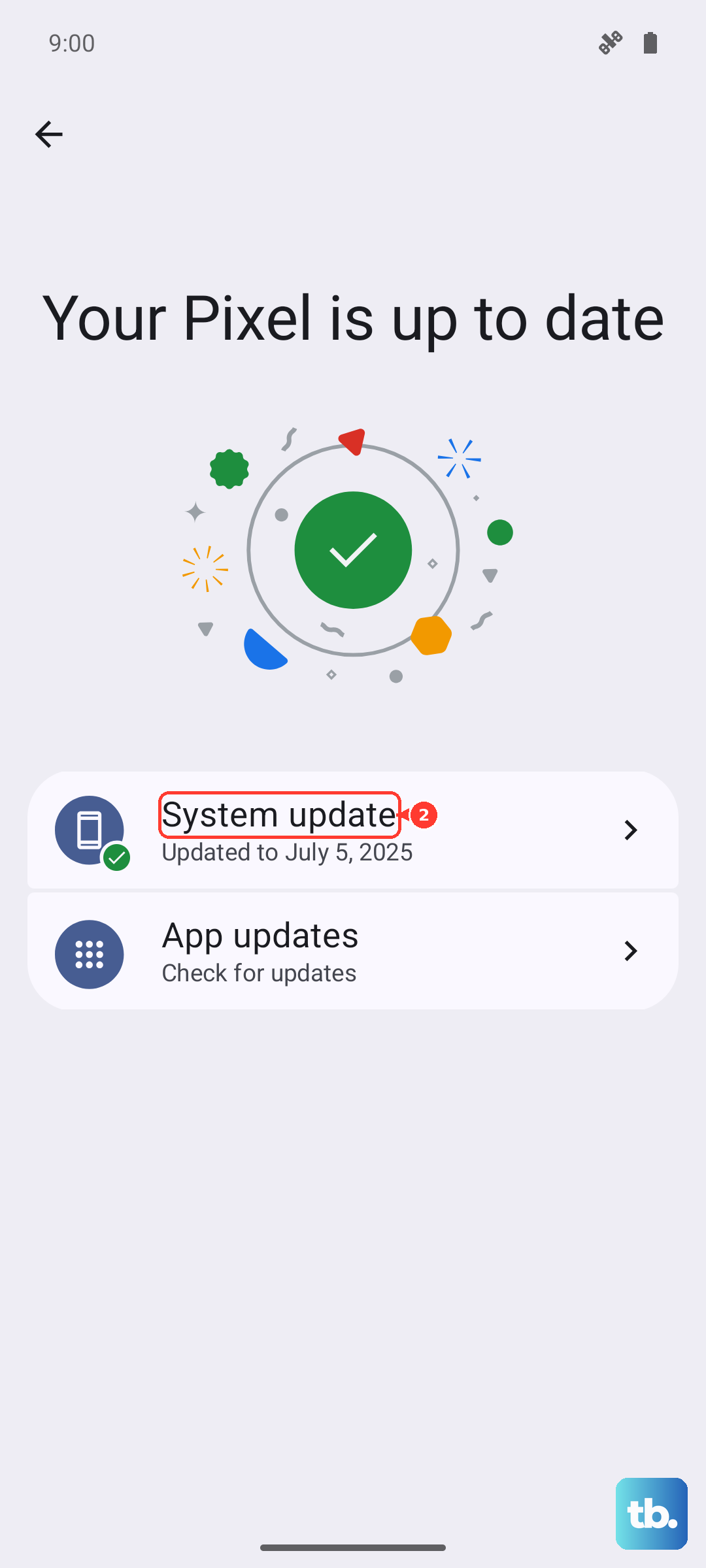
If none of these steps do the trick, there's a chance a system bug in Android 16 is causing the issue. Google's next security patch or feature drop should include a fix, so keep your phone up to date by checking Settings > System > System update. In the meantime, try switching to a third-party keyboard like Microsoft SwiftKey, it uses different prediction algorithms and might work fine until the official fix rolls out.