
When your Google Pixel 10 Pro XL microphone stops working, it can mess with calls, voice recordings, and Google Assistant. Most mic issues on this device are fixable without a trip to the repair shop. I'd start with a quick test to see what's actually going on.
Test the Microphone First
Open the Recorder app (it comes pre-installed) and tap the red button to record a short voice memo. Play it back to see if your voice sounds clear. You can also test with Google Assistant by saying "Hey Google, what's the weather?" and see if it responds correctly. Another quick check is opening the Camera app, switching to Video mode, and recording yourself speaking.
If the mic works in one app but not another, you're likely dealing with a software or permission issue. If it fails across the board, start with the fixes below.
Start With These Quick Checks
Remove the Case
Some cases or screen protectors can block the microphone openings. The Pixel 10 Pro XL tends to run hot during charging, and cases can trap heat and interfere with audio. Pop the case off and test the mic again.
Restart Your Phone
A simple restart clears temporary glitches. Press and hold the Volume up and Power buttons simultaneously for 10 seconds, then release when the device restarts. This force restart is the quickest way to reboot without digging through menus.
Disconnect Bluetooth
If you're connected to wireless earbuds or speakers, phone calls and voice input might get routed through them instead of the built-in mic. Swipe down to open Quick Settings and tap the Bluetooth icon to turn it off temporarily. Test the mic again to see if that's the culprit.
Check for Dirt and Debris
The Pixel 10 Pro XL has multiple microphones, one near the USB-C port at the bottom, another in the top earpiece grill, and a rear-facing one near the camera module. Take a look at these areas for dust, lint, or pocket fuzz. Clean them with a dry, soft-bristle brush (like a clean toothbrush) or a can of compressed air. Don't jam anything sharp in there.
Software Settings to Check
Force Close Problem Apps
If the mic only acts up in specific apps like WhatsApp, Zoom, or the phone dialer, force close that app. Open the Recents screen, swipe the app away, and relaunch it. This often fixes app-specific audio drops.
Check Microphone Permissions
Apps need permission to access your microphone in Android 16. Head to Settings > Apps > See all apps, tap the app that's having issues, then tap Permissions. Make sure Microphone is set to Allowed. Toggle it off and back on if needed.
Update Android
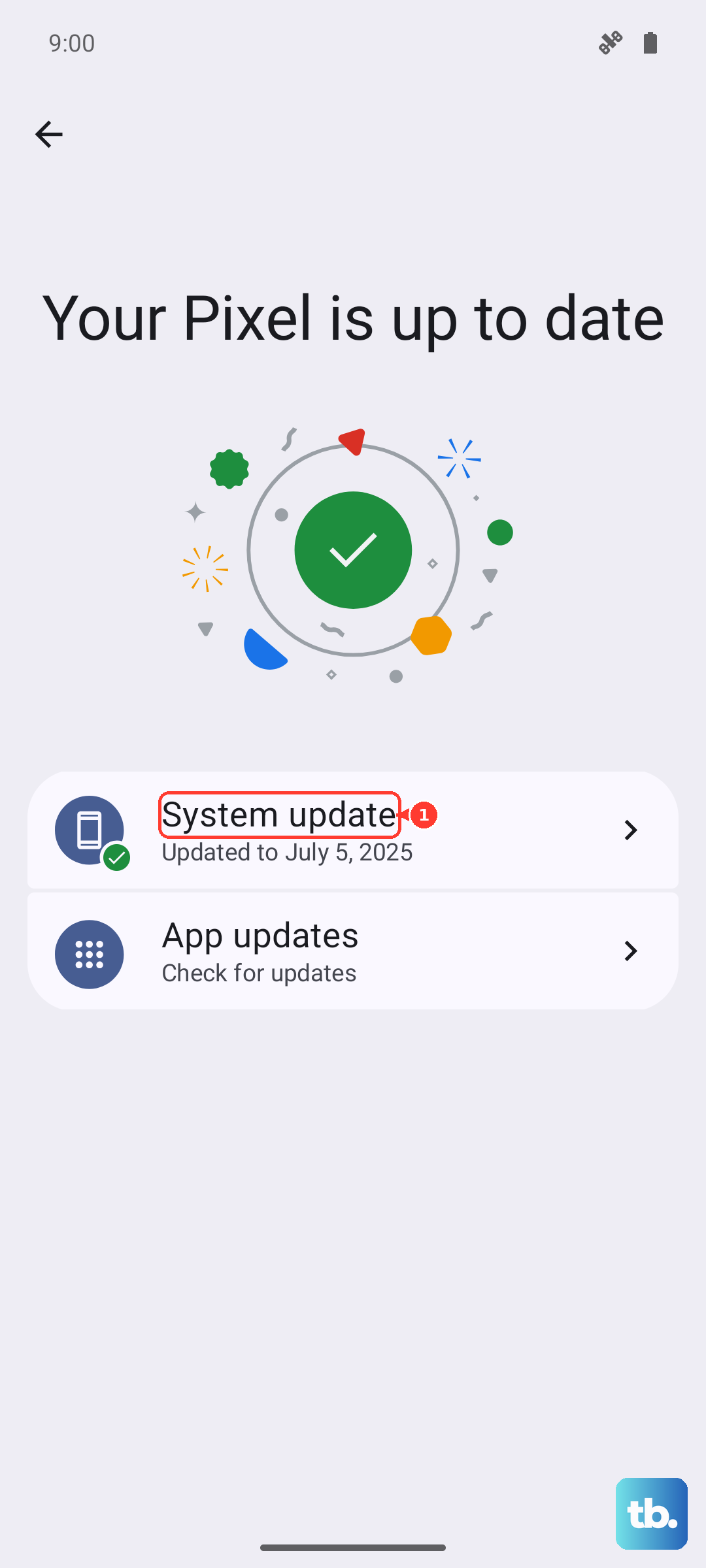
Software updates frequently include mic bug fixes. Go to Settings > System > System update to check for available updates. Install any pending update and restart your phone to apply the changes.
Reset App Preferences (No Data Loss)
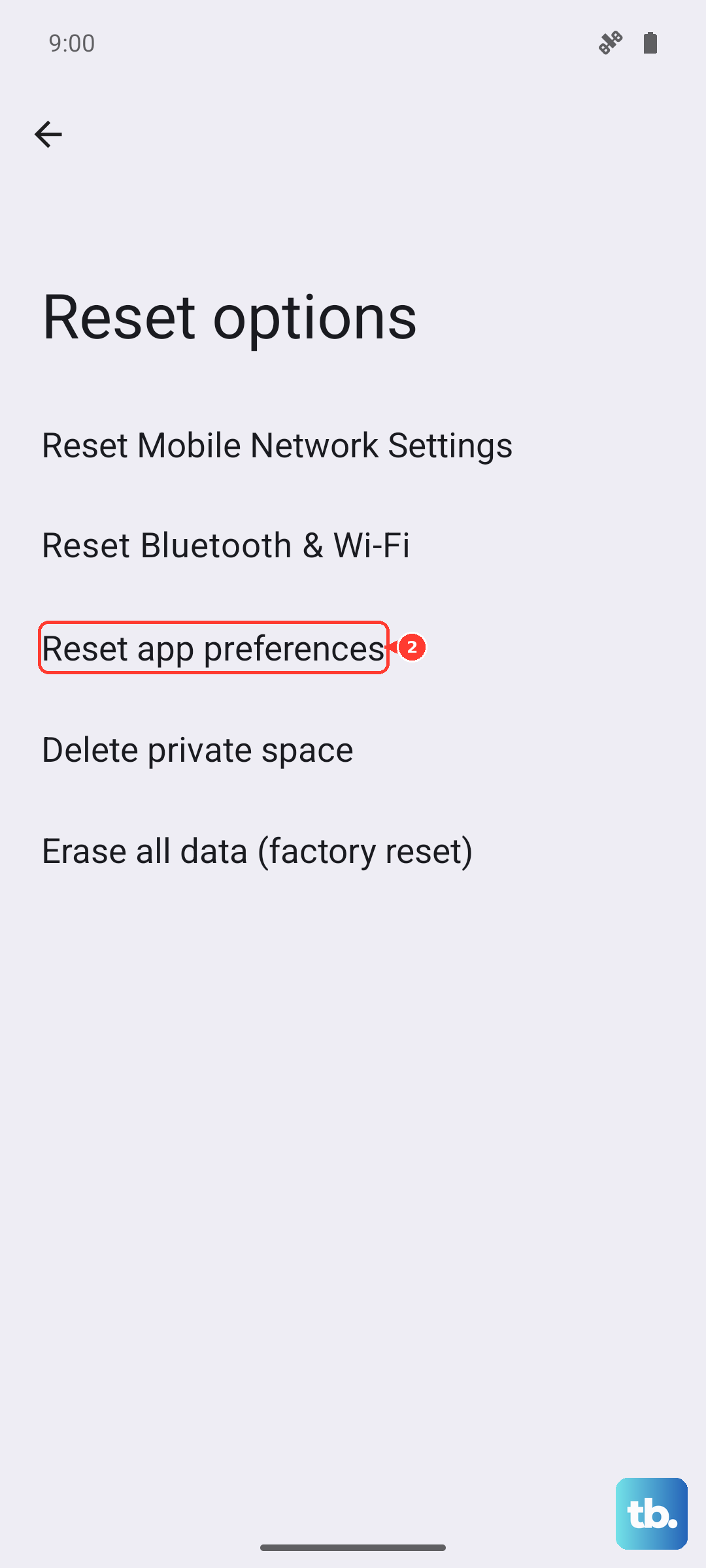
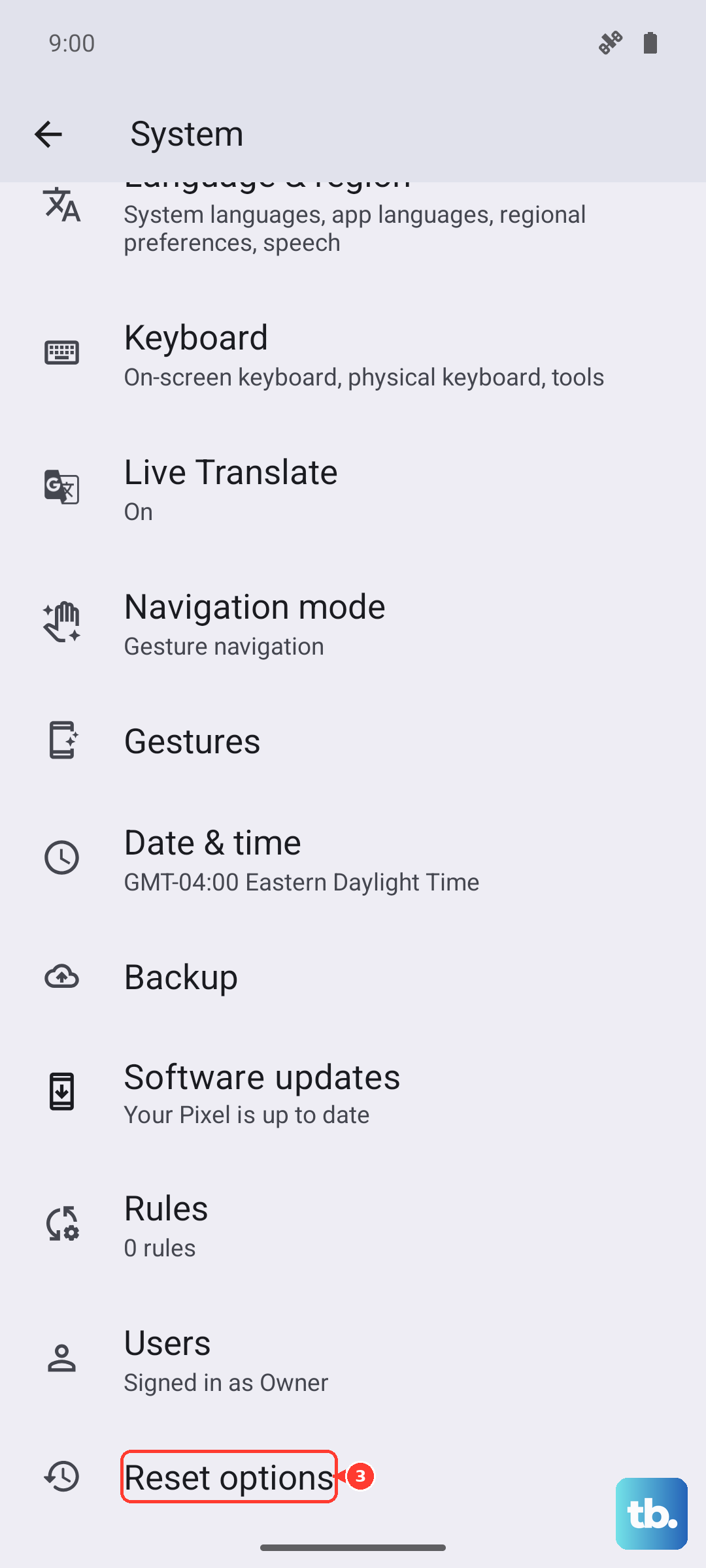
This resets system app defaults without erasing your personal data. It clears disabled apps and permission overrides. Go to Settings > System > Reset options > Reset app preferences. You'll need to re-enable any app permissions you had customized, but it can solve deeper software conflicts.
Last Resorts
Factory Reset
If nothing else has worked, a full factory reset can fix persistent software problems. Back up your photos, contacts, and files first, this wipes everything. Go to Settings > System > Reset options > Erase all data (factory reset). Your phone will restart fresh, and you can restore your data afterward.
Most Pixel 10 Pro XL mic problems stem from dust, Bluetooth routing, or a misbehaving app. Work through these steps in order, and you'll either catch the fix early or know it's time for hardware repair.