
That "not registered on network" message on your Google Pixel 9 Pro XL means it can't connect to your carrier at all. No calls, no texts, no mobile data. The phone becomes a Wi-Fi-only device until you sort it out.
The root cause is usually one of a few things: a software glitch that corrupted the network registration, a SIM card issue, or a carrier-side problem. The good news is that most of these are fixable without a trip to the repair shop. Here's what to try, in an order that makes sense.
Restart Your Pixel 9 Pro XL First
Start with the fastest fix. Press and hold the Power button and Volume up button at the same time until the power menu shows up. Tap Restart and let the phone fully reboot. This forces a fresh registration attempt with nearby cell towers, and it clears out any temporary software hiccups that might have caused the error. It only takes about 30 seconds, and it solves the problem more often than you'd think.
Toggle Airplane Mode
Swipe down twice from the top of the screen to open the full Quick Settings panel. Tap the Airplane Mode icon, wait about 10 seconds, then tap it again to turn it off. This kills every wireless radio in your phone and then brings them all back online. It forces a clean handshake with your carrier's network without needing a full restart. If a minor software hiccup is blocking registration, this is usually the fix.
Check Your SIM Card
The Pixel 9 Pro XL uses a physical SIM tray on the left edge of the phone. Power the phone off completely, then use the SIM eject tool (or a paperclip) to pop the tray out. Take a look at the SIM card itself, is it sitting flush? Any visible damage or corrosion on the gold contacts? Give it a gentle wipe with a dry cloth, blow out the tray slot, and reinsert everything firmly. Power back on and check if the network comes back.
If the SIM looks fine but the problem persists, the next step is to rule out a bad SIM entirely. Borrow a working SIM from a friend or family member. Pop it into your Pixel. If it connects right away, your original SIM is the culprit and you need a replacement from your carrier. If the borrowed SIM also fails to register, the issue is with your phone, not the card.
Verify Your Carrier Account Status
Before diving into settings, take a moment to check on your account. An expired prepaid plan, a past-due bill, or a suspended line will all produce the same "not registered on network" error. Log into your carrier's app or website from another device, or call customer support. If your account is suspended, nothing you do on the phone will fix it until you clear that up.
Reset Network Settings
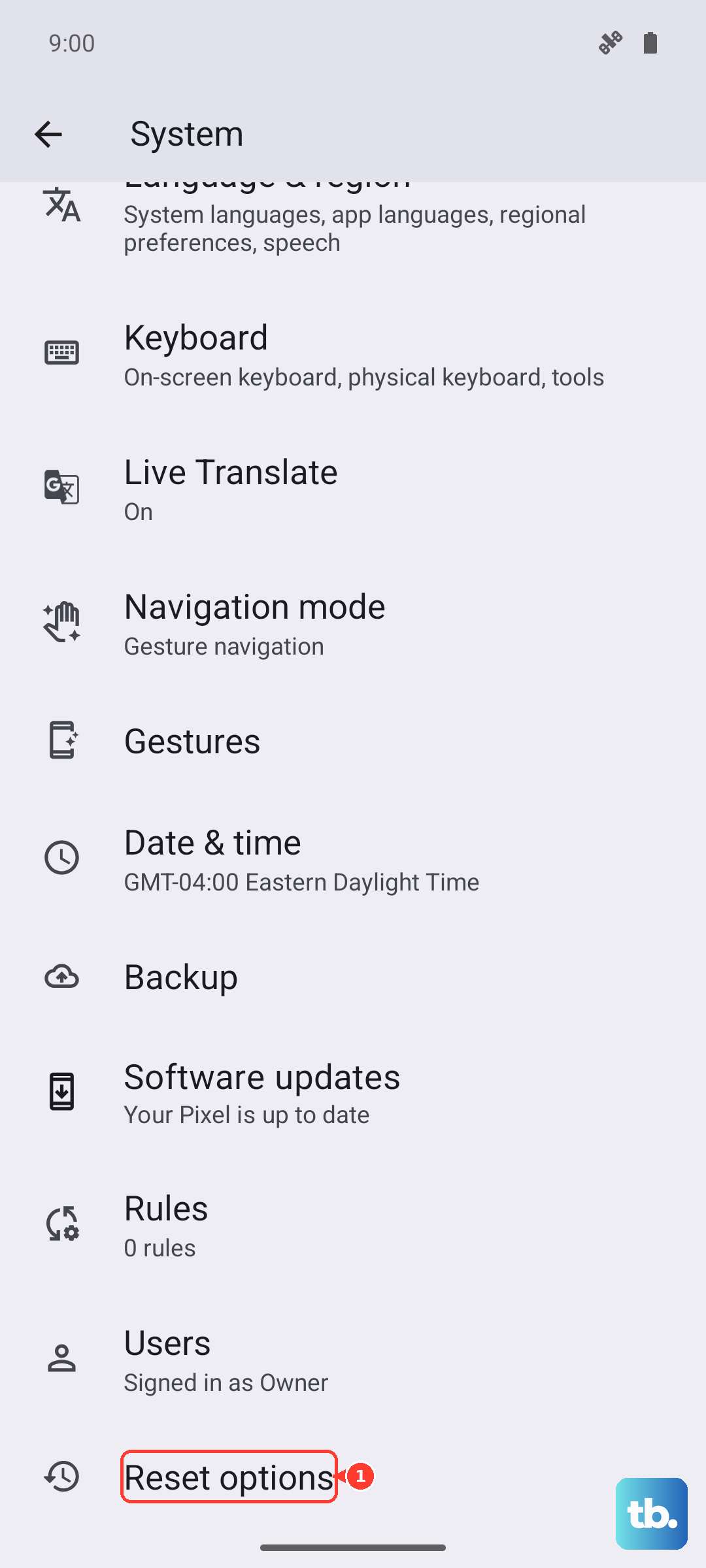
This one wipes everything your phone has saved about networks, Wi-Fi passwords, Bluetooth pairings, and cellular configurations. It sounds like a pain, and it is a little, but it clears out corrupted settings that can block registration. Go to Settings > System > Reset Options > Reset Wi-Fi, mobile & Bluetooth. Confirm the reset, let your phone restart, and then re-enter your Wi-Fi password. See if cellular connectivity comes back.
Manually Select Your Network
Sometimes your Pixel gets stuck trying to connect to a network band that's not available where you are. Going into the network selection menu and picking your carrier manually can force it to register. Open Settings > Network & internet > SIMs > tap your carrier name > Network operators. Turn off automatic selection, wait for the list to populate, and pick your carrier. If it connects, the problem was an automatic selection glitch.
Switch Between 5G, LTE, and 3G
The Pixel 9 Pro XL defaults to 5G, but 5G coverage is still spotty in many areas. If your phone can't register on a 5G band, it might show the error instead of falling back to LTE gracefully. Go to Settings > Network & internet > SIMs > Preferred network type. Try switching to LTE first. If that works, stay there or check if a carrier services update is available for your area.
Update Android and Carrier Services
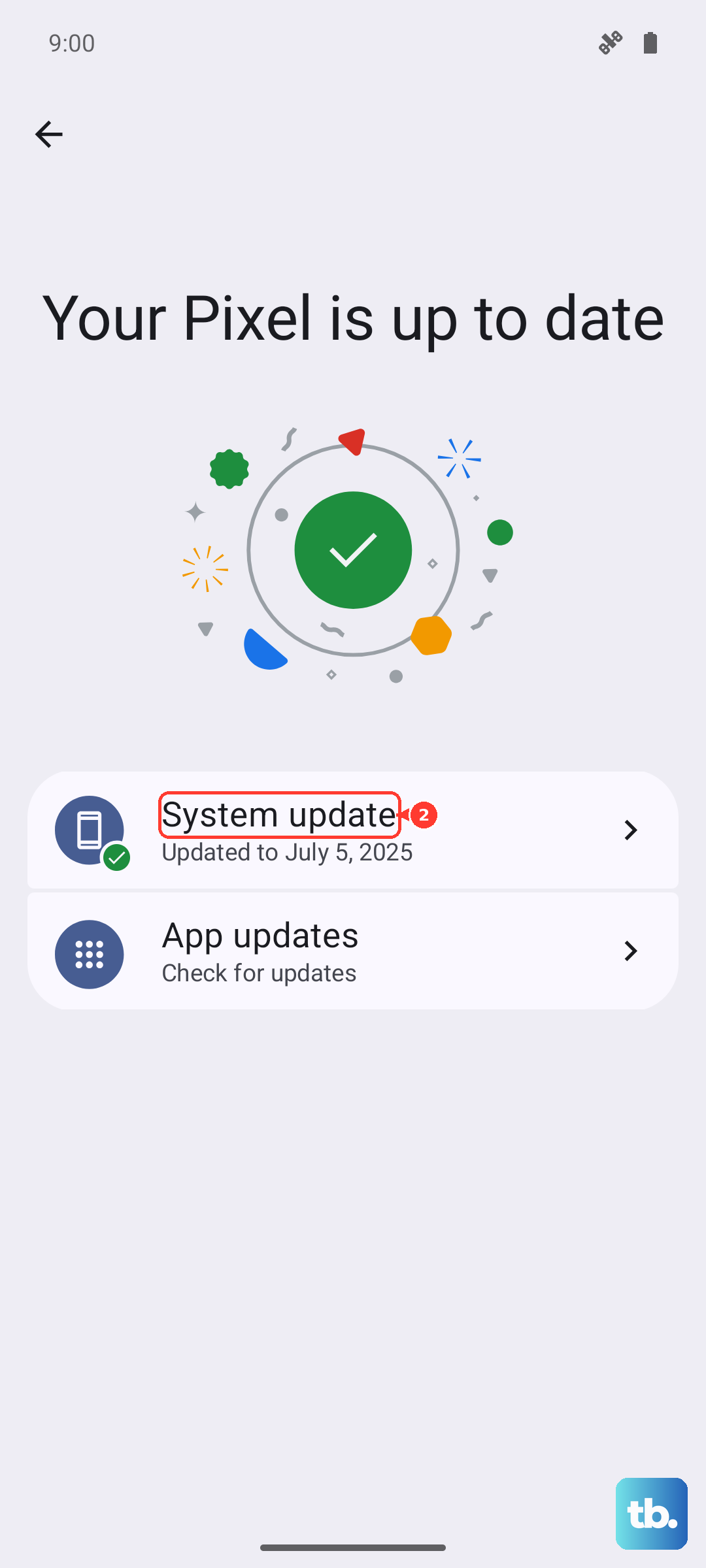
Google and carriers push updates that fix known network registration bugs. The Pixel 9 Pro XL receives these directly from Google, which means you get them faster than most Android phones, but only if you actually install them. Go to Settings > System > System update and check for any available updates. Also open the Google Play Store, search for "Carrier Services," and make sure it's updated. Restart after any updates and test the connection.
Clear the Phone App Cache
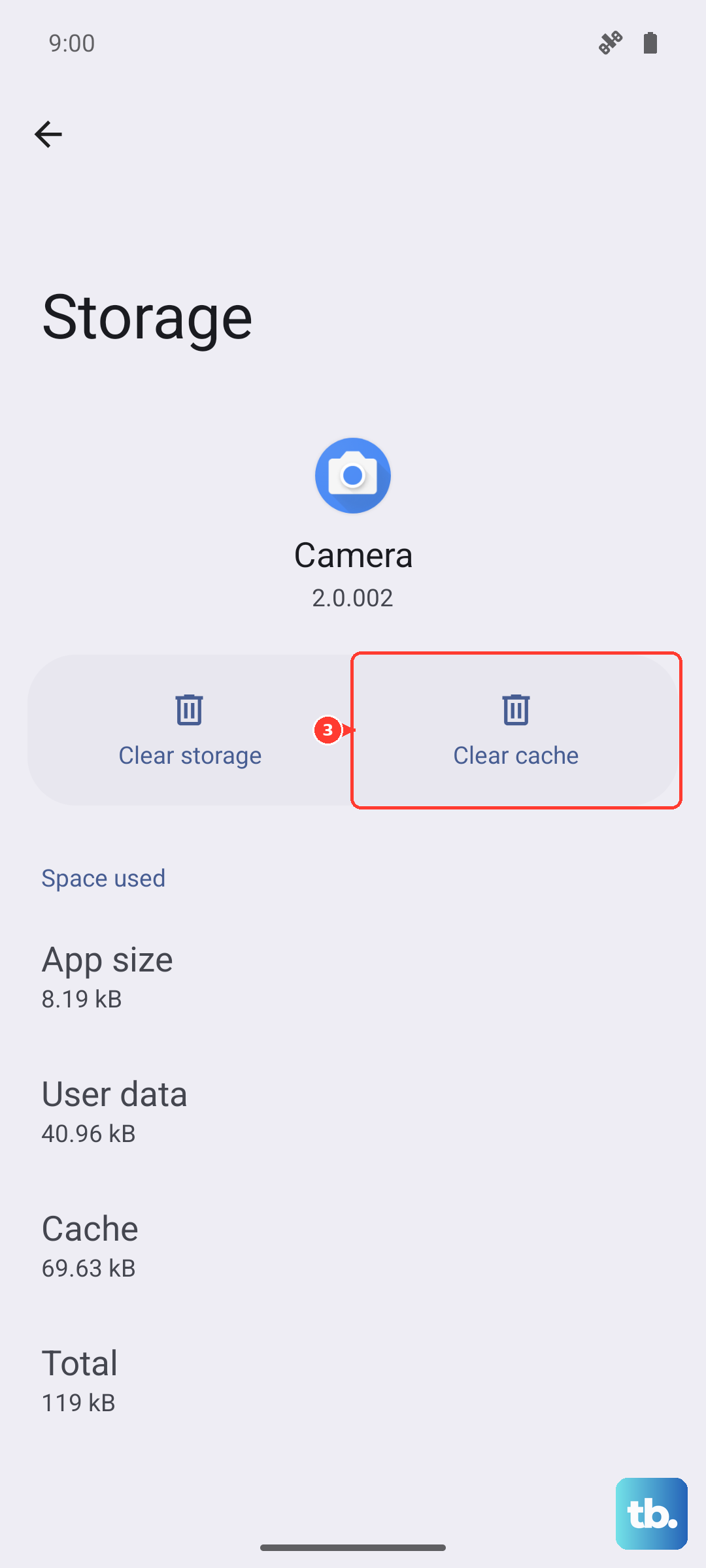
The Phone app handles your telephony functions, including network registration. A corrupted cache in this specific app can cause the registration to fail. Go to Settings > Apps > See all apps > find and tap Phone > Storage & cache > tap Clear cache. This removes temporary files without deleting contacts or call history. Restart the phone afterward to let everything rebuild cleanly.
Check Your IMEI
Open your phone dialer and type *#06#. A screen should pop up showing your IMEI numbers. If you see "IMEI Null," "000000," or a message saying the IMEI is unknown, your phone's radio firmware or hardware has a deeper issue. In this case, skip the remaining software fixes and go straight to a factory reset (after backing up your data). If the IMEI still shows as null after a factory reset, the phone likely needs a hardware repair, the radio module may have failed.
Factory Reset as a Last Resort
If nothing else has worked, a factory reset wipes the slate clean. This erases everything on your Pixel, so back up your photos, contacts, and files first. Go to Settings > System > Reset Options > Erase all data (factory reset) and follow the prompts. Set the phone up from scratch afterward and check if the network error is gone. If it's still there, the issue is likely hardware-related, and you'll need to reach out to Google or a repair shop.