
Seeing a "No SIM card detected" message on your Google Pixel 9 Pro XL is enough to stop you in your tracks. Calls, texts, and mobile data all depend on that tiny chip being recognized. The good news is that most of the time this is a quick fix you can handle in a few minutes.
Force Restart Your Pixel 9 Pro XL
Before digging into settings, give your phone a proper restart. The Pixel 9 Pro XL has a specific force restart method that clears temporary glitches without erasing anything.
Press and hold the Power button and the Volume up button at the same time. Keep holding until a menu pops up on screen, then tap Restart. Your phone will reboot and reinitialize the SIM reader.
Toggle Airplane Mode
This is one of the fastest things to try. Swipe down from the top of the screen to open Quick Settings, then tap the Airplane mode icon. Wait about 10 seconds, then tap it again to turn it off.
This forces your Pixel to re‑scan for available networks. It often wakes up a SIM that the software had simply lost track of.
Check That the SIM Is Actually Enabled
Sometimes the SIM gets disabled in the software without you realizing it. On your Pixel 9 Pro XL running Android 14, the setting is in a different spot than on other Android phones.
Go to Settings > Network & Internet > SIMs. Make sure the toggle next to your SIM card (physical or eSIM) is switched on. If you see a second SIM slot, check that one too.
Inspect the Physical SIM Card and Tray
Physical damage or dirt on the contacts is a common culprit. Power down your Pixel completely before removing anything.
Use the SIM ejector tool that came with the phone (or a paperclip) to pop the tray out. Look at the gold contacts on the SIM card, if they look stained, scratched, or corroded, that could be the issue. Gently wipe them with a dry microfiber cloth.
Also check the tray itself. If it's bent or the SIM isn't sitting flat, the contacts might not line up properly. Reinsert the tray firmly until it clicks into place.
Install Any Available System Updates
Android 14 has had a few updates since the Pixel 9 Pro XL launched, and some of them specifically fix modem or SIM detection bugs.
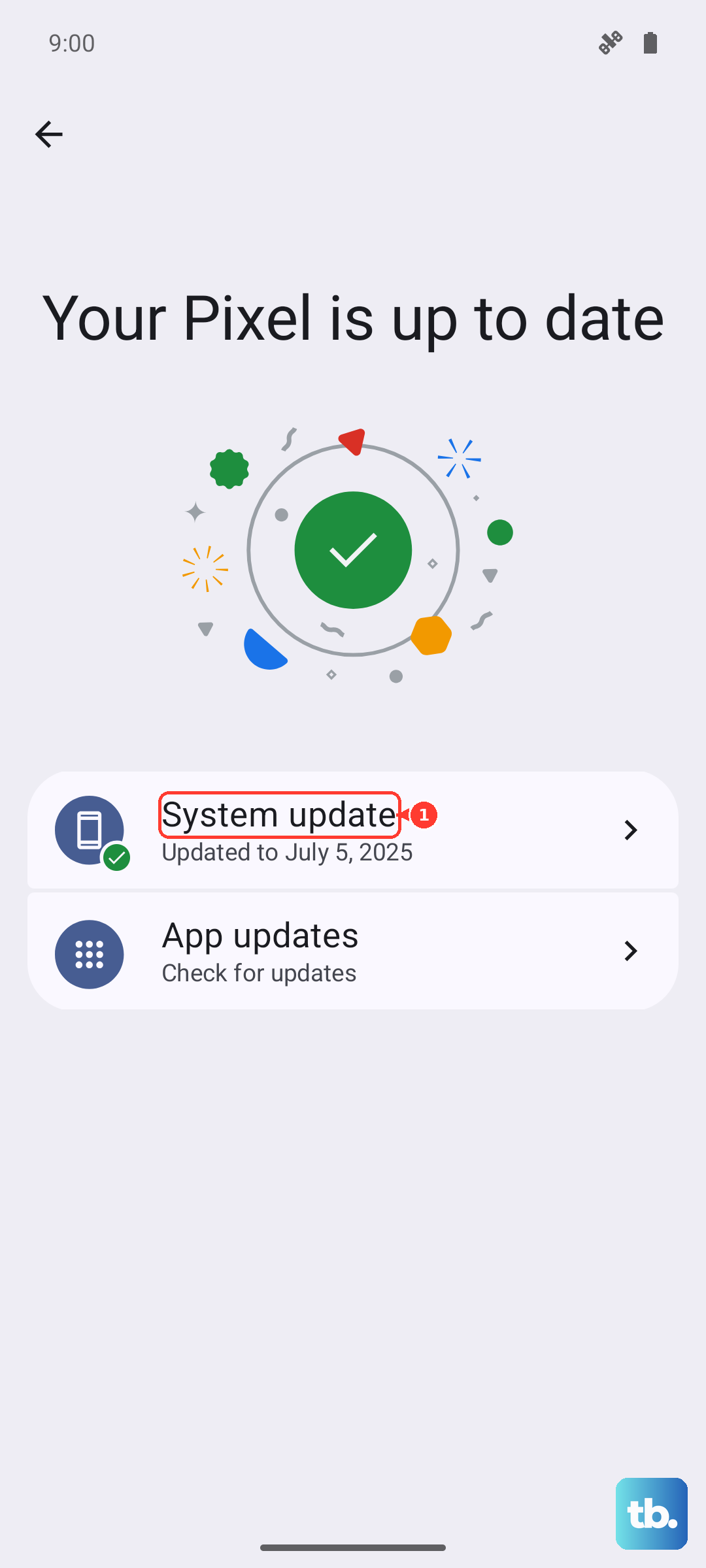
Open Settings > System > System update. If an update is waiting, download and install it. Your phone will restart afterward, which also helps refresh the connection.
Reset Network Settings
This is a more thorough step that clears out any corrupted network configurations. Don't worry, it won't delete your photos, apps, or contacts. It will just reset Wi‑Fi passwords, Bluetooth pairings, and mobile network settings.
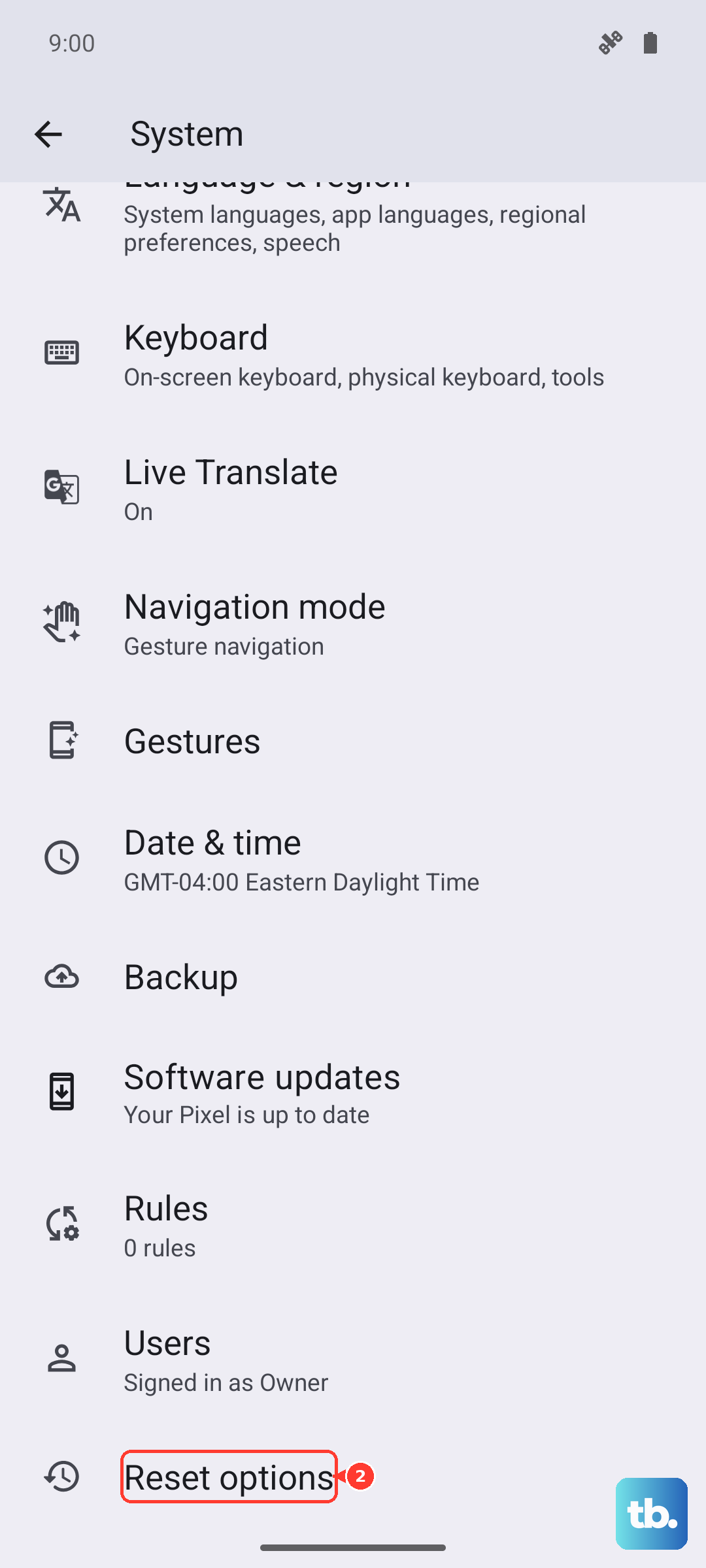
Go to Settings > System > Reset options > Reset Wi‑Fi, mobile & Bluetooth. Confirm and let your phone do its thing. After it finishes, you'll need to reconnect to Wi‑Fi, but the SIM issue is often resolved.
Clear Cache for SIM‑Related System Apps
Android uses background services to manage SIM cards. Sometimes those apps accumulate corrupted cache data that prevents detection.
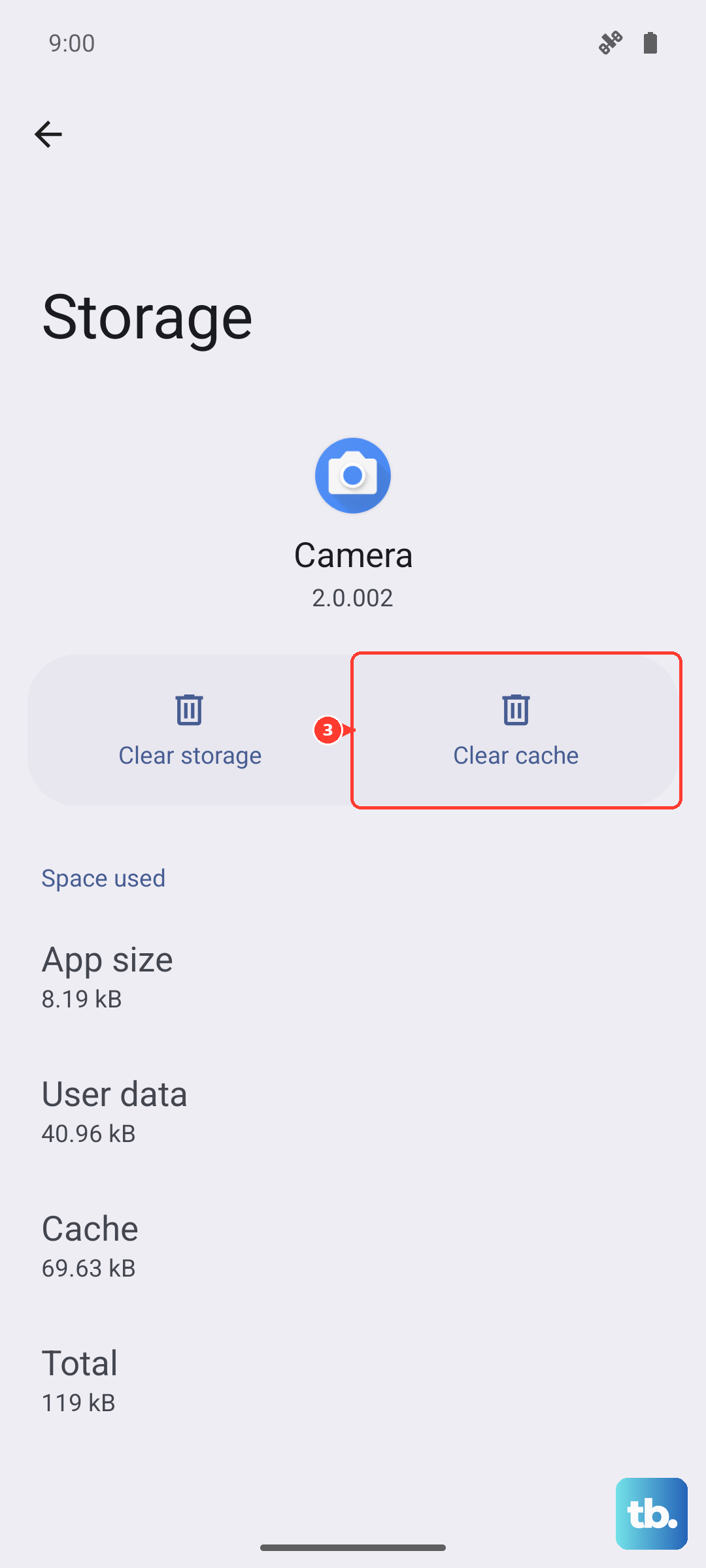
Open Settings > Apps > See all apps. Tap the three‑dot menu in the top‑right and select Show system. Scroll until you find SIM Card manager and tap it. Go to Storage & cache, then tap Clear cache. Do the same for SIM Toolkit (or SIM Application Toolkit).
Switch Network Mode
The Pixel 9 Pro XL adjusts network modes automatically, but sometimes it gets stuck on a band that your carrier supports inconsistently. Forcing it to a more universal mode can help.
Go to Settings > Network & Internet > SIMs > tap your carrier name > Preferred network type. Choose 5G/4G/3G/2G (auto connect) if that's an option, or at least 4G (LTE) as a fallback. Give your phone a minute to re‑register on the network.
Reset APN to Default
Access Point Names (APNs) tell your phone how to connect to your carrier's data network. If they get misconfigured, your SIM might show an error even though it's detected.
Navigate to Settings > Network & Internet > SIMs > tap your carrier > Access Point Names. Tap the three‑dot menu and choose Reset to default. If your carrier requires custom APN settings (for example, on prepaid plans), you can re‑enter them afterward.
Manually Select Your Network
Automatic network selection fails occasionally on the Pixel 9 Pro XL. Telling your phone exactly which carrier to connect to can bypass that hiccup.
Go to Settings > Network & Internet > SIMs > tap your carrier > Network operators (you might see Automatically select network, turn that off first). Wait for the list of available networks to appear, then tap your carrier's name.
If you're using an eSIM, also make sure your eSIM profile is active under Settings > Network & Internet > SIMs. Many Pixel 9 Pro XL users have resolved persistent "No SIM" errors by moving from a physical SIM to an eSIM.