The keyboard freezing or refusing to pop up on a $1,000 phone is incredibly annoying. If your Pixel 9 Pro XL keyboard has suddenly stopped working, the issue is almost always a temporary software glitch with Gboard or a conflicting app. Let's go through the fixes that actually resolve this on the Pixel 9 Pro XL running Android 14.
Force Restart Your Pixel 9 Pro XL
A basic restart sometimes doesn't cut it. You need the hardware force restart to fully clear the system memory and kickstart any frozen background services, including the keyboard.
Press and hold Power button and Volume up button simultaneously, then select Restart from the menu.
Once the phone boots back up, open any app that brings up the keyboard and check if it responds.
Force Stop and Restart Gboard
The Pixel 9 Pro XL relies on Gboard as its default keyboard. If Gboard itself crashes, it will take the keyboard down with it.
Go to Settings > Apps > See all apps. Tap the three-dot menu and select Show system apps if you don't see Gboard listed. Tap Gboard, then tap Force stop. This kills the process so it can start fresh without a full phone reboot.
Clear Gboard Cache and Storage
Corrupted temporary files are a common culprit for keyboard issues on the Pixel 9 Pro XL. Clearing the cache removes these junk files without deleting your personal data.
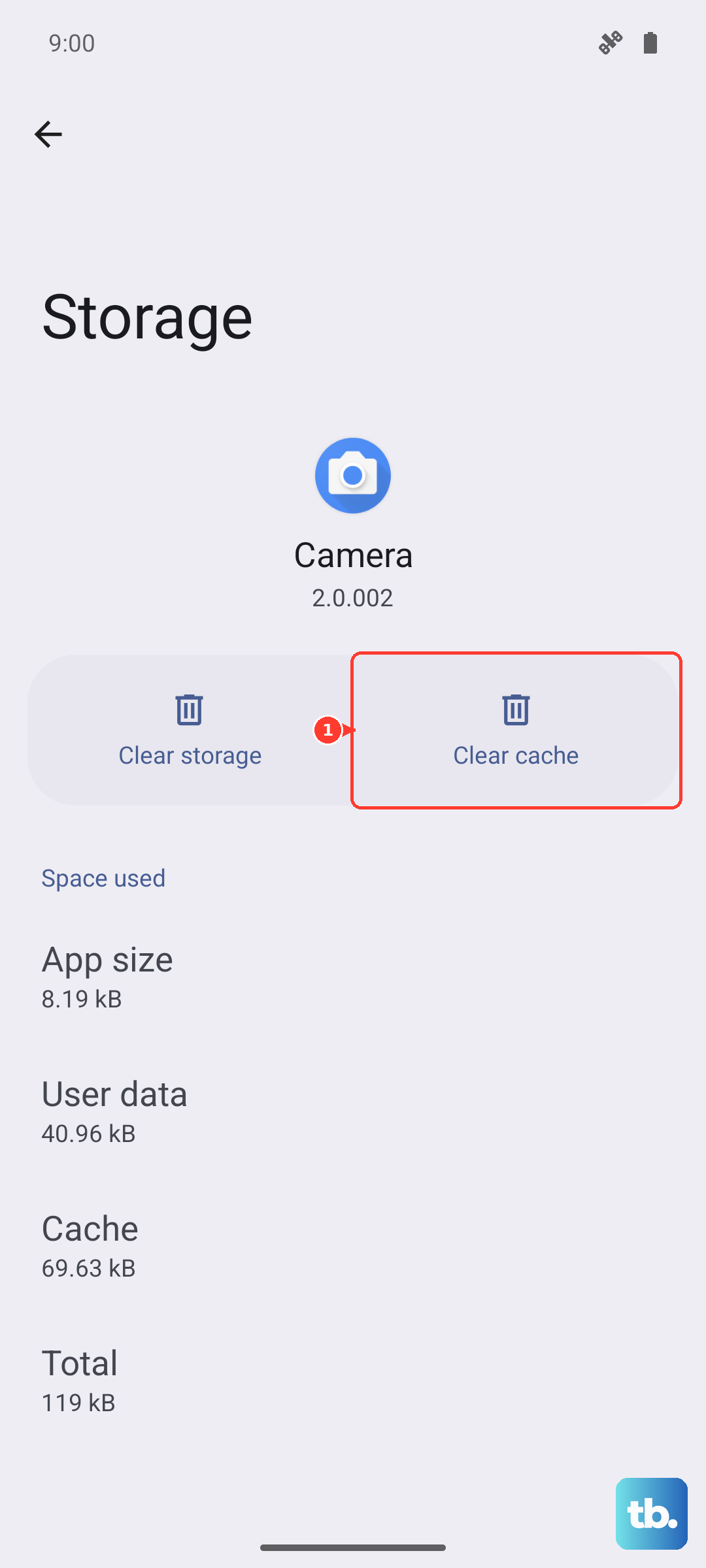
Navigate to Settings > Apps > Gboard > Storage & cache. Tap Clear cache. If the keyboard is still unresponsive, tap Clear storage. This will reset your learned words and custom dictionary, but it usually resolves the error completely.
Update Gboard and Android System
An outdated Gboard app can conflict with Android 14's latest patches. Open the Google Play Store, tap your profile icon, and select Manage apps & device. Update Gboard if an update is available.
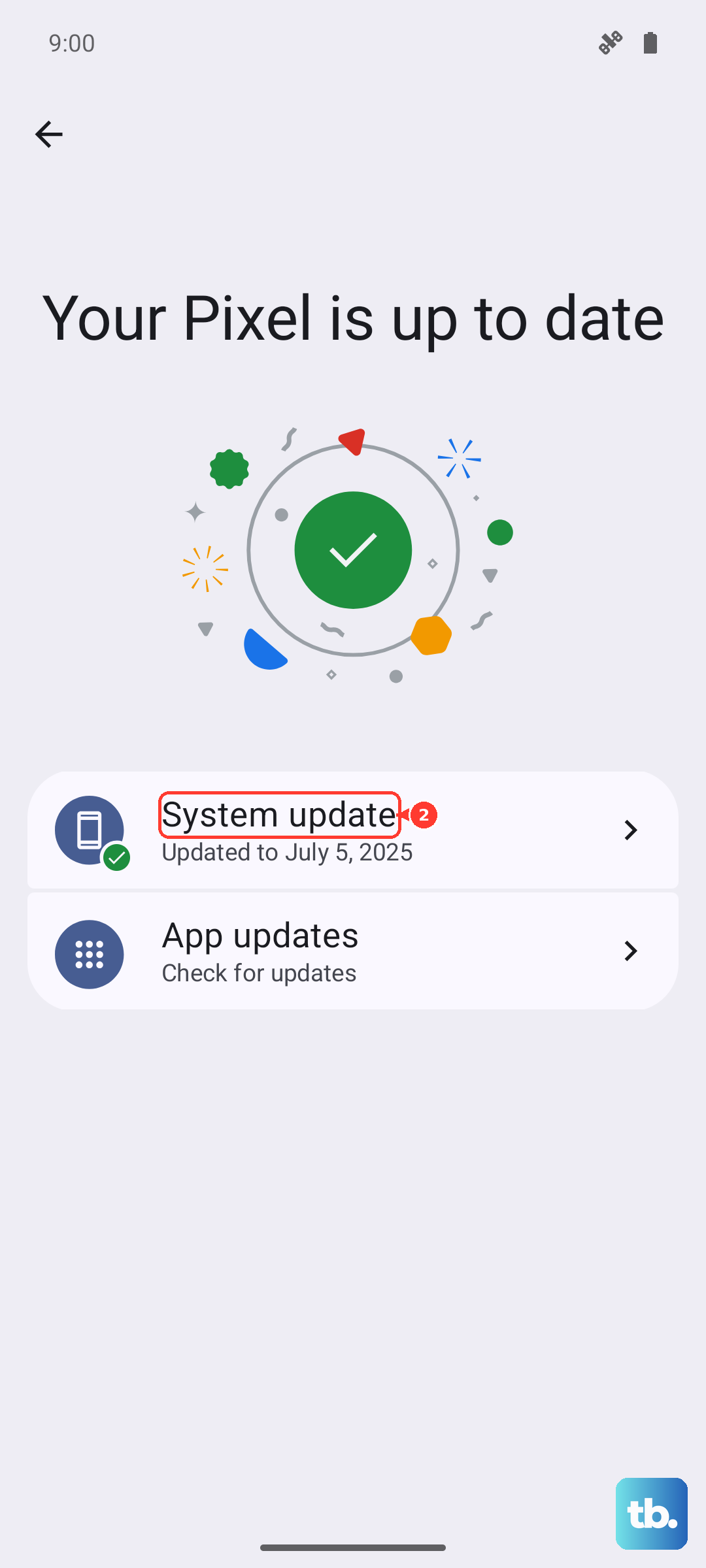
You should also check for system-level patches. Go to Settings > System > Software update > System update and install any pending updates. Google regularly pushes fixes specifically for the Pixel 9 Pro XL.
Boot Into Safe Mode
Safe mode temporarily disables all third-party apps you've downloaded. This is the fastest way to tell if a weather app, launcher, or other downloaded application is hijacking the keyboard input.
Press and hold the Power button. Tap and hold the Restart icon until the Safe mode prompt appears. Tap OK to confirm.
If your keyboard works perfectly in safe mode, a third-party app is the cause. Uninstall recently installed apps one at a time until the issue disappears.
Reset All Settings
This step is a middle ground between clearing cache and a full factory reset. It resets system settings like Wi-Fi networks, Bluetooth pairings, and app preferences without deleting your photos or personal files.
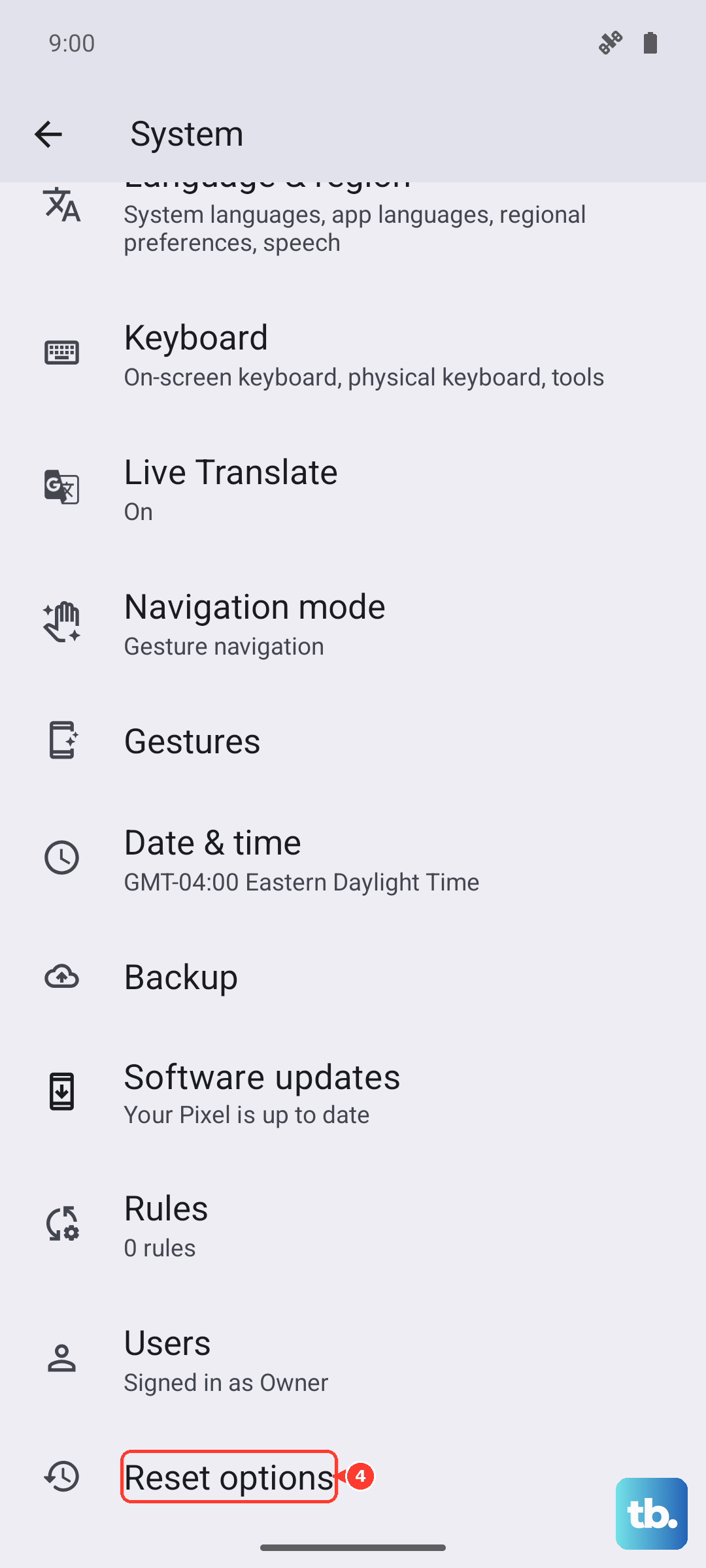
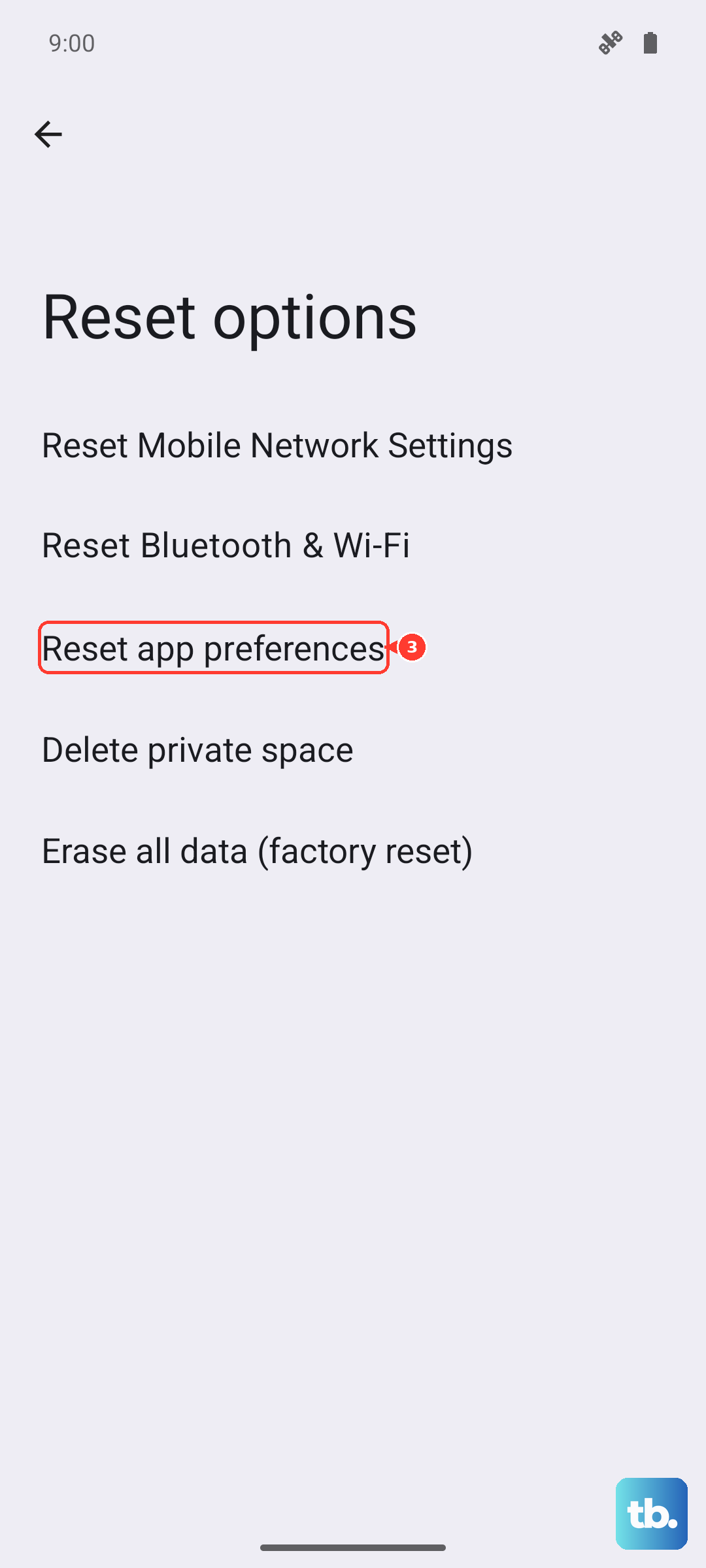
On OnePlus, go to Settings > Additional settings > Back up and reset > Reset phone > Reset all settings; Pixel, Motorola, Nothing, and ASUS phones have no Reset all settings option, so go to Settings > System > Reset options and use Reset app preferences or Reset Bluetooth & Wi-Fi instead. You'll need to re-enable your preferred keyboard and reconnect to Wi-Fi, but it can wipe out the specific configuration conflict causing the keyboard to fail.
Switch to a Different Keyboard
If you need to type something right now and Gboard is still acting up, switching to a temporary keyboard is the quickest workaround. Download Microsoft SwiftKey or AnySoftKeyboard from the Play Store.
Once installed, go to Settings > System > Languages & input > On-screen keyboard > Manage keyboards. Toggle on the new keyboard and then select it as your default. This bypasses the broken Gboard installation entirely.
Reinstall Gboard Updates
If a recent Gboard update broke the keyboard, you can roll it back to the original factory version. Go to Settings > Apps > Gboard > Tap the three-dot menu > Uninstall updates.
This reverts Gboard to the version that shipped on your phone. You can then go to the Play Store and turn off automatic updates for Gboard until a confirmed bug-fix update is released.
Factory Reset as a Last Resort
If none of the above steps work and the keyboard is completely unresponsive even in safe mode, a factory reset will restore the device to its out-of-the-box state. Back up your photos, messages, and files before doing this.
Navigate to Settings > System > Reset options > Erase all data (factory reset). This will fix any underlying system corruption that is preventing the keyboard from loading.