
Few things are more jarring than your Google Pixel 9 Pro XL suddenly restarting in the middle of a call, a game, or just sitting on the table. This can be a sign of a software hiccup, a rogue app, or something deeper. Let's walk through nine fixes that usually stop the random restarts for good.
Before you try anything, back up your photos, contacts, and anything else you can't afford to lose. A factory reset might end up being the answer, and you don't want to be stuck without your data.
Force Restart the Pixel 9 Pro XL
A force restart is the quickest way to clear a minor glitch that might be causing the instability. The method is simple: press and hold the Power button and the Volume up button at the same time. Keep holding until a menu pops up, then tap "Restart."
This isn't the same as turning it off and on again, it clears the system memory without wiping anything. Give it a try and see if the restarts stop.
Check for Problematic Apps
Third-party apps are the most common culprit for unexpected restarts on Android. Start by booting your Pixel into Safe Mode, which disables all third-party apps. Press and hold the Power button, then press and hold the "Power off" option on the screen until you see the Safe Mode prompt. Tap OK.
If the phone doesn't restart in Safe Mode, a downloaded app is likely the problem. You'll need to uninstall apps one at a time, starting with the most recently installed ones, until the issue goes away.
Update Android and Apps
An outdated operating system or app can conflict with the system and cause random reboots. Check for a system update by opening Settings > System > Software update > System update. If there's a pending update, download and install it.
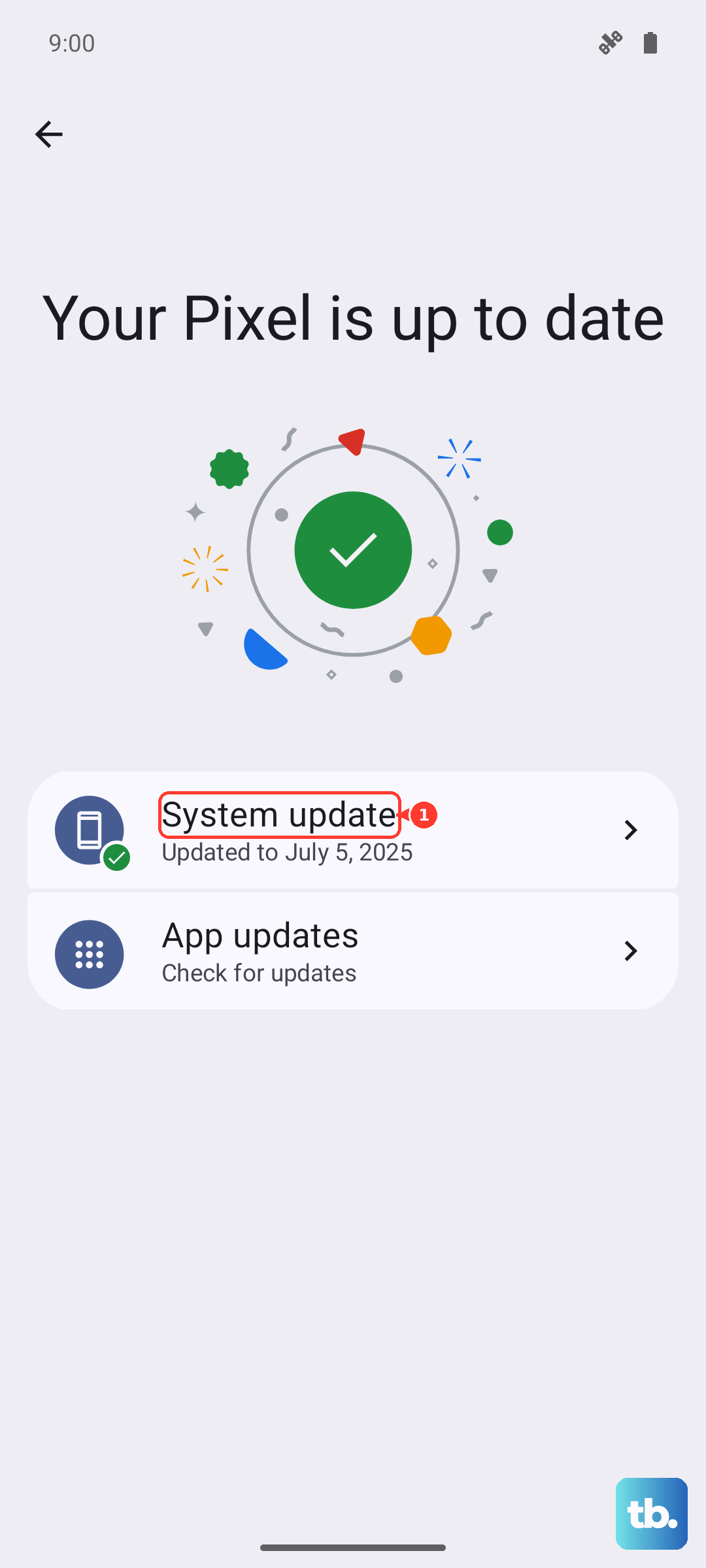
Next, open the Play Store, tap your profile icon, and choose "Manage apps & device." Tap "Update all" to bring every app up to date. Google pushes monthly security patches for the Pixel 9 Pro XL, so staying current is especially important.
Boot Into Safe Mode
I mentioned Safe Mode in the app section, but it deserves its own spot because it's such a powerful diagnostic tool. In Safe Mode, only preinstalled system apps run. If your Pixel behaves perfectly in Safe Mode, you know the problem is one of your third-party apps.
Spend a few hours in Safe Mode, use it like normal. If the restarts don't happen, you've confirmed the cause. Then it's just a matter of finding which app is the troublemaker.
Free Up Storage Space
When your phone's storage gets too full, say, under 1GB free, the system can become unstable and restart. Go to Settings > Storage and see how much space is left. If it's tight, clear out files you don't need: delete old downloads, move photos to cloud storage, and offload apps you rarely use.
Google's Files app has a "Clean" tab that can quickly suggest junk files to remove. A little breathing room often smooths things out.
Reset App Preferences
Corrupted app settings can interfere with system processes. Resetting app preferences won't delete your data, it just restores default permissions, disabled apps, and background restrictions. Go to Settings > Apps > See all apps, tap the three-dot menu, and choose "Reset app preferences." Confirm the action.
This fix is easy to overlook, but I've seen it resolve restart issues more than once, especially after a major Android update.
Use Google's supported recovery path
Skip the old recovery-cache wipe step on Pixel. If the phone can boot, restart it, check Settings > System > Software update, check Storage, and use Safe mode to test whether a downloaded app is causing the problem.
If the phone still will not boot, stays on the logo, or keeps restarting, Google's documented button-based recovery path is a factory reset from Fastboot/Recovery. That erases the phone, so use it only as a last resort after non-destructive steps and backups have been considered.
Reset All Settings
If the reboots keep happening, resetting all settings can clear deeper software conflicts without erasing your files. Go to Settings > System > Reset options > Reset Wi‑Fi, mobile & Bluetooth. This will reset network settings, but you can also tap "Reset all settings" if you want to restore everything to defaults, it won't delete your apps or accounts.
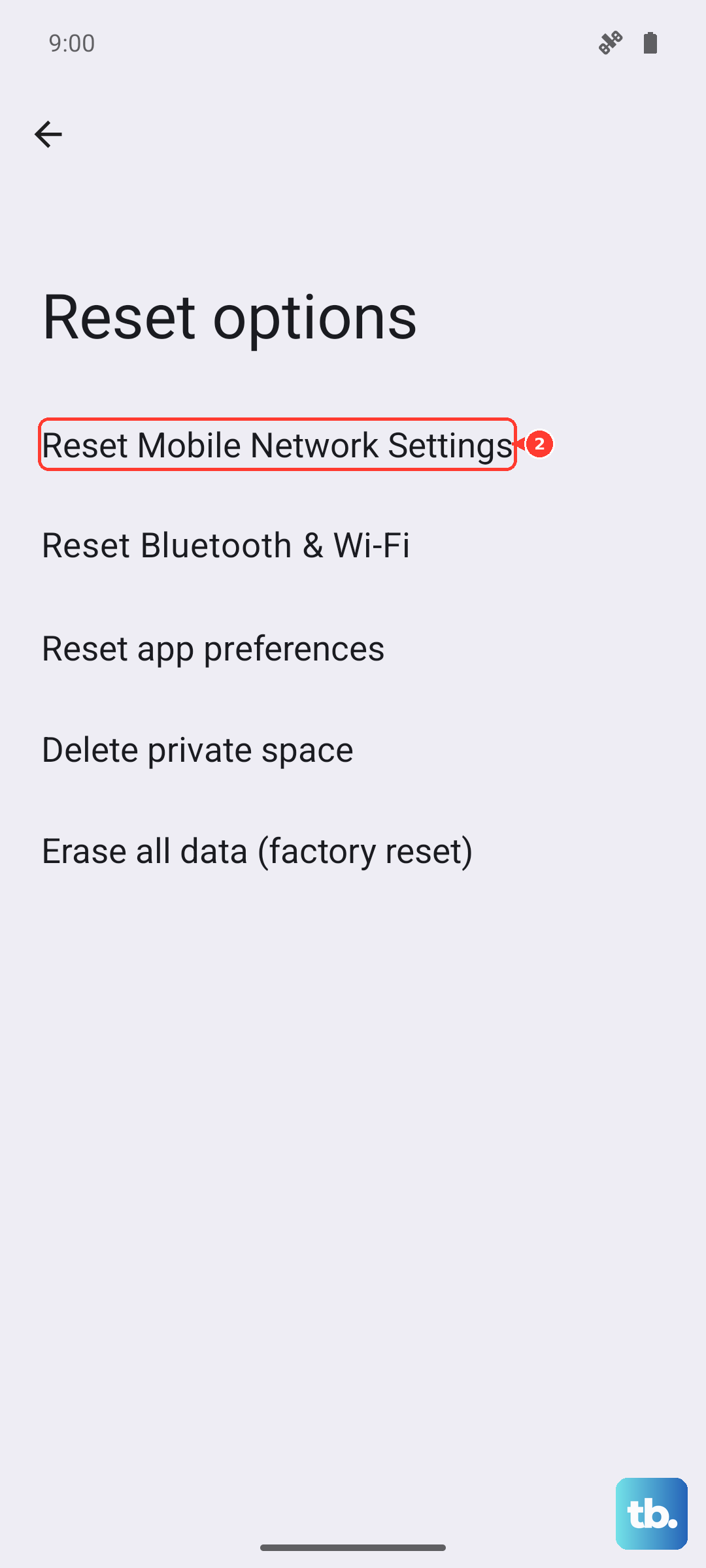
You'll have to reconnect to Wi‑Fi and pair Bluetooth devices again, but it often stops system-level bugs that cause restarts.
Factory Reset as a Last Resort
When nothing else works, a factory reset wipes everything and gives you a clean slate. Before you do this, make absolutely sure your backup is complete. Then go to Settings > System > Reset options > Erase all data (factory reset). Follow the prompts.
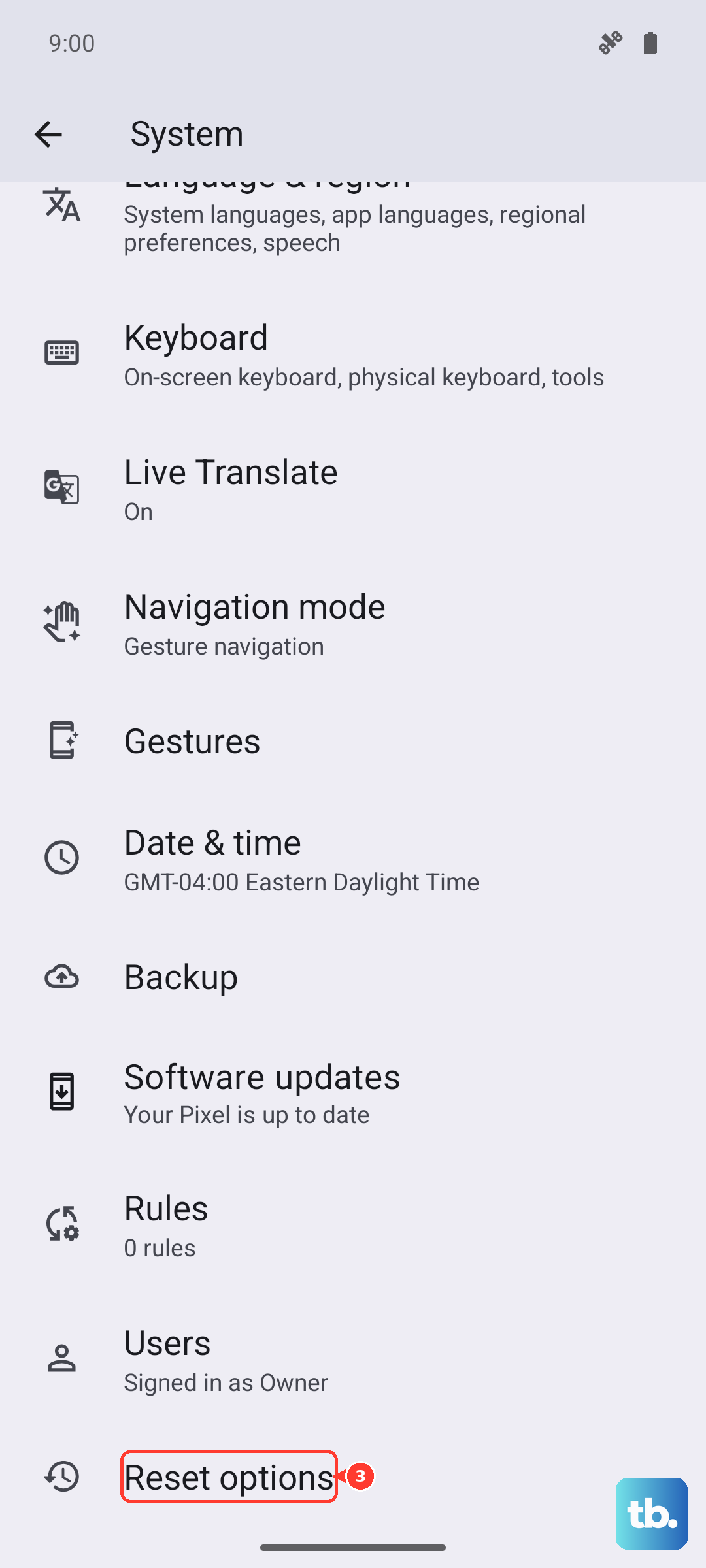
Set the phone up as a new device first, don't restore from a backup right away. If the restarts stop, something in your backed-up data or settings was the problem. If they continue after a factory reset, it could be a hardware issue, and you'll want to contact Google or your carrier for a repair or replacement.