
When your Pixel 9 Pro XL suddenly stops sending audio to your headphones, it's almost always a software routing issue or a simple Bluetooth glitch. You'll hit play and hear nothing, or the sound comes out of the phone speaker instead. Here's exactly how to fix it on the Pixel 9 Pro XL running Android 14.
It helps to confirm what actually works before changing settings. Run a quick headphone test, note which channels and frequencies play correctly, and match the result against the steps below.
Check the Audio Output Destination
Swipe down twice from the top of the screen to fully expand Quick Settings. Look for the Media Output tile, which shows what device the audio is currently playing through. Tap it and manually select your headphones or earbuds.
Android 14 introduced a more dynamic media player that sometimes forgets to switch outputs when you connect a new device. This is the first thing to check because it's a very common bug on Pixels.
Clean the USB-C Port
If you're using wired headphones or a USB-C to 3.5mm adapter, the port is the weak point. Pocket lint gets compressed into the bottom of the port over time and stops the plug from fully seating. Use a toothpick or the plastic end of a SIM eject tool to carefully scrape the bottom edges of the port.
Don't use a metal paperclip, it can short out the pins. A clean port is essential for both charging and USB audio on a phone that doesn't have a dedicated headphone jack. Compressed air works well for blowing out fine dust too.
Adjust USB Audio Routing in Developer Options
There is a hidden setting on the Pixel that completely blocks audio over USB-C. You have to dig into Developer Options to check it out. Go to Settings > About phone and tap Build number seven times to unlock Developer Options.
Then go to Settings > System > Developer options. Scroll down to Disable USB audio routing and make sure it's turned off. If it's on, your Pixel won't send any sound to a wired adapter or USB-C headphone, no matter what you do.
Forget and Re-Pair Bluetooth Headphones
Go to Settings > Connected devices and tap your headphones in the list. Tap the gear icon next to their name and select Forget. Now put your headphones back into pairing mode and reconnect them from scratch.
A corrupted Bluetooth profile is a common cause of one-sided audio, low volume, or random disconnects. Starting the pairing over forces the phone and headphones to renegotiate the connection correctly.
Toggle Bluetooth Off and On
Swipe down the Quick Settings panel and tap the Bluetooth icon to turn it off. Wait about ten seconds, then tap it again. This resets the local Bluetooth stack without needing a full phone restart. It clears up minor handshake issues between the phone and your headphones.
You can also do this from Settings > Connected devices > Connection preferences > Bluetooth and toggle it off there.
Force Restart the Pixel
If a simple toggle didn't help, do a hard restart. Press and hold the Power button and the Volume up button at the same time until the power menu pops up. Tap Restart from the menu.
This clears out any temporary audio or connectivity glitches stuck in the phone's memory. It's the same as a full reboot but forces the process when a standard restart might hang.
Clear the Bluetooth System Cache
Go to Settings > Apps > See all apps. Tap the three-dot menu in the top right corner and select Show system. Find Bluetooth in the list and tap it. Go to Storage & cache and tap Clear cache.
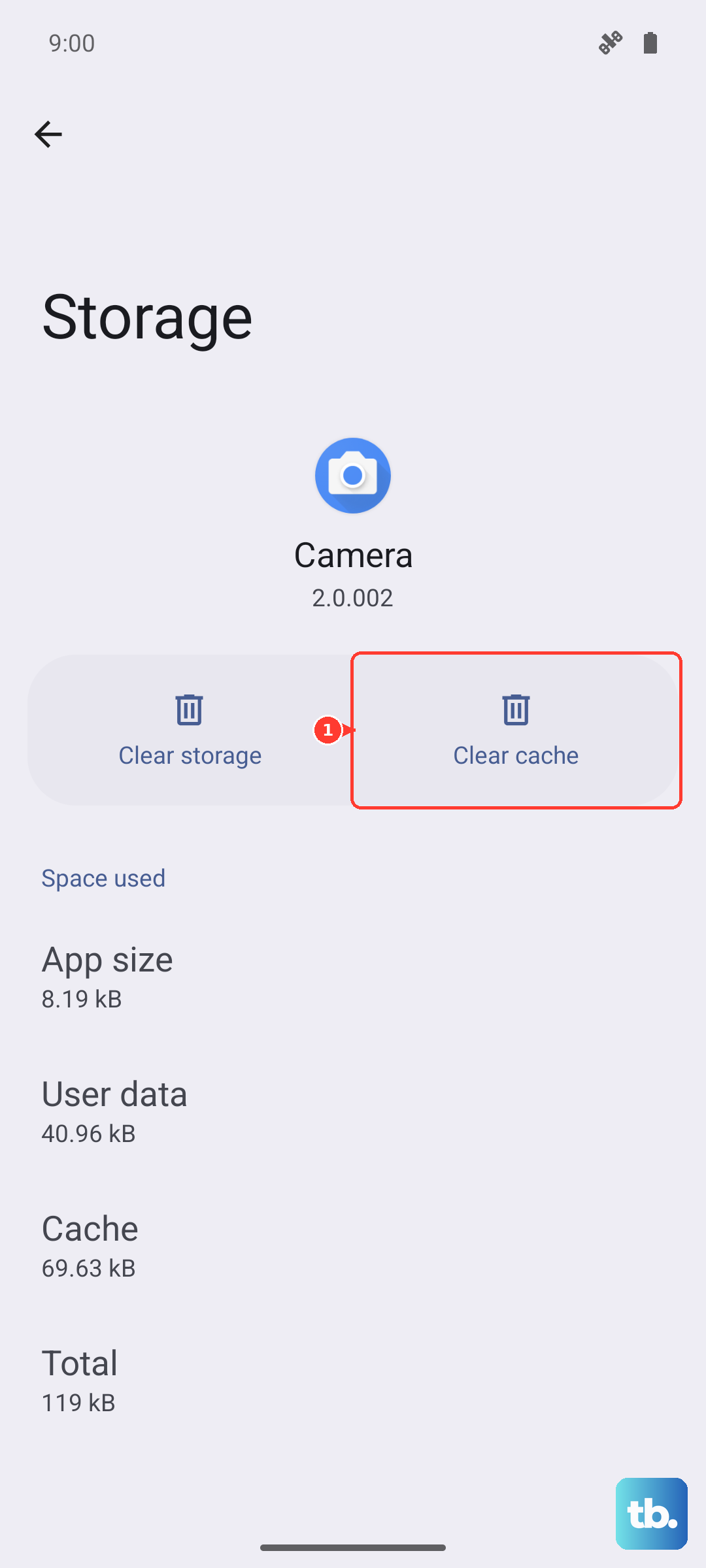
Don't worry, this won't delete your saved pairings. It just gets rid of temporary system files that might have gotten corrupted and are interfering with audio routing.
Update Your Pixel to the Latest Software
Go to Settings > System > Software update and check for any available updates. Google releases monthly security and bug fix patches that frequently address Bluetooth audio stability issues. If there is an update waiting, install it and test your headphones again.
Pixel Feature Drops also sometimes change how audio routing works, so keeping the phone current is important for headphone compatibility.
Turn Off Absolute Volume
Some Bluetooth headphones manage their own independent volume, which can create conflicts with the Pixel's volume control. In Developer Options (Settings > System > Developer options), scroll down to Disable absolute volume and toggle it on.
This separates the phone's volume from the headphone's internal volume. If your headphones sound distorted or stuck at one volume level, this fix usually solves it. You can turn it off if it doesn't help.
Reset Wi-Fi, Mobile & Bluetooth Settings
This is the nuclear option for persistent Bluetooth problems. Go to Settings > System > Reset options and tap Reset Wi-Fi, mobile & Bluetooth. The phone will warn you that it will erase all saved networks and paired Bluetooth devices.
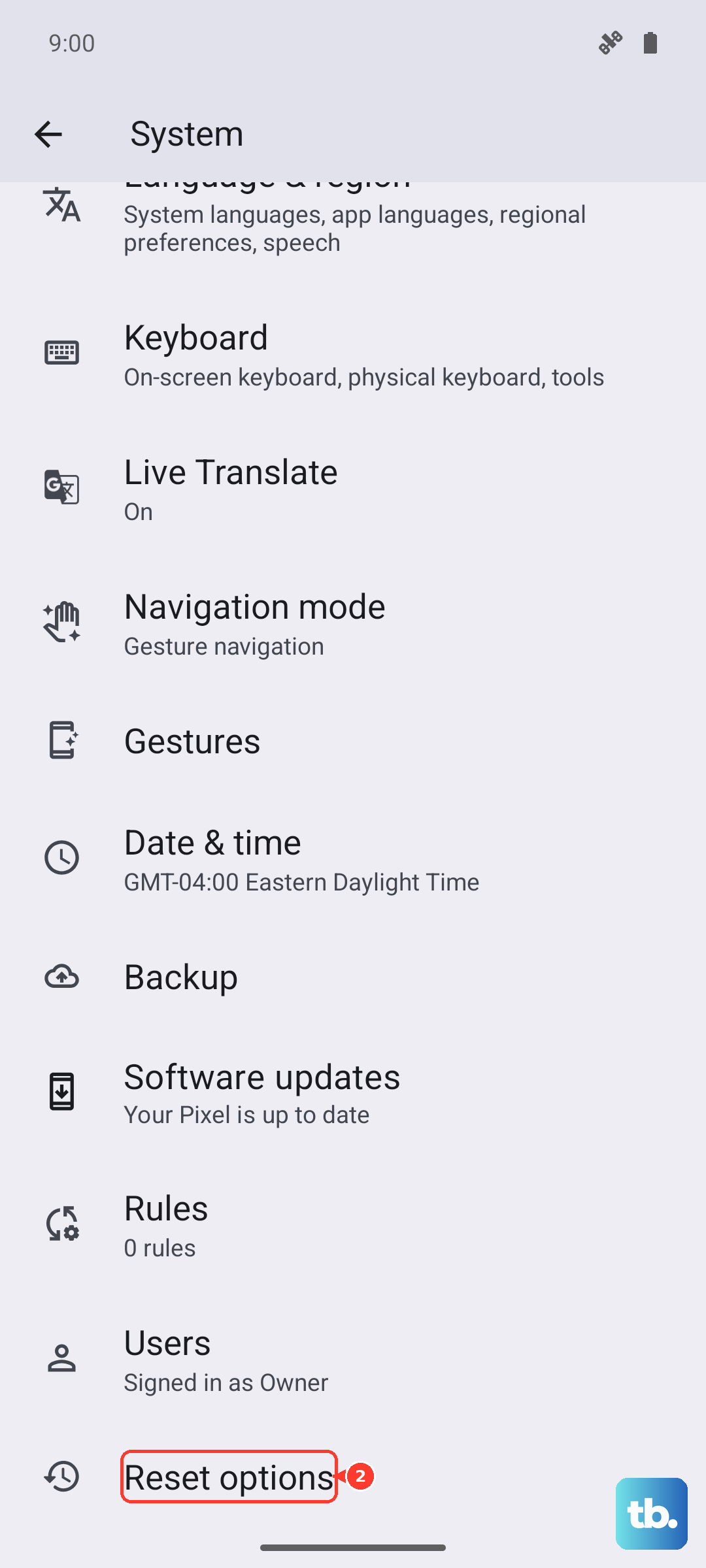
You will have to reconnect everything manually, but it clears out deep software conflicts that individual app caches or restarts can't touch. It's the most effective fix for chronic headphone disconnection or pairing failures.