
You're driving, you punch a destination into Google Maps, and the little blue dot just sits there. Or it jumps around like it's having a seizure. When the GPS on your Pixel 9 Pro XL goes haywire, navigation becomes impossible, and it's not something you want to mess with while driving. I've seen GPS issues pop up on these phones for a handful of reasons, most of which you can fix in a few minutes.
Let's start with the quickest thing that works more often than you'd think.
Turn GPS Off and Back On
Swipe down twice from the top of your Pixel 9 Pro XL to open the full Quick Settings panel. Tap the Location icon to turn it off. Count to fifteen, then tap it again. That's it. This resets the GPS chip without a full restart, and it clears most minor software conflicts.
Give Your Phone a Fresh Restart
If toggling doesn't help, a proper restart is next. On the Pixel 9 Pro XL, press and hold the Power button and Volume up button at the same time. After a second or two, the power menu appears. Tap Restart. Your phone will reboot, clearing out temporary glitches that can mess with location services.
Check Your Location Mode
Your Pixel has different location modes. For the best GPS performance, you want High Accuracy. Go to Settings > Location > Location Services and make sure High Accuracy is selected. This uses GPS, Wi-Fi, and mobile networks together, which dramatically improves accuracy and reliability.
Make Sure Each App Has Permission
Sometimes the issue isn't the GPS itself, it's that a particular app doesn't have permission to use it. Open Settings > Apps, find the app that's not working (like Google Maps), then tap Permissions. Make sure Location is set to Allow all the time or While using the app, depending on what you need.
Kill Battery Saver While Navigating
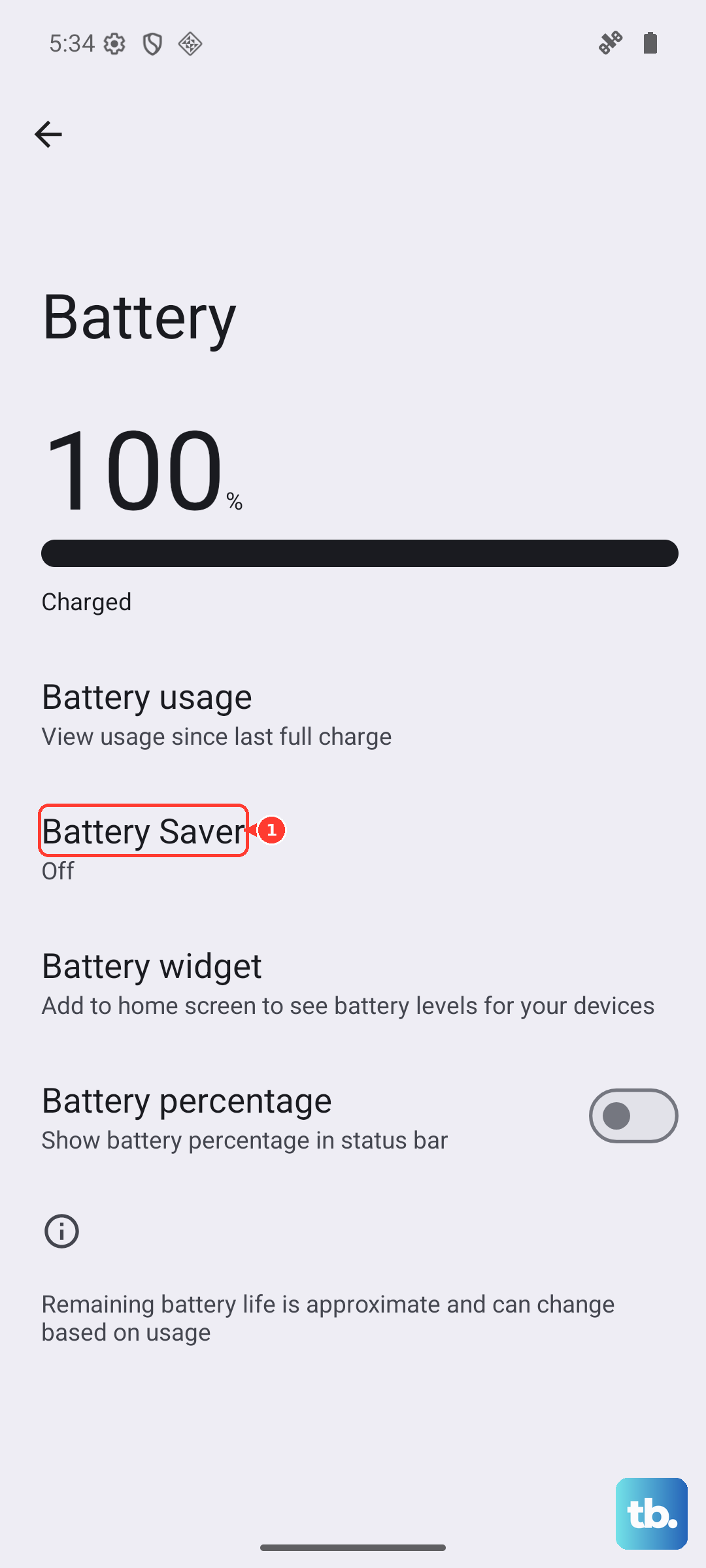
Battery Saver on the Pixel 9 Pro XL throttles background activity, including GPS. If you have it enabled, your location can become sluggish or stop updating entirely. Swipe down and turn off Battery Saver from Quick Settings, or go to Settings > Battery > Battery Saver and disable it. Then test the GPS again.
Clear the Navigation App's Cache
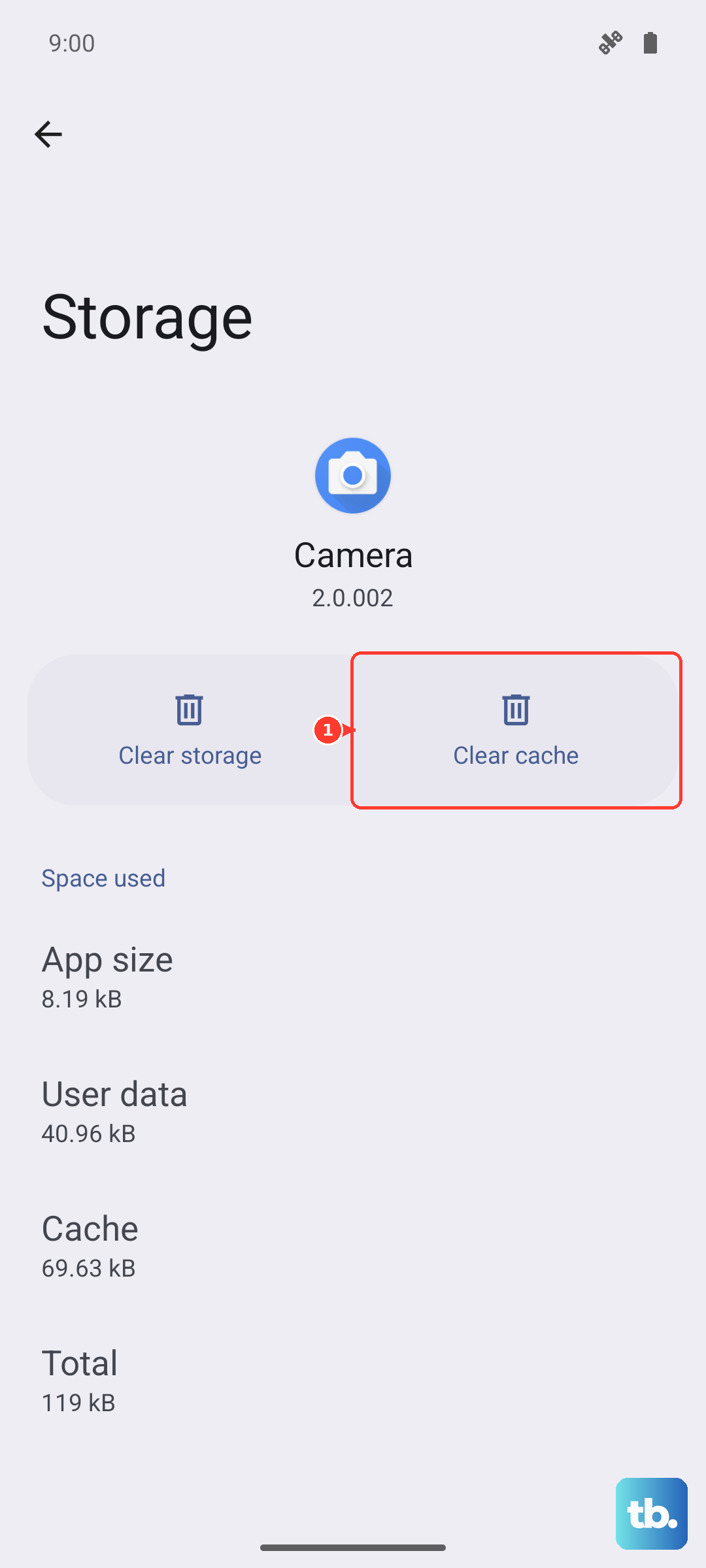
Corrupted cache data in Google Maps or your preferred navigation app can cause GPS weirdness. Go to Settings > Apps > Google Maps > Storage & cache. Tap Clear cache. If that doesn't help, you can tap Clear storage next, but know that this will erase your saved places and settings within the app.
Update Everything
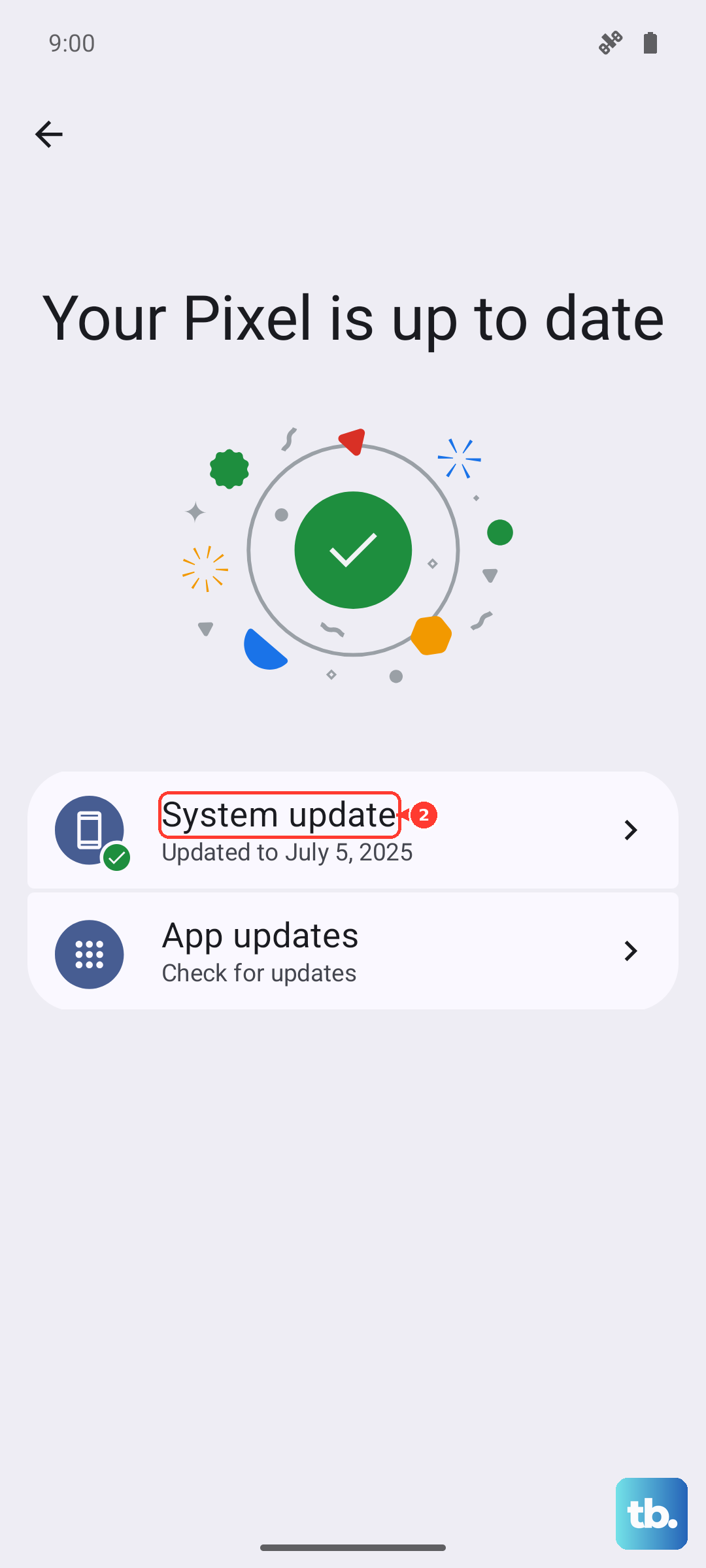
An outdated app or system version can introduce GPS bugs. Open the Play Store and update Google Maps and any other navigation apps. Then check for a system update by going to Settings > System > System update. If there's a new version of Android available, install it. Google often pushes GPS fixes in monthly security patches.
Test in Safe Mode
A third-party app might be conflicting with your GPS. Safe mode disables all downloaded apps, letting you test just the core system. To boot into Safe mode, press and hold the Power button, then press and hold Power off on the screen. Tap OK when Safe mode appears. Once you're in, test the GPS. If it works, a downloaded app is the culprit. Restart normally to leave Safe mode, then uninstall recently installed apps one by one until you find the problem.
Use Airplane Mode to Reset Radio Connections
This is a lesser-known trick that resets all your phone's wireless radios, including the GPS receiver. Swipe down twice and tap the Airplane Mode icon to turn it on. Wait about ten seconds, then tap it off. Your GPS should start fresh and lock onto satellites faster.
Move Away From Interference
The Pixel 9 Pro XL's GPS antenna is in the top of the phone. If you have a case with a metal kickstand or thick battery pack, it can block the signal. Also, concrete buildings, underground parking garages, and heavy tree cover will weaken the GPS signal. Step outside into an open area and try again.
If you've worked through all ten of these and your GPS still can't find you, it might be a hardware fault. Download a GPS testing app like GPS Essentials from the Play Store and check the Satellites screen. If you see zero satellites in view, the GPS module inside your Pixel may be damaged. That's a job for Google support or a repair shop, but in my experience, one of these software fixes takes care of it nine times out of ten.