If your Pixel 9 Pro XL battery is draining faster than it should, you're not imagining it. A few settings and habits can make a big difference, and I'll walk through the most effective ones.
Check What's Using Your Battery
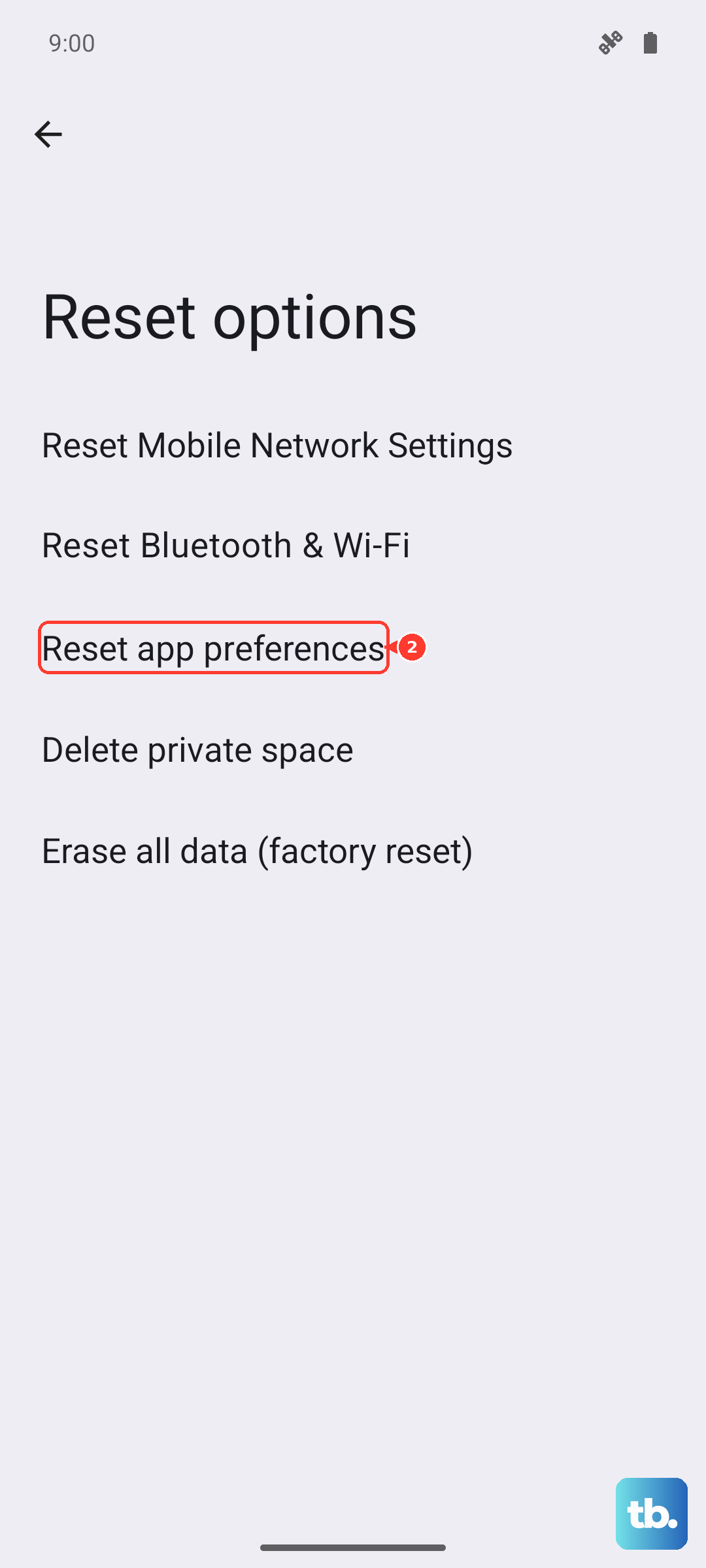
Before changing anything, open Settings > Battery > Battery usage. This shows which apps and services have consumed the most power in the last 24 hours. If one app is way above the rest, say over 25%, that's your first target. Tap it and hit Restrict background activity to stop it from draining power when you're not using it.
Turn On Battery Saver Mode
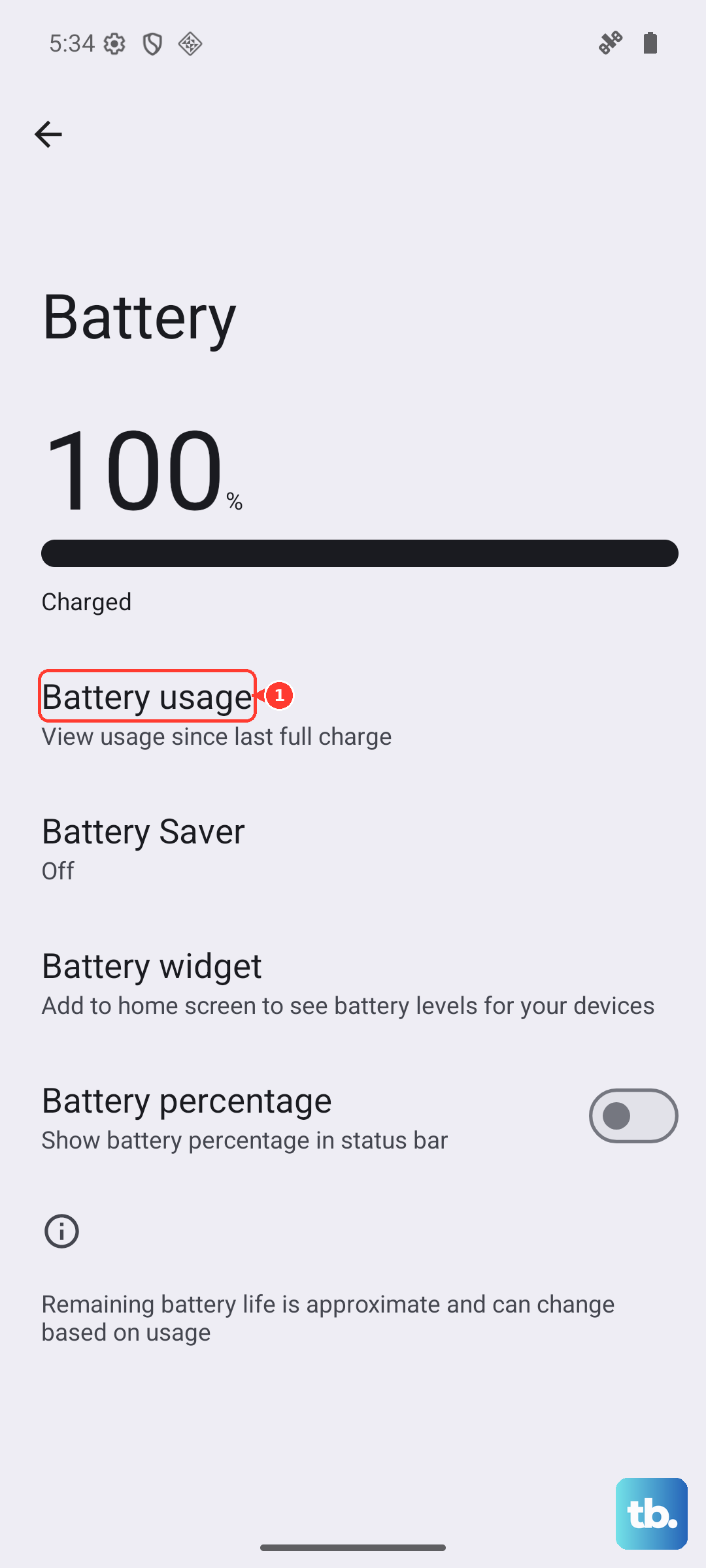
Pixel's Battery Saver mode pauses background activity, limits location services, and reduces screen brightness. You can toggle it on manually from Settings > Battery > Battery Saver, or set it to turn on automatically at a certain battery percentage. Even setting it to kick in at 30% can add hours of life each day.
Reduce Screen Brightness and Timeout
The display is the biggest battery hog on any phone. Drag the brightness slider down to a comfortable level in Settings > Display > Brightness level. While you're there, tap Screen timeout and set it to 30 seconds. Every second the screen stays on unnecessarily eats into your battery.
Use Dark Mode
The Pixel 9 Pro XL has an OLED display, which means black pixels are literally turned off. Enabling Dark Mode saves real power, especially at higher brightness levels. Go to Settings > Display > Dark theme and flip it on. You can also schedule it to turn on automatically at sunset.
Disable Always-On Display
Always-On Display is convenient, but it keeps the screen partially active even when your phone is idle. If you're struggling with battery life, turn it off in Settings > Display > Lock screen > Always show time and info. You'll still see the time when you tap the screen or pick up the phone.
Turn Off Unnecessary Connectivity
Bluetooth, Wi-Fi, and mobile data all draw power even when you're not actively using them. Swipe down twice to open the Quick Settings panel and toggle off Bluetooth and Wi-Fi when you're away from a known network. Same goes for mobile data if you're on Wi-Fi. Your phone won't waste energy scanning for signals it doesn't need.
Limit Location Services
Apps that constantly track your location hammer the battery. Go to Settings > Location and check which apps have permission. Change any app that doesn't need precise location to While using the app or Ask every time. For apps like weather or maps that need it, While using the app is usually enough.
Disable Background App Refresh
Many apps refresh their content in the background, whether you open them or not. Open Settings > Apps > See all apps, tap an app you rarely use, then tap Mobile data & Wi-Fi and turn off Background data. Do this for social media apps, shopping apps, and games you don't check often.
Check for App Updates and System Updates
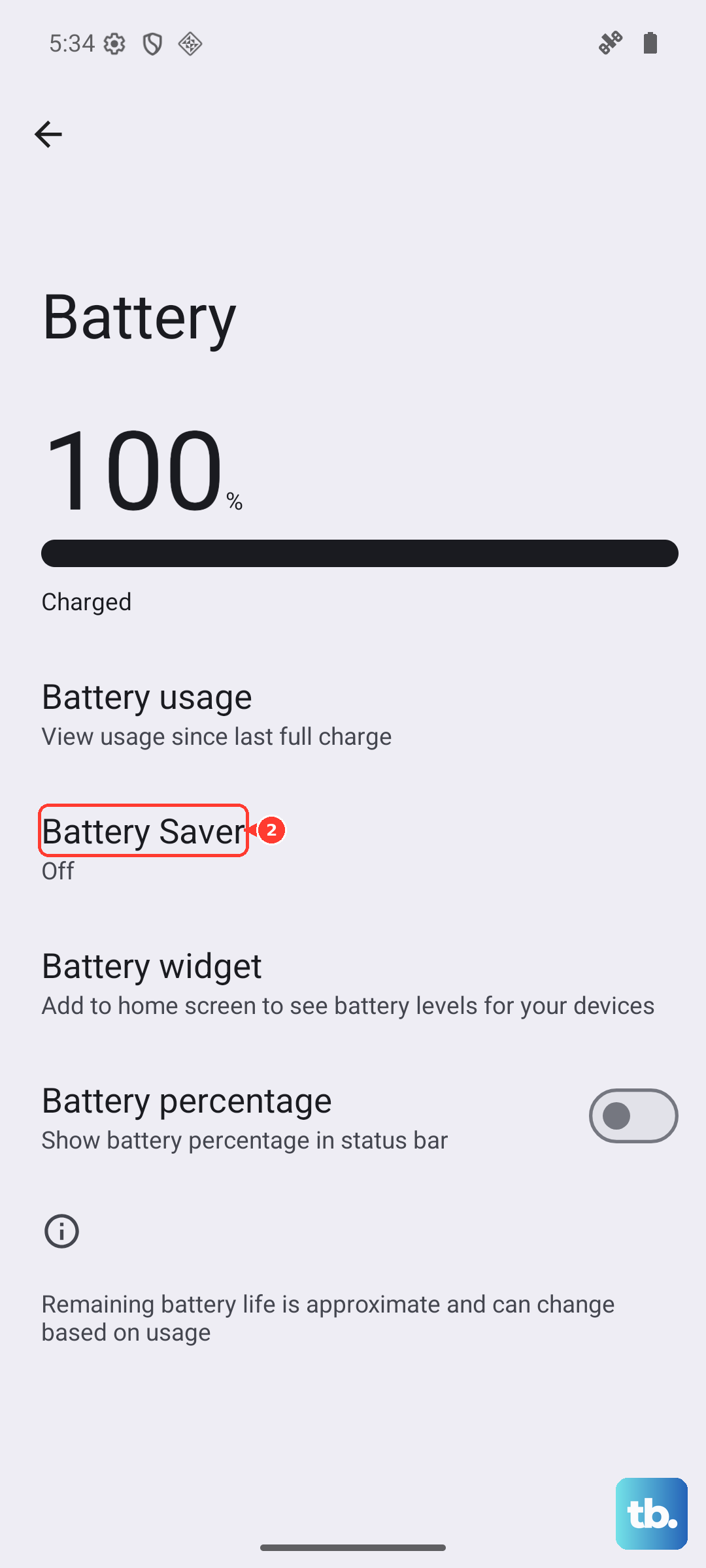
Outdated apps can have bugs that drain battery faster than normal. Open the Play Store, tap your profile icon, then tap Manage apps & device and hit Update all. For system updates, go to Settings > System > System update and check if a new version of Android is available. Updates often include battery optimizations.
Disable Motion Sense and Pixel Exclusive Features
If you're not using features like Now Playing or Quick Tap (the double-tap on the back gesture), they're still listening for input. Go to Settings > System > Motion Sense and turn it off. Head to Settings > System > Gestures > Quick Tap and set it to None. These are small savings but they add up over a day.
Force Restart or Reset Settings If All Else Fails
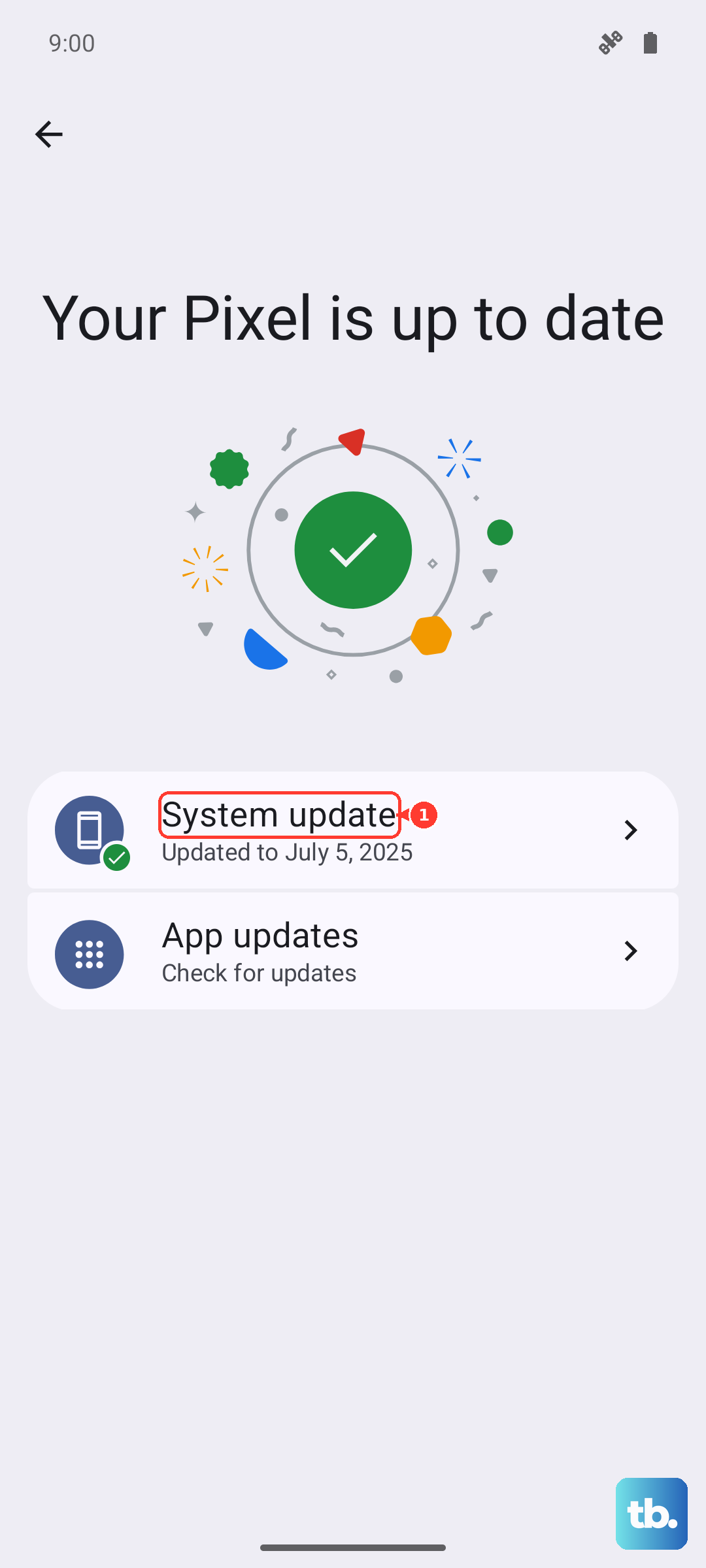
If your battery is still draining fast and you've tried everything, a force restart can clear up minor software hiccups. Press and hold the Power button and Volume up button simultaneously until the Restart option appears, then select it. If that doesn't help, you can reset app preferences without losing personal data. Go to Settings > System > Reset options > Reset app preferences. This won't delete your accounts or data, but it will reset disabled apps and notification permissions to default.