When your Google Pixel 9 Pro stops sending or receiving email, it can throw a real wrench in your day. You might be missing important messages or unable to reply to a time-sensitive thread. The good news is that most email problems on Android 15 have pretty simple fixes you can try yourself.
Before we get into the specific steps, let's cover a few universal basics. First, make sure you have a working internet connection, either through Wi-Fi or your mobile data. Second, check if your email service provider is having an outage. A quick web search for "Gmail down" or "Outlook status" can save you a lot of time. Finally, double-check that you're using the correct email address and password.
Check Your Sync Settings
Your Pixel 9 Pro syncs email in the background, but sometimes these settings can get turned off, especially after a system update. Open the Gmail app, tap your profile picture in the top right, and select Manage accounts on this device. Find the problematic account and make sure the toggle for "Sync Gmail" or "Sync Email" is switched on. If it's already on, try turning it off and back on again to refresh the connection.
Switch Between Wi-Fi and Mobile Data
Network issues are a common culprit. If you're on Wi-Fi and emails aren't coming through, try turning Wi-Fi off to force the phone to use your cellular data. You can do this quickly by swiping down twice from the top of your screen to open the full Quick Settings panel and tapping the Wi-Fi icon. If emails start working on mobile data, the problem is likely with your Wi-Fi network. Conversely, if you're on mobile data and having issues, try connecting to a known-good Wi-Fi network instead.
Toggle Airplane Mode
This is a classic network reset trick that works on any phone, including the Pixel 9 Pro. Swipe down twice to open the Quick Settings panel and tap the Airplane Mode icon. Wait about 15-20 seconds, then tap it again to turn it off. This forces your phone's modem to reconnect to the network from scratch, which can clear up temporary glitches. Given that the Tensor G4 modem can sometimes be less robust than others, this step is worth a try.
Force Close and Reopen Your Email App
Whether you use Gmail, Outlook, or another client, a simple app restart can fix temporary hiccups. Swipe up from the bottom of your screen and hold to enter the app overview screen. Find your email app and swipe it all the way up to close it. Wait a moment, then tap its icon to reopen it fresh. This clears the app from your phone's memory and often resolves minor bugs.
Check for Background Data Restrictions
Android can restrict background data usage to save battery, but this can prevent email from syncing. Go to Settings > Apps and select your email app (like Gmail). Tap Mobile data & Wi-Fi. Here, make sure "Background data" is allowed. Also, check that "Unrestricted data usage" is enabled if you want it to sync even on metered connections.
Verify Your Email Login Credentials
It sounds obvious, but passwords expire or get changed. Try logging into your email account through a web browser on a computer. If you can't log in there either, you'll need to reset your password through your email provider's website. Once you have the new password, you'll need to update it on your Pixel. Go to Settings > Accounts, select the email account, and tap Account sync > More > Remove account. Then, add it back with the new password.
Enable Mobile Data for Your Email App
If you're relying on cellular data, you need to make sure the app has permission to use it. Head to Settings > Network & internet > Mobile network. Tap on App data usage. Find your email app in the list and ensure its toggle is set to allow data usage. You can also check this in the app's own settings under Settings > Apps > [Your Email App] > Mobile data & Wi-Fi.
Set Date and Time to Automatic
Incorrect date and time settings can break secure connections to email servers. Your Pixel 9 Pro should do this by default, but it's worth verifying. Go to Settings > System > Date & time. Make sure the "Use network-provided time" and "Use network-provided time zone" options are both turned on. This ensures your phone's clock is perfectly synchronized.
Check for Service Outages or Security Blocks
Sometimes the problem isn't your phone at all. Visit Downdetector.com or your email provider's official status page. For work or school accounts, increased security measures like two-factor authentication (2FA) or a new "app password" requirement might be blocking access. Check with your IT administrator if you suspect this is the case.
Disable VPN or Private DNS
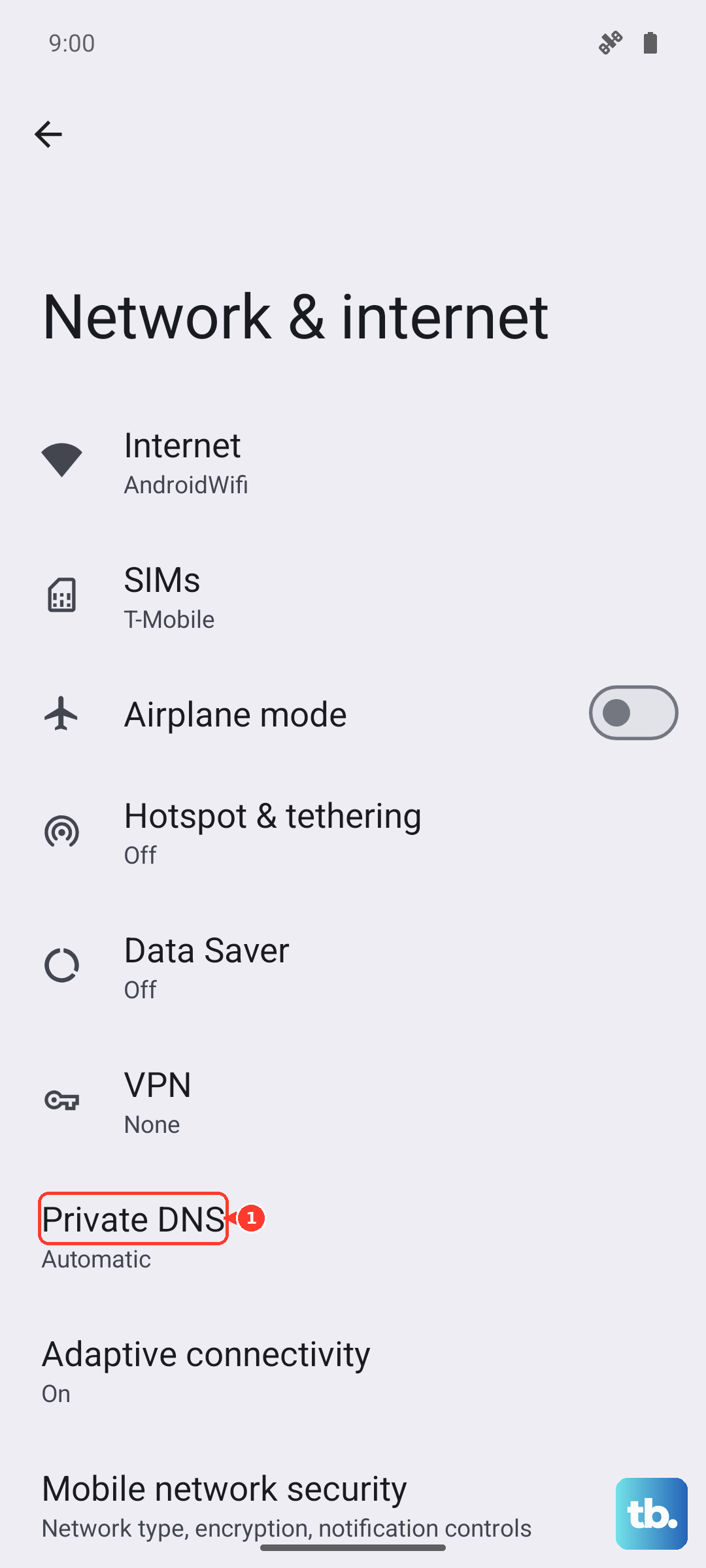
If you're using a VPN for privacy or a custom DNS (like Google's Private DNS), try temporarily disabling it. VPNs can sometimes interfere with mail server connections. Go to Settings > Network & internet. If you use a VPN, tap VPN and disconnect. For Private DNS, tap "Private DNS" and select "Off." Try your email again to see if it works.
Update Your Email App and Android
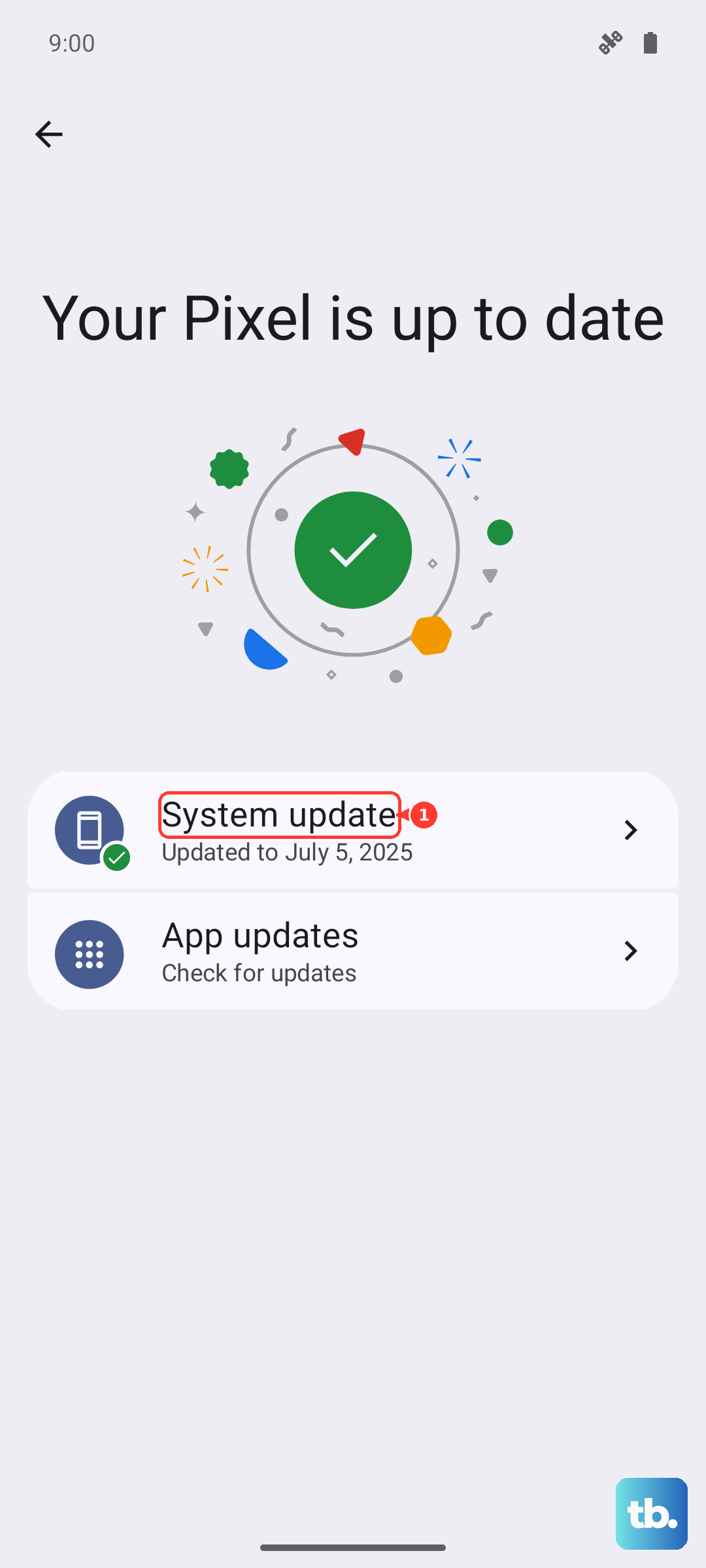
Outdated software is a common source of bugs. Open the Google Play Store, tap your profile picture, and go to Manage apps & device > Updates available. See if there's an update for Gmail, Outlook, or whatever email app you use. Also, check for a system update by going to Settings > System > System update. Installing the latest Android 15 update can fix underlying issues.
Remove and Re-add Your Email Account
This is a more thorough reset for a stubborn account. Go to Settings > Accounts. Tap on the problematic email account. Tap Remove account at the bottom. Confirm, then go back to Settings > Accounts > Add account to set it up again from scratch. This often clears out corrupted configuration data.
Check Your Notification Settings
If emails are arriving but you're not getting alerts, the notification settings might be muted. Long-press on your email app's icon and tap App info. Then, tap Notifications. Make sure "All [App] notifications" are turned on. You can also tap on specific notification categories like "New mail" to ensure they are enabled and set to "Make sound and pop on screen."
Force Restart Your Pixel 9 Pro
A full phone restart can clear out system-level glitches. For the Pixel 9 Pro, press and hold the Power button for about 30 seconds. Keep holding it even after you see the power menu or the screen goes black. The phone will eventually vibrate and restart on its own. This is different from a normal restart and can resolve deeper software hangs.
Reset Your Network Settings
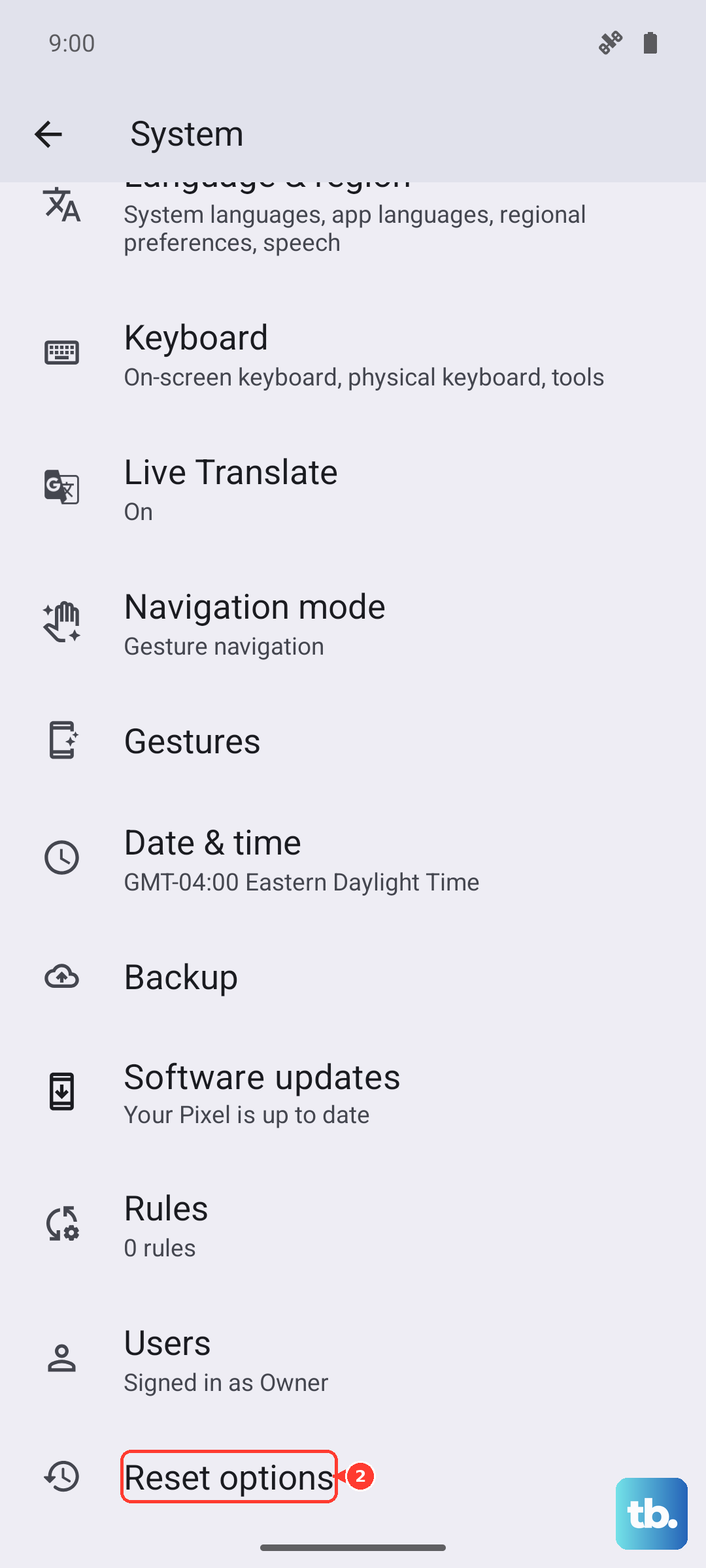
If you've tried everything and still have connection-based email issues, resetting network settings is a logical next step. This will erase all Wi-Fi passwords, Bluetooth pairings, and mobile network settings, but it won't touch your personal data. Go to Settings > System > Reset options. Tap Reset Wi-Fi, mobile & Bluetooth and confirm. After the phone reboots, you'll need to reconnect to your Wi-Fi networks.