
Seeing "Call ended" or calls dropping unexpectedly on your Pixel 9 Pro is a real headache, especially when you're trying to connect. This usually happens when your phone struggles to maintain a stable link to the cellular network. On the Pixel 9 Pro, this can sometimes be tied to the Tensor G4 modem, which some users find a bit less robust in weaker signal areas compared to older Qualcomm chips.
Let's run through the most effective fixes, starting with the quick ones you can do in under a minute.
Toggle Airplane Mode
The fastest way to refresh your cellular connection is with Airplane Mode. This forces your phone to re-register with the nearest cell tower, clearing any temporary glitches.
Swipe down twice from the top of your screen to open the full Quick Settings panel. Tap the Airplane Mode icon to turn it on, wait about 15 seconds, then tap it again to turn it off. You should see the signal bars disappear and then come back.
Check Your Signal Strength
Weak signal is the top culprit for failed calls. Look at the signal icon in the top-right corner of your Pixel's screen. If you have only one bar or an "X", you're in a poor coverage spot.
Try moving near a window or stepping outside. The Pixel 9 Pro's modem can be less forgiving in marginal areas, so a small change in location can make a big difference.
Force Restart Your Pixel 9 Pro
A simple reboot can clear out minor software bugs that might be interfering with the phone app or modem. If your phone is acting sluggish or warm, this is a great first step.
Just press and hold the Power button on the right side of the phone. Keep holding it for about 30 seconds, until you see the Google logo appear and the phone restarts on its own. This is the force restart method for Android 15.
Check Do Not Disturb and Focus Modes
Your call might be failing because it's being silently blocked. Swipe down from the top and look for a moon icon or a label like "Work" or "Sleep" in the status bar.
If you see one, tap it to see which mode is active. Make sure calls aren't being silenced for that particular focus. You can adjust these rules in Settings > Sound & vibration > Do Not Disturb.
Update Your Carrier Services
Carrier configuration updates are crucial for network connectivity. These often download automatically, but it's worth checking manually.
Open the Google Play Store, tap your profile icon, and go to Manage apps & device > Manage > Installed. Search for "Carrier Services". If an update is available, you'll see the option there. Installing it can resolve calling issues related to network handoffs.
Verify Your SIM Card
A loose, dirty, or faulty SIM card is a common physical cause. You'll need the SIM eject tool that came in the box (a paperclip works in a pinch).
Gently push the tool into the small hole on the SIM tray on the bottom edge of the phone. Pull the tray out, remove the SIM card, and give the gold contacts a quick wipe with a soft, dry cloth. Reinsert the SIM and tray firmly, then restart your phone.
Switch Between 5G and LTE
Sometimes, the 5G network in your area can be unstable for voice calls. You can force your Pixel 9 Pro to use the more mature LTE network as a test.
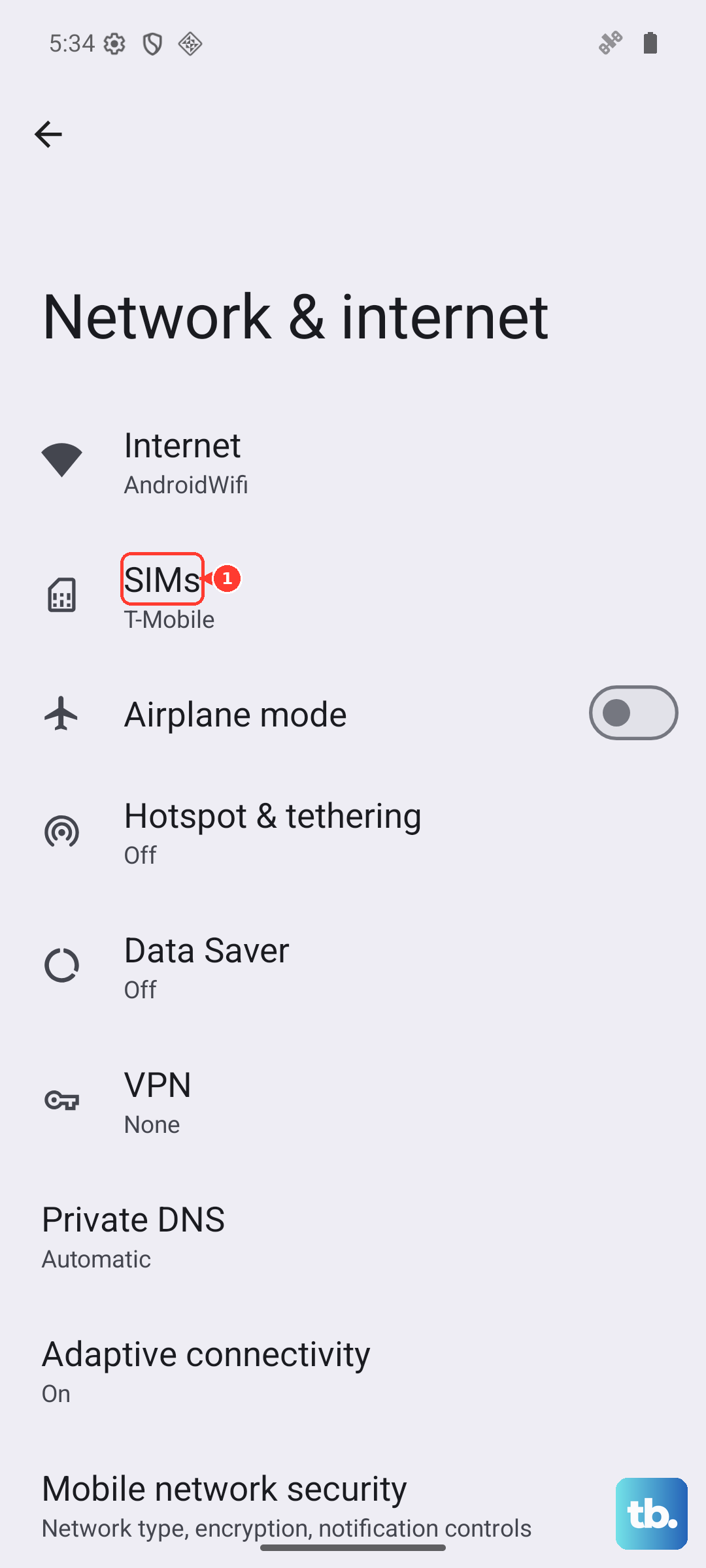
Go to Settings > Network & internet > SIMs > Preferred network type. Select "LTE" instead of "5G". Try making a call. If it works, you know the issue is with the 5G signal. You can switch it back later, or leave it on LTE for more reliable calling.
Reset Your Network Settings
This clears all your saved Wi-Fi networks, Bluetooth pairings, and cellular settings back to default. It's a strong fix for persistent network problems and won't delete your personal photos or apps.
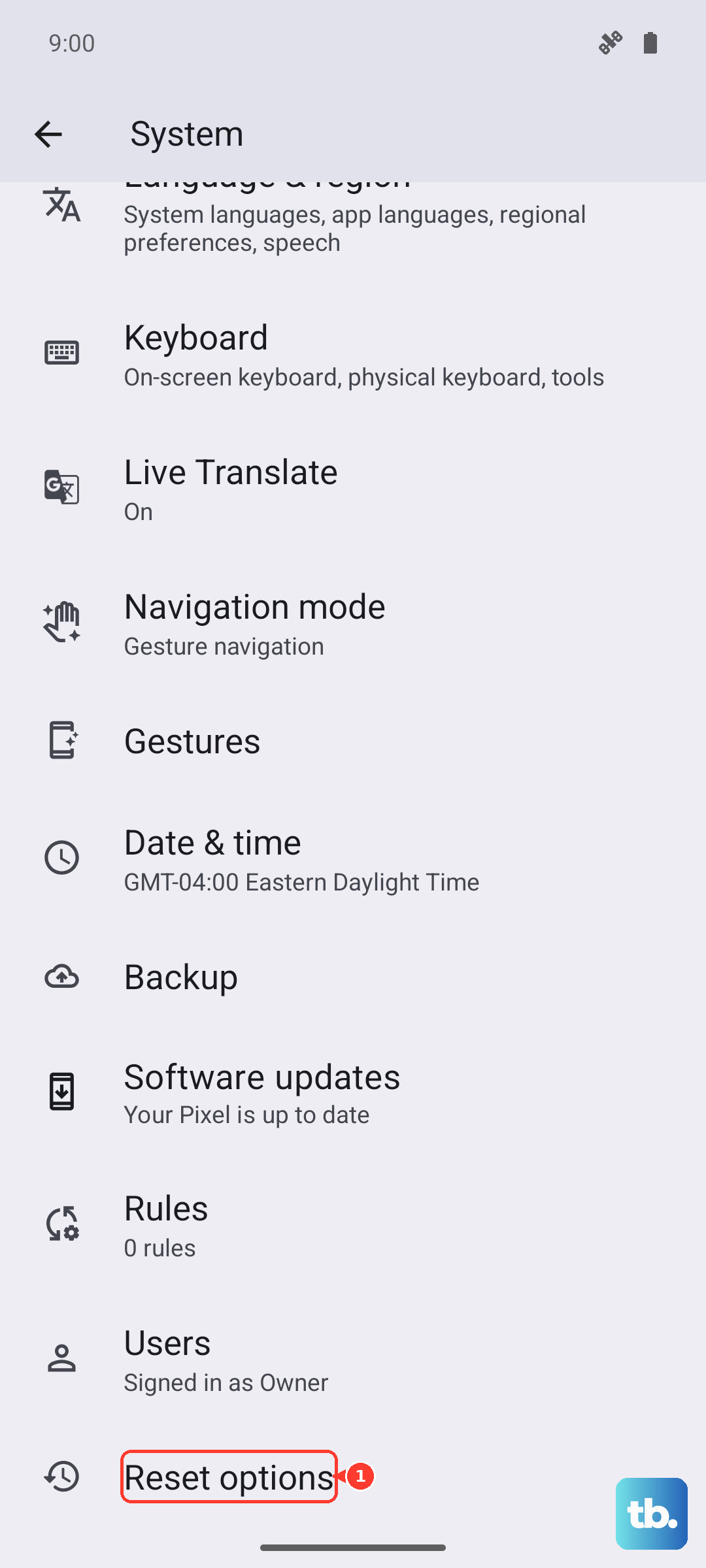
Go to Settings > System > Reset options. Tap on Reset Wi-Fi, mobile & Bluetooth and confirm. Your phone will reboot. Afterward, you'll need to reconnect to Wi-Fi and re-pair Bluetooth devices, but it often resolves deep-seated connection bugs.
Update Android
Google regularly releases system updates that include stability improvements for the modem and phone app. Making sure you're on the latest version is important.
Connect to Wi-Fi, then go to Settings > System > System update. Tap "Check for update". If one is available, download and install it. It's a good idea to plug your phone into its 27W charger during this process, as it can take a while and use some battery.
Contact Your Mobile Carrier
If you've tried everything here and calls are still failing, the problem might be on your carrier's end. There could be a network outage, a provisioning issue with your account, or your SIM card might be damaged.
Give their customer service a call from a different phone if possible. They can check for outages, reprovision your line, or send you a new SIM card. They can also tell you if there are any known service issues in your specific area.