
When your Google Pixel 9 Pro won't install apps, it can feel like you're locked out of your own phone. Apps are how you do everything, from messaging to managing your day. The good news is, this is almost always a temporary glitch with a straightforward fix.
Let's go through the most effective ways to get your Pixel downloading apps again, starting with the quickest solutions.
Check Your Internet Connection First
This is the most common culprit. The Pixel 9 Pro's Tensor G4 modem can sometimes struggle with weaker signals, which can interrupt downloads. Pull down your notification shade and make sure you're properly connected to Wi-Fi or that mobile data is active and strong.
If you're on Wi-Fi, try toggling it off and using mobile data instead. Some networks, like public hotspots, block the specific ports the Play Store needs. A quick switch can tell you if the problem is your network.
Restart Your Pixel 9 Pro
A simple restart clears out temporary system glitches that can stall the Play Store. Just press and hold the power button, then tap 'Restart' on your screen.
If your screen is unresponsive and you need to force a restart, press and hold the power button for about 30 seconds until you feel a vibration and see the Google logo. This is a full power cycle and often resolves deeper software hiccups.
Verify the Date and Time Are Correct
Google's servers use your phone's time to authenticate downloads. If your clock is off, installations will fail. Go to Settings > System > Date & time.
Make sure 'Set time automatically' is switched on. If it's already on and you're still having trouble, try turning it off, manually setting the correct date and time, and then turning automatic setting back on.
Clear the Google Play Store Cache and Data
Corrupted temporary files in the Play Store app itself are a frequent cause. Clearing them gives the app a fresh start. Go to Settings > Apps > See all apps.
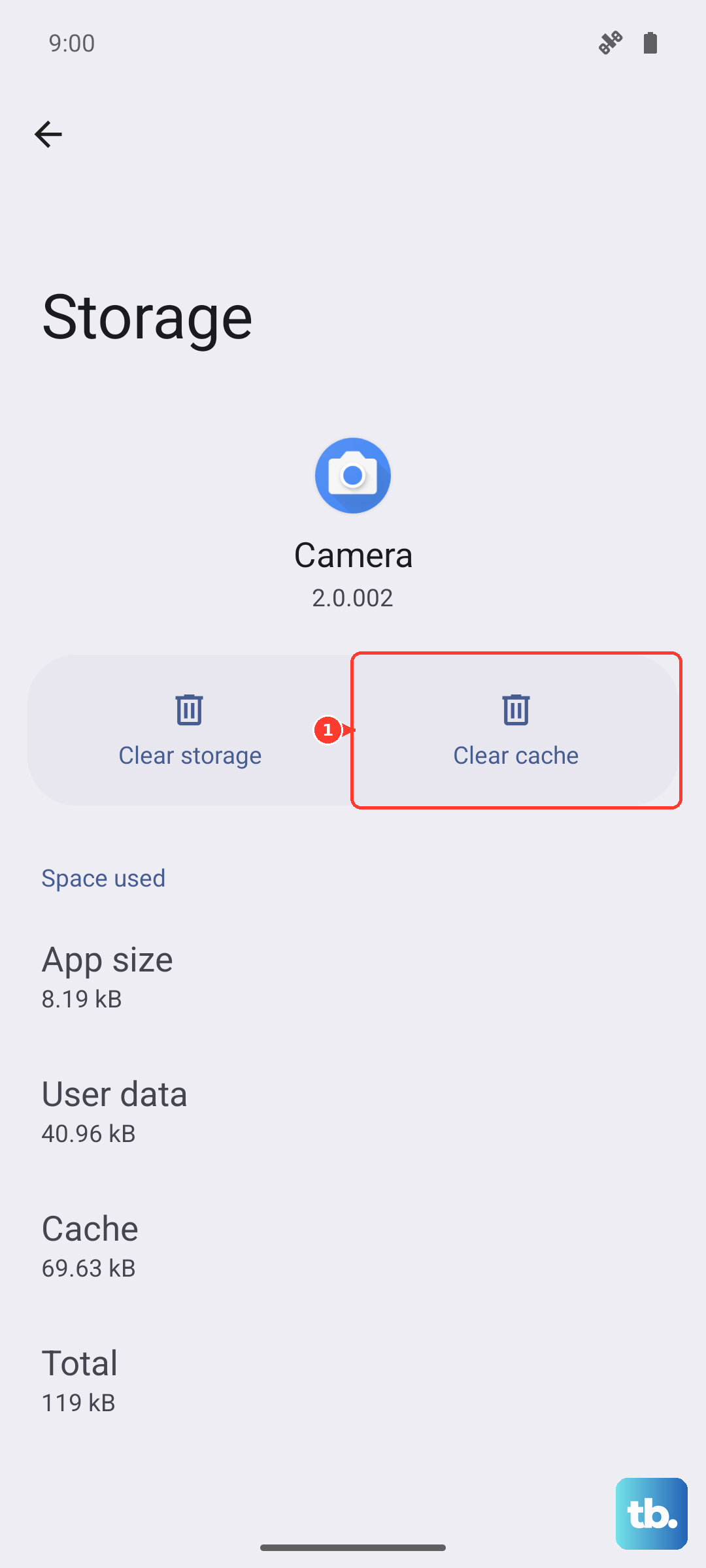
Find and tap 'Google Play Store'. Tap Storage & cache, then hit 'Clear cache'. Try downloading an app again. If it still fails, go back and tap 'Clear storage' (this will reset the Play Store to its default state but won't remove your apps or account).
Clear Google Play Services Data
This is the backbone for all Google apps on your phone. If it gets confused, app installs can stall. Go back to Settings > Apps > See all apps and find 'Google Play Services'.
Tap Storage & cache. First, tap 'Clear cache'. If that doesn't work, tap 'Manage space'. On the next screen, tap 'Clear all data'. Confirm the action. This resets the service without harming your personal data.
Check for Android and Play Store Updates
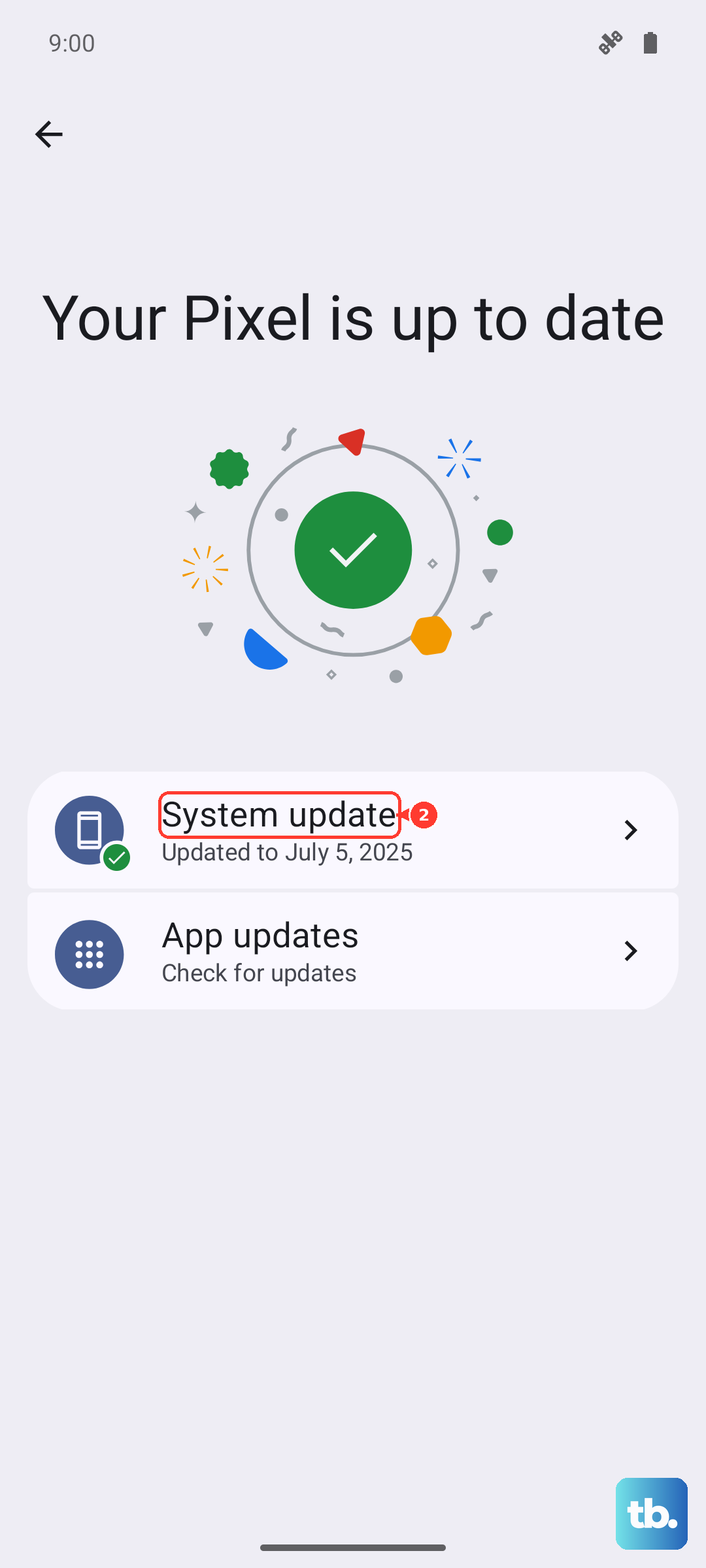
Running outdated software can cause compatibility blocks. First, check for a system update by going to Settings > System > System update.
Next, open the Play Store, tap your profile icon, and go to Settings > About > Play Store version. It will usually check for updates automatically here. Keeping both your Android 15 software and the Play Store app updated is key.
Review Your Google Account Sync
A stuck sync process can interfere with downloads. Go to Settings > Passwords & accounts. Tap your primary Google account.
You'll see a list of items like Gmail, Contacts, and Drive. Tap 'Account sync' at the bottom, then tap the three-dot menu and select 'Sync now'. If things seem stuck, you can also tap 'Remove account' here, restart your phone, and then re-add the account in the same settings menu.
Ensure You Have Enough Storage Space
The Pixel 9 Pro comes with ample storage, but it can fill up fast, especially with 4K videos. Open the Files by Google app or go to Settings > Storage.
You'll get a clear breakdown. If space is low, use the 'Clean' suggestions in the Files app. It can safely remove junk files, old downloads, and cached data from other apps. I'd start here before uninstalling anything important.
Check App Permissions for Play Services
Google Play Services needs certain permissions to function. Go to Settings > Apps > See all apps > Google Play Services > Permissions.
Make sure 'Files and media' (Storage) permission is set to 'Allow'. While you're here, go back one screen and tap 'Additional permissions in the app' to ensure nothing critical is disabled.
Disable Any VPN or Ad-Blocking Apps
VPNs and DNS-based ad blockers can sometimes interfere with the connection to Google's servers. Try temporarily disabling any VPN app you have running.
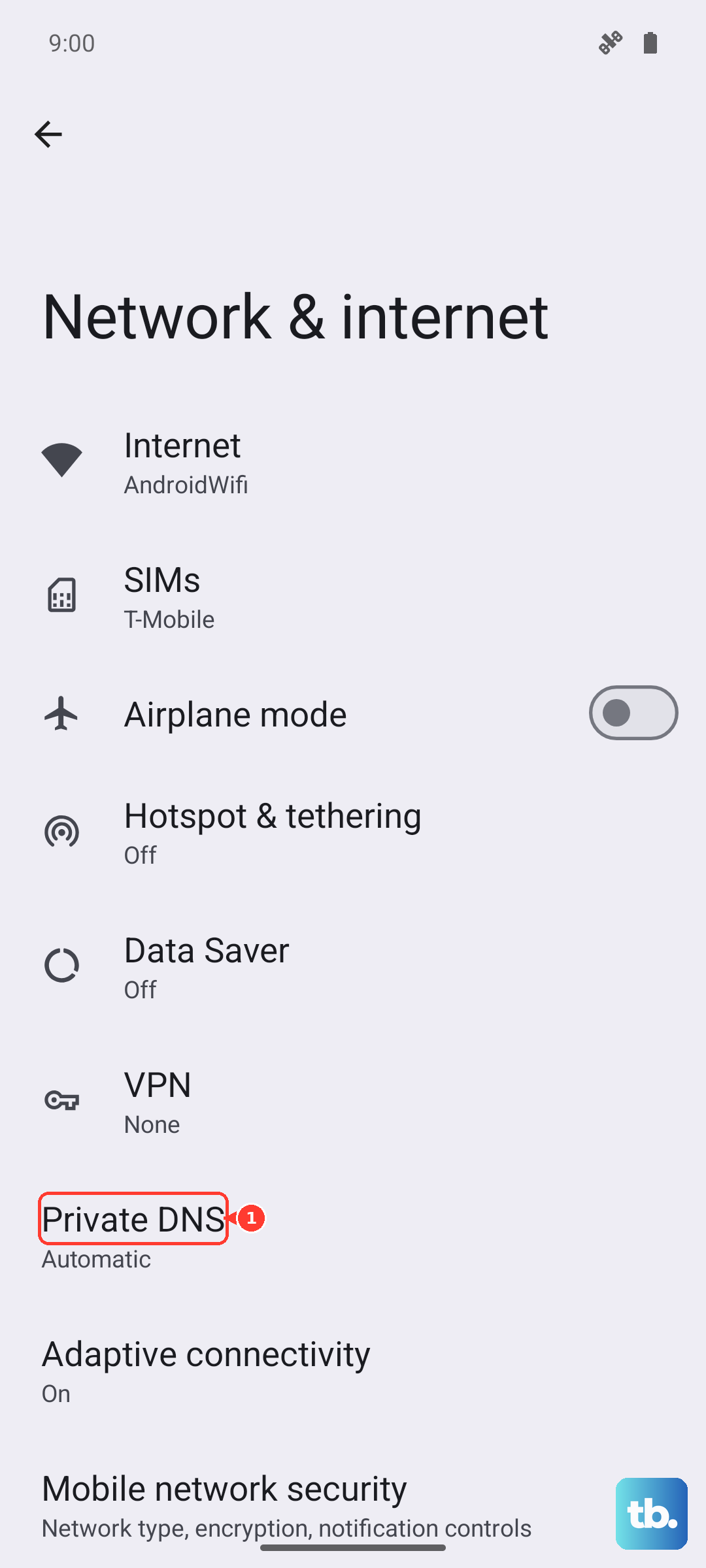
If you use a private DNS setting for ad blocking (like in Settings > Network & internet > Private DNS), set it back to 'Automatic' for a moment and see if the app installs.
Address Specific Download Errors
If you see an error code, it can point you to the right fix. For error DF-BPA-09, you need to clear data for Google Services Framework. Find it in Settings > Apps > See all apps (you may need to tap 'Show system apps'), then clear its storage.
Error 491 or 492 is often related to Play Store or Play Services data. The clears we already covered usually fix this. A generic 'Pending' download that never starts usually means a weak internet connection or a server-side Google issue that just needs time to resolve.
Reset All App Preferences (A Safe Last Step)
This resets permissions, background restrictions, and default app assignments without deleting any personal data. It's very effective for mysterious app issues. Go to Settings > System > Reset options.
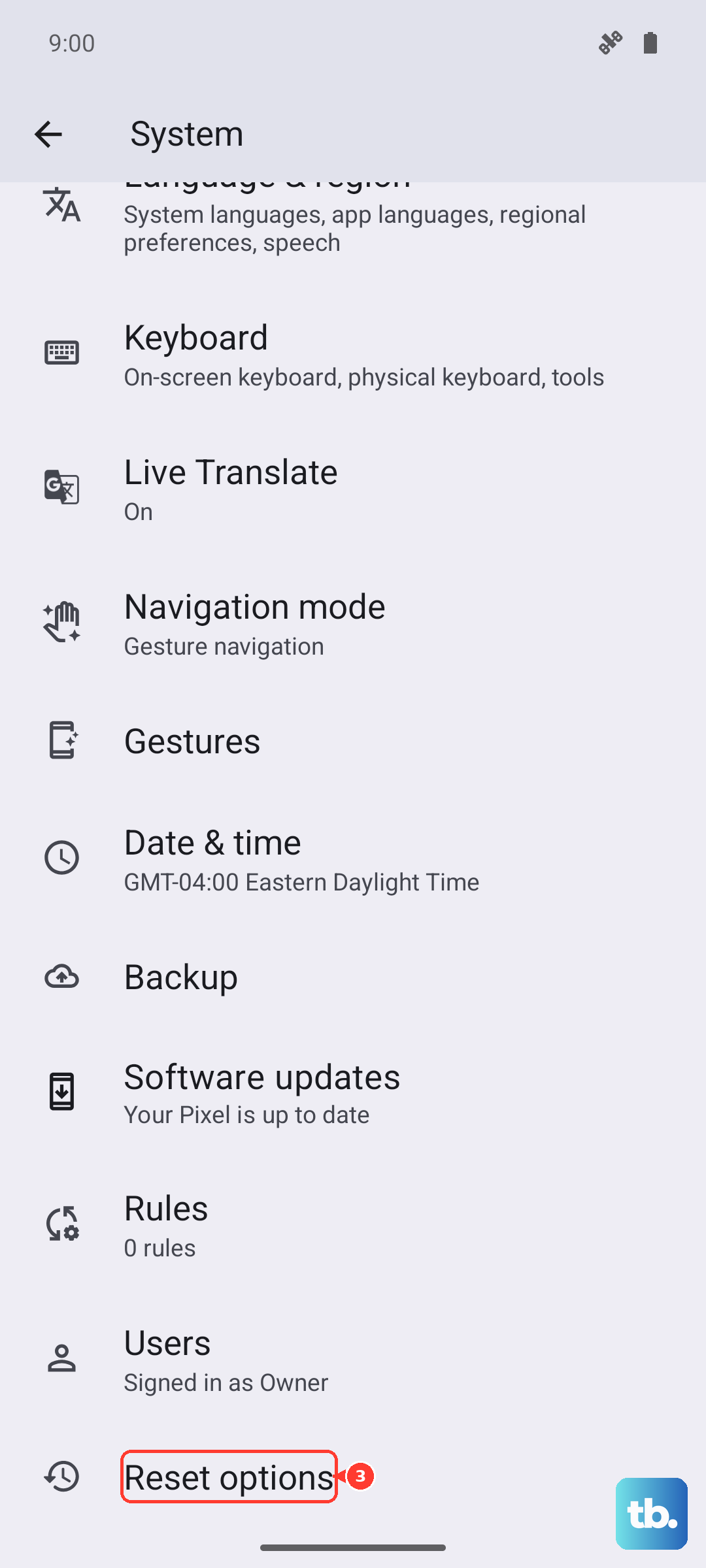
Tap 'Reset app preferences' and confirm. You'll just need to re-grant permissions to apps the next time you use them. After this, restart your Pixel and try the Play Store again.