
Having your Google Pixel 9 drop calls mid-conversation is incredibly annoying. It usually boils down to a weak cellular signal, a temporary software hiccup, or a setting that's gotten out of sync. The good news is you can almost always fix it yourself.
Let's start with the quickest solutions that often resolve the issue in under a minute.
Toggle Airplane Mode
This is the fastest way to refresh your connection to the cellular network. Swipe down twice from the top of your screen to open the full Quick Settings panel. Tap the Airplane Mode icon to turn it on, wait about 15 seconds, and then tap it again to turn it off.
Your phone will reconnect to the network, which can clear up any temporary glitches causing the drops.
Check Your Signal Strength
Weak signal is the most common culprit for dropped calls. Look at the signal bars or the 5G/4G LTE icon in the top-right corner of your status bar. If you're seeing one bar or it keeps switching between network types, try moving to a different location.
Sometimes just stepping near a window or going outside can make a significant difference. Buildings, hills, and even weather can interfere with cellular reception.
Restart Your Pixel 9
A simple reboot clears out temporary software bugs that might be affecting your phone's radio. Press and hold the Power button for about 30 seconds until you feel a vibration and see the Google logo.
This forces a restart even if the screen is unresponsive. It's a good habit to restart your phone every few days to keep things running smoothly.
Update Your Android Software
Google frequently releases updates that include stability improvements and fixes for connectivity issues. Make sure your Pixel 9 is running the latest version of Android.
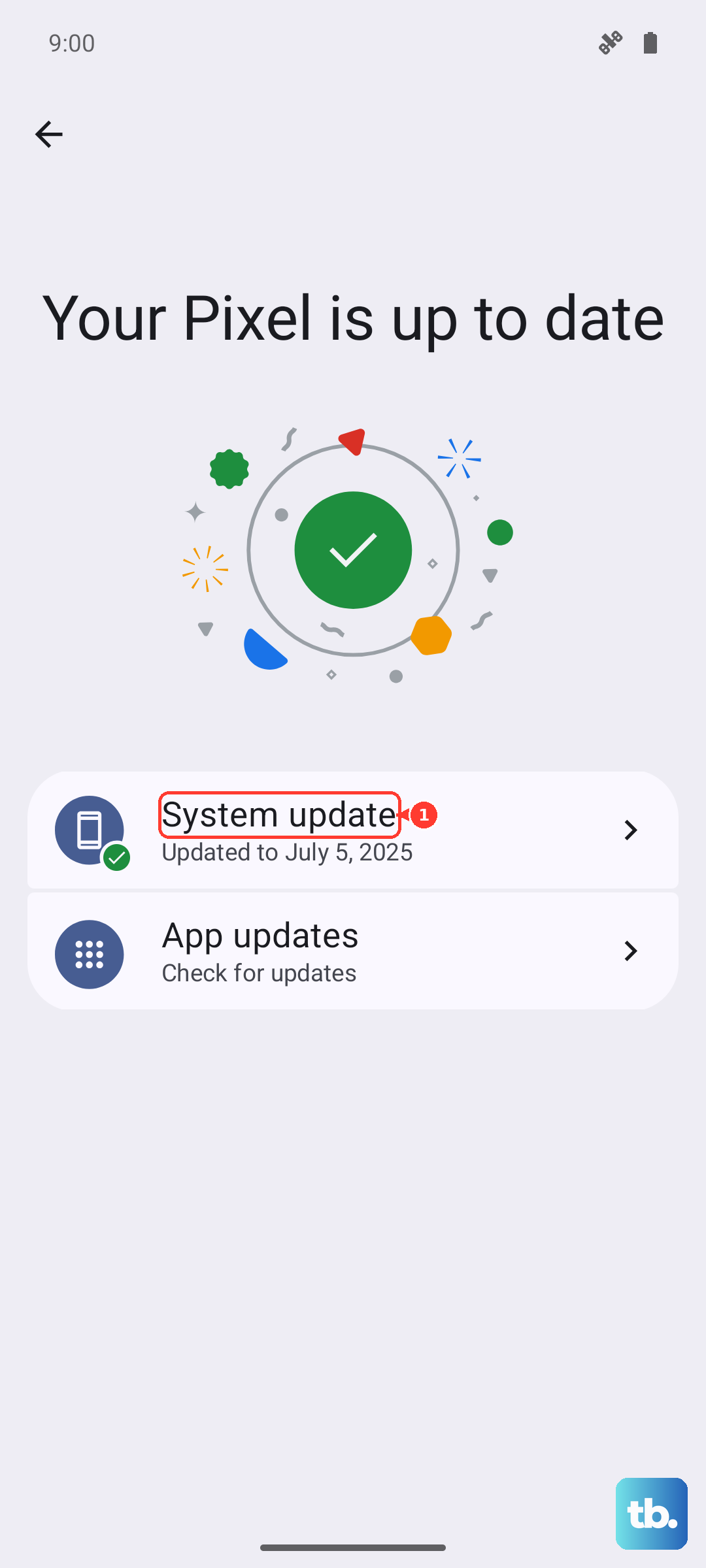
Go to Settings > System > System update and tap "Check for update." If one is available, install it while connected to Wi-Fi and with your phone plugged in.
Check for Carrier Services Updates
On Android, and especially on Pixel phones, the Carrier Services app handles communication between your device and your mobile network. An outdated version can cause problems.
Open the Google Play Store, tap your profile icon, and go to Manage apps & device > Manage. Find "Carrier Services" in the list and see if an update is available. Installing it can often resolve mysterious calling issues.
Verify Your Network Preferences
Your Pixel 9 might be aggressively trying to connect to a 5G network with a spotty signal, when a more stable 4G LTE connection would be better for calls. You can adjust this preference.
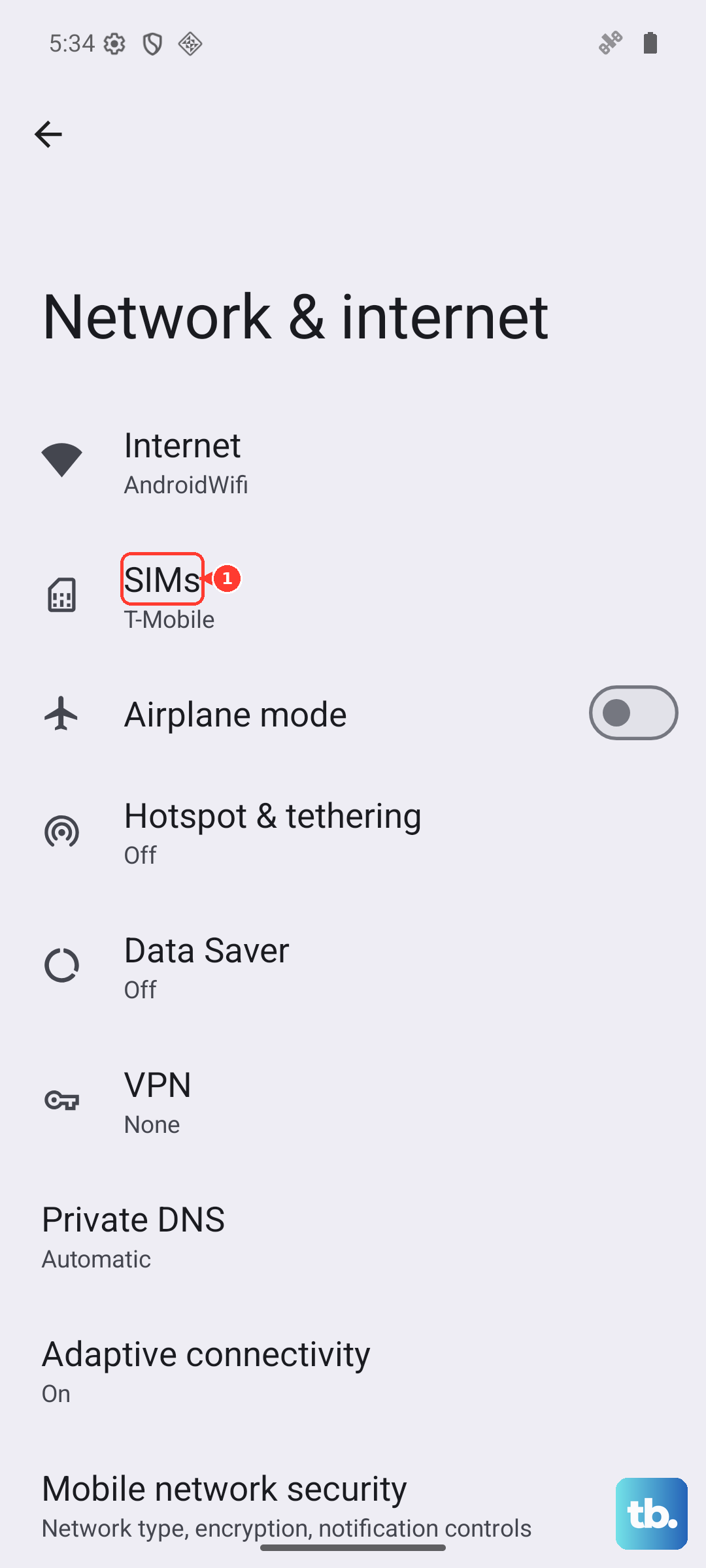
Go to Settings > Network & internet > SIMs and select your active SIM. Tap Preferred network type. Try selecting "LTE" instead of "5G" to see if your call stability improves. You can always switch it back later.
Reset Your Wi-Fi, Mobile & Bluetooth
This is a more thorough network reset that clears all your saved networks and Bluetooth pairings without touching your personal data like photos or messages. It's a powerful fix for persistent connection woes.
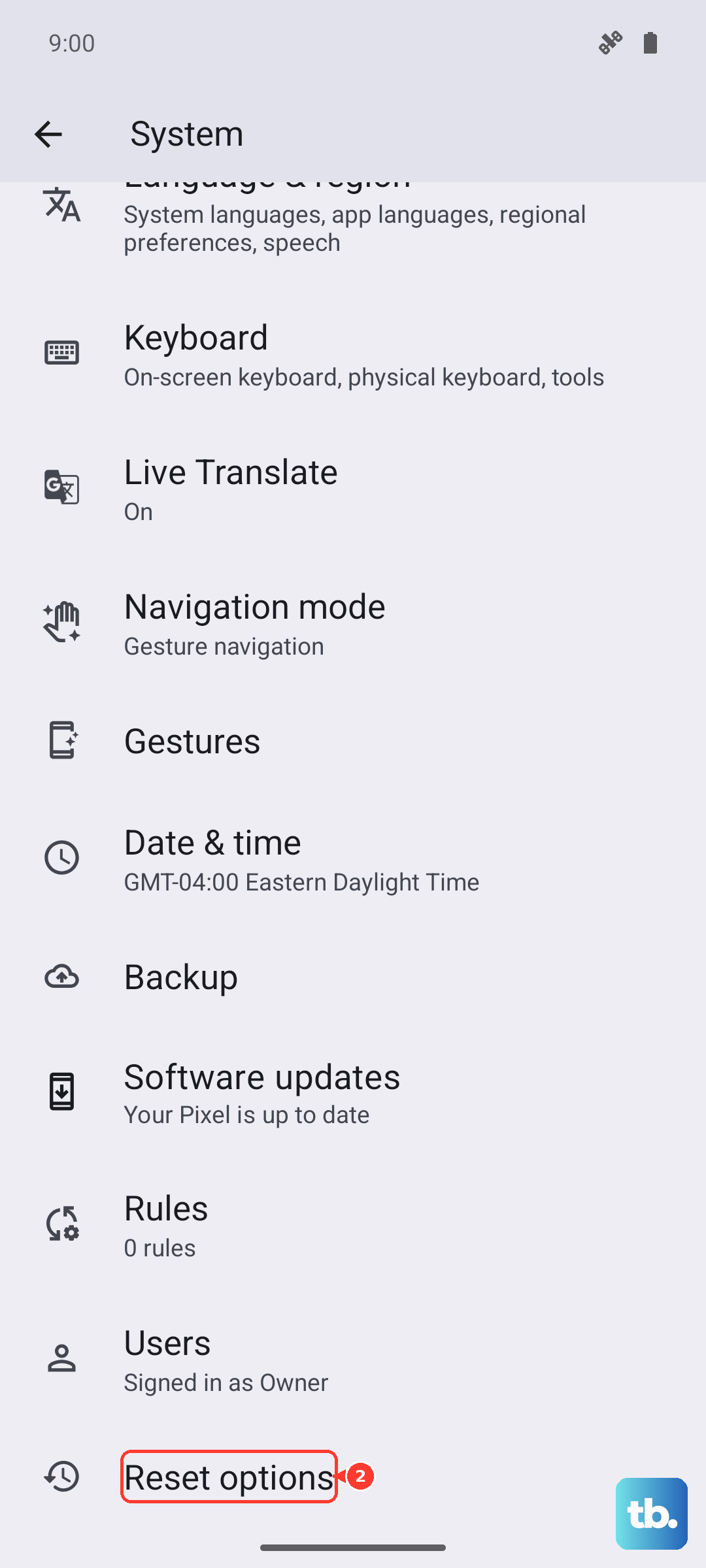
Navigate to Settings > System > Reset options. Tap "Reset Wi-Fi, mobile & Bluetooth" and confirm. You'll need to re-enter Wi-Fi passwords and re-pair Bluetooth devices afterward.
Inspect Your SIM Card
A loose, dirty, or damaged SIM card can lead to intermittent service drops. You'll need the SIM eject tool that came with your Pixel 9 or a small paperclip.
Gently push the tool into the small hole on the SIM tray on the left side of the phone. Remove the tray, take out the SIM card, and carefully wipe the gold contacts with a soft, dry cloth. Reinsert the SIM and tray firmly.
Review App Permissions and Battery Optimization
Sometimes, aggressive battery saving features can interfere with apps running in the background, which might include your phone app. Go to Settings > Apps and select your phone app (often called "Phone" or from your carrier).
Tap Permissions and ensure everything like "Phone" is allowed. Then, go back and tap Battery. Set the battery usage to "Unrestricted" to prevent the system from limiting it.
Contact Your Mobile Carrier
If you've tried everything and calls are still dropping, the issue might be on your carrier's end. There could be local network maintenance, an outage, or a problem with your account provisioning.
Give your carrier's customer service a call from a different phone if possible. They can check for outages, reprovision your service on their network, or send you a replacement SIM card if yours is faulty.