
When your Google Pixel 8 gets stuck on an update, it's a common roadblock. You might see the download frozen, an endless "Optimizing apps" screen, or an error message that keeps popping up. The good news is there are several straightforward ways to get things moving again.
Force Restart Your Pixel 8
This is almost always the best first step. Press and hold the Power button for about 30 seconds. Keep holding it even after you see the Google logo appear. The phone will eventually restart on its own. This simple reboot can clear out temporary glitches that are blocking the update process.
Check Your Wi-Fi Connection
Android updates are large and require a stable, strong Wi-Fi connection. Make sure you're not on mobile data. Open a browser and load a website to test the speed. If it's slow, try restarting your router or connecting to a different network. Public Wi-Fi networks often have firewalls that block large downloads like system updates.
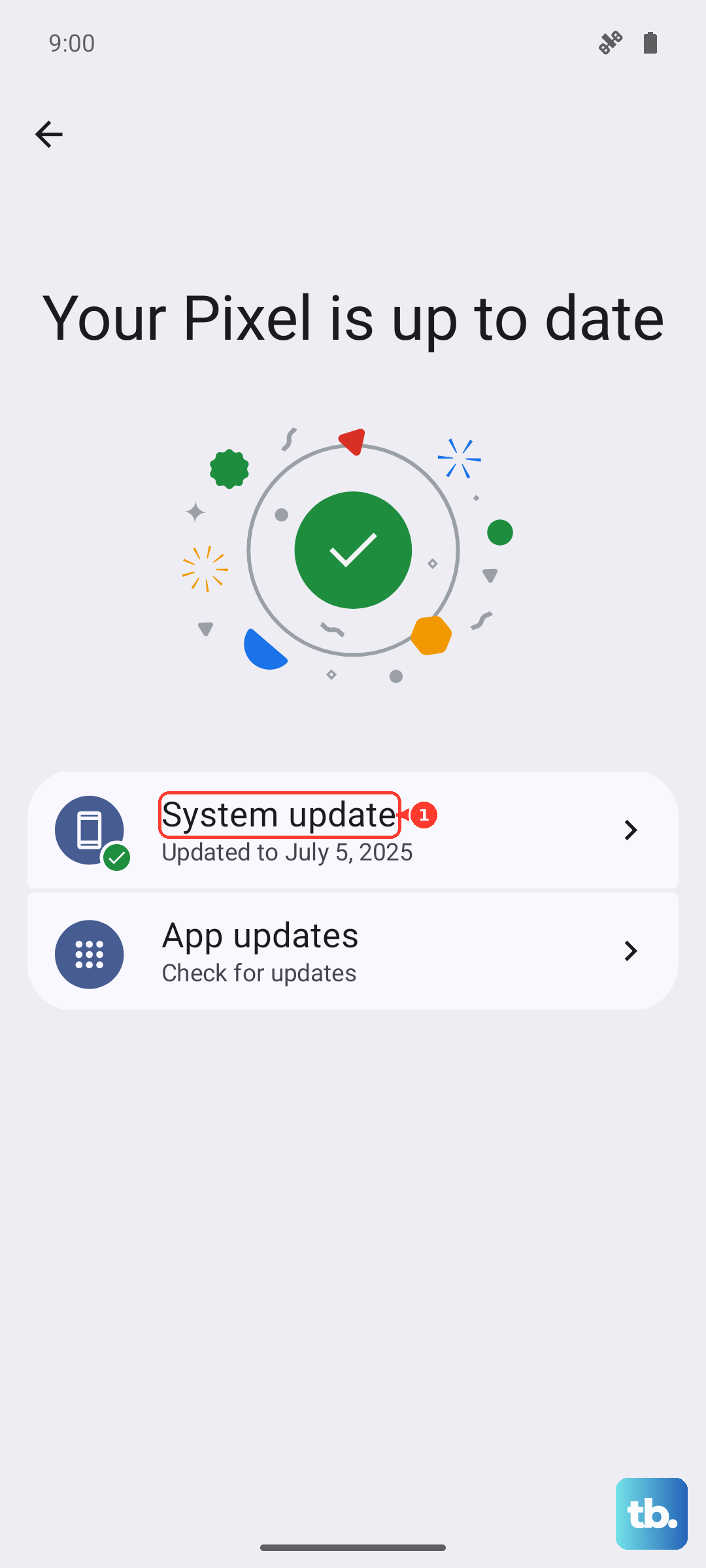
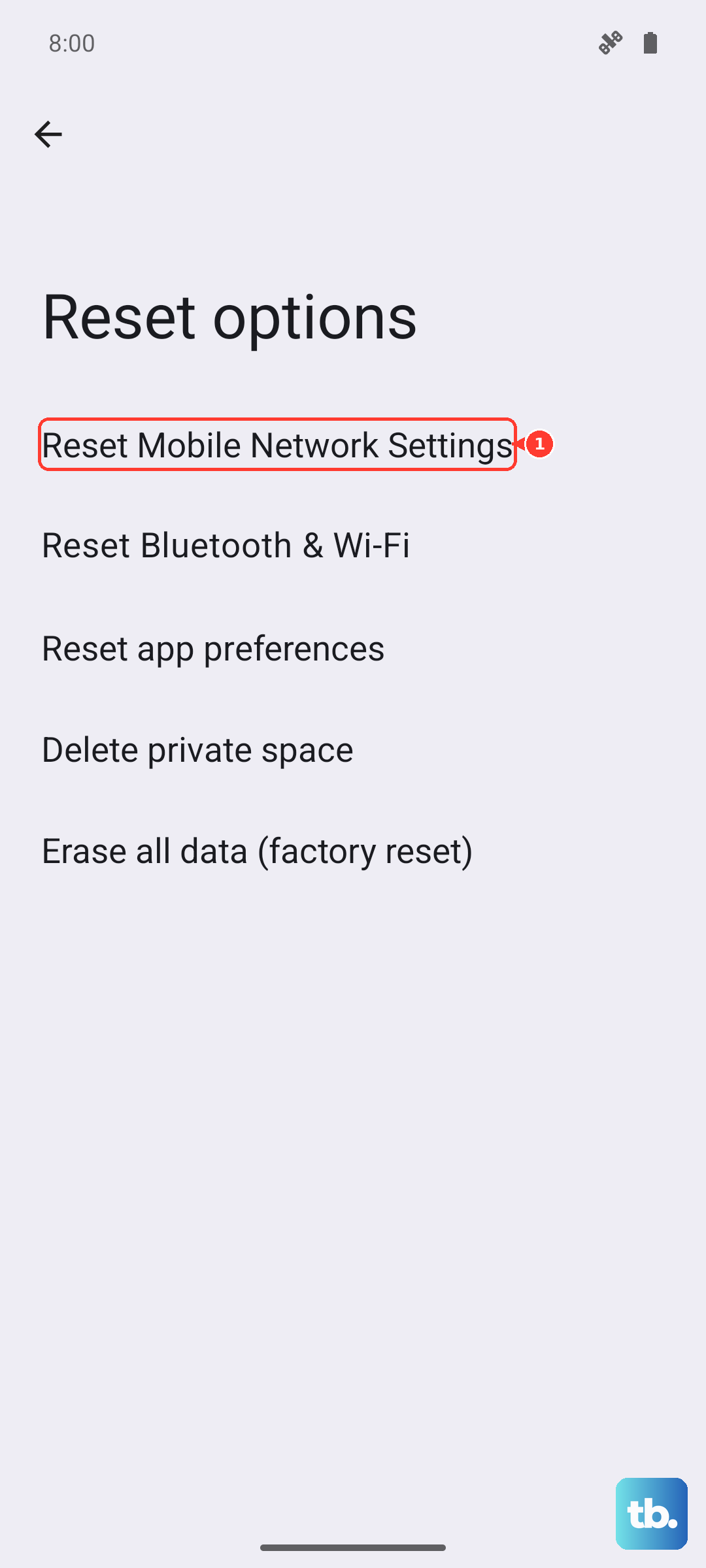
If your connection seems fine but the update still fails, a network settings reset can help. Go to Settings > System > Reset options > Reset mobile network settings, then Reset Bluetooth & Wi-Fi. You'll need to re-enter your Wi-Fi password afterward, but this clears any corrupted network configurations.
Free Up Storage Space
Your Pixel 8 needs breathing room to download and unpack an update. Go to Settings > Storage to see how much free space you have. A major Android version update can require 5 GB or more. The quickest way to free up space is to clear cached data from apps.
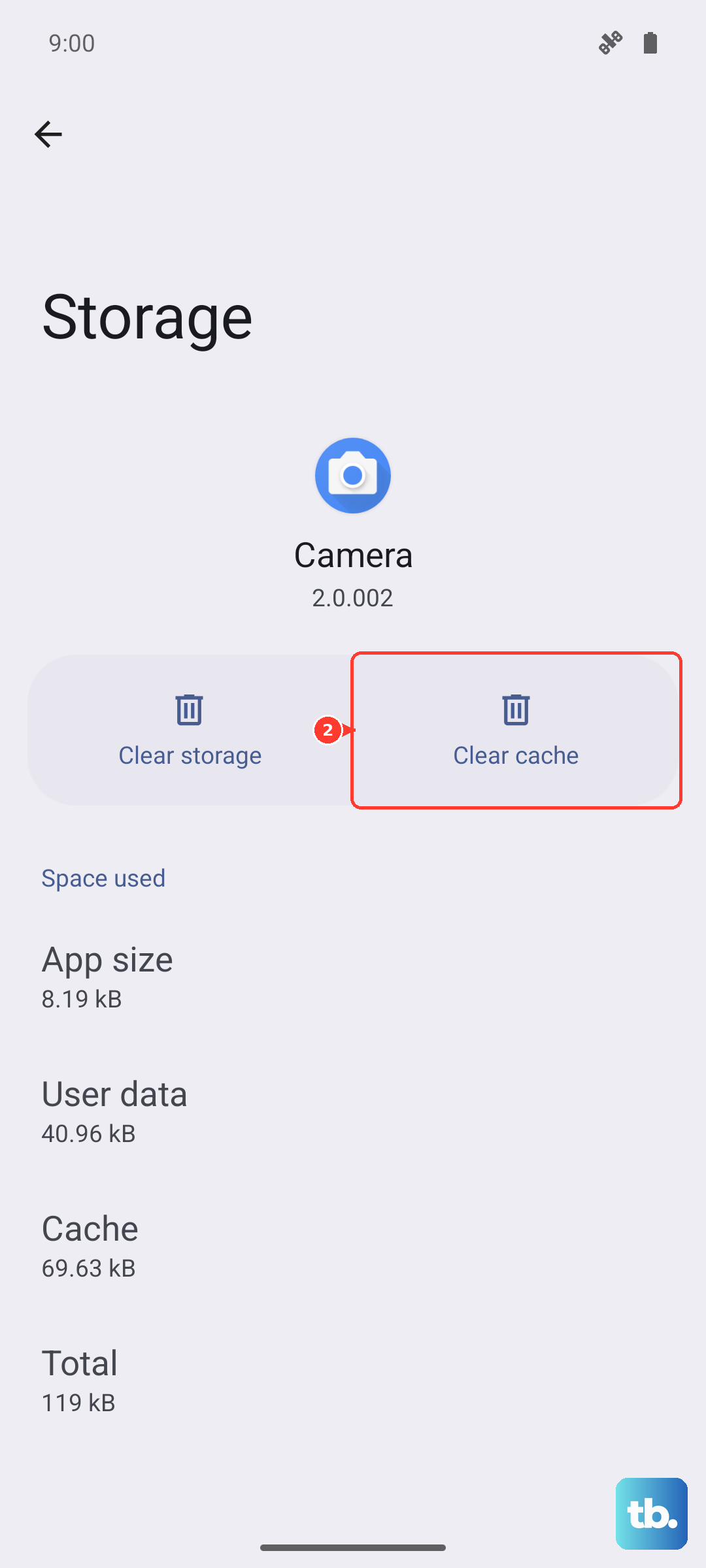
You can do this by going to Settings > Apps, selecting large apps, and tapping Storage & cache > Clear cache. You can also use the Files app to delete old downloads and backed-up photos. I'd start with the cache, as it's safe to delete and often reclaims a surprising amount of space.
Clear the Google Play Services Cache
This service is crucial for system updates. Sometimes its cached data gets corrupted. Go to Settings > Apps > See all apps. Tap the three-dot menu, select Show system, then find and tap Google Play Services.
Tap Storage & cache, then select Clear cache. Do not select "Clear storage" or "Manage space," as that can delete important data. After clearing the cache, restart your phone and check for the update again in Settings > System > System update.
Update Using a Computer
If the over-the-air update is completely stuck, sideloading the update via a computer is a reliable workaround. You'll need a USB-C cable and a computer with the Android SDK Platform-Tools installed. This method downloads the update file directly to your computer and pushes it to the phone, bypassing any Wi-Fi or storage issues on the device itself.
You can find the official factory images and full instructions on the Google Developers website. While it involves a few command-line steps, it's a guaranteed way to get the latest software if the standard method is failing.
Check for Server Issues
Occasionally, the problem is on Google's end, especially right after a major Android release. You can check the status of Google's services by searching for "Google Workspace Status" in your browser. If there's an outage affecting the update servers, you'll just have to wait a few hours and try again later.
It's also a good idea to try updating during off-peak hours, like early in the morning. When a new version of Android drops, millions of Pixel owners hit the servers at once, which can sometimes cause downloads to fail or time out.
Ensure Your Phone is Compatible and Charged
While the Pixel 8 will receive updates for several years, it's worth double-checking you're trying to install the correct update. Go to Settings > About phone > Android version to see your current build number. Also, make sure your phone is plugged in or has more than 50% battery. The system will often block an update if the battery is too low to prevent the phone from shutting down mid-install.
Check for Interfering Apps
In some cases, a third-party app can interfere with the system update process. Apps like VPNs, ad blockers, or certain security tools might disrupt the connection to Google's servers. Try temporarily disabling any VPN apps and pausing ad-blocking features, then attempt the update again.
If you suspect an app is the culprit, you can also try booting into Safe Mode. Hold the power button, then tap and hold the "Power off" option on your screen until you see the Safe Mode prompt. In this mode, only system apps run. If the update proceeds normally here, a downloaded app is likely causing the conflict.
Consider a Factory Reset (Last Resort)
If every other fix has failed and you're desperate to update, a factory reset is the nuclear option. This will erase all data on your phone, so you must back up everything important to Google Drive first. Go to Settings > System > Reset options > Erase all data (factory reset).
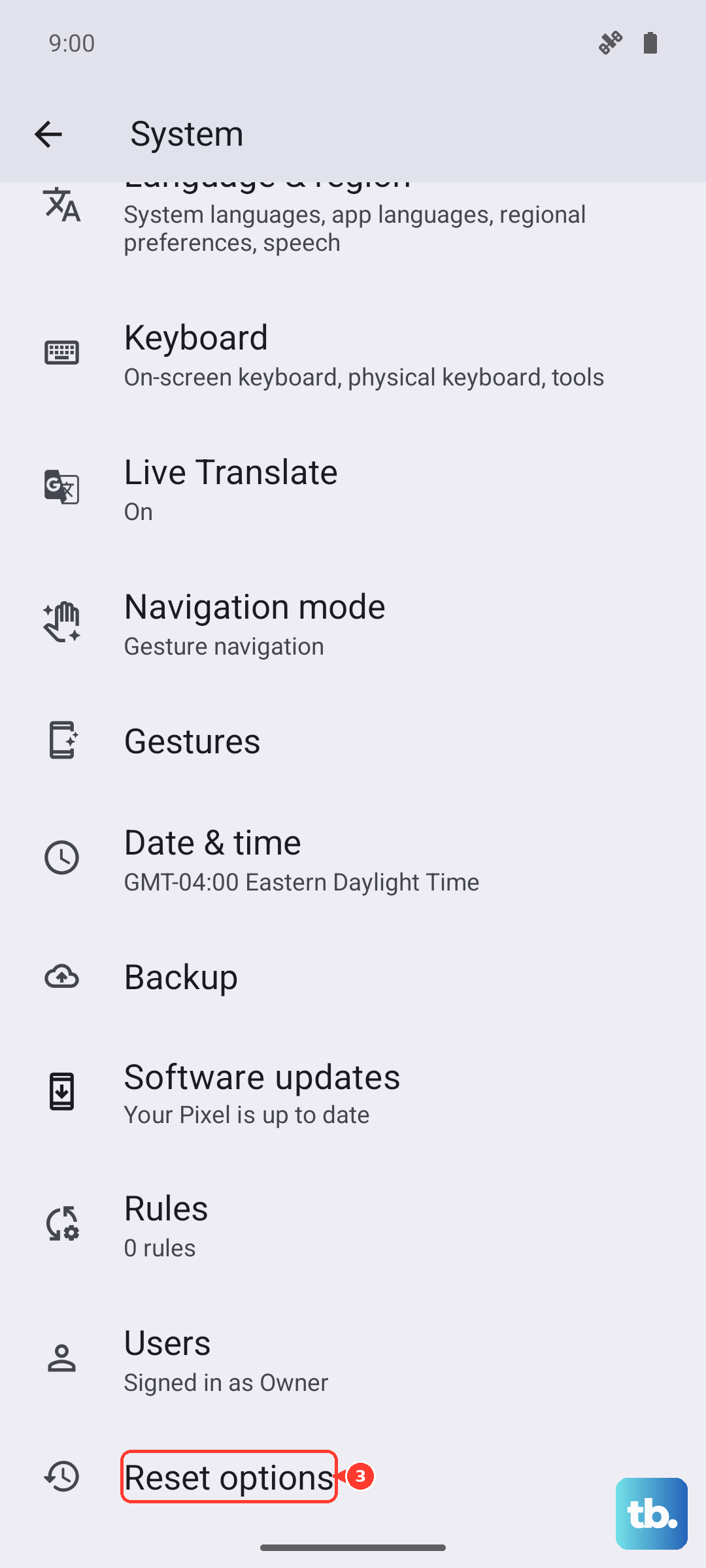
After the reset, set up the phone as new and immediately check for a system update before restoring your apps and data. A clean slate often resolves deep-seated software conflicts that prevent updates. I've seen this work when nothing else does, but it's a significant step due to the data loss.