
If your Google Pixel 8 has stopped vibrating for calls, texts, or notifications, it can be easy to miss important alerts. This is a common hiccup, and I've found it's usually a quick software or settings fix that gets things buzzing again.
Restart Your Pixel 8
Before diving into settings, give your phone a fresh start. Press and hold the Power button for about 30 seconds until you see the Google logo appear and the phone restarts. This simple reboot clears out temporary glitches that can sometimes silence the vibration motor.
Check Your Sound and Vibration Settings
Open the Settings app and go to Sound & vibration. First, look at the "Vibrate for calls" toggle and make sure it's switched on. If it's already on, try turning it off and back on again. This can refresh the connection to the haptic engine.
Also, check the sound mode by tapping on "Vibrate" at the top of the screen. Make sure it's set to "Sound" or "Vibrate," not "Silent." In Silent mode, your phone won't vibrate at all, which is an easy setting to miss.
Adjust Vibration Strength and Patterns
Sometimes the vibration is working, but it's just too faint to notice. Back in Settings > Sound & vibration, tap on "Vibration & haptics." Here, you'll find sliders for "Call vibration" and "Notification vibration." Slide these to the right to increase the intensity.
You can also try changing the vibration pattern. Tap on "Vibration pattern for calls" and select a different option. Switching from the default to something more pronounced can sometimes kickstart a finicky motor.
Test the Haptics in Other Areas
To see if the problem is system-wide or just for notifications, test other vibrations. Go to Settings > Sound & vibration > Vibration & haptics and make sure "Touch feedback" is enabled. Then, try typing on your keyboard, you should feel a small tap with each keypress.
If you get vibration from touch feedback but not from calls, the issue is likely in your notification settings, not the hardware. This is a good sign that a software fix will work.
Review App-Specific Notification Settings
If vibrations are missing for just one app, like Messages or Gmail, the problem is in that app's configuration. Go to Settings > Apps, then select the app that's not vibrating. Tap "Notifications" and look for the specific notification category, like "Incoming messages."
Tap into that category and ensure the "Vibrate" toggle is enabled. On Android, you often need to enable vibration for each type of notification within an app, which can get overlooked after an update.
Update Your Pixel's Software
Google frequently releases updates that fix bugs, including ones related to haptics and notifications. Go to Settings > System > System update and tap "Check for update." Install any available updates and restart your phone afterward.
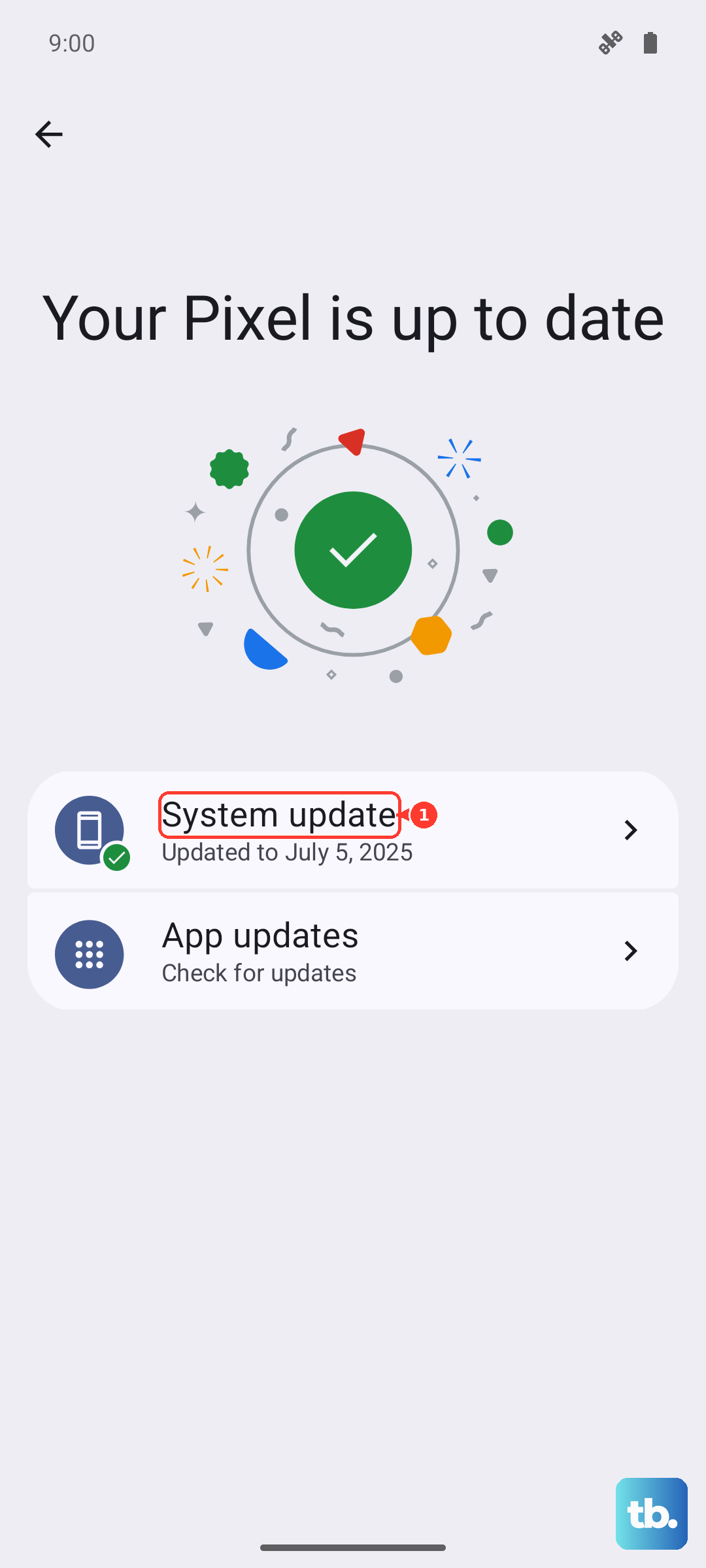
I'd make this a priority, as Google has a history of patching small system glitches like this through monthly updates. Being on the latest build often resolves quirky behavior.
Boot Into Safe Mode
This step checks if a third-party app you installed is causing a conflict. To enter Safe Mode, press and hold the Power button and Volume Up button together until the power menu appears. Then, press and hold the "Restart" option on your screen. You'll get a prompt to reboot into Safe Mode, tap "OK."
Once in Safe Mode (you'll see "Safe mode" in the bottom corner), test if your vibrations work. If they do, a recently installed app is the culprit. Restart normally to exit Safe Mode and try uninstalling apps one by one to find the offender.
Check Do Not Disturb and Focus Modes
Rules in Do Not Disturb or a Focus mode can suppress vibrations. Swipe down twice from the top of your screen to see your Quick Settings tiles. Make sure the "Do Not Disturb" icon (a circle with a line through it) is not active.
For a deeper check, go to Settings > Modes > Do Not Disturb (on phones still using the older Android layout, look under Settings > Sound & vibration > Do Not Disturb). Look at any active schedules or rules that might be overriding your vibration settings for certain contacts or times of day.
Reset App Preferences
This is a useful middle step that resets notification and permission settings for all your apps without deleting any of your data. Go to Settings > System > Reset options. Tap "Reset app preferences" and confirm.
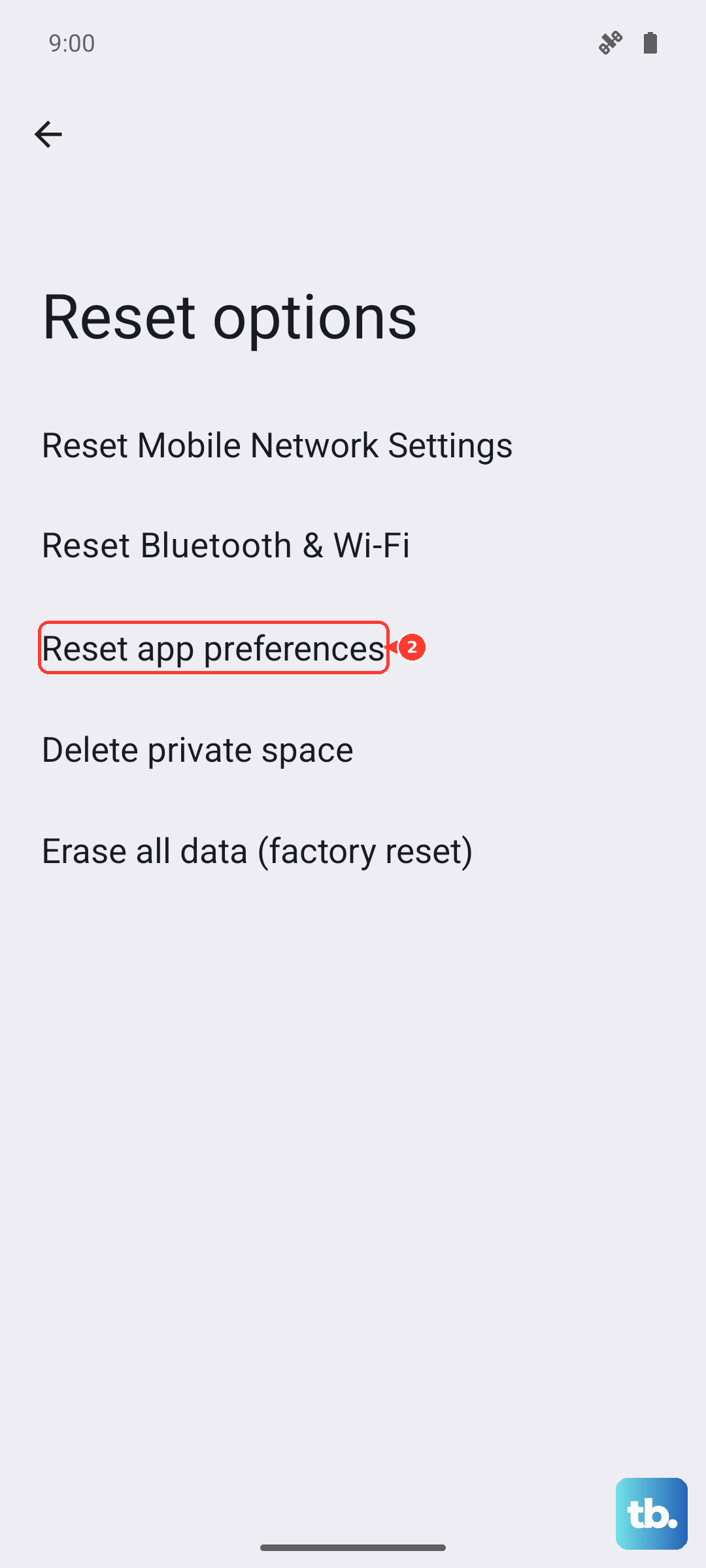
After the reset, you'll need to re-grant permissions like location access when apps ask, but it often clears up notification and vibration conflicts caused by corrupted app settings.
Test the Vibration Hardware
If you've tried everything software-related, it's time to check the motor itself. Google Pixel phones have a built-in diagnostic tool. Open your Phone app and dial *#*#2486#*#* (which spells "CIT"). This opens the Component Information Test menu.
Look for a "Vibrator" or "Haptic" test option and tap it. If the phone doesn't vibrate at all during this dedicated test, the hardware motor may be faulty. Before considering a repair, a final factory reset is the last software step, but be sure to back up your data first.