
Running out of space on your Google Pixel 8 can really slow you down, stopping you from taking new photos or updating apps. The good news is Android 15 gives you great tools to see exactly what's eating up your storage and clear it out. You can often free up dozens of gigabytes without losing anything important.
See What's Taking Up Space
Start by going to Settings > Storage. This screen shows a clear breakdown of your used space, highlighting categories like Apps, Photos & videos, and System. Tap on any category to see a detailed list. I'd give it a moment to fully calculate the sizes, as it can take a few seconds to load the most accurate data.
Clear App Caches and Data
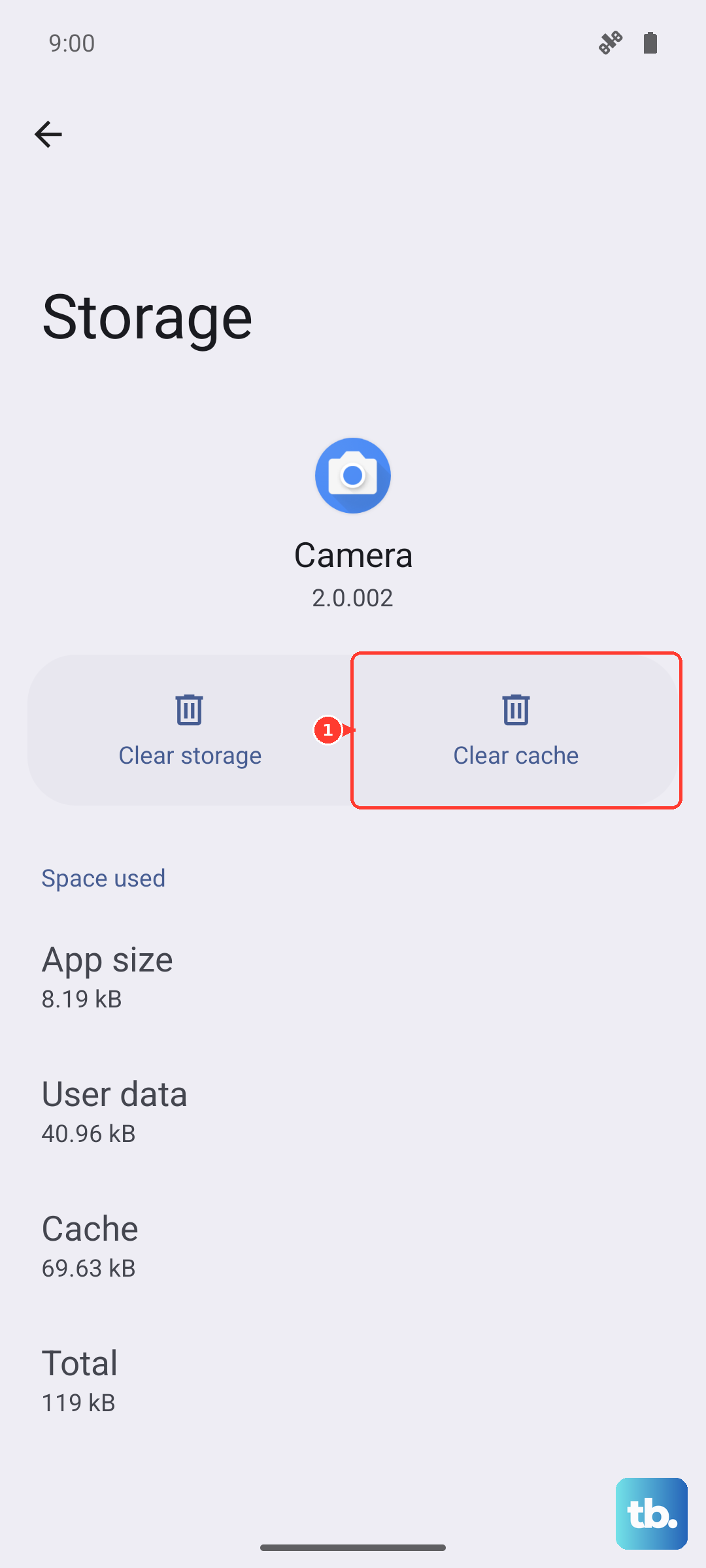
In the Storage menu, tap on Apps. You'll see a list sorted by how much space each one uses. Tap on any large app, like Instagram, TikTok, or Chrome. Inside, you'll see two numbers: the app size and the data/cache it has stored. Tapping Clear cache is safe and can free up a surprising amount of space instantly. For a deeper clean, you can tap Clear storage, but this will log you out and reset the app to its default state.
Manage Your Photos and Videos
Google Photos is likely your biggest storage user. Open the Google Photos app and tap your profile picture in the top right. Go to Photos settings > Backup & sync. If "Storage saver" backup is enabled, your full-quality photos are already backed up. You can then use the Free up space tool within the app to safely remove the local copies of photos that are already in the cloud. Don't forget to empty the Trash in the app's Library tab afterward.
Delete Downloaded Files and Podcasts
Streaming apps love to stash content on your device. Open apps like Spotify, YouTube Music, Netflix, or your podcast app. Look for sections titled "Downloads," "Offline content," or "Library." Go through and delete episodes you've listened to or shows you've watched. In Spotify, you can go to Settings > Storage and tap "Delete all downloads" to wipe everything at once.
Use the Files by Google App
Google includes a powerful tool called Files by Google. Open it and tap "Clean" on the bottom toolbar. The app will scan for junk files, duplicate photos, large files you haven't used, and cached data from apps. It presents everything in a simple list where you can review and delete items with a single tap. It's one of the quickest ways to find hidden space hogs.
Review and Delete Old Downloads
Over time, PDFs, APK files, and documents from your browser can accumulate. Open the Files by Google app and navigate to the "Browse" tab. Tap on Downloads. Sort the files by size and scroll through. You can safely delete any old installation files, documents you've already saved elsewhere, or random images you downloaded once.
Check for System Updates
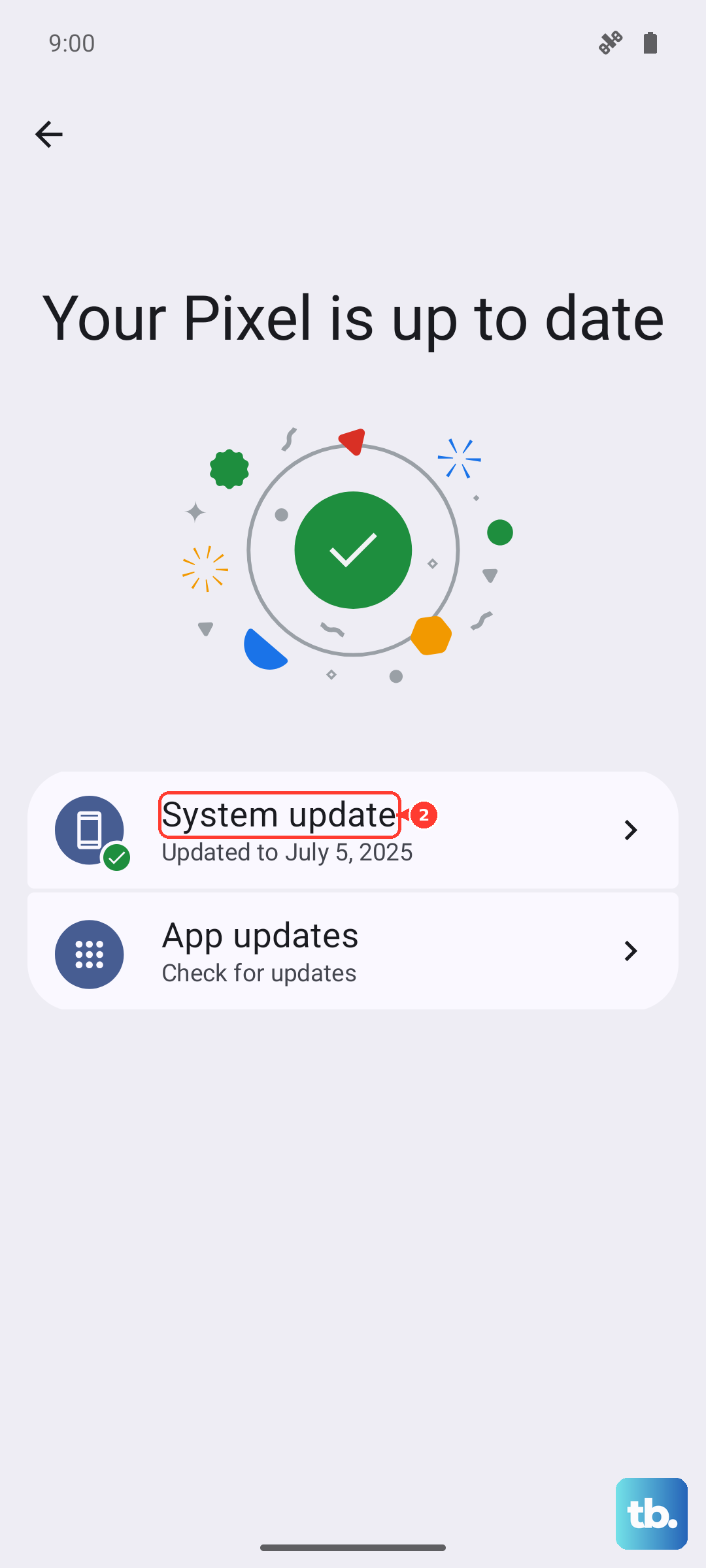
Sometimes, system bugs can cause storage reporting errors or prevent cached data from clearing properly. Go to Settings > System > System update to check if you're running the latest version of Android and the latest Google Play system update. Google has released firmware fixes for various performance issues, and staying updated ensures your storage tools work correctly.
Manage Messages and Attachments
If you use Google Messages, media from texts can pile up. Open the Messages app, tap the three-dot menu in the top right, and select Device pairing & notifications > Messages storage. Here, you can see how much space your messages are using. You can manually delete large conversation threads full of videos or photos. For automatic cleanup, some users set reminders to periodically clear out old group chats.
Consider Your Backup Strategy
If you're constantly hitting the limit, it might be time to look at your cloud storage. Your Pixel 8 comes with some free Google One storage for backups and photos. Open the Google One app to see your usage and upgrade options. With a larger plan, you can set Photos to automatically back up in original quality and use the enhanced "Free up space" feature more aggressively without worry.