
When your Google Pixel 10a microphone stops working, you'll notice it right away in phone calls, voice recordings, or when using Google Assistant. Let's figure out what's causing the problem and get it fixed.
Before changing any settings, it helps to know whether the microphone registers anything at all. Run a quick online mic test in your browser, speak normally, and watch the level meter. If it moves, the hardware works and the fixes below will take care of the rest.
Test Your Pixel's Microphones First
Before jumping into fixes, it helps to know which microphone is actually having trouble. The Pixel 10a has multiple mics, and the issue might only affect one of them.
Open the Recorder app and tap the record button. Speak for about ten seconds, then play it back. If the recording sounds clear, your main microphone is fine.
Try making a phone call and ask the person on the other end if they can hear you clearly. You can also say "Hey Google" and see if Assistant responds. If it doesn't pick up your voice, the top microphone might be the problem.
Record a video using the Camera app while speaking. Play it back to check the audio quality. This tests the microphone near the rear camera.
Check for Physical Blockages
Start with the simplest possibility. Dirt, dust, or pocket lint can easily get into the tiny microphone openings on a Pixel 10a.
Take a close look at the pinhole near the bottom charging port, the small opening at the top of the screen near the earpiece, and the tiny mic hole on the back near the camera module. If you see any debris, gently clean it out with a dry wooden toothpick or a blast of compressed air. Avoid using anything metal or sharp.
Remove your case and any screen protector too. Some cases can cover the microphone openings, especially on the bottom edge.
Restart Your Pixel 10a
A quick restart clears up a surprising number of audio issues. On the Pixel 10a, the fastest way is to press and hold the Power button for about 30 seconds. The phone will restart on its own.
If that doesn't work, press and hold Power + Volume Down together for 10 to 15 seconds until the device restarts. This is a force restart and it won't erase any of your data.
Once it's back on, test your microphone again before moving to other fixes.
Disconnect Bluetooth Audio Devices
If you have wireless earbuds, a smartwatch, or a car kit paired to your Pixel 10a, the phone might be routing audio to them instead of using the built-in microphone.
Swipe down twice to open the Quick Settings panel and tap the Bluetooth icon to turn it off temporarily. Try recording a voice memo or making a call now. If the microphone works with Bluetooth off, you've found the issue.
You can also go to Settings > Connected devices and tap the gear icon next to each paired device. Select "Forget" to remove it completely.
Force Close the Problem App
If the microphone only acts up in one specific app, that app might have crashed or gotten stuck. Swipe up from the bottom and hold to open the recent apps view. Find the troublesome app and swipe it off the screen.
Reopen the app and test the microphone again. This is especially common with video calling apps like Zoom, Google Meet, or WhatsApp.
Review Microphone Permissions
Android 16 gives you fine-grained control over which apps can access the microphone. An app might have lost its permission during a recent update or if you accidentally changed a setting.
Go to Settings > Privacy & security > Permission manager > Microphone. You'll see a list of every app that has ever requested mic access. Make sure the apps you're having trouble with show "Allowed" or "Only while using the app."
If an app shows "Denied," tap on it and select "Allow only while using the app." Test the microphone again afterward.
Is Your Software Up to Date?
Google regularly pushes updates that fix bugs, including audio-related issues. An outdated system can cause microphone problems that are already patched in a newer version.
Open Settings > System > Software update and tap "Check for update." If there's a pending update, download and install it. Your phone will restart during the process.
Make sure your apps are up to date too. Open the Play Store, tap your profile icon, and select "Manage apps & device" to update everything at once.
Boot Into Safe Mode
Safe mode starts your Pixel 10a with only the pre-installed system apps. This tells you whether a third-party app you installed is interfering with the microphone.
Press and hold the Power button and Volume Up button together until the power menu appears. Touch and hold "Power off" until you see the "Reboot to safe mode" prompt, then tap "OK." The phone will restart and show "Safe mode" at the bottom of the screen.
Try recording a voice memo or making a call. If the microphone works in safe mode, a downloaded app is the culprit. Restart the phone normally to exit safe mode, then start uninstalling recently added apps until you find the one causing the issue.
Reset App Preferences
This is a middle ground between doing nothing and a full factory reset. It resets all app permissions, notifications, and defaults back to their original state. Your personal data stays safe.
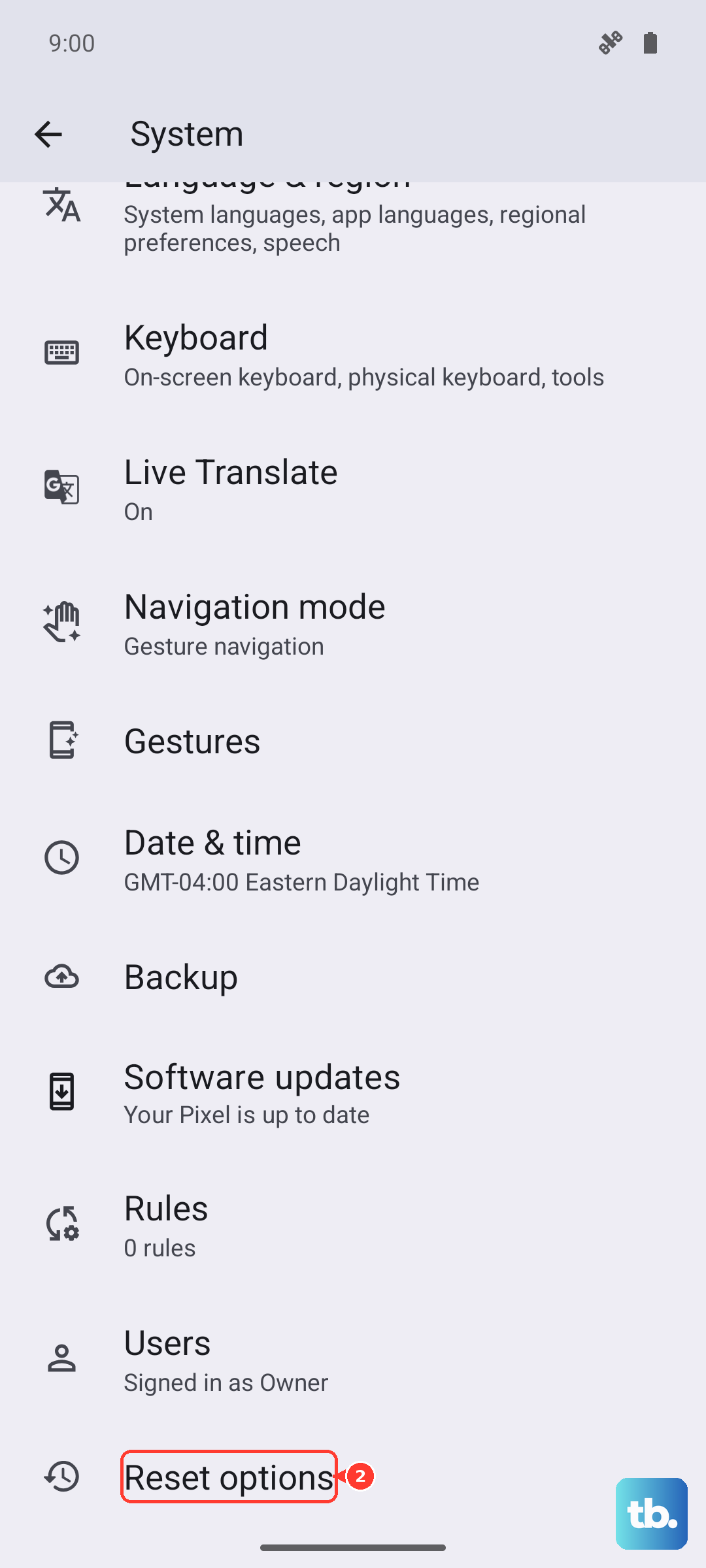
Go to Settings > System > Reset options and tap "Reset app preferences." A warning will pop up telling you what this does, tap "Reset apps" to confirm.
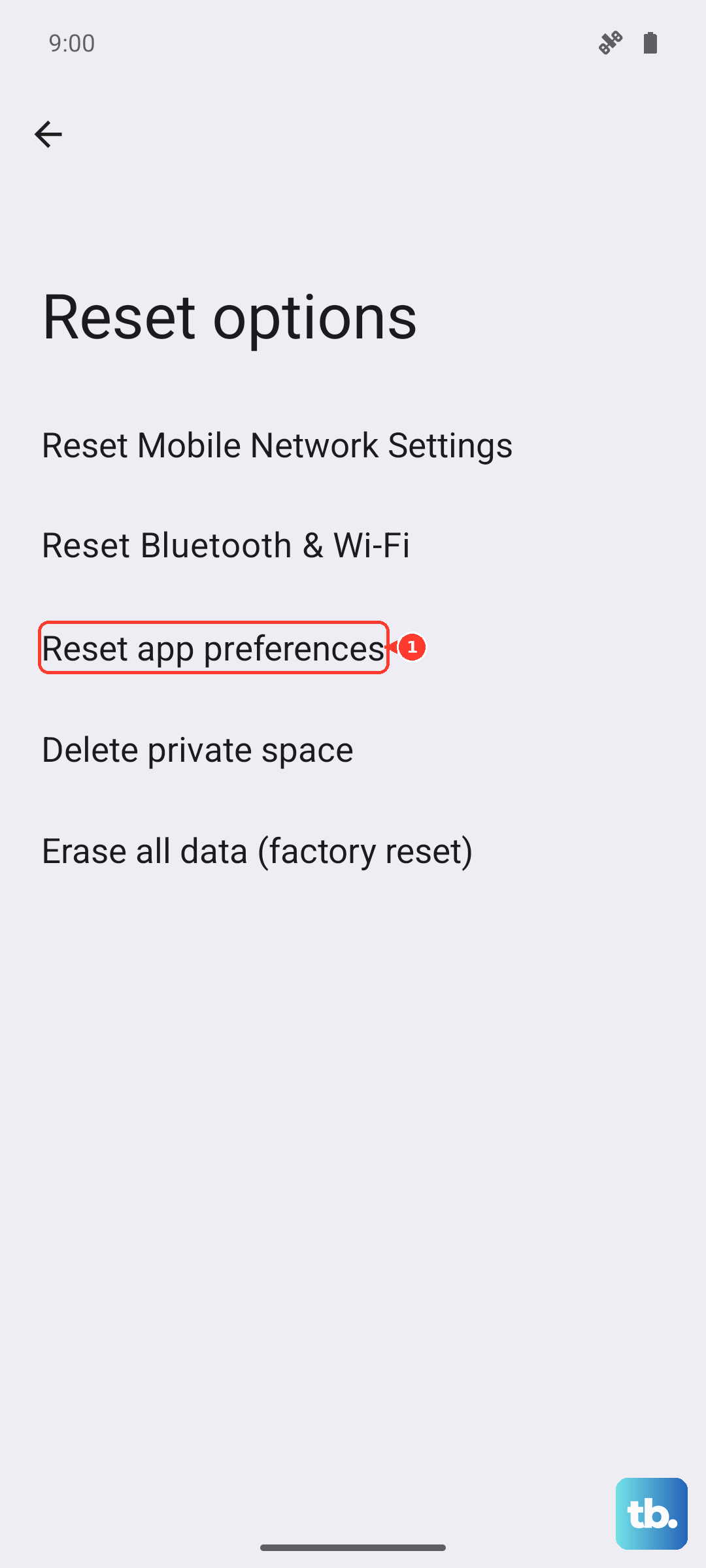
You'll need to re-grant microphone permissions to apps that need them, but that's a small price to pay if it fixes the issue.
Factory Reset as a Last Resort
If you've tried everything and the microphone still isn't working, a factory reset can rule out any remaining software problems. This will erase everything on your phone, so back up your photos, messages, and important files first.
Go to Settings > System > Reset options > Erase all data (factory reset). Follow the prompts and confirm. The phone will restart and wipe everything clean.
Set up your phone as a new device and test the microphone before restoring any backups. If it works now, the issue was software-related. If the microphone still doesn't work after a factory reset, the problem is likely with the hardware itself.