
When your Google Pixel 10a stops playing audio through headphones, whether they're wired USB-C buds or Bluetooth cans, it's frustrating. Music plays from the speaker, calls route to the earpiece, or the sound cuts in and out. Let's walk through the most likely fixes.
If you suspect one side has failed, an online headphone test settles it quickly. Play each channel on its own and you will know whether it is the headphones or the source.
Restart the Pixel 10a
A simple restart clears temporary software glitches that mess with audio routing, especially after plugging or unplugging headphones. Press and hold the Power button for 30 seconds, or hold Power + Volume Down for 10 15 seconds until the phone vibrates and restarts. That forced reboot is often all it takes.
Check the Volume and Audio Output
With your headphones connected, press the Volume Up button and make sure media volume isn't all the way down. Then swipe down from the top to open Quick Settings. Tap the media output tile (it looks like a speaker icon) and verify that your headphones are listed as the active output, not the phone speaker. Android can sometimes route audio to the wrong device, especially if you've used Bluetooth speakers recently.
Clean the USB-C Port
The Pixel 10a's USB-C port collects pocket lint and dust like a magnet. If your wired USB-C headphones aren't making solid contact, that's usually why. Gently clean the port with a wooden toothpick or compressed air, no metal objects. A clogged port is a top cause of audio issues with USB-C headphones on this model.
Forget and Re-Pair Bluetooth Headphones
Go to Settings > Connected devices > Bluetooth. Find your headphones, tap the gear icon next to them, and select Forget. Put the headphones back into pairing mode and reconnect them from scratch. A fresh pairing fixes corrupted Bluetooth profiles that silently degrade audio quality or drop the connection.
Toggle Bluetooth Off and On
Still in Settings > Connected devices > Bluetooth, toggle Bluetooth off, wait 10 seconds, then turn it back on. This resets the Bluetooth radio without unpairing anything and often resolves intermittent cutouts or "connected but no audio" situations.
Check for Stuck Headphone Mode
Sometimes the Pixel 10a thinks wired headphones are inserted when they're not, you'll see the headphone icon in the status bar even after unplugging. Plug and unplug the headphones a few times, then clean the port again. If the icon stays, a restart usually clears the stuck state. It's a known software hiccup on Android 16.
Update Android and System Apps
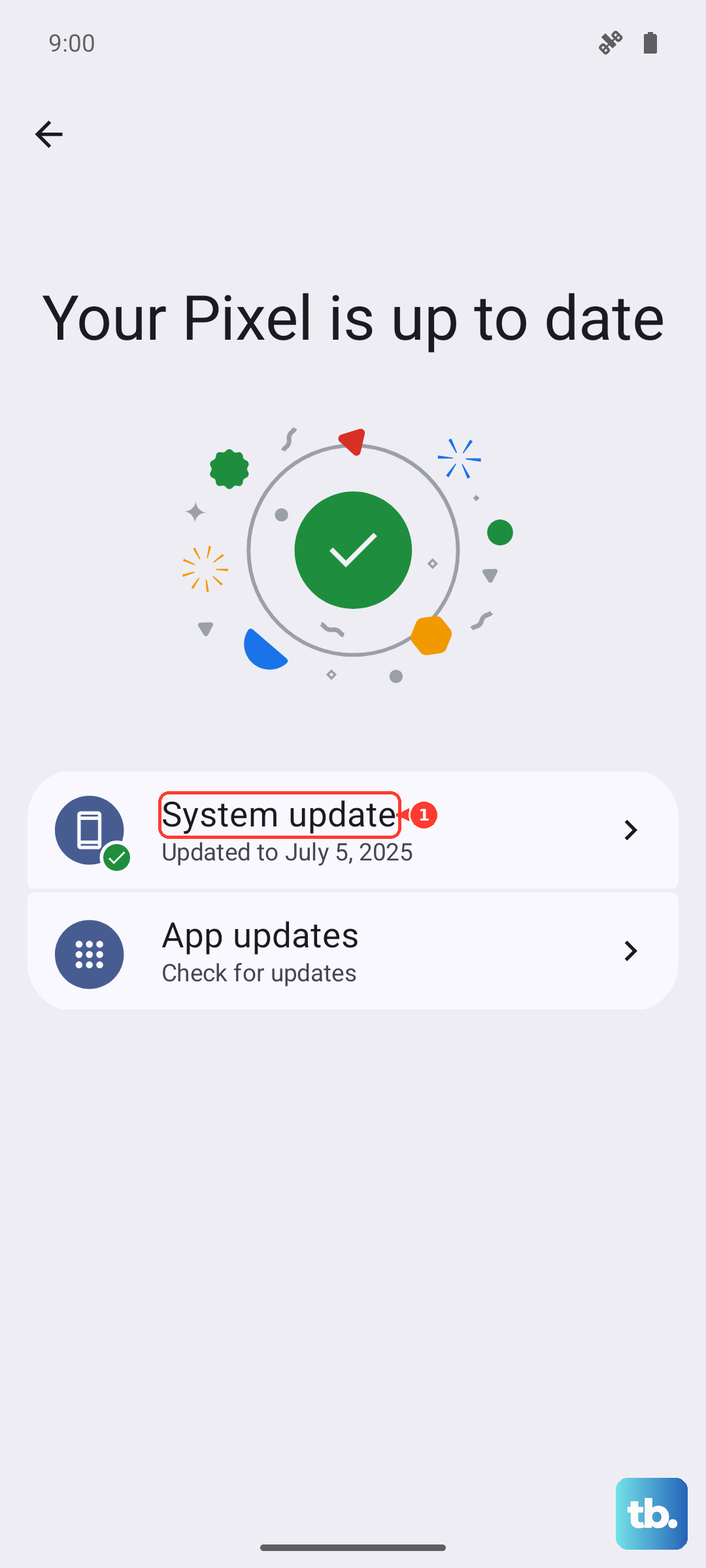
Google frequently patches Bluetooth and audio bugs in system updates. Go to Settings > System > System update and install any pending updates. Also check the Play Store for updates to the Android System Intelligence and Pixel Tips apps, they handle audio routing behind the scenes.
Reset Bluetooth and Network Settings
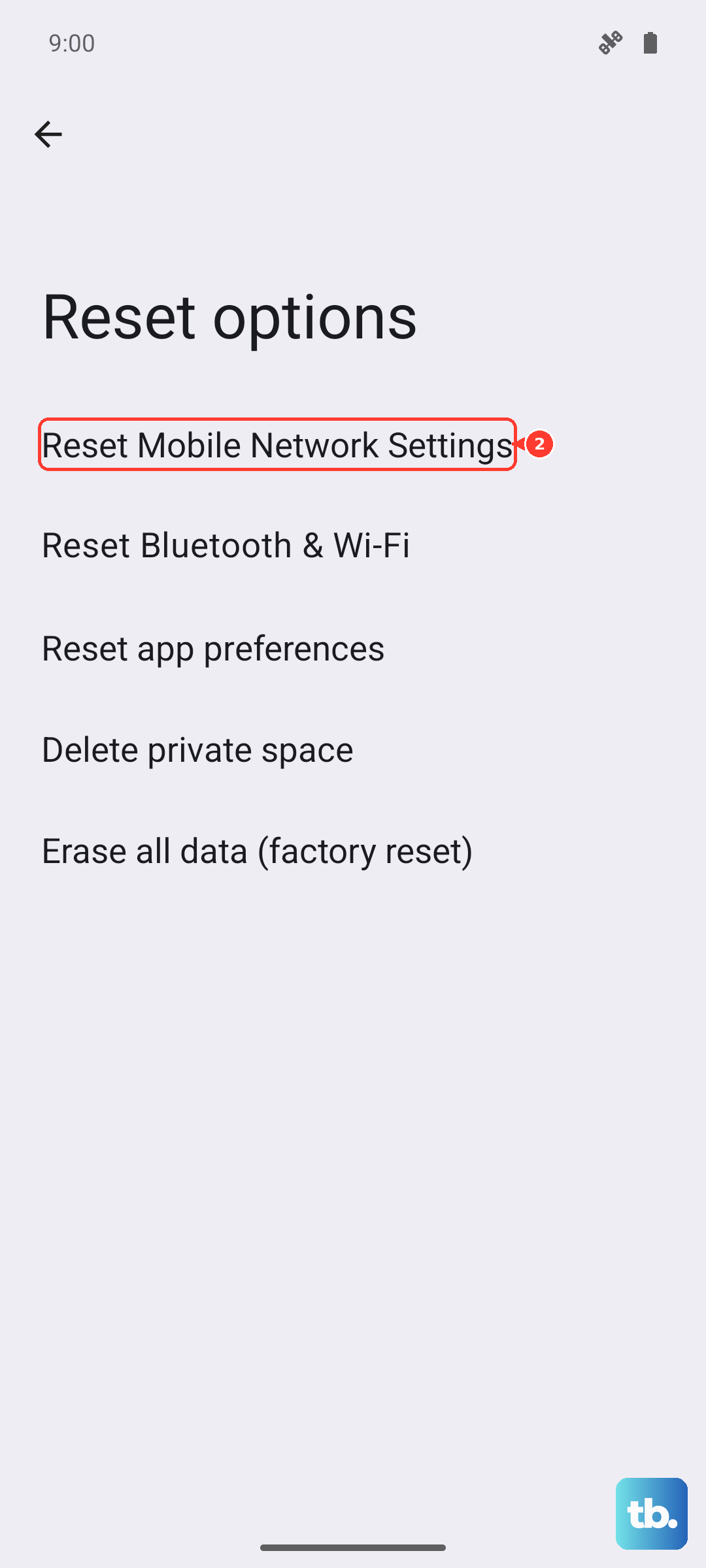
If nothing else works, resetting network settings clears all Bluetooth pairings and Wi-Fi networks without touching your photos or apps. Go to Settings > System > Reset options > Reset mobile network settings, then Reset Bluetooth & Wi-Fi. After the reset, you'll need to pair your headphones again, but it eliminates persistent software-level audio conflicts.
Most Pixel 10a headphone issues boil down to a dirty port, a Bluetooth glitch, or a temporary software freeze. Work through these in order and you'll likely be back to your playlist within five minutes.