
Seeing "Call Failed" or dropped calls on your Google Pixel 10a can be really annoying, especially during important conversations. The problem is almost always related to network connectivity, temporary software glitches, or a setting that's blocking calls. Here are 10 fixes that actually work, starting with the quickest ones.
1. Toggle Airplane Mode
This is the fastest way to refresh your cellular connection. It clears minor network hiccups without restarting the phone.
Swipe down from the top of the screen to open Quick Settings, then tap the Airplane icon to turn it on. Wait about 10 seconds, then tap it again to turn it off. Test a call right after.
2. Check Your Signal Strength
One or zero bars means the phone is struggling to maintain a connection. Move to a different spot, near a window or outside often helps.
Dropped calls happen most frequently in basements, elevators, and rural areas with spotty coverage. If you have consistent signal issues at home, your carrier might have a weak tower nearby.
3. Restart the Phone with the Force Restart Method
A normal restart often fixes temporary software bugs that cause calls to cut out. But on the Pixel 10a, there's a more thorough way to do it if the touchscreen isn't responding.
Press and hold the Power button for 30 seconds, or press and hold Power + Volume Down for 10 15 seconds until the device restarts. That's the exact force restart method for this phone, and it's safe to use anytime.
4. Turn Off Do Not Disturb
Do Not Disturb mode can silently reject incoming calls if you have it configured to block all calls. Even if you think it's off, double-check.
Swipe down twice to see the full Quick Settings panel. Look for the Do Not Disturb icon, if it's highlighted, tap it to disable it. Then try placing a call.
5. Check and Reseat the SIM Card
A loose or slightly misaligned SIM card can cause intermittent disconnections. It's a quick check that takes under a minute.
Use the SIM ejection tool (or a paperclip) to pop out the SIM tray. Remove the SIM card, wipe it gently with a dry cloth, and reinsert it. Make sure it clicks into place. If you have another phone, test the SIM there to rule out a card problem.
6. Reset Network Settings
This removes saved Wi-Fi networks, Bluetooth pairings, and cellular settings without deleting any of your apps or data. It's a one-click fix for stubborn connection issues.
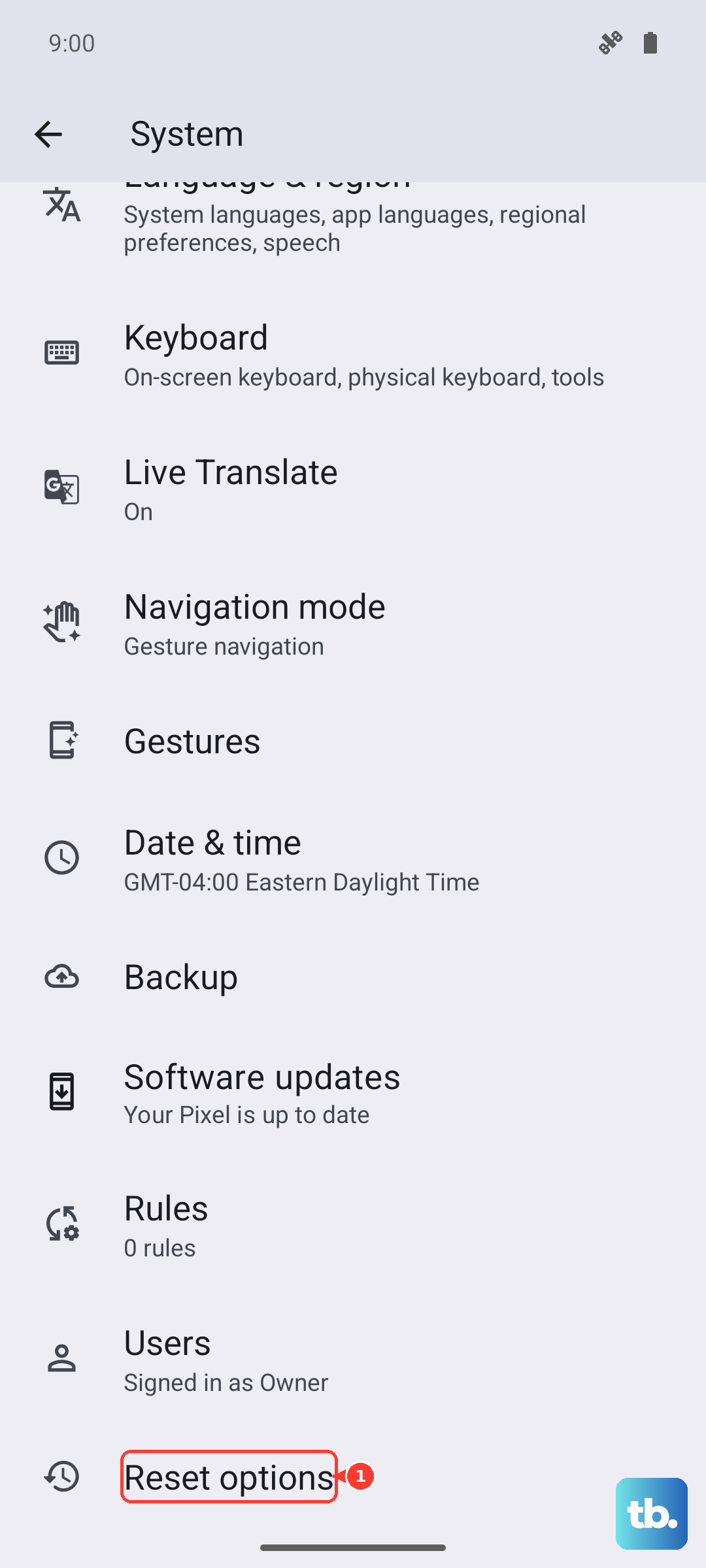
Go to Settings > System > Reset Options > Reset Wi-Fi, mobile & Bluetooth. Tap it and confirm. The phone will restart and you'll need to reconnect to Wi-Fi, but it often resolves dropping calls.
7. Update to the Latest Android Version
Software updates include bug fixes for modem and phone dialer issues that cause dropped calls. Google pushes these regularly for the Pixel 10a.
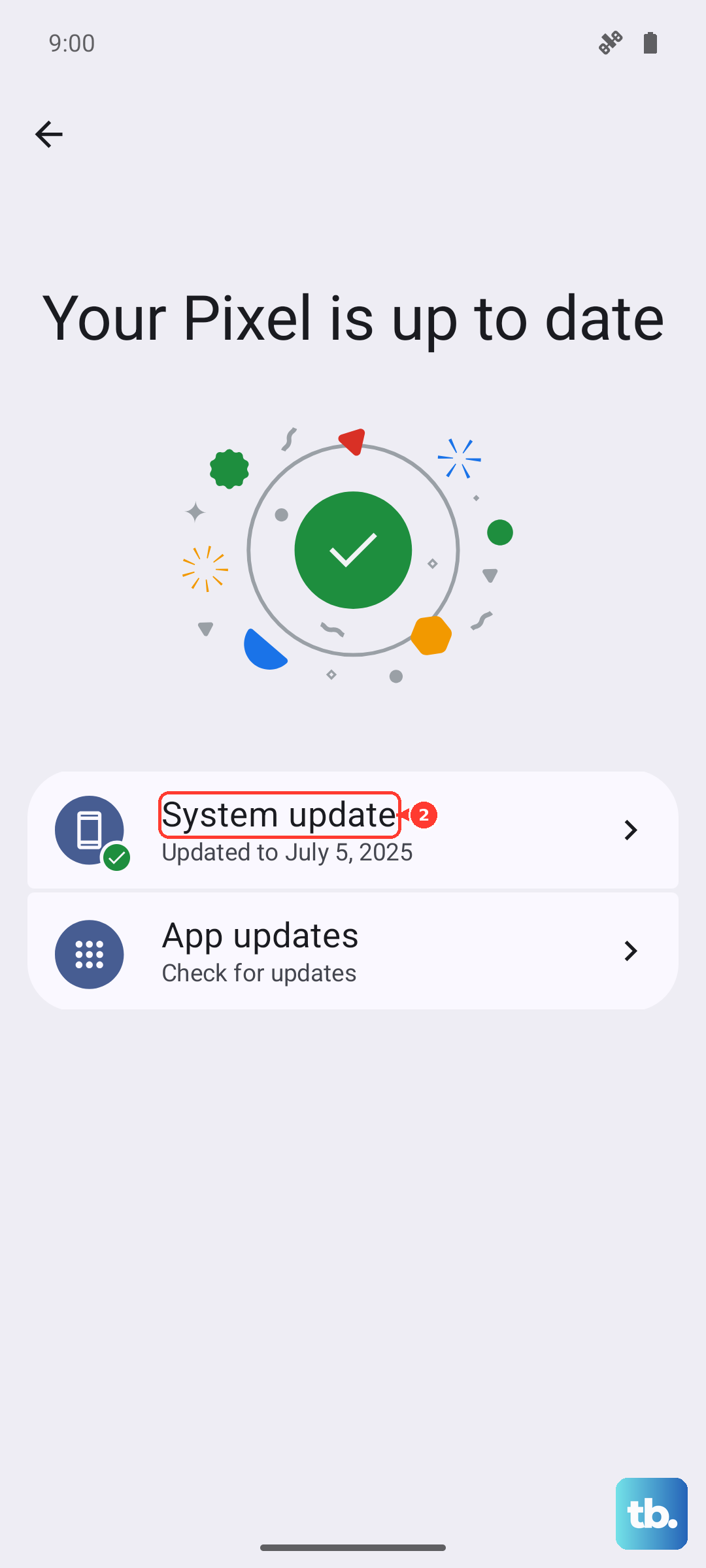
Go to Settings > System > Software update > System update. If an update is available, download and install it. Make sure you're on Wi-Fi first.
8. Check Your Blocked Numbers
It's possible you've accidentally blocked the person you're trying to call, or an automatic call blocker is interfering.
Open the Phone app, tap the three-dot menu, and select Settings > Blocked numbers. Check if the number is listed. If it is, tap the X next to it to unblock.
9. Tweak Calling Preferences (VoLTE and 5G)
Sometimes forcing the phone to use an older network type can stabilize calls. The Pixel 10a supports VoLTE (HD calling) and 5G, but these can cause problems in fringe areas.
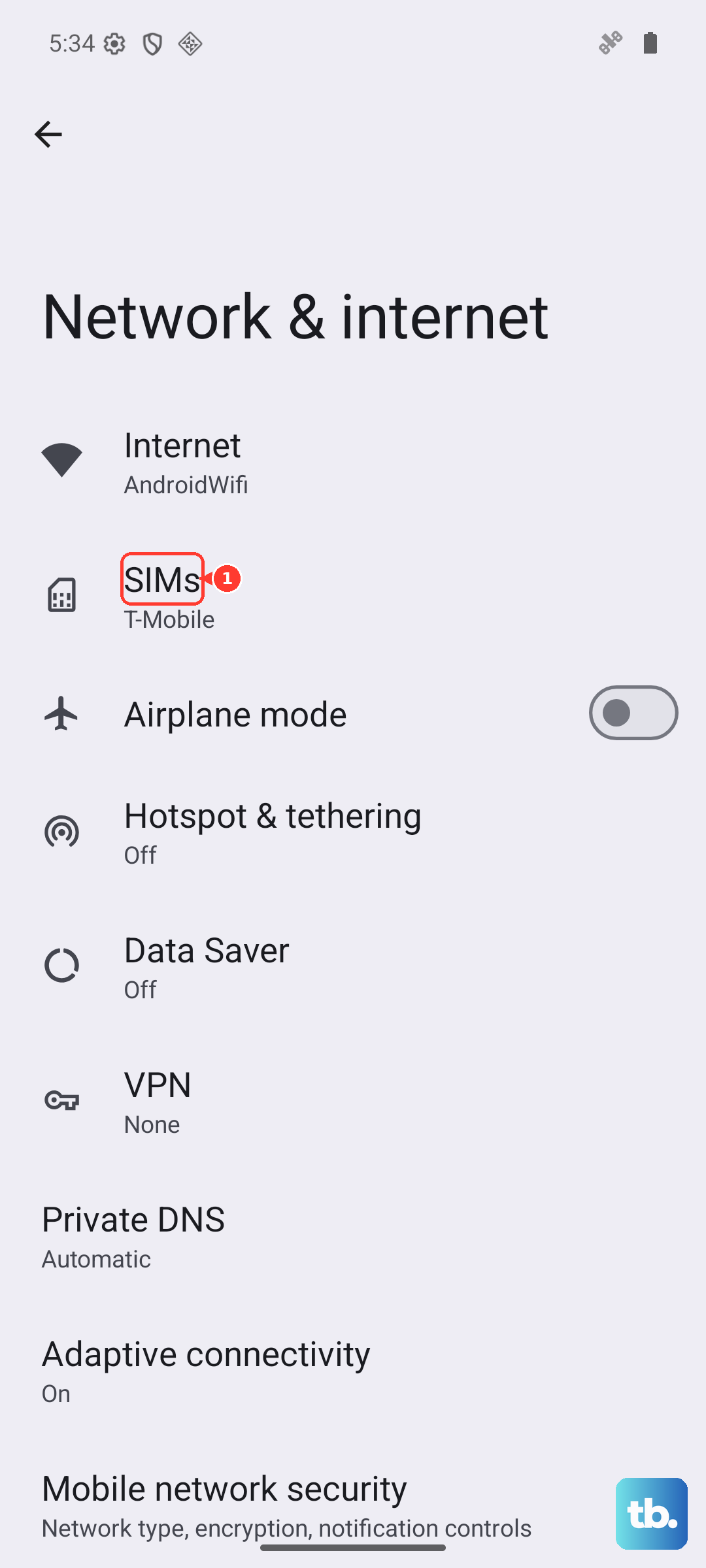
Go to Settings > Network & internet > SIMs > [Your Carrier] > Preferred network type. Try switching from 5G to LTE, then test a call. If that helps, leave it on LTE for a while. You can also toggle VoLTE on and off from the same menu if available.
10. Dial the Carrier's Service Code
Each carrier has a service code that refreshes your connection to their network. It's like a mini network reset that doesn't touch your phone settings.
Open the Phone dialer and enter your carrier's specific code, for example, *#*#4636#*#* on T-Mobile or Verizon (this opens testing options). Or simply call your carrier's customer support and ask them to refresh your line. In many cases, they can send a signal that resolves dropping calls in under a minute.